

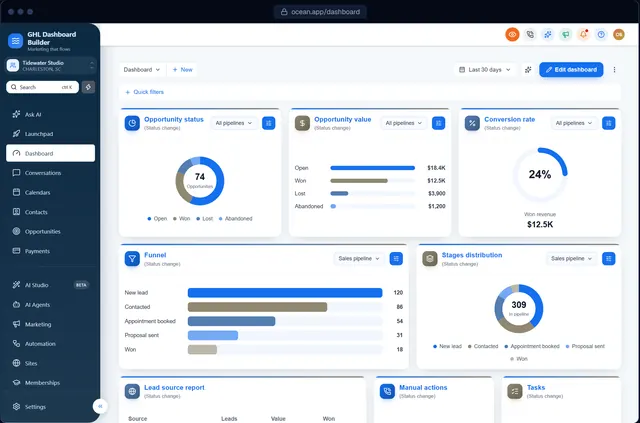
You are on a sales call, sharing your screen to show a prospect how your HighLevel (also called GoHighLevel or GHL) setup handles leads, and you have no GoHighLevel privacy mode switched on. You click into Contacts to make a point, and for three seconds the prospect sees the names, phone numbers and email addresses of another client’s customers. Nobody says anything. But the prospect has just learned how you treat data, and so has anyone watching the recording later. The same thing can happen on onboarding calls, support sessions and training videos, in agencies that never meant to share anything.
This guide explains how to prevent it. It covers what a GoHighLevel privacy mode is, where client data appears on the screens you share most, how GHL Dashboard Builder’s privacy mode blurs it with one click, how to set up a safe demo sub-account, how HighLevel’s own permissions fit in, and what no blur can protect. The goal is simple: a dashboard that looks like your own software and lets your team share it without exposing anyone’s customers. GHL Dashboard Builder is an independent service and is not affiliated with HighLevel, so we also point out where our feature stops and other measures take over.
What is GoHighLevel privacy mode, and does HighLevel have one built in?
A GoHighLevel privacy mode is a switch that hides personal data on the screen, such as contact names, emails, phone numbers and deal values, while you share your screen or record a video. At the time of writing, we could not find a one-click blur like this in HighLevel’s help center; it is added with custom code.
HighLevel does have controls for data access, and they matter. Each sub-account user is an Admin or a User, and a User can be limited to the records assigned to them with the Only Assigned Data permission. Those settings decide what a person is allowed to see. They do not help when the person who is allowed to see everything (you, an account manager, a support specialist) shares a screen with someone who is not.
That is the gap a privacy mode fills. It does not change who may see data. It changes what is visible on one screen, for as long as the switch is on. Think of it as a curtain you pull across the window before a visitor walks past, not a lock on the door. You need both.
Three terms appear throughout this guide:
- Sub-account: one client’s workspace in HighLevel. HighLevel also calls it a location.
- Agency view: where you manage all sub-accounts and agency-wide settings, including the Custom Code boxes where a theme or privacy mode is installed.
- Demo sub-account: a sub-account you create only for demos and training, filled with sample data instead of real customers.
Where does client data show up during a GoHighLevel screen share?
Client data shows up on almost every HighLevel screen that agencies share: the contact list, conversations, the pipeline board, calendars, payments and the Dashboard itself. The risk is highest on the screens you open without thinking, such as Conversations when a notification arrives, or the Dashboard you land on after logging in.
The table below lists the screens agencies share most often on calls, what personal data each shows by default, and why it gets opened during a call. It is a map of where to be careful, not a full inventory of HighLevel.
| Screen | Personal data it shows | Why it gets opened on calls |
|---|---|---|
| Dashboard | Widgets with recent contacts, opportunity values, appointments | It is the first screen after login |
| Contacts (Smart Lists) | Names, emails, phone numbers, tags | To show lead capture or segmentation |
| Contact detail page | Full profile, notes, activity, custom fields | To show automation history for one lead |
| Conversations | Customer names, message previews, phone numbers | To show replies, or because a message arrives |
| Opportunities board | Contact names on cards, deal values per stage | To show the pipeline and stage totals |
| Calendars and appointments | Names, times and sometimes reasons for a booking | To show booking flow and reminders |
| Payments and invoices | Customer names, amounts, invoice details | To show how billing works |
| Reporting | Revenue figures, campaign results, sometimes contact names | To prove results to a client |
Two screens deserve special attention. The Dashboard is the easiest to share by accident, because it is where every session starts. If your Dashboard shows recent contacts or pipeline values, the exposure happens before you have said hello. The Conversations screen is risky because it moves: a new message pushes a customer’s name and the first words of their message to the top of the list while you are talking.
If you serve regulated clients, such as clinics and law firms, the same screens can show health or legal details in notes and custom fields. Our setup guide for dental and medical practices covers how a clinic’s HighLevel account is usually organized, which tells you where those details sit.
Why does showing client data on a call matter?
Showing client data on a call matters for three reasons: your clients’ customers never agreed to be seen by your prospects, privacy laws ask businesses to use only the data a task needs, and every prospect judges how you will treat their data by how you treat other clients’ data on screen.
Trust: prospects watch what you show
A prospect cannot audit your security. What they can see is whether you open a real client’s contact list on a sales call. Agencies sell HighLevel as the system that holds a business’s most valuable asset, its customer list, so a careless screen share undermines the pitch at the exact moment you make it. The reverse is also true: switching on a privacy mode before you share, and saying that you are doing it, is a small, visible signal that you take data seriously.
The law: use only what the task needs
Privacy laws express the same idea in formal terms. The EU’s General Data Protection Regulation lists “data minimisation” among its principles in Article 5(1)(c): personal data should be limited to what is necessary for the purpose. In the United States, the HIPAA Privacy Rule’s minimum necessary requirement asks covered entities to take reasonable steps to limit uses and disclosures of protected health information to the minimum needed for the purpose.
A demo to a prospect has no need for anyone’s real phone number. Hiding data you do not need to show is the practical version of both principles. It is not, on its own, compliance with either law, and this guide is not legal advice. HighLevel itself states that accounts are not HIPAA compliant by default and offers a separate paid HIPAA add-on; check that article for the current terms and price before you rely on it.
Recordings: a mistake that lasts
A live call ends. A recording is shared in a Slack channel, uploaded to a help center, sent to a new hire a year later and posted on YouTube as a tutorial. Every recorded walkthrough of a real account is a copy of the data on screen, kept for as long as the video exists. That is why the routines later in this guide treat recordings more strictly than live calls.
How does GHL Dashboard Builder’s privacy mode work?
GHL Dashboard Builder’s privacy mode adds an eye button to HighLevel’s header. Click it, and contact names, email addresses and phone numbers in tables, links and fields, the conversation list and opportunity values are blurred until you click it again. You choose how strong the blur is. It is included in every plan, starting with Starter.
GHL Dashboard Builder is an independent design service that turns the standard HighLevel (GoHighLevel) dashboard into a branded platform: your colors, menu, login design, privacy mode and your clients’ language, installed with two lines of code. Privacy mode is one of its 18 features, and it installs with the same two lines as the rest of the design, so you do not add a separate script for it.
What your team sees
Once installed, every user in the sub-accounts where the design is active has the eye button in the header, next to HighLevel’s own icons. The button is the same everywhere, so you can make “click the eye before you share” part of your team’s habits instead of a special procedure for some accounts. Data stays visible during normal work and is hidden only when someone chooses to hide it, so the button never gets in the way of daily tasks.
What gets hidden
| Data | Where privacy mode blurs it | Notes |
|---|---|---|
| Contact names | Tables, links and fields | Names that link to a contact |
| Email addresses | Tables, links and fields | Found automatically on HighLevel pages |
| Phone numbers | Tables, links and fields | Found automatically on HighLevel pages |
| Conversation list | Conversations screen | Customer names and message previews |
| Opportunity values | Pipeline board and opportunity cards | Deal amounts |
The layout of every screen stays the same while the data is blurred. That matters on a call: you can still show how a pipeline works, where a workflow tags a contact or how a conversation thread looks, without showing whose pipeline it is.
Privacy mode and the rest of the design at a glance
Privacy mode rarely travels alone. Agencies that care about how HighLevel looks on a call usually want the whole screen to look like their own product. The table lists the features that change what a prospect or client sees during a screen share, what each does for your clients, and the first plan that includes it. All 18 features are on the features page.
| Feature | What it does for your clients | Plan |
|---|---|---|
| Privacy mode | Eye button that blurs names, emails, phone numbers, conversations and deal values | Starter |
| Brand and colors | Your color system, fonts and favicon on every HighLevel screen | Starter |
| Welcome banner | A greeting with the user’s first name, date, clock and quick links on the Dashboard | Starter |
| Opportunities board | Branded stage headers and opportunity cards on the pipeline board | Starter |
| Chosen sub-accounts | The design, including privacy mode, limited to the sub-accounts you pick | Starter |
| Menu editor | Rename, reorder and hide any of HighLevel’s 19 menu items | Pro |
| Languages and right-to-left | Menu and navigation in 15 languages, right-to-left for Arabic, Urdu and Hebrew | Pro |
| Custom CSS and JavaScript | Your own code added to the design, such as extra elements to hide | Agency |
What the client sees afterwards: the same HighLevel with the same data, permissions and automations, in your colors, with an eye button they can use themselves when they share their screen with their own staff or suppliers. If you are curious how far the rest of the dashboard can be changed, our guide to everything you can customize on the GoHighLevel dashboard is the full map.
How do you set up privacy mode in GoHighLevel, step by step?
Set up privacy mode in three stages: try it in the free builder, turn it on in your design, and paste the two install lines into HighLevel’s Custom Code settings. The install takes about five minutes, and on the Pro and Agency plans we install it for you.
Stage 1: try it before you buy
- Open the free builder. It shows a live copy of HighLevel’s screens and never connects to your HighLevel account.
- Pick a template, or start from your own colors.
- Open the Privacy section and make sure privacy mode is enabled.
- Click the eye button in the preview’s header and look at the Contacts, Conversations and Opportunities screens with the blur on.
- Change the blur strength until names are unreadable but the layout is still clear. A stronger blur hides more; a lighter one keeps the screen easier to follow on a call.
Stage 2: include it in your design
When you choose a plan, privacy mode is part of the design we build with you. Tell us at the briefing stage which screens your team shares most, because that is where we check the blur first in the live preview link we send you. Starter includes one design; Pro includes up to three; Agency up to 100.
Stage 3: install it in HighLevel
- In the agency view, open Settings.
- Open Company, then the Whitelabel tab.
- Find Custom Code. Paste the CSS line into the custom CSS box and the JavaScript line into the custom JavaScript box.
- Save, then reload a sub-account where the design is active.
- Check that the eye button appears in the header. Click it on Contacts, Conversations and the Opportunities board, and confirm the data blurs.
HighLevel’s agency settings article describes the Custom Code section as the place for agency-wide CSS and JavaScript. Menu names in HighLevel move from time to time, so if your screen differs, search the help center for “Custom Code” at the time you install. Our guide to adding custom CSS to HighLevel explains the same boxes in more detail, including what HighLevel does and does not support.
Stage 4: test it like a careful prospect
Before your first real call, run one rehearsal. Share your screen to a second device or a colleague, switch privacy mode on and click through the screens in the table above. Watch the second screen, not your own. Anything you can still read there is something a prospect can read too, and it is worth telling us about before the call rather than after.
Blur, demo account, permissions or careful sharing: which approach fits which call?
No single method protects every kind of call. A blur protects live calls in real accounts, a demo sub-account protects sales demos and published videos, permissions protect against people who should never see data, and careful sharing habits catch what the others miss. Most agencies need two or three of them together.
| Approach | Best for | Protects | Does not protect | Effort |
|---|---|---|---|---|
| Privacy mode (blur on demand) | Support calls, onboarding in real accounts, internal reviews | Names, emails, phones, conversations and deal values on screen | Data you open in other tools; screens before you click the eye | One click per call, after a one-time install |
| Demo sub-account with sample data | Sales demos, webinars, published tutorials | Everything, because no real data exists in it | Calls where you must work in the client’s real account | A few hours to build, then upkeep |
| HighLevel permissions (Only Assigned Data) | Staff who should see only their own records | Records the user is not assigned | What the permitted user then shares on screen | Set per user in HighLevel |
| Careful sharing habits | Every call | Other tabs, desktop notifications, email | Data inside the HighLevel tab you share | A checklist and discipline |
The approaches also differ in how much work they take. The chart counts the numbered steps in each routine described in this guide, so you can see where the effort sits: a demo account is the most work to set up once, while privacy mode and permissions are short, one-time setups that then cost a click or nothing per call.
Privacy mode counts the try-out and install lists; after that, each call needs one click. Source: Counted from the step-by-step lists in this guide (October 2026).
None of them, on its own, closes the gaps outside HighLevel: other browser tabs, desktop notifications and your email inbox. That is why careful sharing habits sit next to whichever approach you choose, and why reports with revenue figures are best opened only when the person watching should see them.
A simple rule of thumb for which to use:
- Selling to a prospect? Use the demo sub-account. Keep privacy mode on as a second layer in case you click into the wrong account.
- Onboarding or supporting a client in their own account? Use privacy mode and the habit checklist. The client may see their own data; nobody else on the call should see their customers’ details more than needed.
- Recording anything that will be published? Use the demo sub-account only.
- Hiring staff or contractors? Use HighLevel permissions so they never had the data to share in the first place.
How do you build a safe GoHighLevel demo sub-account?
Build a demo sub-account by creating a separate sub-account, loading your usual snapshot so it has your pipelines, calendars and workflows, and filling it with invented contacts. Never copy real client data into it. Brand it exactly like a client account, so prospects see the finished product rather than a bare setup.
A snapshot, in HighLevel, is a saved copy of a sub-account’s setup (pipelines, workflows, calendars, funnels and similar assets) that you can load into another sub-account. Loading your standard snapshot into the demo account means the prospect sees the same system they would get, without anyone’s customers in it.
Steps
- In the agency view, create a new sub-account and name it clearly, for example “Demo, sample data only”, so nobody mistakes it for a client.
- Load your standard snapshot into it.
- Add 20 to 50 sample contacts with invented names. Spread them across pipeline stages and give a few of them appointments, notes and conversation history, so every screen you show has something on it.
- Use email addresses on example.com. That domain is reserved for documentation by RFC 2606, so a sample email cannot belong to a real person or reach a real inbox.
- Turn off or pause any workflow that sends real messages, so sample contacts do not trigger texts or emails to numbers that may exist.
- Brand the demo account with the same design you sell, including the welcome banner, your colors and the privacy button.
- Add a calendar reminder to refresh the sample data every few months, so dates on appointments and opportunities do not look stale.
Make the demo look like the product you sell
A demo account is a sales tool, so it should look finished. If you sell to one industry, use that industry’s words: a dental demo that says Patients instead of Contacts is far more convincing than a generic one. Our Clinic template shows what that looks like for healthcare, and the templates gallery has designs for real estate, gyms, legal, home services and more.
There is a practical way to brand only the demo account. GHL Dashboard Builder can limit a design to chosen sub-accounts, added by link or Location ID, from one install. You can therefore brand the demo sub-account first, use it in sales calls, and roll the same design out to client accounts once you are happy with it. Only one design is shown in the chosen sub-accounts; if you want different looks for different clients, talk to us about how to set that up.
How should you record GoHighLevel training videos without leaking data?
Record training videos and tutorials in a demo sub-account, not in a client account. Use privacy mode as a second layer in case you click into the wrong place, share one browser tab instead of the whole screen, and watch the video once before you send or publish it.
Why blur alone is not enough for published video
A blur hides text from a person watching a live call. A published video is different: anyone can pause it, zoom in and process the frames. In 2022 a researcher at the security firm Bishop Fox released a tool that recovered text from pixelated images, and his advice was to cover sensitive text with solid black bars rather than blurring or pixelating it. That research was about pixelated images, not a CSS blur in a browser, but the lesson carries over: for content that lives forever, the safest data is data that was never real.
A recording routine
- Open the demo sub-account in a fresh browser window with no other tabs.
- Switch privacy mode on, even though the data is fake. If you click into a real account by mistake, the blur catches it.
- Turn on your computer’s do-not-disturb setting, so desktop notifications do not appear over the recording.
- Share or record a single browser tab, not the whole screen. In Google Meet, presenting a Chrome tab instead of the whole screen shows only that tab, and other meeting and recording tools offer a similar window or tab option.
- Before you upload, watch the video at normal speed and pause on every screen that shows a list.
- If you find a real name or number, re-record the segment rather than blurring it in editing.
Live support calls are different
A support call usually has to happen in the client’s real account, because that is where the problem is. Here privacy mode does most of the work. Switch it on before you share, turn it off only when you need to read a specific record, and say so out loud (“I’m going to show this one contact now”). The client will notice the care, and other people on the call see only what they need to.
Should you limit what each user can see with HighLevel permissions?
Yes, for anyone who does not need every record. HighLevel’s sub-account roles (Admin and User) and the Only Assigned Data permission limit a user to the contacts, conversations, appointments and opportunities assigned to them. Permissions stop data from reaching the wrong person at all, which no blur can do.
How to set it
At the time of writing, HighLevel’s help center describes the steps like this:
- Inside the sub-account, open Settings, then My Staff (labelled Team in some accounts).
- Click the edit icon next to the user.
- Open Roles and Permissions.
- Set the role to User, then turn on Only Assigned Data.
- Save, then log in as that user (or ask them to) and check what they see.
According to HighLevel’s article on user roles, permissions and assigned data, Admins keep full access to the sub-account’s tools, settings and data, while the assigned-data restriction applies to users with the User role. Read the current article for the exact list of modules it covers, because HighLevel adds features often and the list changes.
How permissions and privacy mode work together
Permissions and privacy mode solve different problems, and agencies need both:
- Permissions decide who may see a record. A sales rep with Only Assigned Data never loads another rep’s contacts.
- Privacy mode decides what is visible on one screen right now. The account owner, who may see everything, blurs it before sharing.
A typical agency setup has client staff on limited User roles, the client’s owner and your account managers as Admins, and privacy mode available to all of them for screen shares. The GoHighLevel white-label checklist puts this protection layer in context with the other 24 items to set up before a client’s first login.
What can go wrong, and what doesn’t privacy mode hide?
Privacy mode is a visual layer in the browser of the person who switches it on. It does not remove data from the page, change permissions, affect other users or the mobile app, or reach HighLevel screens that do not load custom code. Knowing its limits is what makes it safe to rely on.
| Limit | What it means on a call | What to do instead |
|---|---|---|
| It depends on someone clicking it | A screen shared before the eye is clicked shows data | Check the eye’s state at the start of every call and after opening a new tab |
| It is visual only | The data is still in the page; a screen reader, copy and paste or developer tools can reach it | Use permissions for people who must not see data |
| Contact names are best effort | Names that link to a contact are found; a name typed into free text, such as a note, may not be | Avoid opening notes on calls, or use the demo account |
| Some HighLevel sections do not load custom code | Parts that run as separate embedded apps, such as the workflow builder, keep HighLevel’s own look and no blur | Check those screens in your rehearsal; do not rely on the blur there |
| Not in the mobile app | Custom code runs only in the web app in a browser | Use the demo account when sharing a phone |
| Not in other tools | Exports, emails, reports you download and other software are untouched | Close other tabs; share one tab only |
| Platform updates | HighLevel does not officially support custom code, so a large update can require a theme refresh | Starter and Pro include 12 months of updates; Agency includes lifetime updates |
Two of these deserve a little more explanation.
HighLevel updates. HighLevel changes its interface often, and custom code is not officially supported, so a large update can stop part of a theme or privacy mode from working until it is refreshed. Starter and Pro include 12 months of updates that cover this, then optional updates at $99 a year; Agency includes lifetime updates. Without updates, the theme keeps working as it is, but a future HighLevel change may need a refresh.
What privacy mode is not. It is not encryption, not access control and not a compliance certificate. If a prospect asks how you protect their data, privacy mode is part of a good answer about screen sharing. The full answer also covers permissions, contracts and, for health data, HighLevel’s own HIPAA add-on described earlier.
How much does privacy mode cost, and which plan should you choose?
Privacy mode is included in every GHL Dashboard Builder plan, starting with Starter at $180 as a one-time payment. There are no monthly fees. Choose by how many designs you need and whether you want the menu editor, languages and installation by our team.
Source: GHL Dashboard Builder pricing, October 2026 (config/site.ts). One-time payments, no monthly fees.
- Starter ($180) is enough if privacy mode and a branded look for your whole agency, or for the sub-accounts you choose, is what you need. It includes one design, any of the 27 templates customized to your brand, the welcome banner, the opportunities board styling, privacy mode, one round of changes and 12 months of updates. You paste the two install lines yourself, with a step-by-step guide.
- Pro ($280) suits agencies that also want each client’s words in the menu, a branded login page (12 designs) and the menu in the client’s language (15 languages, with right-to-left for Arabic, Urdu and Hebrew). It includes up to three designs, for example one for your demo account and one for a key client, and we install it for you.
- Agency ($880) suits agencies branding many client accounts: up to 100 designs, a look designed from scratch by our team, your own custom CSS and JavaScript, a 30-minute onboarding call and lifetime updates.
Starter and Pro include 12 months of updates; after that, updates are optional at $99 a year. You can upgrade later by paying the difference between plans. The full contents of each plan are on the pricing page, and common questions about installing, removing and updates are answered in our FAQ.
What to do next
- Map your risky screens. Use the screen table in this guide and mark the screens your team opens on calls. Those are the ones to rehearse.
- Try the eye button in the free builder. Turn privacy mode on, look at Contacts, Conversations and the pipeline board, and adjust the blur strength.
- Build a demo sub-account. Load your snapshot, add invented contacts on example.com addresses, pause sending workflows and brand it like a real client.
- Check your permissions. Give staff who only need their own records the User role with Only Assigned Data, and keep Admin for the people who need everything.
- Write a one-line rule into your call checklist: before any screen share, click the eye or switch to the demo account, share one tab, and turn on do-not-disturb.
If you work with SaaS-mode resellers, niche agencies or teams in several languages, our who it’s for page shows how other kinds of agencies use the same features.