

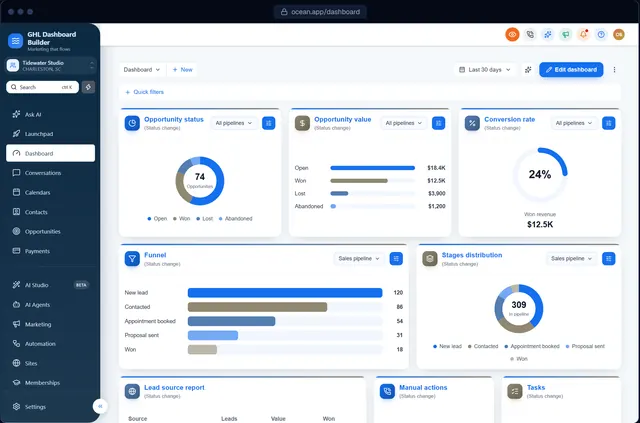
Your biggest client has asked why their CRM still looks like everyone else’s, and you would like to give them a HighLevel (also called GoHighLevel or GHL) account in their own colors, with their own words in the menu. But GoHighLevel sub-account branding is not as simple as it sounds. The moment you paste custom CSS into your agency settings, every client’s account changes at once, including the ones that are happy as they are and the ones you have trained on screenshots of the old look.
This guide explains how to brand one sub-account, or a hand-picked few, while the rest of your agency stays exactly as it is. It covers what HighLevel lets you change per sub-account on its own, why custom code is agency-wide, how a Location ID decides where a design appears, a step-by-step setup, the use cases that justify it (a premium client, a pilot, a niche client, a client in another language), and the limits you should know before you sell it. GHL Dashboard Builder is an independent service and is not affiliated with HighLevel, so we point out where HighLevel’s own tools already do the job and where ours stop.
What is GoHighLevel sub-account branding?
GoHighLevel sub-account branding means giving one client’s workspace its own look and wording: colors, fonts, sidebar, menu names, dashboard greeting and sometimes language. HighLevel stores some branding per sub-account, such as the business name and logo, but the visual design of the app is set at agency level and applies to every sub-account.
Three terms are worth fixing before going further:
- Sub-account: one client’s workspace in HighLevel. HighLevel also calls it a location, which is why its unique code is called a Location ID.
- Agency view: where you manage all sub-accounts and agency-wide settings, including white-label and Custom Code.
- Design (or theme): a complete look for HighLevel’s interface, delivered as CSS (styles) and JavaScript (behavior) that HighLevel loads in the browser.
What HighLevel already lets you set per sub-account
Some branding really is per client in HighLevel, and you should use it before adding anything else. Inside a sub-account, Settings opens on the Business Profile page. According to HighLevel’s Business Profile Settings article, that page holds the sub-account’s friendly business name and logo, which HighLevel uses in places such as invoices, emails and custom values like {{location.name}} and {{location.logo_url}}. The same page shows the sub-account’s Location ID.
So a client’s own name and logo can already appear in the messages their customers receive. What Business Profile does not change is how the HighLevel app looks to the client and their staff when they log in: the sidebar, header, buttons, cards, menu names and dashboard.
What is set once for the whole agency
The app’s look is controlled from the agency view. HighLevel’s Agency Settings article describes the Custom Code section, where an agency adds its own CSS and JavaScript to style the interface and add third-party tools. A white-label domain, such as app.youragency.com, is also an agency setting; HighLevel’s guide to setting up a whitelabel domain for the desktop app walks through the DNS record it needs.
That split is the whole problem in one sentence: the client’s name is per sub-account, but the client’s experience of the software is per agency.
Can each GoHighLevel sub-account have its own look?
Not with HighLevel’s settings alone, at the time of writing. Custom CSS and JavaScript are pasted once at agency level and load in every sub-account. To give one sub-account a different look, the code has to check which sub-account is open, by its Location ID, and apply the design only there.
Agencies have asked HighLevel for this. A request on HighLevel’s ideas board for per sub-account customization of colors, CSS and JavaScript describes the same limitation: branding added through Custom Code applies to all sub-accounts. A feature request is not documentation, and HighLevel changes quickly, so check your own Agency Settings before you rely on any description of them, including ours.
SaaS Multi-Brands: HighLevel’s answer for separate brands
HighLevel does have a feature for agencies that run more than one brand. Its SaaS Multi-Brands overview describes managing multiple brand identities in one account, each with its own branding and domain settings, and mapping sub-accounts to a brand directly or through SaaS plan categories. If you sell two separate products under two names, read that article first; check which HighLevel plan it requires on the day you set it up.
Multi-Brands is built for brands you own, such as a dental CRM and a real estate CRM sold side by side. It is less suited to the everyday case this guide covers: one client, or a small group of clients, who should get a designed, branded app experience while everything else stays as it is.
How a Location ID makes per-client branding possible
Every HighLevel sub-account URL contains its Location ID, in the form …/v2/location/<id>/dashboard. A script loaded through Custom Code can read that part of the address, compare it with a list, and decide whether to switch the design on. If the open sub-account is on the list, the design appears; if not, the script does nothing and the page stays plain HighLevel.
You can write that script yourself if you are comfortable with JavaScript. Our complete guide to HighLevel custom CSS explains how the Custom Code boxes work and why styles need careful scoping. The difficult part is not the check itself but everything around it: every style rule must apply only when the check passes, the design must switch off cleanly when a user moves to another sub-account, and nothing may leak into the agency view.
Why brand one client instead of your whole agency?
Brand one client when the design is part of what that client pays for, when you want to test a look before rolling it out, or when one client needs different words or a different language from everyone else. Branding a single sub-account lets you sell, test and adapt without retraining every client at once.
These are the situations where agencies most often want a design on some sub-accounts and not others:
| Situation | Why not brand the whole agency | What the chosen sub-accounts get |
|---|---|---|
| A premium or VIP client | The branded app is part of a higher-priced package | Their colors, fonts, sidebar and dashboard greeting |
| A pilot before a full roll-out | You want feedback before every client’s screens change | The new design, on one friendly client’s account |
| One niche client | Their industry uses different words (Patients, Listings, Members) | Industry wording in the menu and a matching template |
| A client in another language | Only this client’s team works in Arabic, Spanish or German | The menu and navigation in their language, right-to-left where needed |
| A SaaS-mode upsell | Branding is a paid add-on, not part of every plan | The design, added when the client upgrades |
| Your own demo account | Prospects should see the finished product; clients should not see changes | A polished demo, without touching client accounts |
The pilot is the safest way to start
Many agencies start with a pilot even when they plan to brand everyone eventually. Changing the look of software that clients use daily creates support questions: “Where did Conversations go?”, “Why is the sidebar a different color?”. Branding one friendly client first shows you which questions come up, which wording works and which screens need a second look. Once the design is right, you switch it to the whole agency.
Why it matters to the client
A client who opens HighLevel every morning sees whatever brand is on the screen. If that brand is yours, or theirs, the software reads as a product they chose rather than a login they were handed. We cannot promise what that does for any particular agency’s retention or pricing, and nobody honestly can, but it is the reason agencies ask for per-client branding in the first place. Our guide on how to white-label HighLevel so it looks like your own software covers the wider white-label picture: domain, logo, mobile app and dashboard.
How does GHL Dashboard Builder brand chosen sub-accounts?
GHL Dashboard Builder has a setting called Chosen sub-accounts. You add each sub-account by its link or Location ID, install the code once at agency level, and the design appears only inside those sub-accounts. Every other sub-account, the agency view and the login page stay plain HighLevel. It is included in every plan.
GHL Dashboard Builder is an independent design service that turns the standard HighLevel (GoHighLevel) dashboard into a branded platform: your colors, menu, login design, privacy mode and your clients’ language, installed with two lines of code. Limiting a design to chosen sub-accounts is one of its 18 features, and it uses the same two lines as an agency-wide install.
What happens behind the two lines
When a design is limited to chosen sub-accounts, the install code carries the list of Location IDs. On each page, a small check reads the Location ID from the address. If it is on the list, the design’s styles switch on and its scripts run; if not, the styles do not match anything and the scripts never start. Moving between a listed sub-account and anywhere else reloads the page once, so the look switches cleanly rather than half-applying, and the design is removed as soon as a user leaves a listed sub-account.
The features a branded sub-account gets, at a glance
Everything in the design travels with it into the chosen sub-accounts. The table lists the features that matter most when you brand a single client, what each does for that client, and the first plan that includes it. All 18 features are described on the features page.
| Feature | What it does for the client in a chosen sub-account | Plan |
|---|---|---|
| Chosen sub-accounts | The design shows only in the sub-accounts you list (up to 200 per design) | Starter |
| Brand and colors | Their color system, fonts and favicon on HighLevel’s screens | Starter |
| Sidebar and header | HighLevel’s own sidebar and header in their colors, with a branded sub-account switcher | Starter |
| Welcome banner | A greeting with the user’s first name, date, clock and quick links on the Dashboard | Starter |
| Opportunities board | Branded stage headers and opportunity cards on the pipeline board | Starter |
| Privacy mode | An eye button that blurs names, emails, phone numbers, conversations and deal values | Starter |
| Menu editor | Rename, reorder and hide any of HighLevel’s 19 menu items | Pro |
| Languages and right-to-left | Menu and navigation in 15 languages, right-to-left for Arabic, Urdu and Hebrew | Pro |
| Custom CSS and JavaScript | Your own code added to the design | Agency |
What the client sees, and what stays plain
After the install, the client’s team logs in through your usual HighLevel domain, picks their sub-account (or lands in it directly), and sees HighLevel in their design: the same pages, data, automations and permissions, with the new look. Nothing about how HighLevel works for them changes.
| Where | With the design limited to chosen sub-accounts |
|---|---|
| Listed sub-accounts | The full design: colors, sidebar, menu, welcome banner, board, privacy mode |
| Every other sub-account | Plain HighLevel, exactly as before; the design’s scripts do not run |
| Agency view and agency settings | Plain HighLevel |
| Login page | HighLevel’s own login page, with your agency’s white-label domain and logo |
| HighLevel mobile app | Not changed; custom code runs in the web app in a browser |
The login page stays plain for a simple reason: it is shared by the whole agency and appears before anyone has picked a sub-account, so there is no Location ID to check yet.
How do I find a sub-account’s Location ID in GoHighLevel?
Open the sub-account and look at the browser’s address bar: the Location ID is the part after /location/. You can also open Settings inside the sub-account, then Business Profile, where HighLevel shows the Location ID. Either way takes less than a minute.
HighLevel’s help article on finding a client’s Location ID describes both routes. At the time of writing they work like this:
Option 1: from the address bar
- From the agency view, switch into the client’s sub-account.
- Look at the address bar. The URL looks like
app.youragency.com/v2/location/n3LQkhEfokxbrxga1Xl5/dashboard. - Copy the code between
/location/and the next slash. In this example,n3LQkhEfokxbrxga1Xl5is the Location ID.
Option 2: from Business Profile
- Inside the sub-account, open Settings.
- Business Profile opens first. Find the Location ID on that page.
- Copy it with the copy button next to it, if your version shows one, so you do not mistype a character.
Two practical tips
You do not have to clean up the link before you use it in GHL Dashboard Builder. Paste the whole URL from inside the sub-account, and the ID is picked out for you; if the text is not a valid ID or HighLevel link, the field says so before you save. Add a name next to each ID, such as “Bright Smile Dental”, so the list still makes sense in six months.
HighLevel’s article also advises against sharing a Location ID outside your organization. Treat it like an internal account number: fine to paste into your own tools, not something to post in a public forum or a support thread with strangers.
How do you set up GoHighLevel sub-account branding, step by step?
Set it up in four stages: design the look in the free builder, switch the scope to Chosen sub-accounts and add the Location IDs, paste the two install lines into HighLevel’s Custom Code, then test a listed and an unlisted sub-account. The install itself takes about five minutes, and on Pro and Agency we install it for you.
Stage 1: design the look
- Open the free builder. It shows a live copy of HighLevel’s screens and never connects to your HighLevel account.
- Pick a template from the 27 designs in the templates gallery, or start from the client’s own colors and logo.
- Check the result on desktop, tablet and phone in the live preview.
- Turn on the parts the client will notice most: the welcome banner, the opportunities board and privacy mode.
Stage 2: choose where the design shows
- In the editor’s Go live section, set Show this design in to Chosen sub-accounts.
- Paste the client’s Location ID, or the whole link from inside their sub-account, into the Location ID field.
- Add a name for the sub-account (optional, but useful later) and add it to the list.
- Repeat for any other sub-account that should get the same design, up to 200 per design.
If you choose Chosen sub-accounts and leave the list empty, the editor warns you that the design will show nowhere. That is deliberate: an empty list never falls back to branding the whole agency by surprise.
Stage 3: install it in HighLevel
- In the agency view, open Settings.
- Open Company, then the Whitelabel tab, and find Custom Code.
- Paste the CSS line into the custom CSS box and the JavaScript line into the custom JavaScript box. The JavaScript is what switches the design on for the listed sub-accounts.
- Save.
If these boxes already contain code from another tool, such as a chat widget or an older theme, keep a copy before you change anything. Our guide to everything you can customize on the GoHighLevel dashboard explains how several pieces of custom code can share the same boxes.
Stage 4: test both sides
- Open a listed sub-account and reload. The design should appear.
- Switch to a sub-account that is not on the list. The page reloads once and shows plain HighLevel.
- Return to the agency view and confirm it is plain.
- Log out and check that the login page is unchanged.
- Ask someone with a User role in the client’s sub-account to log in and confirm what they see.
The chart counts the numbered steps in each stage of this walkthrough, so you can see where the work sits. Most of the effort is in design and testing; the install is the shortest part.
Stage 3 takes about five minutes; on Pro and Agency we do it for you. Source: Counted from the step-by-step lists in this guide (October 2026).
Changing the list later
When a new client upgrades, or a pilot ends, edit the list in the builder or your account dashboard. Then copy the updated install code and paste it into HighLevel’s Custom Code boxes again, and repeat the Stage 4 checks. Changes to the design itself, such as a new color or a renamed menu item, go live when you press Deploy to live; changes to which sub-accounts get the design are a deliberate re-paste, so the list in HighLevel always matches what you approved.
How do you give one client their own menu wording?
Use the menu editor to rename, reorder and hide HighLevel’s menu items in the design you limit to that client. A dental clinic can see Patients instead of Contacts, while your other clients keep the menu they know. The menu editor is part of the Pro and Agency plans.
Industry wording is often the most visible change a single client notices, more than colors. HighLevel’s menu uses general terms (Contacts, Opportunities, Conversations) that suit every business and none in particular. A clinic’s front desk thinks in patients and appointments; a real estate team thinks in listings and buyers; a gym thinks in members.
How menu wording and chosen sub-accounts work together
The menu editor changes the labels and order of HighLevel’s 19 menu items inside the design. Because the design is limited to the chosen sub-accounts, the new wording only appears there:
- Start from an industry template, such as the Clinic template for healthcare, which already uses healthcare wording.
- In the menu editor, adjust names to the client’s own words. Ask them which terms their staff actually use.
- Hide menu items the client does not use, so their team sees a shorter, clearer menu.
- Reorder what is left so their most-used pages come first.
- Limit the design to their sub-account and deploy it.
Hiding a menu item in the design is a matter of what is shown, not of access: it tidies the menu, but it does not replace HighLevel’s user permissions. If a user must not reach a page, set that in HighLevel’s roles. Our setup guide for dental and medical practices shows how a clinic’s account is usually organized, and which menu items such clients tend to use.
How do you put one client’s sub-account in another language?
Set the design’s language to the client’s language and limit the design to their sub-account. The menu and navigation then appear in that language, right-to-left for Arabic, Urdu and Hebrew, while your other clients keep their usual menu. Languages are part of the Pro and Agency plans.
This is a common reason for per-client branding in agencies that serve mixed markets: most clients work in English, but one client’s team works in Arabic, or Spanish, or German. Changing the whole agency’s menu language would confuse everyone else. Limiting a design with the client’s language to their sub-account solves it.
What is translated, and what is not
Be exact with the client about what changes, because it avoids disappointment later:
- Translated by the design: the dashboard’s menu and navigation, in 15 languages, with right-to-left layout for Arabic, Urdu and Hebrew, and your own wording for any label.
- Not translated by the design: text inside HighLevel’s own pages and builders, system emails and the mobile app. Those follow HighLevel’s own language settings for each user.
So an Arabic-speaking client gets a right-to-left sidebar with Arabic menu names, and HighLevel’s own language setting covers much of the text inside pages. Our Arabic dashboard guide walks through that combination in detail, and the Arabic language page shows the translated menu.
One language per design
A design has one menu language. If two clients need two different languages at the same time, that is the same question as two different looks for two clients: one install shows one design in the chosen sub-accounts, so contact us before you buy and we will tell you what is possible for your setup. The full list of supported languages is on the languages page.
GoHighLevel sub-account branding options compared
There are four realistic ways to give one client a different experience in HighLevel: the per-sub-account settings HighLevel already has, HighLevel’s SaaS Multi-Brands, a Location ID script you write yourself, and a ready-made scoped design. They differ in what they change, how much work they take and who maintains them.
| Option | What it changes for one client | Effort | Upkeep | Best for |
|---|---|---|---|---|
| Business Profile (built in) | Business name and logo used in invoices, emails and custom values | Minutes per sub-account | None | Every client, always |
| SaaS Multi-Brands (built in) | Separate brand identities with their own branding and domains, mapped to sub-accounts or SaaS plan categories | Setup per brand; check plan requirements | HighLevel maintains it | Agencies selling two or more products under different names |
| Agency-wide Custom Code | Everything you code, but for every sub-account at once | Hours to days of CSS and JavaScript | You fix it after HighLevel updates | Agencies that want one look everywhere and can code |
| Your own Location ID script | Everything you code, only where the ID matches | Days, including scoping every style rule | You fix it after HighLevel updates | Developers with time to maintain it |
| GHL Dashboard Builder, Chosen sub-accounts | A full design (colors, sidebar, menu, banner, board, privacy, language) in listed sub-accounts | Design in the builder, about five minutes to install | 12 months of updates on Starter and Pro, lifetime on Agency | Agencies that want per-client branding without writing code |
How to choose
- Always fill in Business Profile for every sub-account. It is free, built in and affects what the client’s customers receive.
- If you run separate product brands, read HighLevel’s SaaS Multi-Brands article before anything else; it may be the right foundation, with a design on top.
- If you or someone on your team writes JavaScript comfortably and has time for upkeep, a hand-written Location ID script is possible. Budget for re-testing after HighLevel updates.
- If you want a designed result for one client, a pilot or a demo account without coding, a scoped design is the shortest route.
The approaches can be combined. A sub-account can have its own Business Profile logo, sit under a Multi-Brands brand and also get a scoped design. What you should avoid is two pieces of code that both restyle the same screens, because they will fight each other.
What can go wrong with single sub-account branding?
Most problems come from three places: the list of Location IDs not matching what is pasted in HighLevel, users who move between sub-accounts, and HighLevel updates. Knowing the limits in advance lets you set the right expectations with the client and test the right things.
| Limit or risk | What it means in practice | What to do |
|---|---|---|
| One design per install | The chosen sub-accounts all see the same design | For different looks for different clients, talk to us before buying |
| List changes need a re-paste | Adding a sub-account in the builder does nothing until the updated code is in HighLevel | Re-paste after every list change and test a listed sub-account |
| Login page stays plain | Clients see your agency’s login page, not their own design | Use HighLevel’s white-label domain and logo for the login |
| Page reloads when switching | Staff who jump between sub-accounts see one reload at the switch | Mention it to your team; it is how the look switches cleanly |
| Mobile app unchanged | Custom code runs only in the web app in a browser | Set expectations; use HighLevel’s white-label mobile app settings for the app |
| HighLevel updates | HighLevel does not officially support custom code, so a large update can require a theme refresh | Starter and Pro include 12 months of updates; Agency includes lifetime updates |
| Mistyped Location ID | The design shows nowhere for that client | Paste the whole link and let the ID be picked out |
Agency staff see the client’s design too
The design follows the sub-account, not the person. When your account managers open a listed client’s sub-account, they see the client’s design; when they move to another client, they see that client’s view. That is usually what you want, because you see what the client sees, but brief your support team so a different-looking sidebar does not surprise them on a call.
Privacy mode follows the design
Privacy mode, the eye button that blurs client data on screen shares, is part of the design. If the design is limited to chosen sub-accounts, so is the eye button. If your team relies on privacy mode for every support call, consider whether it should be agency-wide; our guide to GoHighLevel privacy mode explains where client data shows up and how a demo sub-account fits in.
Updates and removal
Custom code is not officially supported by HighLevel, and a large HighLevel release can stop part of any theme working until it is refreshed. Starter and Pro include 12 months of updates that cover this, then optional updates at $99 a year; Agency includes lifetime updates. Without updates, the theme keeps working as it is. To remove the design completely, clear the two Custom Code boxes; every sub-account returns to plain HighLevel at once.
How much does single sub-account branding cost, and which plan fits?
Branding chosen sub-accounts is included in every GHL Dashboard Builder plan, starting with Starter at $180 as a one-time payment. There are no monthly fees. Choose by whether the client needs their own menu wording and language (Pro and up) and how many saved designs you want to keep.
Source: GHL Dashboard Builder pricing, October 2026 (config/site.ts). One-time payments, no monthly fees.
- Starter ($180) fits a pilot or a premium client whose main need is their brand on the screen. It includes one design, which can cover your whole agency or only the sub-accounts you choose, built from any of the 27 templates customized to your brand, with the welcome banner, the appointments board, privacy mode, one round of changes and 12 months of updates. You paste the two install lines yourself, with a step-by-step guide.
- Pro ($280) fits a client who should see their own words and language: the menu editor (19 menu items), 15 menu languages with right-to-left for Arabic, Urdu and Hebrew, a branded login design (12 designs), up to three saved designs, three rounds of changes, and installation by our team.
- Agency ($880) fits agencies that brand many client accounts: up to 100 saved designs, a look designed from scratch by our team, custom CSS and JavaScript, a 30-minute onboarding call, five rounds of changes and lifetime updates.
What “designs” means for per-client branding
A design is one complete look. A plan’s design count is how many designs you can keep in your account: for example, the live client design, a draft of the next version and your demo account’s look. One install shows one design in the sub-accounts you choose. If your plan is to run different looks for different clients at the same time, talk to us first so we can plan it with you; we would rather say what is possible before you buy than after. You can upgrade later by paying the difference between plans: $100 from Starter to Pro, $600 from Pro to Agency.
Pricing it to your client
You pay us once and decide what the client pays you: a setup fee, a premium tier or part of a monthly retainer. We take no share and charge no per-client fee. If you sell HighLevel in SaaS mode, HighLevel’s SaaS mode setup guide explains how plans and rebilling work on HighLevel’s side; branding can sit next to those plans as an add-on you price yourself. We cannot tell you what your market will pay, so test the price with one client before you add it to every proposal. The pricing page lists the full contents of each plan, and the FAQ covers installing, removing and updates.
What to do next
- Pick the first sub-account. Choose one client who would value a branded account and is happy to give feedback, or your own demo account. Fill in their Business Profile name and logo in HighLevel first.
- Copy their Location ID. Take it from the address bar after /location/, or from Settings, then Business Profile, inside their sub-account.
- Design their look in the free builder. Start from an industry template, use their colors, and if they need it, their menu wording and language.
- Limit it to Chosen sub-accounts, install and test. Check a listed sub-account, an unlisted one, the agency view and the login page.
- Decide how to sell it. Write down what the branded account includes and what it does not (login page, mobile app, text inside HighLevel’s pages), and price it before you offer it to the next client.
Before you brand more clients, run through our GoHighLevel white-label checklist so the domain, email sender and other built-in settings are in place too. If you are a SaaS-mode reseller or a niche agency, our who it’s for page shows how other kinds of agencies use per-client branding.