

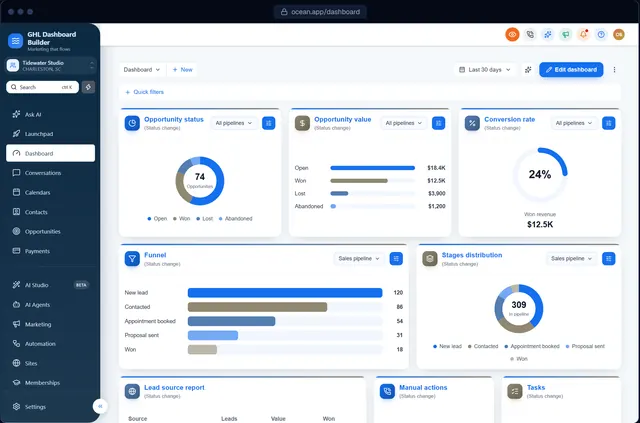
A dental practice has patients, a law firm has matters, a gym has members and a roofing company has jobs. HighLevel (also called GoHighLevel or GHL) calls them Contacts and Opportunities, and the rest of the menu speaks the same generic software language: Calendars, Memberships, Payments, Reputation. Every new hire at your client asks what the words mean, and every training video needs a sentence of translation. So agencies search for how to rename the GoHighLevel menu, and they find half-answers: old posts that say it is impossible, and code snippets that say nothing about what happens after an update.
This guide gives the full answer as it stands at the time of writing. It covers what HighLevel’s own Objects setting now renames (and where it stops), which of the 19 menu items need custom code, step-by-step instructions for both routes, the right words for common industries, menus in other languages, how renames behave after HighLevel updates, how to give one client its own wording, and the limits nobody mentions. Where GHL Dashboard Builder helps, we say which plan includes it. We are an independent service, not affiliated with HighLevel, and we point out where HighLevel’s own settings are the better choice.
Can you rename menu items in GoHighLevel?
Partly. HighLevel’s own settings now rename three standard objects, Contacts, Opportunities and Companies, and the new names show in the menu. The other built-in menu items have no rename setting at the time of writing. Renaming them, and reordering or hiding any item, takes custom JavaScript in the agency’s Custom Code settings.
The picture changed in October 2025. HighLevel’s changelog entry on renaming standard objects announced that admins can rename Contacts, Opportunities and Companies to words such as Clients, Deals or Organizations, and that the new names show across navigation menus, filters, reports and dashboards. Many older guides, including some HighLevel community answers, still say no rename is possible. For those three items, that is no longer true.
A few terms help, because HighLevel uses them precisely:
- Menu item: one entry in the left sidebar of a sub-account, such as Dashboard, Conversations or Calendars. A sub-account is the account an agency creates for each client.
- Standard object: a type of record HighLevel stores, with its own fields. Contacts, Opportunities and Companies are standard objects; Calendars, Payments and Sites are modules, not objects.
- Custom menu link: an extra item an agency adds to the menu, pointing to a URL or an embedded page.
- Custom Code: the agency setting where you paste custom CSS (styling) and JavaScript (behavior) that runs in the HighLevel web app, found under Settings, Company, Whitelabel, Custom Code in the agency view.
So there are really three tools for the menu, and they do different jobs: HighLevel’s object rename for the three objects, HighLevel’s custom menu links and permissions for adding and restricting items, and custom code for everything else. The rest of this guide shows when to use each one.
Which GoHighLevel menu items can you rename, and how?
HighLevel’s settings rename three standard objects: Contacts, Opportunities and Companies. Companies is not one of the 19 built-in sidebar items, so in the sidebar itself the object rename covers two items, Contacts and Opportunities. For the other menu items, the only way to change the label is custom JavaScript. The table maps every built-in item to the route that renames it.
The 19 items below are the ones GHL Dashboard Builder’s menu editor covers. Your client’s sidebar may show fewer, depending on HighLevel plan, permissions and which features are switched on.
| Menu item | Rename in HighLevel’s settings? | Typical industry rename | Rename with a menu editor? |
|---|---|---|---|
| Contacts | Yes, Settings, Objects | Patients, Members, Clients, Homeowners | Yes |
| Opportunities | Yes, Settings, Objects | Deals, Jobs, Listings, Matters | Yes |
| Calendars | No | Bookings, Reservations, Appointments | Yes |
| Memberships | No | Courses, Programs, Academy | Yes |
| Payments | No | Invoices, Billing | Yes |
| Conversations | No | Inbox, Messages | Yes |
| Marketing | No | Campaigns | Yes |
| Automation | No | Workflows | Yes |
| Sites | No | Websites, Pages | Yes |
| Reputation | No | Reviews | Yes |
| Reporting | No | Results, Analytics | Yes |
| Dashboard | No | Home, Overview | Yes |
| Launchpad | No | Getting started | Yes |
| Media Storage | No | Files | Yes |
| AI Agents, AI Studio, Ask AI | No | Assistant, AI tools | Yes |
| App Marketplace | No | Apps, Integrations | Yes |
| Settings | No | Account | Yes, though most agencies leave it |
Two patterns stand out. The words clients care most about, the names for their customers and their deals, are exactly the ones HighLevel now lets you rename. The words that confuse clients next, Calendars for a restaurant that takes reservations or Memberships for a coach who sells courses, still need code.
HighLevel's settings rename Contacts and Opportunities in the sidebar, plus Companies. The menu editor covers all 19 built-in sidebar items. Source: HighLevel Help Center: How to Rename Standard Objects in Your CRM (October 2026); GHL Dashboard Builder menu editor, config/content.ts.
How do you rename Contacts or Opportunities in HighLevel’s own settings?
Open the client’s sub-account, go to Settings, then Objects, edit the object and enter a singular and a plural name. The new name appears straight away in the menu, list views, filters and reports. It is the safest way to rename these two items, because it is a supported HighLevel feature.
Steps
According to HighLevel’s help article on renaming standard objects, the steps at the time of writing are:
- Switch into the client’s sub-account (not the agency view).
- Open Settings at the bottom of the left sidebar.
- Choose Objects.
- Find the object you want, such as Contacts or Opportunities, and choose Edit.
- Under Object Name, enter the singular name (shown on a single record, such as Patient) and the plural name (shown on lists, filters and the menu, such as Patients). Each can be up to 50 characters, and names must be unique.
- Save, then refresh the page and check the sidebar, the list view and a filter.
Only admins with access to the Objects settings can make the change; other users see the new names but cannot edit them. Settings menus in HighLevel move from time to time, so if you can’t find Objects, search the help center for “rename standard objects”.
What the object rename changes, and what it doesn’t
The help article describes the rename as cosmetic: the underlying data keys stay the same, so automations, reports and API calls keep working. That is good news, and it also explains the edges:
- Changes: the display name in the sidebar, list views, filters, reports and dashboards, in that sub-account.
- Doesn’t change: the object’s internal key. HighLevel’s developer docs for updating an object schema show that the singular and plural labels are separate fields from the key, so integrations keep using “contact” and “opportunity”.
- May not change everywhere: workflow action names, third-party integrations, emails written before the rename, and HighLevel’s own help articles may still use the original word. Check the screens your client’s team uses most.
- Doesn’t carry over by itself: the setting lives in the sub-account, so each client is set up separately. HighLevel’s changelog lists renaming in onboarding and snapshots as coming later, so check whether a snapshot carries the names before you rely on it.
Pipeline and stage names are separate
Renaming Opportunities to Jobs renames the menu and the object. The pipelines and stages inside it keep the names you gave them in the pipeline settings, so “Stage 3” stays “Stage 3”. Rename those too, in words the team uses, such as Quote sent or Inspection booked. Our guide to GoHighLevel pipeline customization covers stages, stage colors and card fields in detail.
How does GHL Dashboard Builder rename the GoHighLevel menu?
GHL Dashboard Builder is an independent design service that turns the standard HighLevel (GoHighLevel) dashboard into a branded platform: your colors, menu, login design, privacy mode and your clients’ language, installed with two lines of code. For the menu, its menu editor renames, reorders and hides any of HighLevel’s 19 menu items, which covers the items HighLevel’s settings can’t rename.
You set the menu up visually in the builder, along with the rest of the theme, and see the sidebar change on a live copy of HighLevel’s screens on desktop, tablet and phone. The menu editor lets you:
- Rename any of the 19 built-in items, in any wording: Calendars to Bookings, Memberships to Courses, Reputation to Reviews.
- Reorder items by dragging, so the items a client uses every day sit at the top. HighLevel’s own markup isn’t moved, so its menu keeps working normally.
- Hide items the client never needs, such as AI Studio for a team that doesn’t use it.
- Label items with New or Beta, useful when you launch a feature to clients.
- Add your own items for HighLevel custom objects, such as Vehicles for a dealership, after the item you choose.
- Leave Settings alone, so the agency’s own setup screens stay where support expects them.
The menu editor is part of a wider set of features that make the sidebar read like the client’s own software. All 18 features are described on our features page; the table shows the ones that matter for menu wording and the first plan that includes each.
| Feature | What it does for your clients | Plan |
|---|---|---|
| Menu editor | Renames, reorders and hides any of HighLevel’s 19 menu items, with New and Beta labels and your own items | Pro |
| Languages and right-to-left | Menu and navigation in 15 languages, with right-to-left layout for Arabic, Urdu and Hebrew | Pro |
| Favourites | A star in the header pins any page, such as a key pipeline, to the top of the menu | Pro |
| Live counts | Real numbers on menu items: unread conversations, appointments today, tasks due | Pro |
| Sidebar and header | HighLevel’s sidebar in your colors, 3D or colored icons, hover menus and a branded sub-account switcher | Starter |
| Templates | 27 starting designs, including 12 industry designs with a menu item already renamed | Starter |
| Single sub-account | The design, renamed menu included, limited to the sub-accounts you choose | Starter |
Installing takes about five minutes: one CSS line and one JavaScript line go into Settings, Company, Whitelabel, Custom Code in the agency view. The two lines stay the same when you change the menu later; you edit the design, press Deploy to live, and HighLevel picks up the new version. On Pro and Agency, we install it for you.
What the client’s team sees afterwards: the same HighLevel, with the same pages and data, but a menu in their order and their words, without the items they never use. Nothing about their records, permissions or automations changes.
What should each industry call its GoHighLevel menu items?
Use the word the client’s front desk uses on the phone. In practice that means renaming one or two items, usually the people (Contacts) and the work (Opportunities), and sometimes the bookings (Calendars). Renaming every item makes your support harder without helping the client.
The industry templates in GHL Dashboard Builder each ship with one rename already applied. They are a good starting point for the most common niches:
| Industry | Template | Rename in the template | Other renames worth considering |
|---|---|---|---|
| Dental and medical | Clinic | Contacts to Patients | Calendars to Appointments, Opportunities to Treatment plans |
| Real estate | Estate | Opportunities to Listings | Contacts to Clients |
| Fitness and gyms | Forge | Contacts to Members | Calendars to Classes |
| Restaurants | Saffron | Calendars to Reservations | Contacts to Guests, Reputation to Reviews |
| Legal and finance | Counsel | Opportunities to Matters | Contacts to Clients |
| Beauty and spa | Serene | Calendars to Bookings | Contacts to Clients |
| Automotive | Torque | Opportunities to Deals | Contacts to Customers |
| Education and coaching | Scholar | Memberships to Courses | Contacts to Students |
| Home services | Roofline | Opportunities to Jobs | Contacts to Customers |
| Auto detailing | Shine | Opportunities to Bookings | Calendars to Schedule |
| Solar and energy | Solstice | Contacts to Homeowners | Opportunities to Projects |
| Pet care | Paws | Contacts to Pet parents | Calendars to Appointments |
The “other renames” column is a set of suggestions, not template defaults; agree each word with the client.
The renames in the templates fall on four menu items, which shows where the confusion usually sits:
Source: GHL Dashboard Builder industry templates (config/content.ts, NICHES), October 2026.
Six of the twelve renames fall on Contacts or Opportunities, which HighLevel’s Objects setting can now handle. The other three fall on Calendars and Memberships, which still need code. That split is the practical reason many agencies end up using both methods.
Rules for choosing the words
- Ask, don’t guess. “Clients”, “customers” and “patients” mean different things to different practices. Ask what the client calls the people in their system.
- Keep it short. One word fits the sidebar best, especially in a collapsed menu or on a phone. Long labels wrap or get cut off.
- Pick a word with a plural. HighLevel’s object rename needs both, and lists read oddly when the plural is awkward.
- Don’t reuse a word. If Opportunities becomes Bookings, don’t also rename Calendars to Bookings.
- Write it down. Put the agreed words in the client’s onboarding document, so your support team uses them too.
Industry wording works best when the rest of the account matches. Our setup guide for dental and medical practices and our guide to GoHighLevel for real estate teams show how the renamed menu, pipeline and calendars fit together for two very different businesses.
Seeing a renamed menu on HighLevel’s real layout usually settles the wording debate with a client in minutes.
How do you rename the rest of the menu with custom code?
Renaming items HighLevel can’t rename means adding JavaScript to the agency’s Custom Code that finds each menu item and replaces its label in the browser. You can write that script yourself or generate it with a menu editor. Either way, the script must keep working while HighLevel redraws the menu.
Doing it by hand
If you write the script yourself, these are the steps and the traps:
- Agree the words for each item and each language the client’s users work in.
- Find each item by a stable attribute, not by its visible text. The visible text changes with HighLevel’s platform language and with the object rename, so a script that looks for the word “Calendars” breaks when a user switches to Spanish.
- Re-apply the label when HighLevel redraws the menu. HighLevel is a single-page app: it changes screens without reloading the page, and it can rebuild the sidebar, which removes your change. Scripts usually watch the page for changes and re-apply the labels.
- Avoid a flicker. If the label is replaced after the menu appears, users see “Calendars” turn into “Bookings”. Styling that hides the label until it is replaced reduces this.
- Limit it to the right sub-accounts, by checking the Location ID in the page address, if only some clients should see the new words.
- Test every role, the collapsed sidebar, the top navigation if you use one, and a phone-width browser.
- Install it in Settings, Company, Whitelabel, Custom Code in the agency view, after saving a copy of any code already there.
Writing this is a reasonable project for someone who knows JavaScript. The hard part is not the first version but keeping it working after HighLevel changes its menu. Our guide to HighLevel custom CSS explains how the Custom Code box works and how to structure code so it is easy to remove.
Reordering and hiding
HighLevel’s guide to custom menu links explains how agencies add their own items under Settings, Custom Menu Links, choose whether each link shows in the agency sidebar, the sub-account sidebar or both, limit it to roles, and use the Rearrange Custom Menu Links button to change the order of those links. HighLevel can also attach custom menu links to SaaS plans, so new sub-accounts on a plan receive them. Reordering HighLevel’s built-in items is a long-standing request on HighLevel’s ideas board, such as the thread asking for the ability to reorder menu items, and needs code at the time of writing.
Hiding is different from blocking. HighLevel’s article on sub-account user roles and permissions explains that you edit a user under Settings, My Staff, open Roles and Permissions, and switch modules on or off. Switching a module off removes access; hiding the menu item with code only removes the link. Use permissions when a user must not see something, and hiding when you only want a shorter menu.
How do you rename GoHighLevel menu items in another language?
Decide which language each user works in, then set the menu words in that language. HighLevel’s platform language setting translates HighLevel’s own text; a menu editor can show the menu and navigation in the client’s language, with your own word for any item. Right-to-left languages also need the sidebar mirrored.
Translated words and industry words are separate choices. A Spanish dental clinic doesn’t want “Contactos”, HighLevel’s standard Spanish label; it wants “Pacientes”. A German roofing company wants “Aufträge” rather than “Verkaufschancen”. The labels below are the standard menu words in our language packs, which a rename replaces:
| Menu item | Spanish | German | Arabic |
|---|---|---|---|
| Contacts | Contactos | Kontakte | جهات الاتصال |
| Opportunities | Oportunidades | Verkaufschancen | الفرص |
| Calendars | Calendarios | Kalender | التقويمات |
| Payments | Pagos | Zahlungen | المدفوعات |
| Memberships | Membresías | Mitgliedschaften | العضويات |
In GHL Dashboard Builder, the menu and navigation can be shown in any of 15 languages from the Pro plan, your own names apply in the language you choose, and Arabic, Urdu and Hebrew switch the layout to right-to-left. Be exact with clients about one point: text inside HighLevel’s own pages, builders, system emails and the mobile app follows HighLevel’s language settings, not the menu language. Our guide to a Spanish GoHighLevel dashboard compares HighLevel’s native language settings with a branded Spanish menu.
If you use HighLevel’s object rename in a non-English account, check how the name shows for users who switch HighLevel to another platform language, and keep the word the same in the menu editor, so a user never sees “Pacientes” in one place and “Patients” in another.
Do renamed menu items survive GoHighLevel updates?
Names set in HighLevel’s Objects setting are part of HighLevel, so updates keep them. Labels changed with custom JavaScript depend on HighLevel’s interface: they keep working through most releases, but a large change to the sidebar can stop a script from finding the items until it is refreshed.
Why code-based renames can stop working
Custom code runs on top of HighLevel’s interface. HighLevel doesn’t officially support custom code, and it changes its interface often: new menu items such as AI Agents appear, sidebars get redesigned, and attributes the script relied on can change. When that happens, a rename script fails quietly and the original words come back. Your client’s data is never affected, but their team notices “Contacts” where “Patients” used to be.
The risk depends on how the script is written. A script that matches visible text breaks with every language switch. A script that matches stable attributes and re-applies labels when the menu is redrawn lasts much longer. Even the best script needs someone who checks it after big HighLevel releases.
A routine that keeps renames working
- Use HighLevel’s setting where it exists. Rename Contacts and Opportunities under Settings, Objects, and keep code for the items HighLevel can’t rename.
- Keep the previous version of any custom code, so you can roll back in minutes.
- Check the menu after each major HighLevel release, in one sub-account per client type and in each language you support.
- Keep updates in your budget. GHL Dashboard Builder’s Starter and Pro plans include 12 months of updates, optional afterwards at $99 a year, and Agency includes lifetime updates. Without updates, the theme keeps working as it is.
- Remove cleanly when needed. Clearing the two Custom Code boxes removes the theme, including the renamed menu, and HighLevel’s standard words return.
With GHL Dashboard Builder, changing a word later doesn’t mean reinstalling: edit the design, press Deploy to live, and HighLevel loads the new version from the same two lines.
Can one client have different menu names from the rest?
Yes. HighLevel’s object rename is set inside each sub-account, so each client can have its own words for Contacts and Opportunities. For the other menu items, custom code runs agency-wide, but it can check which sub-account is open and apply a design only there.
With HighLevel’s settings
Because Settings, Objects lives in the sub-account, a dental client can call contacts Patients while a gym client calls them Members, with no code at all. The cost is admin time: each sub-account is set up separately, and until snapshot support arrives, new sub-accounts need the same step during onboarding.
With GHL Dashboard Builder
Choose “Only these sub-accounts” in the builder and add each sub-account by its link or Location ID. Those sub-accounts get the design, including the renamed menu; the agency view and every other sub-account keep plain HighLevel. You still paste one install and can add or remove sub-accounts at any time, in every plan.
Be clear about the limit: one design is shown in the chosen sub-accounts. If you need different wording for different clients, such as Jobs for a roofer and Matters for a law firm, talk to us about your setup before you buy, so we can recommend the right approach. Pro includes up to 3 designs and Agency up to 100. Our guide to GoHighLevel sub-account branding explains how branding one client works in practice.
What can go wrong when you rename the GoHighLevel menu?
Most problems come from three sources: two methods setting different words, code that HighLevel’s updates outgrow, and clients who expect a renamed menu to change every word in HighLevel. Knowing the limits up front keeps the promise you make to the client accurate.
| Problem | Why it happens | What to do |
|---|---|---|
| The menu says Patients, pages say Contacts | Only the menu was renamed with code | Rename the object in Settings, Objects as well, with the same word |
| The menu says one word, pages another | Objects setting and menu code use different words | Use one agreed word in both places |
| Original words come back after an update | HighLevel changed the sidebar; the script no longer finds items | Refresh the code; keep updates in your plan |
| Words flicker on page load | Labels are replaced after the menu appears | Hide labels until replaced, or use a tested menu editor |
| A Spanish user sees the English rename | Script matches English text or ignores language | Match stable attributes; set words per language |
| A hidden item is still reachable | Hiding is visual only | Switch the module off in the user’s role |
| Workflow actions still say Contact | The rename is a display change | Explain once in training; name pipelines and stages in the client’s words |
| The mobile app shows standard words | Custom code only runs in a browser | Tell clients the renamed menu is for desktop and mobile browser; check how the object rename shows in the app |
| A new sub-account has standard names | The object rename is per sub-account | Add it to your onboarding checklist |
Two of these deserve a plain sentence. First, a renamed menu is a wording change, not a new product: HighLevel’s own pages, emails and help articles still use HighLevel’s words in places, so prepare the client’s team for that. Second, custom code is unsupported by HighLevel, which means any code-based rename, ours included, can need a refresh after a big release. That is the trade-off for renaming items HighLevel doesn’t offer.
If you haven’t done HighLevel’s own white-label basics yet (domain, logo and favicon), do those first; our map of GoHighLevel dashboard customization shows what each layer of branding covers and in what order to do it.
Should you rename natively, write your own script, or use a menu editor?
Use HighLevel’s Objects setting for Contacts, Opportunities and Companies in every case, because it is supported and changes the pages as well as the menu. For the rest of the menu, write your own script if you have a developer and one simple need, or use a menu editor if you want renames, order, hiding and languages without maintaining code.
| Question | HighLevel’s Objects setting | Your own script | GHL Dashboard Builder menu editor |
|---|---|---|---|
| Items covered | Contacts, Opportunities, Companies | Any you code | All 19 built-in items, plus your own |
| Changes pages and filters too | Yes | No, the menu label only | No, the menu label only |
| Reorder and hide | No (custom links only) | Yes, with more code | Yes, drag and toggle |
| Menu in other languages | Follows HighLevel’s language settings | Only if you build it | 15 languages, right-to-left for 3 |
| Set up per client | Per sub-account, by hand | Location ID check you write | Chosen sub-accounts by link or ID |
| After a HighLevel update | Kept by HighLevel | You fix it | Included for the plan’s update period |
| Skills needed | None | JavaScript | None |
| Cost | Included in HighLevel | Your time | One-time plan price |
The methods combine well. A typical setup for a dental client: Contacts renamed to Patients in Settings, Objects, so lists and filters say Patients too; then the menu editor renames Calendars to Appointments, hides AI Studio, moves Conversations to the top and shows the menu in Spanish for the front desk, with Patients used in both places.
If you go with GHL Dashboard Builder, the plans are one-time payments with no monthly fees, and upgrading later costs the difference between plans. The menu editor starts on Pro.
The menu editor and 15 menu languages are included from Pro. Source: GHL Dashboard Builder pricing, October 2026 (config/site.ts). One-time payments, no monthly fees.
Starter covers the branded sidebar and header, colors, templates, privacy mode and a design limited to chosen sub-accounts, with the template’s standard menu. Pro adds the menu editor, favourites, live menu counts, 15 languages, the login page design and installation by our team. Agency adds a look designed from scratch by our team, your own custom CSS and JavaScript, up to 100 designs and lifetime updates. The pricing page lists each plan in full, and our FAQ answers questions about installs, updates and removing a theme.
What to do next
- Agree the words with one client. Ask what they call their customers, their deals and their bookings, and write down singular and plural forms.
- Rename the objects in HighLevel. In the client’s sub-account, open Settings, Objects and rename Contacts and Opportunities. Check the menu, a list view and a filter.
- List the items HighLevel can’t rename. Note which other menu items confuse the client’s team, which they never use, and which language each user works in.
- Preview the full menu in the free builder: renames, order, hidden items and the menu language, using the same words you set in Settings, Objects.
- Install on one sub-account first, test with a limited-permission user and a phone-width browser, then add the step to your onboarding checklist for every new client.