

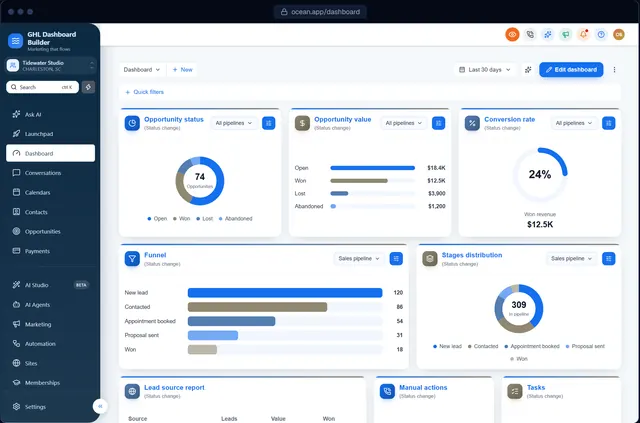
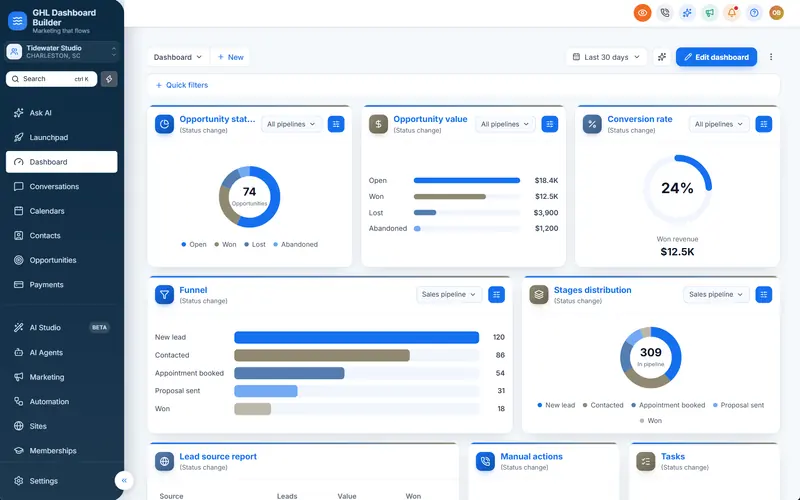
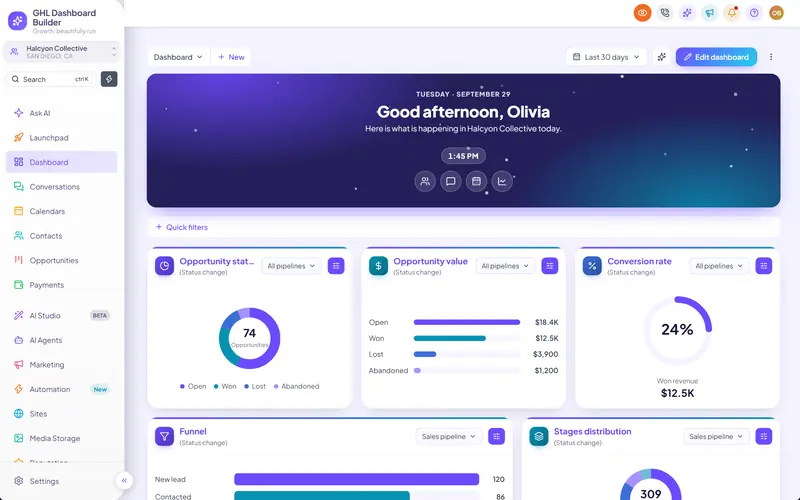
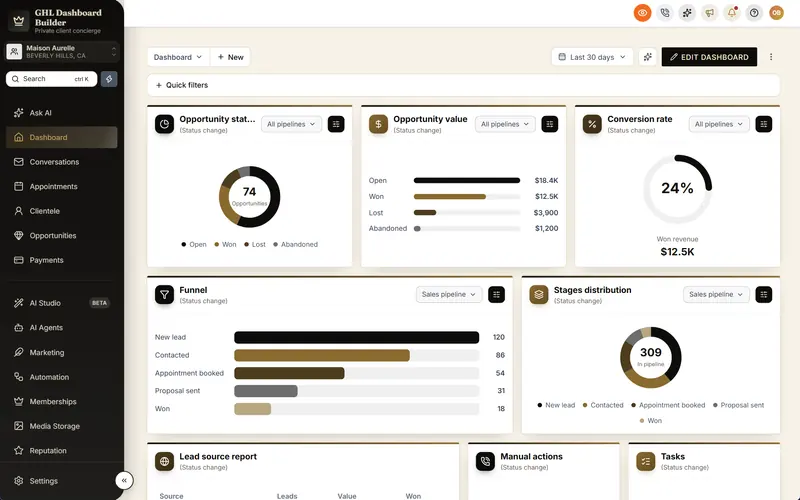
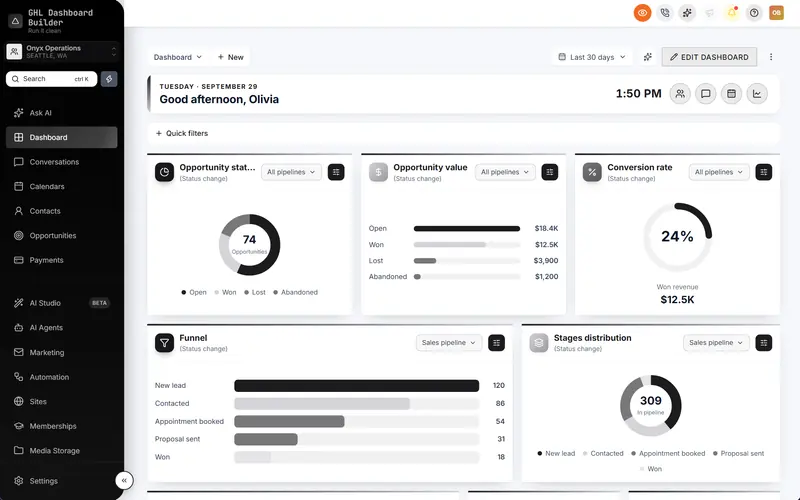
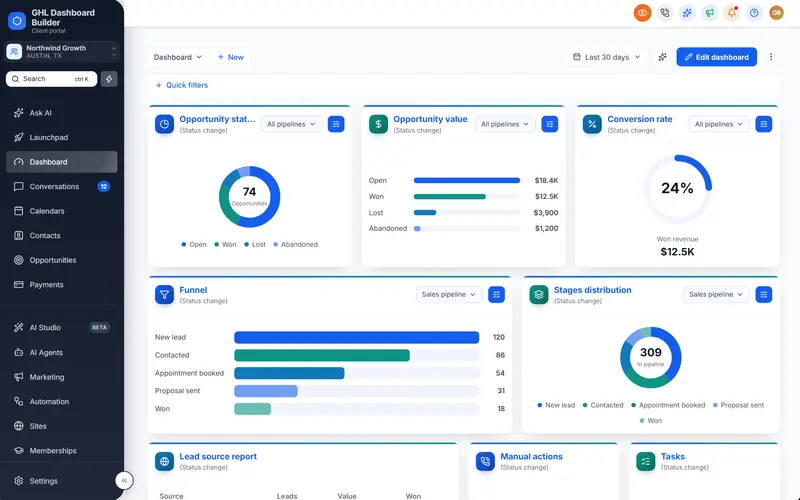
A client in Riyadh, Karachi or Tel Aviv logs in to the platform you sell them and sees an English menu that reads left to right. A client in Lyon switches HighLevel to French and still finds English in a workflow, plus the same generic words every other agency’s account uses. Both ask the same question: “Can this software actually work in our language?”
This guide answers that question for GoHighLevel languages in full. It explains which languages HighLevel (also called GoHighLevel or GHL) offers natively at the time of writing, where those settings live, what stays in English, and why Arabic, Urdu and Hebrew need something extra. It then shows how GHL Dashboard Builder adds a 15-language menu, with right-to-left layout for three of them, which plan includes it, how it installs, and the limits you should tell clients about before you sell a “fully translated” platform. GHL Dashboard Builder is an independent service and isn’t affiliated with HighLevel, so where HighLevel’s own setting is the right answer, we say so.
Which languages does GoHighLevel support natively?
At the time of writing, HighLevel’s native Platform Language setting offers English plus ten mainly European languages: Spanish, French, German, Portuguese, Italian, Dutch, Swedish, Danish, Finnish and Norwegian. The list has no Arabic, Urdu, Hebrew or Turkish, and the interface has no right-to-left layout. Text without a translation is shown in English.
HighLevel announced this work in its help center article The internationalization of HighLevel has begun. The article describes the Platform Language setting, the screens it covers (it names areas such as the dashboard, contacts, opportunities, forms, funnels, websites and invoices) and the rule that missing translations fall back to US English. It also lists French for both France and Canada. The article is undated and HighLevel ships changes often, so check it on the day you promise a client anything.
Three facts in that article shape everything else in this guide:
- The language is set inside HighLevel, per sub-account and per user. A sub-account is one client’s workspace; HighLevel also calls it a location. There is no single switch that sets every client’s language from the agency view.
- The translation is HighLevel’s, and fixed. You cannot rewrite a translated label. If a dental client wants “Patients” instead of HighLevel’s word for contacts, the language setting does not help.
- English is the fallback. Wherever a string has not been translated yet, the user sees English. An independent review by SupplyGem of GoHighLevel’s language options reports that translations are not always accurate and that some areas, such as automations, still appear largely in English.
So the honest short answer for a European client is “mostly yes”, and for an Arabic, Urdu, Hebrew or Turkish client it is “not natively”. The rest of this guide covers both cases.
Other places HighLevel handles language
The Platform Language is not the only language feature in HighLevel. Some AI features have their own language options, and HighLevel’s help center describes a Voice AI translation service for call transcripts and summaries that renders AI-generated transcripts and summaries in a target language you choose. Those features are useful, but they translate content produced by AI, not the interface your client navigates every day. Keep the two apart when you explain the platform to a client.
How do you change the language in GoHighLevel?
Open the client’s sub-account, go to Settings, Business Profile and choose a Platform Language to set the default for everyone there. Each user can then override it for themselves under Settings, My Profile. The user’s choice wins over the sub-account default, and only HighLevel’s own languages are available in either place.
Here are the steps as HighLevel’s internationalization article describes them at the time of writing. Menu names move from time to time, so check the linked article if your screen looks different.
- Switch into the client’s sub-account. From the agency view, use the account switcher to open the sub-account you want to change.
- Open Settings, Business Profile. Scroll to the general information block and find Platform Language.
- Choose the language and save. This becomes the default for every user in that sub-account who has not picked their own.
- Let each user choose their own. Any user can open Settings, My Profile and pick a different Platform Language. A bilingual team can therefore have one person in Spanish and another in English inside the same sub-account.
- Check the screens the client uses most. Open Conversations, the calendar, the pipeline and one workflow in the new language. Note any English that remains, so you can warn the client before they find it.
What the setting changes, and what it does not
The Platform Language changes HighLevel’s own interface text for that user, where HighLevel has a translation. HighLevel’s article also says notifications, including email subject lines and template content, follow the recipient’s Platform Language.
The setting does not change your branding, your colors, or the menu’s wording beyond HighLevel’s standard translation. It does not translate content you or your client wrote, such as SMS templates, email campaigns, forms, surveys, funnels and websites; those are in whatever language they were written in. And it does not change the reading direction, because HighLevel’s interface is left to right in every language it offers.
What stays in English, and what never changes direction?
With a native European language selected, the parts most likely to stay in English are untranslated strings, some builder and automation areas, and content nobody has translated. With Arabic, Urdu or Hebrew, HighLevel’s whole interface stays in its supported languages and reads left to right, because neither those languages nor right-to-left layout are offered natively.
The table below maps each part of GoHighLevel to who controls its language. It is the table to share with a client before a sale, because it sets expectations honestly.
| Part of GoHighLevel | Native Platform Language | With a GHL Dashboard Builder theme (Pro) | Who controls the words |
|---|---|---|---|
| Left menu (sidebar) and navigation | HighLevel’s standard translation, European languages only | Any of 15 languages, your own wording, right-to-left for Arabic, Urdu, Hebrew | You, through the theme |
| Text inside HighLevel’s own pages | Translated where available, English fallback | Unchanged, follows the user’s Platform Language | HighLevel |
| Workflow, funnel, website and email builders | Partly translated | Unchanged | HighLevel |
| System emails and notifications | Follow HighLevel’s settings | Unchanged | HighLevel |
| SMS, WhatsApp and email content | Any language you type | Not affected | You or the client |
| Forms, surveys, funnels and sites | Any text you write | Not affected | You or the client |
| HighLevel’s mobile app | Follows HighLevel | Not affected | HighLevel |
| Colors, fonts and layout | Not part of the language setting | Your brand across the dashboard | You |
Why right-to-left is the real gap
A right-to-left (RTL) language is one whose script is read from right to left, such as Arabic, Urdu and Hebrew. RTL is not just translated words. The menu belongs on the right, icons and arrows mirror, text aligns to the right, and numbers and English brand names sit inside right-to-left sentences. The W3C’s guidance on structural markup and right-to-left text in HTML explains that a page’s base direction must be set explicitly for right-to-left text to display correctly; translating the words alone leaves punctuation and layout in the wrong places.
Agencies have asked HighLevel for this publicly. A request for RTL text direction support sits on HighLevel’s ideas board, alongside a request to add full RTL support for forms, surveys and sites. On a request about RTL Arabic and Hebrew text in email, a HighLevel team member replied that the company is exploring RTL support and gathering input. At the time of writing, no native RTL interface has shipped. That is why, for these three languages, a theme carries the whole navigation layer rather than polishing a translation that already exists.
How does GHL Dashboard Builder add languages to GoHighLevel?
GHL Dashboard Builder is an independent design service that turns the standard HighLevel (GoHighLevel) dashboard into a branded platform: your colors, menu, login design, privacy mode and your clients’ language, installed with two lines of code. For languages, it translates the dashboard’s menu and navigation into 15 languages, with right-to-left layout for Arabic, Urdu and Hebrew.
The language settings are part of a design, alongside the colors and the menu. In each design you choose:
- The language for the menu and navigation, from the 15 below.
- The direction: automatic (right-to-left for Arabic, Urdu and Hebrew, left-to-right for the rest), or forced either way if a client needs it.
- Your own wording for any label. The built-in translation is a starting point; you can rewrite any label in any language, so a Turkish clinic sees its own word for patients, not a literal translation of “Contacts”.
- A fallback language for any label you have not translated yourself.
- Date and time formats for the dates the design itself shows, such as the date and clock in the welcome banner: the language’s local format, or a fixed format such as DD/MM/YYYY and a 12-hour or 24-hour clock.
You try all of this in the free builder on a live preview of HighLevel’s screens, on desktop, tablet and phone, before you buy anything. The builder never connects to your HighLevel account.
The 15 languages, and how they compare with HighLevel’s own list
| Language | HighLevel Platform Language (at the time of writing) | GHL Dashboard Builder menu | Direction |
|---|---|---|---|
| English | Yes | Yes | Left to right |
| Spanish | Yes | Yes | Left to right |
| French | Yes (France and Canada) | Yes | Left to right |
| German | Yes | Yes | Left to right |
| Portuguese | Yes | Yes | Left to right |
| Italian | Yes | Yes | Left to right |
| Dutch | Yes | Yes | Left to right |
| Swedish | Yes | Yes | Left to right |
| Danish | Yes | Yes | Left to right |
| Finnish | Yes | Yes | Left to right |
| Norwegian | Yes | Yes | Left to right |
| Turkish | No | Yes | Left to right |
| Arabic | No | Yes | Right to left |
| Urdu | No | Yes | Right to left |
| Hebrew | No | Yes | Right to left |
Each language has its own page that shows the menu in that language, starting from the languages overview.
Right to left: Arabic, Urdu and Hebrew. None of the three is a HighLevel Platform Language at the time of writing. Source: GHL Dashboard Builder language list (features/localization/languages.ts), October 2026
The features at a glance, and the plan that includes each
| Feature | What it does for your clients | Plan |
|---|---|---|
| Languages and right-to-left | The menu and navigation in 15 languages, right-to-left for Arabic, Urdu and Hebrew | Pro |
| Menu editor | Rename, reorder and hide any of HighLevel’s 19 menu items in the client’s words | Pro |
| Single sub-account | A design, and so its language, shown only in the sub-accounts you choose | Starter and up |
| Templates | 27 finished designs, including industry looks with their own wording | Starter and up |
| Welcome banner | A greeting with the user’s first name, the date and a clock on the Dashboard | Starter and up |
| Two-line install | One CSS line and one JavaScript line in HighLevel’s Custom Code settings | Every plan |
All 18 features are listed on the features page.
How it installs, and what the client sees
We install the design for you as part of the one-time $200 setup fee on every plan: one CSS line goes into Custom CSS and one JavaScript line into Custom JavaScript under Settings, Company, Whitelabel, Custom Code, and we check every screen. It takes about 5 minutes. To remove it, clear both boxes.
Afterwards, a client in Karachi signs in and sees the menu in Urdu, on the right side of the screen, in your colors, with the labels you chose. HighLevel’s features work exactly as before. The theme changes how HighLevel looks and what its menu says, not what it does, and the installed code does not send data anywhere.
Why add a translated menu if HighLevel already speaks Spanish or French?
For HighLevel’s own European languages, a theme does not translate from nothing. Its value is control: your client’s industry words instead of HighLevel’s generic ones, labels you can correct the day a client complains, and your brand around the translated text. Without it, a French client sees HighLevel in French, not your platform in French.
Generic words versus the client’s words
HighLevel calls every person a contact and every deal an opportunity, in every language it supports. A clinic thinks in patients, a gym in members, a roofing company in jobs. When the menu uses the client’s words, staff find things faster and training is shorter, because the software matches how the business already talks. HighLevel’s object rename covers only Contacts and Opportunities, one sub-account at a time; our guide to renaming GoHighLevel menu items explains exactly where the native rename stops.
Labels you can change yourself
When a client says “nobody here calls it that”, HighLevel’s native translation offers no fix. With a theme, you change the label in the design, press deploy, and the menu updates in every sub-account the design covers. This matters most where one language has regional variants. A word that suits a team in Madrid may not suit a team in Mexico City; our guide to GoHighLevel in Spanish goes through the vocabulary choices and the native setting in detail.
A combined setup works best
For European languages, the strongest setup uses both layers. Set the sub-account’s Platform Language so HighLevel’s inner pages appear in that language wherever HighLevel has translated them. Add a branded menu in the same language so the screen the team opens every morning carries your brand and their words. The two do not conflict: HighLevel controls its page text, the theme controls the navigation.
How do Arabic, Urdu and Hebrew work in GoHighLevel?
Arabic, Urdu and Hebrew work in GoHighLevel through two separate layers. Content you write, such as messages, forms and funnels, can be in any of the three languages today. The dashboard’s menu and navigation switch to that language and to right-to-left only with a theme, because HighLevel offers neither the languages nor RTL layout natively.
What changes when the menu switches to right-to-left
When a design’s language is Arabic, Urdu or Hebrew and the direction is automatic, the theme moves the menu and navigation to a right-to-left layout:
- The sidebar sits on the right, and menu text aligns to the right.
- Labels appear in the chosen script, with your own wording for any item.
- The welcome banner greeting and date follow the design’s language.
Inner pages are different. A HighLevel page such as a contact record or a workflow keeps HighLevel’s language and left-to-right layout, because the theme does not translate or mirror HighLevel’s page content. Users therefore see an Arabic, right-to-left menu next to pages in English or another HighLevel language. Most bilingual teams in the Gulf, Pakistan and Israel already work this way across their software, but say it plainly before the sale.
Each language has its own decisions
The three right-to-left languages are not interchangeable. Arabic has Modern Standard Arabic versus dialect choices and Western versus Eastern Arabic digits. Urdu is written in the Nastaliq style, which needs a font that renders it well, and Urdu-speaking teams often mix in English terms. Hebrew uses its own script and an Israeli workweek and date order. We have written a guide for each:
- Our guide to an Arabic HighLevel dashboard covers dialect, digits, fonts and Arabic SMS. The Arabic language page shows the menu in Arabic.
- Our Hebrew right-to-left dashboard guide covers Hebrew wording, shekels, dates and Israeli privacy rules. The Hebrew language page shows the menu in Hebrew.
- For Urdu, our guide to white-labeling HighLevel in Pakistan covers Urdu and English side by side, rupee pricing and local buyers, and the Pakistan market page shows the local setup.
Turkish: left to right, but not native
Turkish is the fourth language on our list that HighLevel does not offer natively. It reads left to right, so there is no layout change, but the menu translation is the only Turkish a Turkish team sees in the interface. The Turkish language page shows the menu, and the same accuracy rule applies: HighLevel’s own pages follow HighLevel’s settings.
What happens to SMS, WhatsApp and emails in other languages?
Neither HighLevel’s language setting nor a theme translates outgoing messages. SMS, WhatsApp and email go out in whatever language you or your client write them. The practical issue is length and approval: non-Latin SMS uses shorter segments, and WhatsApp templates must be submitted in a supported language.
SMS length and cost
SMS is billed per segment, and the segment length depends on the characters you use. Twilio’s documentation on SMS character limits explains that a single message encoded in the GSM-7 character set holds up to 160 characters, while a message that needs any character outside GSM-7 is encoded in UCS-2 and holds only 70. In longer messages, a header takes space in each part, leaving 153 characters per GSM-7 segment and 67 per UCS-2 segment.
That has real cost effects. Arabic, Urdu and Hebrew are always outside GSM-7, so a 140-character Arabic appointment reminder becomes three segments, while a 140-character English one fits in one. Accented letters in Turkish and some other languages can also push a message into UCS-2, depending on the character. Write reminders short, test them, and price SMS for those clients accordingly.
Arabic, Urdu and Hebrew always use UCS-2. Multi-part messages lose a few characters per part to a header. Source: Twilio Docs: How long can an SMS message be?, checked October 2026
WhatsApp templates
Business-initiated WhatsApp messages use templates that Meta reviews, and each template is submitted in a specific language. Meta’s list of WhatsApp template supported languages shows which language codes are accepted. If a client serves customers in two languages, create the template in each language rather than mixing them in one.
Email, forms and funnels
Email campaigns, forms, surveys, funnels and websites are in whatever language you build them in. For right-to-left languages, check the builders carefully: the ideas-board requests linked earlier describe forms, surveys, sites and email text that stay left-aligned or misplace punctuation. Build one sample of each, have a native speaker read it on a phone, and fix alignment before the client’s customers see it.
How do you give different clients different languages?
A GHL Dashboard Builder design carries one menu language, and a design can be limited to chosen sub-accounts by link or Location ID. So an agency can show an Arabic, right-to-left design to its Saudi clients while other sub-accounts keep plain HighLevel. Inside each sub-account, users can still pick their own Platform Language for HighLevel’s pages.
How the pieces fit together
Agency Custom Code in HighLevel applies across the interface your users see. That is convenient when every client speaks the same language, and a problem when one client works in Hebrew and the rest in English. The answer is to limit a design to the sub-accounts that need it.
In GHL Dashboard Builder, choose “Only these sub-accounts” in the builder or your dashboard and add each sub-account by pasting its link or its Location ID. Those sub-accounts get the design, with its language and direction. Your other sub-accounts and the agency view stay plain HighLevel. It is still one install, and you can add or remove sub-accounts at any time without reinstalling. Our guide to GoHighLevel sub-account branding shows how to find the Location ID.
Plans set how many designs you can have: Starter includes 1 design, Pro up to 3 and Agency up to 100. The languages themselves need Pro or Agency. If you serve clients in several languages and want each group to have its own design, contact us so we can plan the setup with you before you buy.
A decision guide by client situation
| Client situation | HighLevel Platform Language | Theme menu language | Notes |
|---|---|---|---|
| English-speaking team | English | English, with industry wording | Value is branding and wording, not translation |
| Spanish, French or other native European language | That language | Same language, with your wording | Combined setup gives translated pages and a branded menu |
| Arabic, Urdu or Hebrew team | English or the team’s second language | Arabic, Urdu or Hebrew, right-to-left | Inner pages stay left-to-right; say so before the sale |
| Turkish team | English or another supported language | Turkish | Menu is the only Turkish in the interface |
| Bilingual team, mixed users | Each user picks their own | The language most users read best | Menu language is shared by everyone the design covers |
| Pilot before rolling out a new language | Leave as is | New language on one test sub-account | Expand to more sub-accounts once the client approves |
The last row is the safest habit for any language rollout: apply the design to one internal test sub-account, then to one friendly client, then to everyone who needs it.
How do you set up a multilingual GoHighLevel dashboard, step by step?
Set HighLevel’s Platform Language where a native language exists, then try the menu language and wording in the builder, choose a plan with languages, let us install the design, limit it to the right sub-accounts, and test with a native speaker. The whole process takes days, mostly design review, and the install itself takes about 5 minutes.
Step 1: list each client’s language and direction
Write down, for every sub-account, the language the team reads best, whether it is right-to-left, and whether HighLevel offers it natively (use the table in the product section). Note bilingual teams and who prefers which language.
Step 2: set the native Platform Language where it exists
For clients in HighLevel’s own languages, set Settings, Business Profile, Platform Language in their sub-account, and tell users they can change their own under Settings, My Profile. For Arabic, Urdu, Hebrew and Turkish teams, leave the Platform Language on the second language most users read, usually English.
Step 3: try the language in the free builder
Open the free builder, pick a template and switch the language. Check the menu on desktop, tablet and phone. For a right-to-left language, look at the sidebar position, the alignment of long labels and how your logo sits on the right.
Step 4: rewrite the labels in the client’s words
Go through all 19 menu items with the client or a native speaker. Replace literal translations with the words the team uses every day. Agree on any English terms the team prefers to keep, such as product names.
Step 5: choose a plan and let us install
The 15 languages and right-to-left layout are part of the Pro and Agency plans. After you choose, we tailor the design with you within your plan’s rounds of changes and install it under Settings, Company, Whitelabel, Custom Code, covered by the one-time $200 setup fee. The two-line install means later changes need no reinstall: you press Deploy to live and HighLevel picks up the new version.
Step 6: limit the design to the right sub-accounts
If the language is for some clients only, set “Only these sub-accounts” and add each sub-account by link or Location ID.
Step 7: test with a native speaker
Ask one native speaker per language to use the dashboard for ten minutes: open Conversations, the calendar, the pipeline and the Dashboard. Note any label that sounds wrong and fix it in the design. Then check customer-facing content: one SMS, one email, one form.
What can go wrong, and what doesn’t a translated menu solve?
A translated menu does not translate HighLevel’s page content, builders, system emails, help articles or the mobile app, and it does not translate messages. HighLevel does not officially support custom code, so a large platform update can require a theme refresh. Clients who expect every word in their language need to hear this before they buy.
Here is the honest list of limits and risks:
- Inner pages keep HighLevel’s language. The theme translates and rewords the menu and navigation only. Text inside HighLevel’s pages follows each user’s Platform Language, with English where HighLevel has no translation. Never describe the result as “the entire HighLevel in Arabic”.
- Mixed direction on right-to-left setups. An RTL menu next to left-to-right pages is normal for bilingual teams, but a team that has never seen it may find it odd for the first day. Show it in a demo first.
- The mobile app is not affected. Custom CSS and JavaScript run only in the web app in a browser, so clients on the LeadConnector app or a white-label mobile app see HighLevel’s own language behavior there.
- System emails and help content. HighLevel’s system emails and help articles follow HighLevel. If a client contacts HighLevel support or reads its help center, they will see HighLevel’s languages and name.
- Updates. A large HighLevel update can change the page structure a theme depends on. Starter and Pro include 12 months of updates from us, then updates are optional at $99 a year; Agency includes lifetime updates. Without updates, the theme keeps working as it is.
- Translation quality is a people job. Our built-in translations are a starting point. The right word for a clinic in Jeddah may differ from the right word for one in Cairo, and only a native speaker who knows the business can confirm it.
- Fonts and scripts. Arabic, Urdu and Hebrew need fonts that render the script clearly. Check that your brand font has the script. If it does not, the builder’s font list includes fonts made for each script, such as Noto Nastaliq Urdu and Noto Naskh Arabic, to pair with your brand font.
Native language only versus native plus a theme
| What the client experiences | Native Platform Language only | Native setting plus a theme (Pro) |
|---|---|---|
| Menu language | HighLevel’s European languages | 15 languages, including Arabic, Urdu, Hebrew and Turkish |
| Menu wording | HighLevel’s fixed translation | Your wording, changeable any time |
| Reading direction | Left to right only | Right-to-left menu for Arabic, Urdu and Hebrew |
| Inner page text | HighLevel’s translation, English fallback | Same, unchanged |
| Look and brand | HighLevel’s standard design | Your colors, sidebar and Dashboard |
| Mobile app | HighLevel’s behavior | Same, unchanged |
| Cost | Included in HighLevel | One-time $480 Pro plan plus a one-time $200 setup fee |
Plan price plus the one-time $200 setup fee. No monthly fees. Languages and right-to-left are included from Pro. Source: GHL Dashboard Builder pricing (config/site.ts), October 2026
Which plan do you need for GoHighLevel languages?
You need the Pro or Agency plan for the 15 languages and right-to-left layout. Pro is a one-time $480 with up to 3 designs; Agency is a one-time $880 with up to 100 designs, a look designed by our team and lifetime updates. Every plan adds a one-time $200 setup fee, and there is no monthly fee.
Starter, at a one-time $280 with 1 design, covers branding, the welcome banner, privacy mode and single sub-account targeting, but not the languages, the menu editor or the login page. If you are not sure yet, you can start on Starter and upgrade later by paying the difference: Starter to Pro is $200, and the setup fee is not charged again.
Choose by how many language groups you serve:
- One non-English language for all clients, or for one group: Pro is enough, with room for two more designs.
- Several languages across many clients: Agency gives up to 100 designs; talk to us first so the designs match your client groups.
- English only, with industry wording: Pro still matters for the menu editor, even without translation.
Starter and Pro include 12 months of updates, then updates are optional at $99 a year. The pricing page lists everything in each plan, and the FAQ answers common questions about installs, updates and upgrades.
What to do next
Adding languages to GoHighLevel is a short list of decisions, made in the right order. Start with what HighLevel already does natively, then add the layer it does not.
- Map your clients’ languages this week. For each sub-account, write down the language, the direction and whether HighLevel offers it natively, using the comparison table above.
- Switch on what is native. Set the Platform Language in each European-language sub-account under Settings, Business Profile, and tell users about Settings, My Profile.
- Try the missing languages. Open the free builder, switch to Arabic, Urdu, Hebrew or Turkish, and check the right-to-left menu with your logo and colors.
- Write your expectations note. Tell each non-English client, in one paragraph, what will be in their language (the menu and navigation, plus HighLevel’s own pages where HighLevel translates them) and what will not (system emails, the mobile app and help content).
- Pilot with one client. Apply the design to one sub-account, have a native speaker test it, fix the wording, then roll it out. If you are new to branding HighLevel, our guide to white-labeling HighLevel covers the domain, logo and custom code settings this guide builds on.