

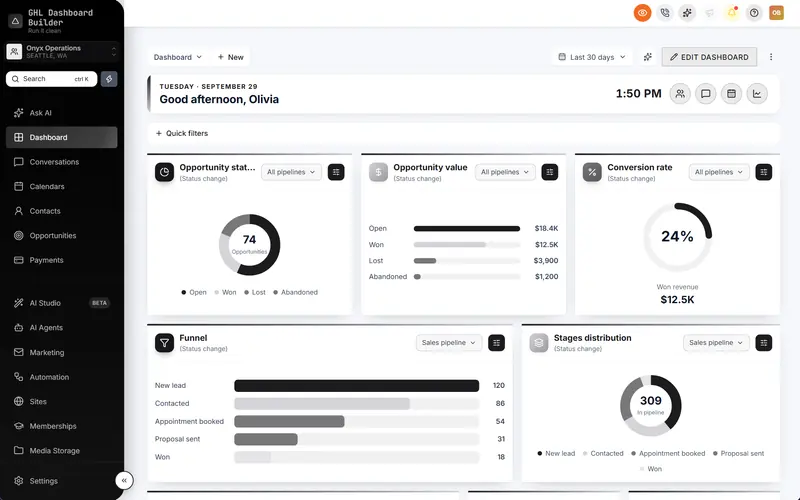
You pay for HighLevel so you can sell a platform under your own name. Then a new client logs in, looks at the blue sidebar and the word “Opportunities”, and says, “Oh, we used this at our last agency.” Your logo is in the corner, but the software still feels like someone else’s product, and the client now knows it.
This guide shows how to make GoHighLevel look like your own software, one screen at a time. HighLevel (also called GoHighLevel or GHL) gives agencies a set of built-in white-label settings, and those settings fix part of the problem. We list the twelve places where clients usually recognize HighLevel, say which built-in setting fixes each one, show what GHL Dashboard Builder adds for the screens those settings leave alone (with the plan that includes each feature), and end with the limits no theme can remove. GHL Dashboard Builder is an independent service and isn’t affiliated with HighLevel, so where HighLevel’s own settings are the right answer, we say so.
Can clients tell your software is GoHighLevel?
Yes, if only the logo is changed. Anyone who has used another agency’s HighLevel account recognizes the standard sidebar, the menu words, the sign-in screen and the LeadConnector app. Each of those tells can be removed or softened, but they are fixed in different places: some in HighLevel’s settings, some with a theme, and a few not at all.
It helps to think like the client. A client does not inspect the code. They notice what they see every day: the address they type, the first screen after sign-in, the words in the menu, the emails their customers receive, and the app on their phone. The table below lists the twelve tells we see most often, in the order a client meets them, and where each one is fixed.
| # | Where the client sees it | What gives HighLevel away | Fixed by |
|---|---|---|---|
| 1 | The address bar | A shared HighLevel login address | HighLevel: white-label domain |
| 2 | The sign-in screen | The standard login layout | HighLevel logo setting, plus a login design |
| 3 | The browser tab | A generic favicon and title | HighLevel: logo and favicon in company settings |
| 4 | The sidebar and header | HighLevel’s standard colors and icons | A theme (custom CSS) |
| 5 | The menu | “Contacts”, “Opportunities” and modules the client never uses | HighLevel object rename for two names; a theme for the rest |
| 6 | The Dashboard home | Standard widgets with no greeting or brand | A theme |
| 7 | The opportunities board | Standard stage headers and cards | A theme |
| 8 | Buttons, tags and pop-ups | HighLevel’s default button and notification styles | A theme |
| 9 | Links and emails sent to customers | HighLevel or shared domains in links and sender addresses | HighLevel: API domain and dedicated sending domain |
| 10 | The language | An English, left-to-right menu for an Arabic, Urdu or Hebrew team | A theme for the menu; HighLevel’s settings for its own pages |
| 11 | Screen shares and recordings | Real client names, numbers and deal values on screen | A privacy feature in the theme |
| 12 | The phone | The standard LeadConnector app | HighLevel: white-label mobile app add-on |
Five of the twelve tells are handled by HighLevel’s own settings. Six are about the interface itself and need a theme. One, the mobile app, is a paid HighLevel add-on that no browser theme can replace. The sections below take them in that order. If you want the full list of white-label tasks rather than the client’s view, our GoHighLevel white-label checklist covers 25 items with menu paths.
What does HighLevel’s built-in white label already change?
HighLevel’s built-in white label changes your software’s identity: the domain clients log in on, your logo and favicon, the domain in system links, the domain your emails are sent from, the client portal domain, and the names of Contacts and Opportunities. Set these first, because no theme replaces them and every other step sits on top.
Do these in order. Each step names the menu path as HighLevel’s help documents describe it at the time of writing; HighLevel moves menus from time to time, so check the linked article if a screen looks different.
- Logo, favicon and company name. In the agency view, open Settings, Company. HighLevel’s Agency Settings article describes where the logo, company details and the Custom Code area live. Use a logo with a transparent background and a square favicon, because both appear at small sizes.
- White-label domain for the web app. Follow HighLevel’s guide to setting up a whitelabel domain for the desktop web app. Clients then sign in at an address such as
app.youragency.com. Use a subdomain, not your main website’s domain. - API domain for system links. HighLevel’s article on branding system-generated links explains that an agency-level API domain becomes the default for form, survey, calendar, trigger, payment and review links in all sub-accounts. Without it, the links your clients’ customers click show a shared domain.
- Dedicated email sending domain. HighLevel’s dedicated sending domain guide recommends a subdomain and places the setting under Settings, Email Services, Dedicated Domain, at agency or sub-account level. This keeps your clients’ emails on your clients’ or your own domain instead of a shared one.
- Client portal and other domains. HighLevel’s overview of the different domain types separates the white-label domain, the API domain, the sending domain, site domains and the client portal domain, and warns against reusing one domain’s DNS records for another type. Plan your subdomains before you start.
- Object names in each sub-account. HighLevel lets an admin rename standard objects such as Contacts and Opportunities under Settings, Objects inside a sub-account, with a singular and a plural name. This is set one sub-account at a time.
Which HighLevel plan includes this
White-label features are tied to HighLevel’s subscription. At the time of writing, HighLevel’s pricing page lists the branded web app on your own domain under the Unlimited plan and above, and SaaS mode under the Agency Pro plan. The plans are listed at $97, $297 and $497 a month, and HighLevel’s pricing guide lists the white-label mobile app as a separate add-on. Prices change, so check both pages on the day you decide.
The branded web app on your own domain is listed from the Unlimited plan; SaaS mode on Agency Pro. Source: gohighlevel.com/pricing, checked October 2026. Prices can change.
After these six steps, clients sign in on your domain, see your logo and receive links and emails on your domains. That fixes tells 1, 3 and 9 and part of tells 2 and 5. It leaves the interface itself untouched. For a deeper walkthrough of every built-in setting and the costs of each route, our hub guide to white-labeling HighLevel goes step by step.
What does the built-in white label miss?
The built-in white label misses everything a client looks at after signing in. HighLevel’s colors, sidebar and icons stay the same for every agency, built-in menu items keep their names and order, the Dashboard has no greeting, the board and buttons keep the default style, the menu cannot switch to right-to-left, and real client data shows on every screen share.
These gaps matter more than they look, because they are the part of the software a client uses all day. The domain is seen for a second at sign-in. The sidebar and the menu are seen hundreds of times a week. If those look exactly like the account a client used at a previous agency, the logo in the corner does not make the product feel like yours.
The gaps fall into three groups:
- Look. Colors, fonts, the sidebar, the header, buttons, cards and the opportunities board all use HighLevel’s standard design. Agency Custom Code is the only place to change them, and HighLevel treats custom code as something it does not officially support.
- Words. Renaming objects changes two names. The rest of the menu keeps HighLevel’s wording and order, and modules a client never uses stay visible. HighLevel’s interface translations cover mainly European languages at the time of writing and do not switch the layout to right-to-left.
- Daily experience. There is no first-name greeting, no live count of unread messages on the menu, no branded pop-up for a new booking, and nothing that hides client data when your team shares a screen.
Custom code fills all three groups. You can write it yourself, hire a developer or use a done-for-you theme; our comparison of GoHighLevel white label options weighs the three routes on effort, cost and risk. The rest of this guide shows what the done-for-you route looks like screen by screen.
How does GHL Dashboard Builder make GoHighLevel look like your own software?
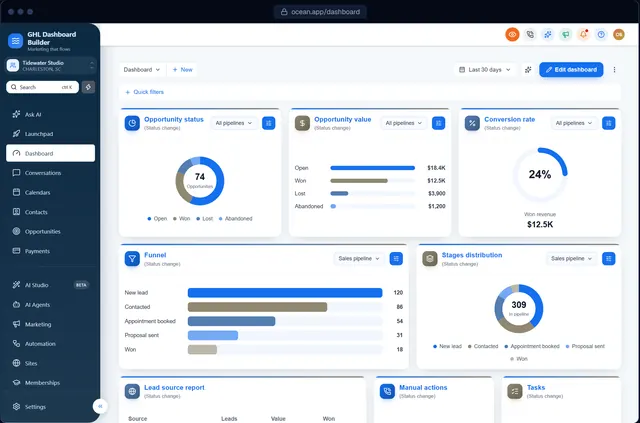
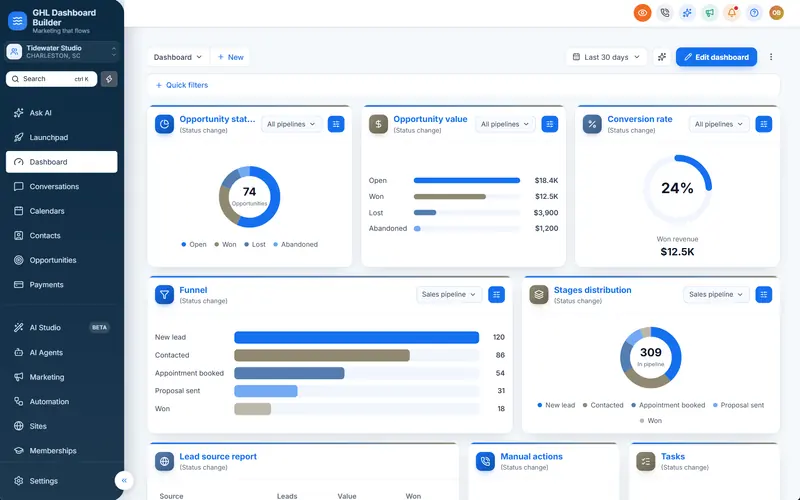
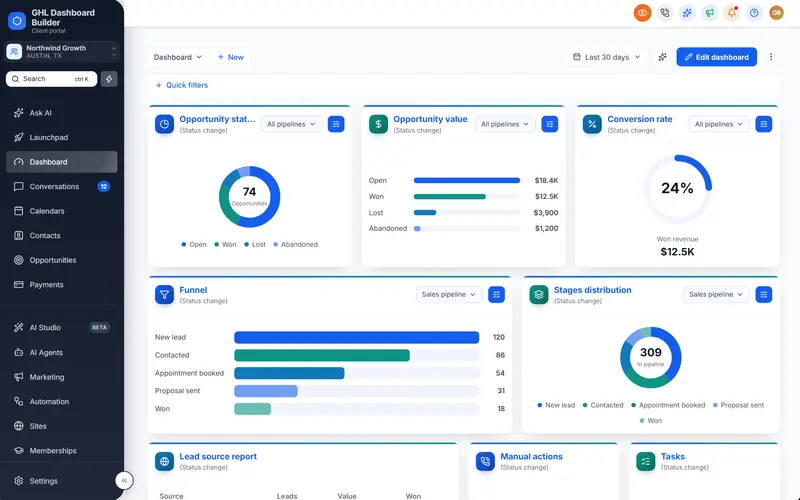
GHL Dashboard Builder is an independent design service that turns the standard HighLevel (GoHighLevel) dashboard into a branded platform: your colors, menu, login design, privacy mode and your clients’ language, installed with two lines of code. It works on top of HighLevel’s built-in white label and changes the interface layer that those settings leave alone.
The process has four steps. You start in the free builder with one of 27 templates and try your logo, colors, business name, language and privacy mode on a live preview of HighLevel’s screens, on desktop, tablet and phone. You choose a plan. We tailor the design with you within your plan’s revision rounds. Then we install it in your HighLevel: one CSS line goes into Custom CSS and one JavaScript line into Custom JavaScript under Settings, Company, Whitelabel, Custom Code, and we check every screen. That install is covered by the one-time $200 setup fee on every plan, and it takes about 5 minutes. To remove the theme, clear both boxes.
The features at a glance, and the plan that includes each
| Feature | What it does for your clients | Plan |
|---|---|---|
| Brand and colors | A full color system, fonts and favicon across HighLevel’s screens | Starter and up |
| Sidebar and header | HighLevel’s own sidebar in your colors, 3D or colored icons, hover menus and a branded sub-account switcher | Starter and up |
| Templates | 27 finished designs, including industry looks with their own wording | Starter and up |
| Welcome banner | A greeting with the user’s first name, date, clock and quick links on the Dashboard | Starter and up |
| Appointments board and live figures | The next appointments from every calendar, and live numbers on the Dashboard | Starter and up |
| Buttons, cards and forms; opportunities board | Your brand color on buttons, tabs, tags and the pipeline, with branded stage headers and cards | Starter and up |
| Notification pop-ups | New messages, bookings and payments slide in with a “Hey {name}” greeting and Reply, Mark read and Call | Starter and up |
| Privacy mode | An eye button that blurs names, emails, phone numbers, conversations and deal values | Starter and up |
| Single sub-account | The design shown only in the sub-accounts you choose, by link or Location ID | Starter and up |
| Menu editor, favourites and live menu counts | Rename, reorder and hide HighLevel’s 19 menu items, add your own, pin pages, show counts | Pro |
| Login page design | 13 login designs in your colors for your white-label sign-in page | Pro |
| Languages and right-to-left | The menu and navigation in 15 languages, with Arabic, Urdu and Hebrew right-to-left | Pro |
| Top navigation | HighLevel’s menu moved into a bar across the top | Pro |
| A look designed by our team; custom CSS and JavaScript | A design built from your brand, plus your own code | Agency |
All 18 features are described on our features page.
What it costs
There are three plans, all one-time payments with no monthly fee: Starter $280 (1 design), Pro $480 (up to 3 designs, with the menu editor, login page and 15 languages) and Agency $880 (up to 100 designs, a look designed by our team, custom code and lifetime updates). Every plan adds a one-time $200 setup fee, for which we install and configure the design in your HighLevel. Starter and Pro include 12 months of updates, then updates are optional at $99 a year; without them, the theme keeps working as it is. The pricing page has the full list.
Plan price plus the one-time $200 setup fee. No monthly fees. Designs: Starter 1, Pro up to 3, Agency up to 100. Source: GHL Dashboard Builder pricing (config/site.ts), October 2026
What your clients see afterwards
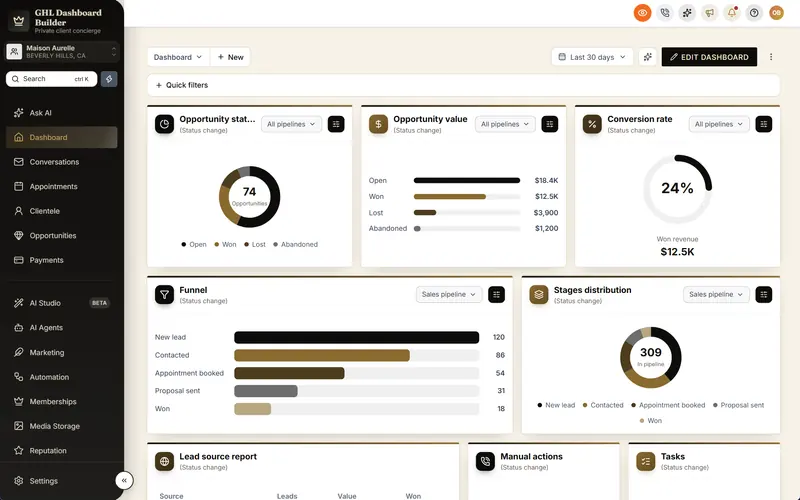
A client signs in on your domain and sees your colors on the sidebar, header, buttons and cards, a greeting with their first name on the Dashboard, and, from Pro, a menu in their words and their language. Your team gets an eye button for screen shares. HighLevel’s features work as before: the theme changes how HighLevel looks and what its menu says, not what it does. The builder never connects to your HighLevel account, and the installed code does not send data anywhere.
How do you brand the GoHighLevel login page and browser tab?
The browser tab takes your favicon from HighLevel’s company settings, and the sign-in screen shows your logo once your white-label domain is set. The layout of the sign-in screen otherwise stays HighLevel’s. A login design adds your colors, a brand panel or photo, and your own background, so the first screen a client sees each day is yours.
The sign-in screen is the most underrated tell. It is the first thing a client sees every working day, and because every agency’s HighLevel login looks alike apart from the logo, it is also the screen most likely to be recognized. A client who has used two agencies’ accounts has seen the same card in the same place twice.
Here is what you can change, and where:
- Set the white-label domain first (step 2 in the built-in section). Without it, clients sign in on a shared address and nothing else on this screen matters.
- Upload your logo and favicon in Settings, Company. The favicon is what clients see in a row of browser tabs, next to their email and calendar. A crisp square mark works better than a shrunk wordmark.
- Choose a login design. From the Pro plan, GHL Dashboard Builder includes 13 login designs in your colors: a clean card, a brand panel, photo splits and a highlights panel, or your own gradient behind the sign-in card (linear, oval, circle or color wheel, with 2 to 5 colors). You can show or hide the Google button, the forgot-password link and the terms line.
- Check the sign-in screen on a phone. Many clients first sign in from a link on their phone. Open your login address in a mobile browser and confirm the logo is sharp and the form fits the screen.
- Write the address into your onboarding email. Clients bookmark whatever you send first. Send the white-label address, never a shared one.
A note on accuracy: the agency logo on the sign-in screen comes from HighLevel’s settings, and HighLevel’s Platform Language picker stays available on the page. The login design is part of the work we do with you on Pro and Agency; it does not change how HighLevel’s sign-in works or where passwords are checked.
How do you change GoHighLevel’s colors, sidebar and fonts?
GoHighLevel’s colors, sidebar and fonts change only through custom CSS added at agency level in Settings, Company, Whitelabel, Custom Code. You can write that CSS, hire someone to write it, or generate it from a visual design. The result should cover the sidebar, header, buttons, tabs, tags, cards and status colors together, so no screen falls back to HighLevel’s blue.
Clients do not compare your colors to your website. They compare the whole screen to what HighLevel normally looks like. A theme that recolors the sidebar but leaves buttons, tabs and the active-item highlight in HighLevel’s default blue still reads as HighLevel. Consistency across every element is what makes the software feel designed.
What a full color system includes
- Primary and accent colors for buttons, links, active menu items and highlights.
- Sidebar and header colors, often darker or lighter than the page so the navigation stands out.
- Surfaces: the page background, cards and panels.
- Status colors for success, warning and error, so a red “overdue” still means overdue in your palette.
- Fonts for headings and body text, loaded so they work in every sub-account.
- Icon style in the sidebar: HighLevel’s line icons, colored icons or 3D icons.
Keep it readable
Brand colors often fail on screen. The W3C’s accessibility guidance asks for a contrast ratio of at least 4.5 to 1 for normal text and 3 to 1 for large text. Pale brand colors such as light gold, mint or pastel pink usually fail as text on white. Use them for backgrounds and accents, and keep menu text white or near-black. A good test: open the Conversations page and a long contact list, the two places clients read the most text, and read them for a minute.
Choose a look that fits the client, not just your logo
A dental practice, a roofing company and a law firm do not want the same software. Templates give you a tested starting point. In GHL Dashboard Builder, the 27 templates include calm, corporate, dark, minimal, luxury and industry looks; for example, Executive uses navy and muted gold with serif headings and top navigation, and Clinic uses a white sidebar with medical teal. Every template can be changed to your logo, colors and fonts in the builder. You can browse all the templates to see each one on HighLevel’s real screens.
If you prefer to write the CSS yourself, our guide to HighLevel custom CSS explains where the boxes are, which selectors tend to survive updates and how to keep a theme maintainable.
How do you make the GoHighLevel menu sound like your product?
Make the menu sound like your product by renaming items to your client’s words, putting them in the order the client works, hiding modules the client never uses and adding your own links. HighLevel’s object rename covers Contacts and Opportunities per sub-account; renaming, reordering and hiding the other built-in items needs custom JavaScript or a menu editor.
The menu is where generic software shows most clearly. A gym that sees “Contacts”, “Opportunities” and “Memberships” is reading HighLevel’s vocabulary. A gym that sees “Members”, “Leads” and “Classes”, in the order the front desk uses them, is reading its own system. Nothing about the features has changed; the software now speaks the client’s language.
What you can do natively
- Rename Contacts and Opportunities in each sub-account under Settings, Objects, as HighLevel’s object rename guide describes. Repeat it for every sub-account that needs the new words.
- Add custom menu links to your own tools, help pages or booking forms from the agency settings, limited by role if needed.
- Control access with user roles and permissions, so each user works only in the modules their role allows.
What needs custom code
- Renaming any of the other built-in items, such as Calendars to Bookings or Reputation to Reviews.
- Changing the order of built-in items for everyone.
- Hiding an item for all users without changing their permissions.
- Adding New or Beta labels, live counts and pinned favourites.
How the menu editor handles it
From the Pro plan, the GHL Dashboard Builder menu editor lets you rename, reorder and hide any of HighLevel’s 19 menu items, add New and Beta labels and your own custom items. Live counts put real numbers from HighLevel on the menu, such as unread conversations, appointments today and tasks due, and a star in the header lets each person pin a page to the top of the menu. Because the wording is part of one design, an agency with 30 dental practices sets “Patients” once instead of 30 times. Industry templates come with their own wording: Clinic uses Contacts to Patients, Roofline uses Opportunities to Jobs, Forge uses Contacts to Members. Our guide to renaming GoHighLevel menu items covers the native rename and the custom route in detail.
What should the GoHighLevel Dashboard show your clients?
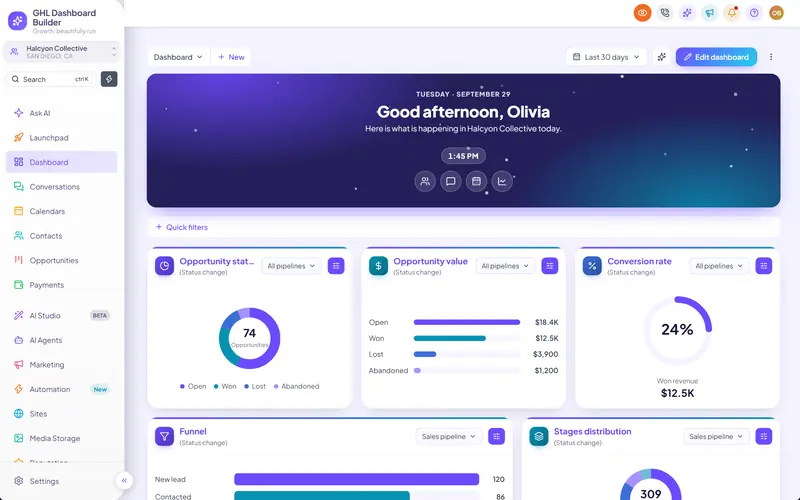
The GoHighLevel Dashboard should greet the person by name, show what needs attention today and offer the two or three links they use most. HighLevel’s standard Dashboard shows configurable widgets but no greeting or branding. A branded welcome banner, an appointments board and live figures turn it into the home screen of your product.
Clients judge software by its home screen. If the first screen after sign-in is a grid of empty charts, the product feels like a toolkit someone handed them. If it greets Sara by her first name, shows today’s date, the three appointments coming up and the number of unread messages, it feels like a product built for them.
What GHL Dashboard Builder adds to the Dashboard
- Welcome banner. A greeting with the user’s first name, the date, a clock and quick links. Six designs and five layouts, or your own photo or colors behind it, in three heights, with your own quick links. Included from Starter.
- Appointments board. The next appointments from every calendar in a card at the top of the Dashboard, each one a click from the calendar. Included from Starter.
- Live figures. Real numbers from HighLevel in the welcome banner: unread conversations, appointments today, tasks due, new opportunities and overdue invoices.
- Branded widget cards and chart colors, so HighLevel’s own widgets match the rest of the design.
How to choose the quick links
Pick quick links by job, not by feature. A front desk wants Conversations and today’s calendar. A sales team wants the pipeline and tasks. An owner wants payments and reports. Ask one client to show you which three pages they open first each morning, and use those.
For more on what can and cannot change on this screen, see our guide to GoHighLevel dashboard customization, which covers the Dashboard widgets HighLevel lets you configure natively.
Which everyday details make GoHighLevel feel like a finished product?
The everyday details are the opportunities board, buttons, tabs, tags, dropdowns and the notification pop-ups. Clients touch them dozens of times a day. When they carry your colors, corners and wording, the software feels finished; when they fall back to HighLevel’s defaults, the client sees the seam between your brand and the platform.
This is where many do-it-yourself themes stop short. The sidebar is recolored, but the pipeline board still has HighLevel’s standard stage headers, the primary button is still the default blue, and a new message arrives in HighLevel’s standard notification. Each one is small. Together they remind the client every few minutes that the software is resold.
The opportunities board
The board is where sales teams spend their day. GHL Dashboard Builder brands HighLevel’s pipeline board with stage headers in rounded, square, pill or line styles and opportunity cards with an accent edge or a soft tint, in your colors. HighLevel’s own settings control the stages, the card fields and the pipeline itself, and those stay exactly as you configured them. Our guide to GoHighLevel pipeline customization separates what the native settings change from what styling adds.
Buttons, tabs, tags and forms
Your brand color applies to HighLevel’s buttons, tabs, tags, dropdowns and pipeline, with gradient, outline or glass buttons, custom borders and corners, and an optional subtle shimmer. The point is not decoration: when the primary action on every page is the same color as your logo, the product looks designed as one piece.
Notification pop-ups
New messages, bookings and payments slide in with a “Hey {name}” greeting, with Reply, Mark read and Call buttons, quiet hours and an optional chime. For a client, a branded pop-up that says “Hey Sara, new booking from…” feels like their own system talking to them. Quiet hours matter: set them so a clinic’s staff are not interrupted during appointments.
A quick before-and-after check
| Element | HighLevel default | After a full theme |
|---|---|---|
| Sidebar | HighLevel’s standard colors and icons | Your colors, chosen icon style, hover menus |
| Primary buttons | Default blue | Your brand color, chosen style |
| Pipeline stage headers | Standard headers | Rounded, square, pill or line headers in your colors |
| Opportunity cards | Standard cards | Accent edge or soft tint |
| New message alert | HighLevel’s notification | “Hey {name}” pop-up with Reply, Mark read and Call |
| Dashboard top | Widgets only | Welcome banner, live figures, next appointments |
| Menu | HighLevel’s wording and order | Your wording, order, hidden items and counts (Pro) |
Does your software speak your clients’ language?
Your software speaks your clients’ language when its menu and navigation use their words and their reading direction. HighLevel’s own language settings translate parts of the product into mainly European languages. GHL Dashboard Builder translates the menu and navigation into 15 languages, with right-to-left layout for Arabic, Urdu and Hebrew, from the Pro plan.
Language is often a stronger signal than color. A Saudi clinic whose staff read Arabic all day, or an Israeli agency’s clients who read Hebrew, will not feel the software is theirs while the menu is in English and reads left to right. For agencies in those markets, the right-to-left menu is frequently what wins the client.
Be exact about what is translated, because clients will check:
- Translated by the theme: the dashboard’s menu and navigation, in 15 languages, with your own wording for any label. For Arabic, Urdu and Hebrew, the layout switches to right-to-left.
- Follows HighLevel’s settings: text inside HighLevel’s own pages, its builders, system emails and the mobile app. HighLevel’s internationalization article describes which languages its own interface supports at the time of writing.
For languages HighLevel already supports, such as Spanish, French or German, the value of the theme is branded, industry-specific wording rather than translation itself. For Arabic, Urdu and Hebrew, the difference is the reading direction. Our guide to an Arabic HighLevel dashboard explains right-to-left menus, digits and fonts in practice, and the Arabic language page shows the menu in Arabic.
What gives your software away on demos and screen shares?
On demos and screen shares, two things give the software away: the standard HighLevel interface, and real client data. A prospect who sees another client’s names, phone numbers and deal values on your screen learns that your platform shows everything to whoever is watching. Privacy mode blurs that data with one click, and a branded interface removes the rest.
Agencies share screens constantly: sales demos, onboarding calls, support sessions and recorded walkthroughs for a help library. Each one is a moment when your software is on show to someone who does not use it yet. If the demo account is the agency account with real data, the risk is twofold. The prospect sees personal data they should not, and the software looks like a back office rather than a product.
A safer demo routine
- Use a demo sub-account with sample contacts and a sample pipeline. Apply your design to it so the demo shows the finished product.
- Turn privacy mode on before sharing. In GHL Dashboard Builder, an eye button in HighLevel’s header blurs contact names, email addresses and phone numbers in tables, links and fields, the conversation list and opportunity values. You choose how strong the blur is. Included from Starter.
- Share one browser tab, not the whole screen, so email and chat notifications stay private.
- Check recordings before publishing. Scrub through the video for any frame where privacy mode was off.
Privacy mode is a screen-sharing aid, not a data-protection system: it changes what is shown on your screen, not who can access the data. Permissions in HighLevel still decide who sees what. Our guide to GoHighLevel privacy mode covers demo accounts, permissions and the limits in more detail.
Can one client get their own branded software?
Yes. A design can be limited to chosen sub-accounts, added by link or Location ID, so one client sees the new look while your other sub-accounts and the agency view stay as they are. It is still one install. One design is shown in those sub-accounts; for different looks for different clients, talk to us about the setup.
Agency Custom Code in HighLevel applies across the whole interface your users see. That is convenient when the whole agency should look the same, and a problem when one premium client wants their own branded software, or when you want to pilot a new look before rolling it out. The usual answer is code that checks which sub-account is open and applies the design only there.
In GHL Dashboard Builder that is a setting: choose “Only these sub-accounts” in the builder or your dashboard and add the sub-account by pasting its link or its Location ID. That sub-account gets the new look; everything else stays plain HighLevel. You can add or remove sub-accounts at any time without reinstalling. Starter includes 1 design, Pro up to 3 and Agency up to 100, and each design can cover the whole agency or the sub-accounts you choose.
This is also the safest way to roll out any rebrand: apply the design to one internal test sub-account, then one friendly client, then everyone. The single sub-account page shows how the setting works, and our guide to GoHighLevel sub-account branding explains how to find the Location ID and what to tell the client.
What can’t you change, even with a theme?
A theme cannot change HighLevel’s own builders and system pages beyond styling, the text inside HighLevel’s pages beyond its language settings, system emails, the mobile app or HighLevel’s help content. Custom code is also unsupported by HighLevel, so a large platform update can require a theme refresh. Plan for these limits before you promise a client “fully custom software”.
It is better to know these limits now than to learn them from a client. Here is the honest list.
- The mobile app. Custom CSS and JavaScript run only in the web app in a browser. Without HighLevel’s paid white-label app add-on, listed in its pricing guide, clients use the standard LeadConnector app with its own design. Tell clients which app to install.
- Builders and system pages. The funnel, website, email and workflow builders keep HighLevel’s structure. A theme can color them; it does not redesign them.
- Text inside HighLevel’s pages. The theme translates and rewords the menu and navigation. Page content, system emails and help articles follow HighLevel’s settings.
- The data and features. A theme changes how HighLevel looks and what its menu says, not what it can do. It adds no new modules and changes no permissions.
- Updates. HighLevel does not officially support custom code, and a large update can change the page structure a theme depends on. Starter and Pro include 12 months of updates from us, then updates are optional at $99 a year; Agency includes lifetime updates.
- Support conversations. If a client contacts HighLevel support directly, or searches for help, they will see HighLevel’s name. Decide whether your agency handles all support, and say so in your onboarding.
Built-in white label only, versus built-in plus a theme
| What the client experiences | Built-in white label only | Built-in plus a theme | Still HighLevel’s either way |
|---|---|---|---|
| Sign-in address and logo | Yours | Yours | |
| Sign-in screen design | Standard layout with your logo | A login design in your colors (Pro) | HighLevel’s sign-in process |
| Sidebar, header, buttons, board | HighLevel’s design | Your design | |
| Menu wording and order | Two objects renamed per sub-account | Any of 19 items renamed, reordered or hidden (Pro) | |
| Dashboard home | Standard widgets | Greeting, live figures, next appointments | Widget data from HighLevel |
| Language and direction | HighLevel’s supported languages, left to right | Menu in 15 languages, right-to-left for 3 (Pro) | Text inside HighLevel’s pages |
| Screen shares | Real data visible | Privacy mode blurs it | Permissions |
| Links and emails | Your domains, once set | Your domains, once set | |
| Mobile app | LeadConnector, or the paid white-label app | Same | The app’s design |
The table makes one point clear: the built-in settings and a theme do different jobs. You need both for software that looks like yours, and you still need to explain the mobile app and support arrangements honestly.
What to do next
Making GoHighLevel look like your own software is a short list of jobs done in the right order. Start with the settings only HighLevel can change, then the interface, then the details clients touch every day.
- Set the identity layer this week. White-label domain, logo and favicon, API domain and a dedicated sending domain, following the HighLevel articles linked above. Write down every subdomain you use.
- Ask one client what they see. Have a client share their screen for five minutes and note which words, colors and screens feel generic to them. Use the twelve tells in the first table as your checklist.
- Try your brand on HighLevel’s screens. Open the free builder, pick a template, add your logo and colors, and check the result on desktop and phone. Try the client’s language if it is not English.
- Pilot on one sub-account. Apply the design to a test sub-account, then to one client, before the whole agency. Check Conversations, the calendar, the pipeline and the Dashboard on each.
- Write your onboarding email. Include the white-label sign-in address, which mobile app to install and who to contact for support, so nothing sends the client to HighLevel by accident. If a question isn’t answered here, our FAQ covers installs, updates and plans.