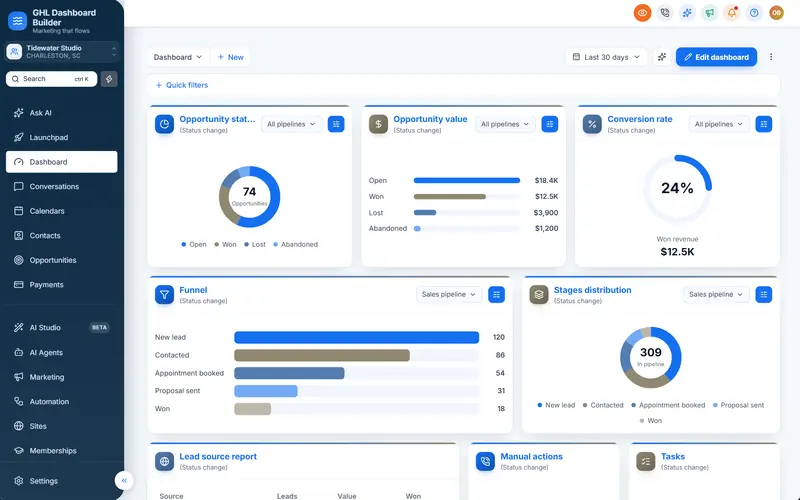
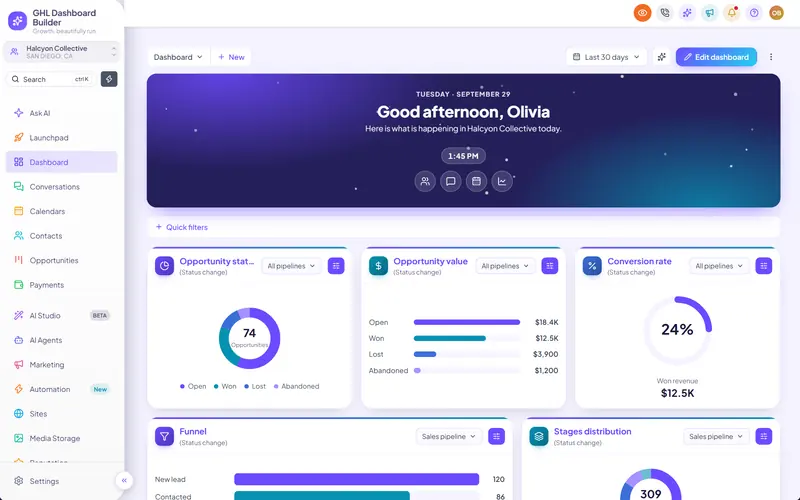
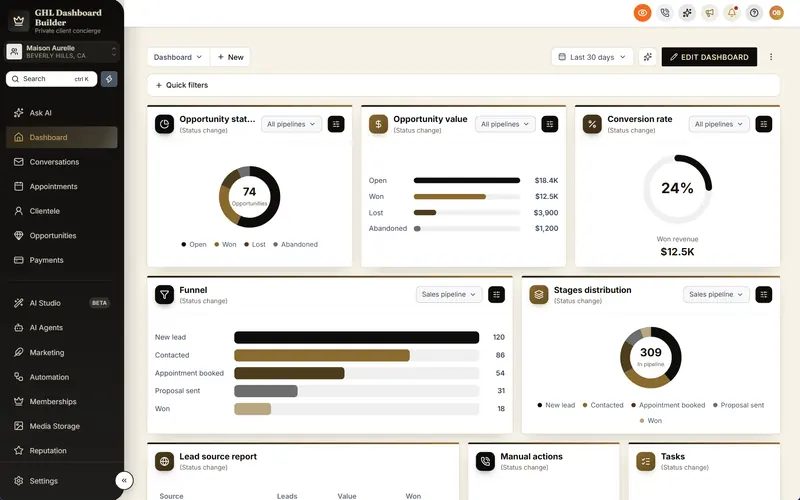
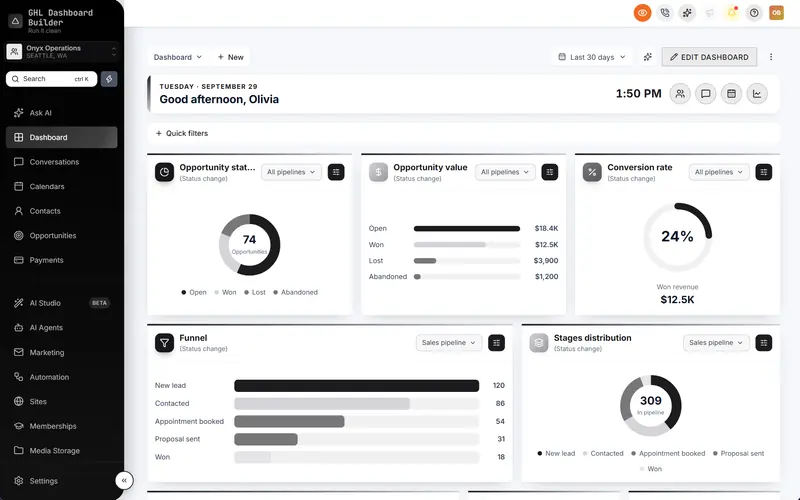
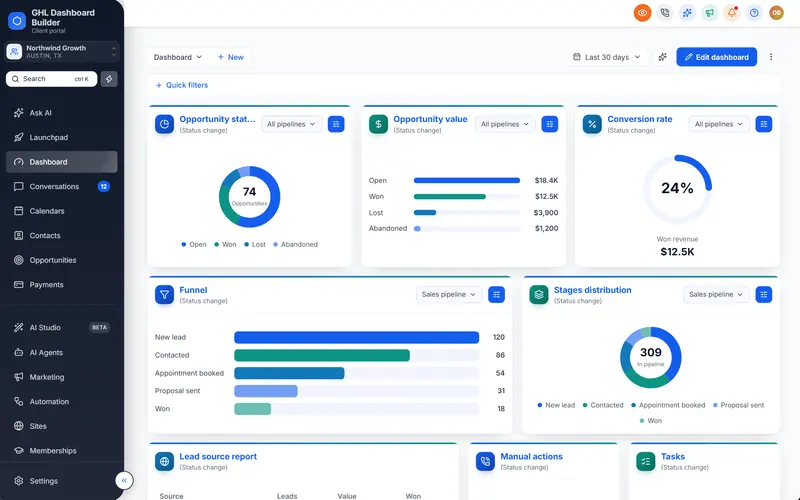
Your Hebrew-speaking clients just got HighLevel’s new layout, and it reads left to right: the menu on the left, English group names, an account rail on the wrong edge, and Hebrew labels with English words in a strange order. Or you are about to move an Israeli agency to the new layout and want to know what will break before it does. HighLevel (also called GoHighLevel or GHL) built its new navigation for left-to-right languages, and Hebrew needs more than a translated menu.
This guide covers the GoHighLevel new layout in Hebrew from start to finish: how the new navigation is built, what right to left means for each of its parts, when to keep the layout left to right instead, why mixed Hebrew and English text goes wrong, how custom code behaves in the new layout, and how to install a Hebrew design step by step. The pictures show one Hebrew design, a light mint look, in both directions, with demo names and figures. Menu paths match HighLevel’s help center at the time of writing.
How is GoHighLevel’s new layout different in Hebrew?
HighLevel’s new layout, called Custom Navigation in its help center, is built for left-to-right languages. Its menu frame, page area and group panels use fixed left positions, so switching the page to right to left is not enough. A Hebrew design has to move the frame, the account rail, the panels and the top bar, then turn the text.
The new layout has four parts that a Hebrew design deals with:
- The menu frame. A column on the left holding the account name, a quick-actions button, Recents and the grouped menu (Dashboard, AI, CRM, Automations, Marketing, Sites, Reporting, Commerce, Client Apps) with Settings at the bottom. HighLevel’s getting started article describes switching it on under Settings, Labs.
- The account rail. A narrow column of avatars on the frame’s outer edge. Hovering it opens a full account list that slides out over the menu.
- Group panels. Clicking a group such as CRM opens a panel with its products beside the menu.
- The top bar. A slim bar with the page title, search, Ask AI and the header icons.
In the classic layout, a right-to-left theme could flip HighLevel’s sidebar with a few rules, because the sidebar sat in the page’s normal flow. The new layout places the frame and the page by measuring from the left edge of the screen. HighLevel even measures its own width variable to the frame’s right edge when the page is right to left, which moves the page off screen if a theme trusts it. A Hebrew design for the new layout therefore measures the frame itself and positions the page beside it.
What does a right-to-left Hebrew new layout look like?
A right-to-left Hebrew new layout mirrors HighLevel’s arrangement: the menu frame on the right, the account rail on the outer right edge, the page to the left of the menu, group panels opening toward the page and the menu text reading right to left. The account list slides out leftward over the menu, with avatars on the right.
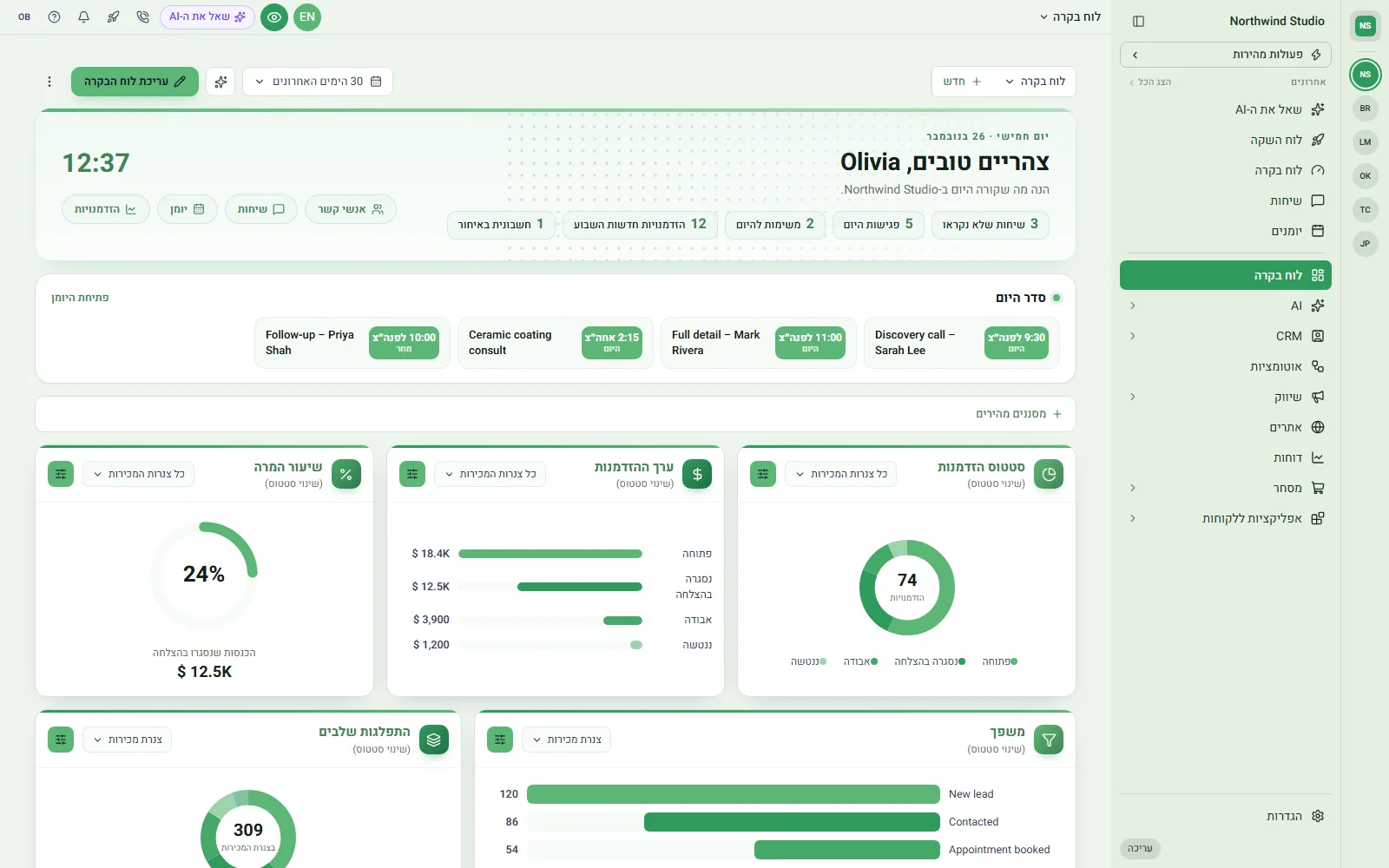
Getting each part right took deliberate decisions, which are worth knowing if you test a Hebrew design yourself:
- The frame moves right, its inside keeps HighLevel’s geometry. The account rail opens its account list with movements made for the left side. A Hebrew design keeps the frame’s inside left to right, reversed so the rail is the outer column, and mirrors the slide so the list opens leftward. The menu text inside still reads right to left.
- The page sits beside the menu by the menu’s real width. When a user collapses the menu to icons, the page widens to fill the space. The design watches the menu’s width and moves the page with it.
- Group panels open next to the menu. HighLevel places panels by a left offset. In Hebrew they open to the left of the menu, where the reader’s eye goes next.
- Rounded corners and the shadow face the page. The new menu has rounded corners and a shadow on the side that meets the page. Mirrored, they face left, and the side against the account rail stays straight.
- Group arrows sit at the row’s far end. HighLevel pushes the small arrow beside the label; in Hebrew the design moves it to the end of the row, matching where English users see it.
GHL Dashboard Builder is an independent design service that turns the standard HighLevel (GoHighLevel) dashboard into a branded platform: your colors, menu, login design, privacy mode and your clients’ language, installed with two lines of code. It is not affiliated with HighLevel. Its Hebrew templates, Ofek (right to left) and Ofek LTR (left to right), handle the points above in both HighLevel layouts from one install.
Should your Hebrew team use right to left or left to right?
Use right to left for teams who work in Hebrew all day and serve Hebrew-speaking clients. Use left to right for teams who switch between Hebrew and English, share screens with English speakers or follow English training, because buttons stay where HighLevel’s guides show them. Both show HighLevel’s menu and navigation in Hebrew.
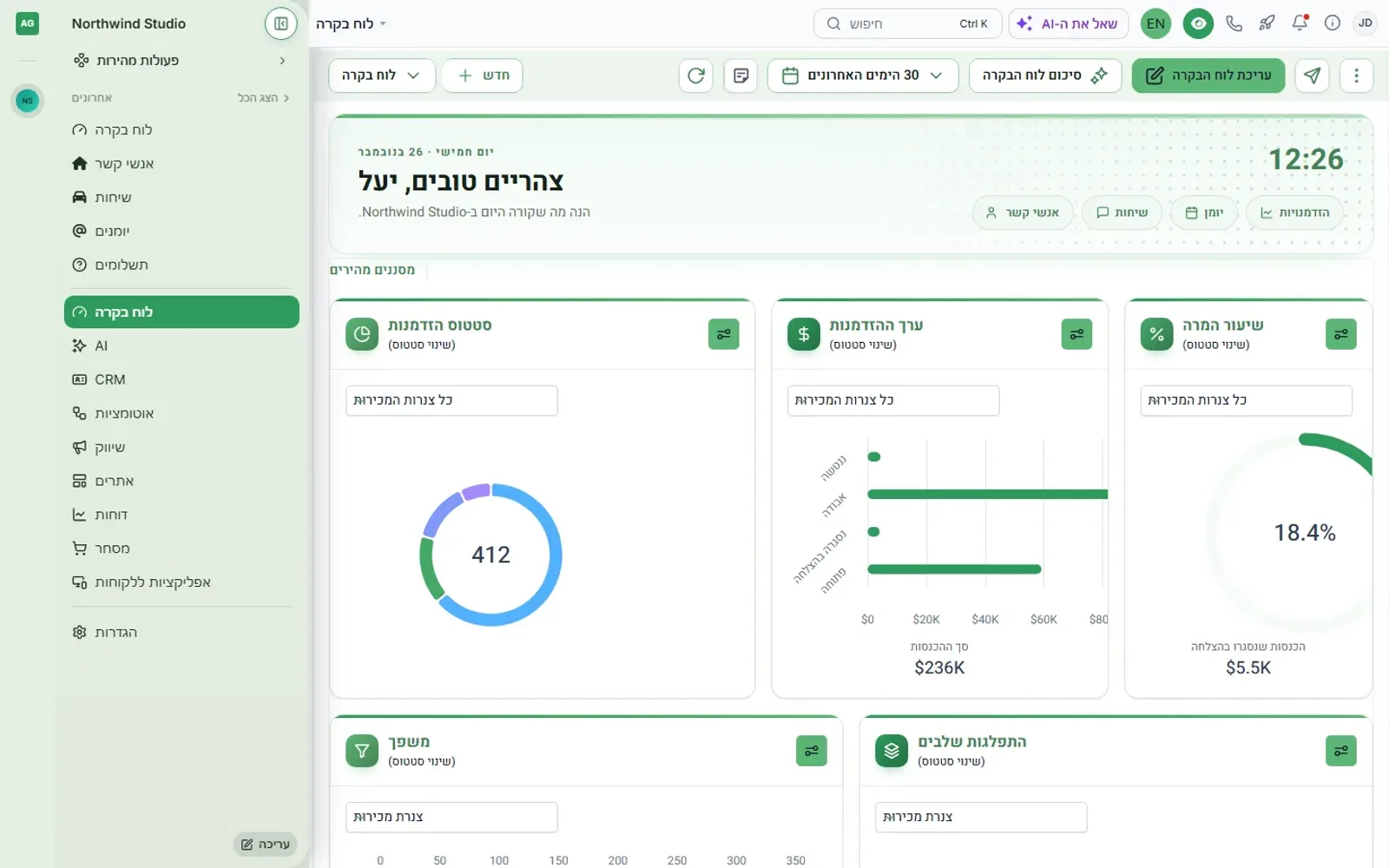
The choice is about habits more than language. Many Israeli agencies run HighLevel with English-speaking partners, buy snapshots built in English and watch HighLevel’s English videos. For them, a left-to-right layout in Hebrew keeps every screen where the training says it is. A clinic or a nonprofit whose staff never use English is better served by a layout that reads the way they read.
| Your team | Recommended layout | Why |
|---|---|---|
| Works only in Hebrew, serves Hebrew-speaking clients | Right to left (Ofek) | Reads naturally; menus, panels and lists flow the way staff read |
| Switches between Hebrew and English during the day | Left to right (Ofek LTR) | Buttons stay where HighLevel’s guides show them; the switch button flips the language only |
| Shares screens with English-speaking partners | Left to right, with the switch button | Partners see the familiar layout; one click shows English |
| Follows HighLevel’s English training videos | Left to right | Screens match the videos |
| Mixed agency: some clients Hebrew, some English | One design per group, limited to chosen sub-accounts | Each client sees the language and direction that suits them |
Whichever you choose, the language switch button helps. When it is on, a round button in HighLevel’s header flips between Hebrew and English, and each person’s choice is remembered in their browser. Only the language changes; the layout stays, so the menu never jumps from one side to the other.
Why do Hebrew labels with English words look scrambled?
A browser decides the order of mixed Hebrew and English words from the paragraph’s base direction. When a Hebrew label containing an English word sits in a left-to-right paragraph, the words are ordered for left to right and look swapped. The fix is to let each line take its direction from its own words.
The W3C explains the rule in its article on inline markup and bidirectional text: without a direction attribute the base direction is left to right, and phrases in the opposite direction, especially next to numbers, can display in the wrong order. Its companion article on structural markup and right-to-left text recommends setting the direction for the whole page with the dir attribute on the html element.
In HighLevel this shows up in three places:
- Menu items with English product names. Hebrew labels such as the Hebrew for “AI Suite” or “White Label Apps” keep an English word. In a left-to-right layout, the English part lands on the wrong side.
- Notices with acronyms. A sentence such as HighLevel’s notice about MRR and revenue calculations, translated to Hebrew, contains “MRR” and reads in the wrong order.
- Buttons with mixed names. The Hebrew Ask AI button reads “שאל את ה-AI”; ordered left to right, the hyphen and “AI” jump to the wrong end.
A right-to-left design avoids most of this, because the whole page’s base direction is right to left. A left-to-right Hebrew design has to handle it line by line. Ours tells every text element in HighLevel, from menu labels to table cells, to take its direction from its own first words, so each Hebrew line reads right to left inside the left-to-right layout. We checked this by measuring word positions on 35 agency pages and 16 sub-account pages until none read in the wrong order.
How do you install a Hebrew design in the new layout?
Install the design’s two lines in HighLevel’s agency custom code, switch on reuse of legacy custom code for the new layout, then turn the new layout on for one test sub-account and check it in Hebrew before rolling it out. The steps below take about fifteen minutes plus testing.
Infographic
A Hebrew new layoutin six steps
- 1
Choose the direction
Pick Ofek for right to left or Ofek LTR for left to right.
- 2
Brand it
Set your colors, font and logo in the builder.
- 3
Install two lines
Paste the CSS and JavaScript lines into Custom Code.
- 4
Reuse custom code
Turn on reuse in White Label, Custom Navigation.
- 5
Test one sub-account
Enable the new layout for one client and check it.
- 6
Roll it out
Enable the rest and send the team a short note.

1. Choose the direction and template
Open the Ofek template for right to left or Ofek LTR for left to right. Both bring HighLevel’s menu, navigation and many of its own screens in Hebrew, with Hebrew dates and times, and the welcome banner and live figures in Hebrew. In the free builder, open the preview’s HighLevel layout switch and choose New to see the new layout in your colors.
2. Brand it and add your own words
Set your colors, font and logo. Under Language, add Your own translations for words that are your agency’s own, such as custom menu link names: one per line, the English name, an equals sign and the Hebrew name. Turn on the Language switch button if your team works in both languages.
3. Install the two lines
In HighLevel’s agency view, open Settings, Company, White Label, and paste the CSS line into Custom CSS and the JavaScript line into Custom JS. Our page on the two-line install shows where each one goes.
4. Switch on reuse of legacy custom code
HighLevel’s article on using custom CSS and JavaScript with the Custom Navigation says legacy custom code is off by default for views on Custom Navigation. In the same White Label page, find the Custom Navigation section and switch on the option to reuse legacy custom code. Without it, the new layout shows HighLevel’s own English look.
5. Turn the new layout on for one sub-account and test
Open Settings, Labs, A New Design Experience, Starting with Navigation, the Sub-account tab, then Activate Feature and pick one test client. Log in as a normal user and check, in this order: the menu reads in Hebrew on the correct side, group panels open beside the menu, the account list opens and closes, collapsing the menu moves the page, hover keeps the text readable, the Dashboard and one table page read correctly, and the language switch button flips to English and back.
6. Roll it out
Enable the new layout for the remaining sub-accounts in batches. Tell the team where Contacts now lives (inside the CRM group), what Recents does, and that the design appears a few seconds after a full reload.
What do GHL Dashboard Builder’s Hebrew features do in the new layout?
A Hebrew design brings the menu, navigation and many of HighLevel’s own screens to Hebrew, turns the new layout right to left or keeps it left to right, adds a Hebrew and English switch, translates your own menu links, and keeps privacy mode and your brand colors in the new top bar and menu.
| Feature | What it does for your Hebrew-speaking clients | Plan |
|---|---|---|
| Hebrew menu and navigation | HighLevel’s menu, group names and navigation in Hebrew, in both layouts | Pro, Agency |
| Right-to-left new layout | The menu frame, account rail, panels and top bar arranged right to left | Pro, Agency |
| Left-to-right Hebrew | The usual layout with Hebrew text that reads in the right order | Pro, Agency |
| HighLevel’s own screens | Many titles, tabs, buttons, dates and times on HighLevel’s pages in Hebrew | Pro, Agency |
| Language switch button | One click flips between Hebrew and English, remembered per browser | Pro, Agency |
| Your own translations | Custom menu link names and other agency words shown in Hebrew | Pro, Agency |
| Privacy mode | The eye button in the new top bar blurs client data in either language | Starter, Pro, Agency |
| Brand colors | Your colors on the new menu, account rail, active page and hover states | Starter, Pro, Agency |
Language coverage is worth stating exactly. The menu and navigation are translated in 15 languages, with right to left for Arabic, Urdu and Hebrew and your own wording for any label. In Hebrew and Arabic designs, many titles, tabs and buttons on HighLevel’s own screens are translated too. Text inside HighLevel’s builders, system emails and the mobile app follows HighLevel’s own language settings, and your clients’ own data (contact names, messages, pipeline names) stays as they typed it.
Infographic
Hebrew in HighLevelby the numbers
15
languages for the menu and navigation
(GHL Dashboard Builder)
3
of them right to left: Arabic, Urdu and Hebrew
(GHL Dashboard Builder)
2
Hebrew templates: Ofek and Ofek LTR
(GHL Dashboard Builder)
Source: GHL Dashboard Builder product information, November 2026.

How does the agency view look in Hebrew?
The agency view, where you manage sub-accounts, SaaS and billing, uses the same new layout with its own menu. A Hebrew design translates the agency menu and dashboard and arranges it right to left the same way, so you can manage clients in Hebrew too.
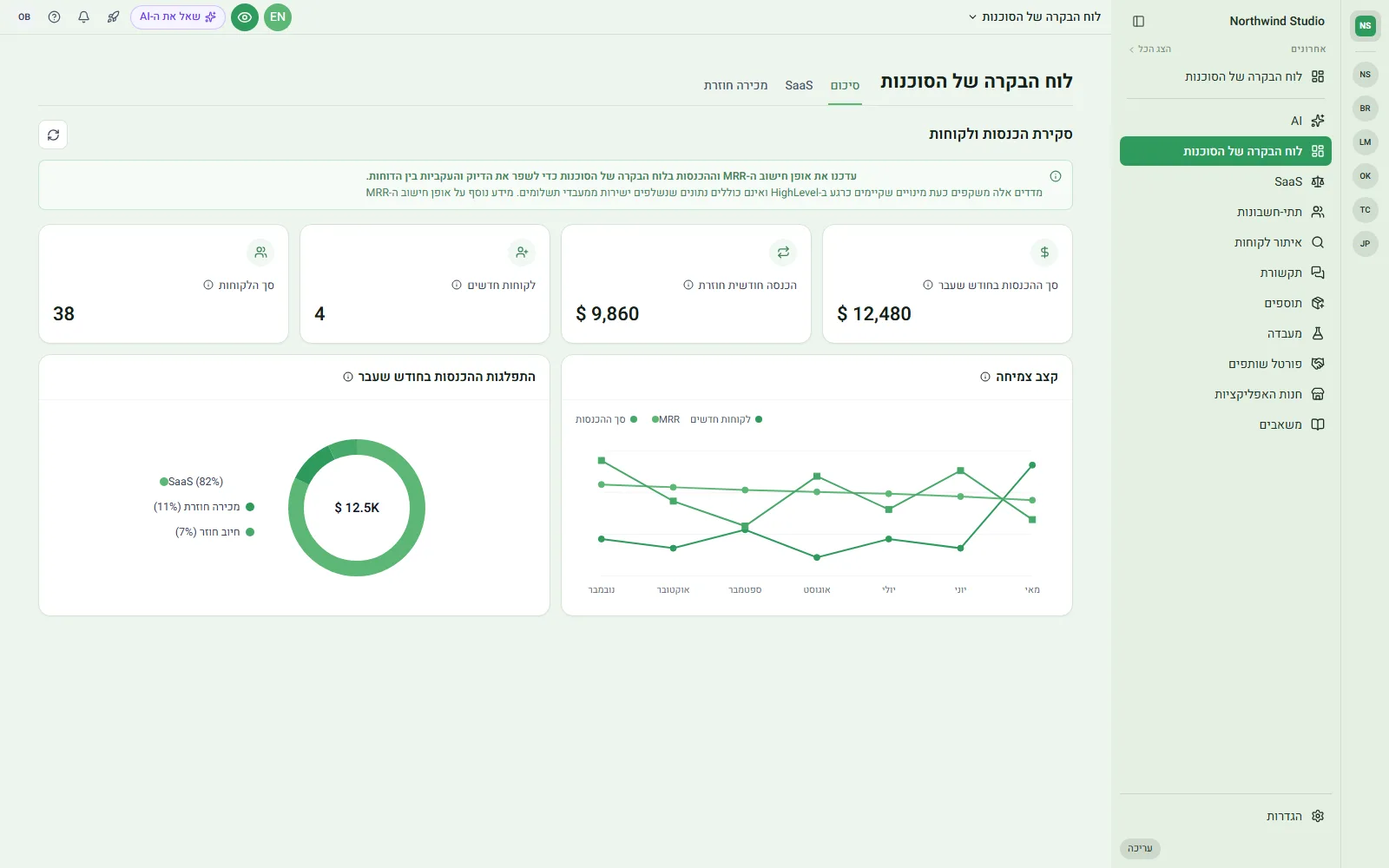
The agency dashboard’s tabs (Summary, SaaS, Reselling), the revenue and customer totals, the growth chart and the revenue split read in Hebrew. The agency menu, including AI, SaaS, sub-accounts, prospecting, communications and the settings pages, reads in Hebrew as well. Account names, plan names and snapshot names are your own data and stay as you typed them.
Privacy mode matters most here, because the agency dashboard shows revenue. With the design’s dashboard option on, the eye button hides the totals’ figures, the charts and the SaaS and Reselling tables while the labels stay readable, which keeps a screen share safe.
How do dates, times and numbers read in Hebrew?
In a Hebrew design, HighLevel’s dates and times read the Hebrew way: month names in Hebrew, times with לפנה״צ and אחה״צ, and weekday headers with Hebrew letters. Numbers keep Western digits, as Hebrew readers expect, and money keeps the currency each sub-account is set to.
Dates are where a half-translated dashboard shows first. A calendar header that says “November 2026” above Hebrew day names, or a “Resets 1 Dec” note next to a Hebrew label, tells the client the product is only partly theirs. A Hebrew design turns these into Hebrew forms: a full date reads like 26 בנובמבר 2026, a week range like 1 - 7 בנובמבר 2026, and the calendar’s weekday headers use the Hebrew letters א׳ to ש׳.
Times follow Hebrew usage too. Where HighLevel shows a 12-hour time, the design writes it with לפנה״צ (before noon) or אחה״צ (afternoon) after the number. Relative times such as “2 hours ago” and counts such as “3 sub-accounts” read in Hebrew word order.
Two things stay as they are on purpose. Digits stay Western (1, 2, 3), which is what Hebrew readers use in software and banking. And currency follows each sub-account’s own settings in HighLevel, so a client billing in shekels sees shekels while a client billing in dollars sees dollars. If a sub-account shows the wrong currency, change it in that sub-account’s business settings rather than in the design.
Can different clients get Hebrew and English?
Yes, with one design per group of clients, each limited to chosen sub-accounts. HighLevel’s agency custom code is shared across the agency, so a design decides itself which sub-accounts it applies to. A Hebrew design can cover your Israeli clients while English-speaking clients keep another design or plain HighLevel.
This works the same in both HighLevel layouts. HighLevel itself switches the new layout on per sub-account, so you can also move Hebrew clients to the new layout first and leave others on the classic one while you check everything. Our page on branding a single sub-account explains how a design is limited to chosen clients by their link or Location ID.
One detail for mixed agencies: HighLevel’s navigation editor layouts are not copied by snapshots and new sub-accounts do not inherit them, according to its article on how to customize the navigation menu. Add “apply the navigation layout” and “add the sub-account to the Hebrew design” to your onboarding checklist for each new Hebrew client.
What can go wrong with Hebrew in the new layout?
The common problems are a design that disappears because legacy code is off, a theme built for the classic sidebar that half-flips the new menu, Hebrew labels with English words in the wrong order, custom menu links that stay in English, and a few plain seconds after a reload. Each has a known fix.
- The design disappears. Legacy custom code is off by default in the new layout. Turn on reuse under Settings, Company, White Label, Custom Navigation.
- The menu half-flips. A right-to-left theme written for the classic sidebar moves some parts and not others, leaving the account rail over the menu or the page under it. Use a design made for the new layout.
- Scrambled mixed text. Hebrew labels with English words read in the wrong order in a left-to-right layout unless each line takes its own direction. Check the Ask AI button and any notice with acronyms.
- Custom menu links in English. HighLevel’s editor cannot rename them. Add their Hebrew names under Your own translations in the design.
- Hover text unreadable. On a colored menu, HighLevel’s own hover colors can show dark text on a dark tint. Hover over the active item and a few others.
- A few seconds of HighLevel’s own look. In the new layout, HighLevel adds agency custom code a few seconds after a full reload. Before that, HighLevel shows its own look. Once the code arrives, translated and right-to-left designs keep the page hidden for a moment until the Hebrew design is ready, so the screen does not jump from English to Hebrew while you watch. Our guide to HighLevel custom code that loads slowly explains the timing.
- Dark mode. HighLevel does not support dark mode in the new layout at the time of writing; a dark menu color is fine, a dark-mode stylesheet is not.
Our own limits, stated plainly: HighLevel does not officially support custom code, and a platform update can require a theme refresh. HighLevel is still changing the new layout, so expect occasional adjustments; designs are served from our side, so a fix reaches every install when we deploy it.
How does a Hebrew new layout compare with the classic Hebrew sidebar?
Both work in Hebrew, right to left or left to right. The classic sidebar is simpler to flip and loads the design sooner after a reload; the new layout adds grouped menus, Recents and a built-in navigation editor on higher HighLevel plans, but needs a design built for its structure.
| Classic sidebar in Hebrew | New layout in Hebrew | |
|---|---|---|
| Menu | One long list, right to left | Grouped menu with panels, right to left |
| Account switching | Location switcher in the sidebar | Account rail on the outer edge with an account list |
| Renaming menu items | Our menu editor renames any of 19 items | HighLevel’s editor renames groups only; your own translations cover custom links |
| Design appears after reload | Sooner | A few seconds later, HighLevel’s loader |
| Custom code | On by default | Needs the reuse toggle |
| Dark mode | Possible | Not supported by HighLevel at the time of writing |
Our earlier guide to a GoHighLevel Hebrew right-to-left dashboard covers the classic sidebar in depth, and our guide to GoHighLevel’s new dashboard layout covers the new layout in English, including what each HighLevel plan can edit. Agencies serving Arabic-speaking clients face the same choices; see our guide to the HighLevel Arabic dashboard.
The Hebrew templates need Pro or Agency. The Agency bar stands for up to 100 designs. Source: GHL Dashboard Builder pricing, November 2026
For a mixed agency, the number of designs decides the plan. A Hebrew right-to-left design for Israeli clients, a left-to-right version for bilingual teams and an English design for everyone else fit the Pro plan’s 3 designs. Agencies with many client groups, or who want a look designed by our team, choose Agency.
What to do next
Our plans are one-time payments with no monthly fee, plus a one-time $100 setup fee on every plan, for which we install and configure the design in your HighLevel. Starter at $280 gives one design. Pro at $480 adds up to 3 designs, the menu editor, the branded login page and 15 languages including Hebrew. Agency at $880 allows up to 100 designs, a look designed by our team, custom CSS and JavaScript and lifetime updates. Starter and Pro include 12 months of updates, then optional at $99 a year. Current details are on the pricing page.
- Open the builder in Hebrew, choose Ofek or Ofek LTR and switch the preview to HighLevel’s New layout.
- Decide right to left or left to right with the table above, and list your custom menu links for Your own translations.
- In HighLevel, preview the new layout under Settings, Labs and switch on reuse of legacy custom code under White Label.
- Test one Hebrew sub-account end to end before enabling the rest.
- Read our Hebrew language page and the FAQ, or contact us to have the design built and installed for you.