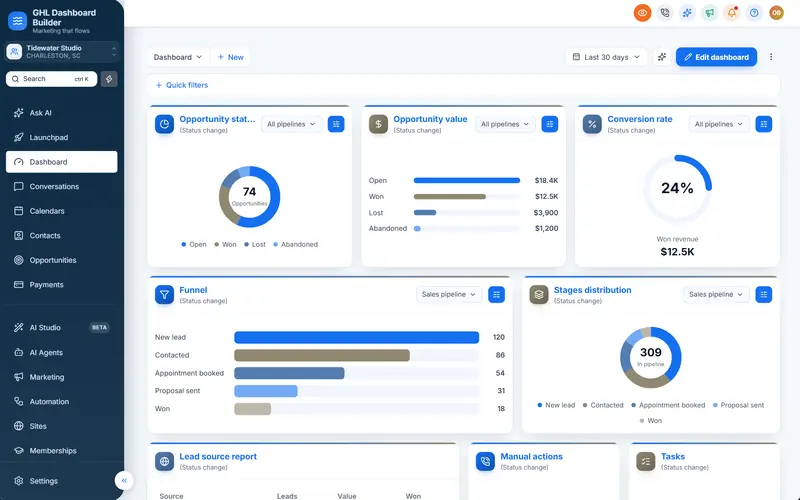
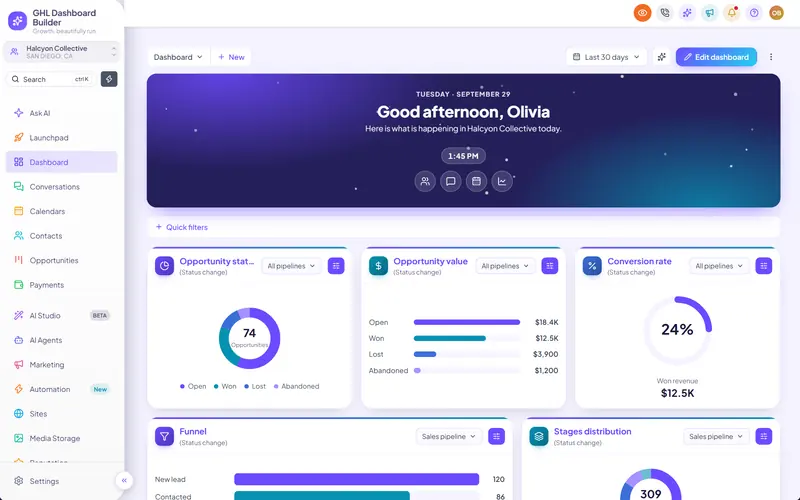
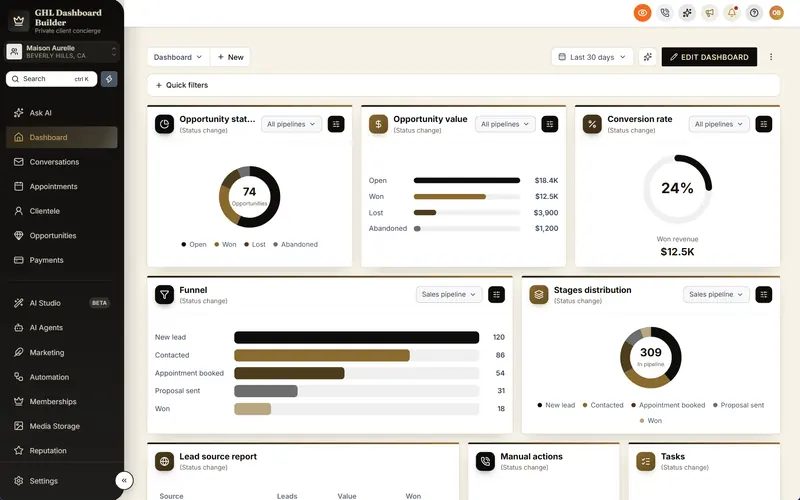
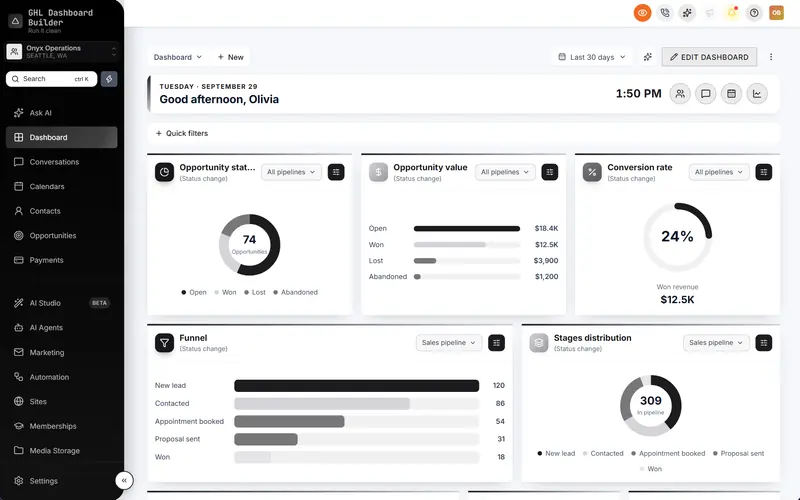
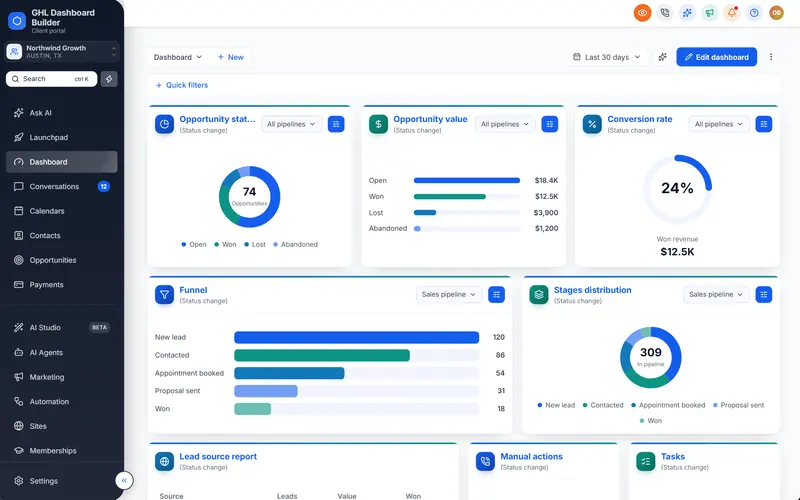
You logged in one morning and the HighLevel menu looked different: groups instead of a long list, a strip of account avatars on the edge, a slimmer top bar. Or a client asked why their sidebar no longer matches the colors you sold them. Both come from the same change. HighLevel (also called GoHighLevel or GHL) is rolling out a new dashboard layout, and it touches the exact parts of the screen agencies brand.
This guide explains the GoHighLevel new dashboard layout in plain terms: how to switch it on or off, what each HighLevel plan can change, what happens to your custom CSS and JavaScript, what breaks and why, and how to keep the dashboard looking like your own software in both the old and the new layout. Menu paths are as they appear in HighLevel’s help center at the time of writing; HighLevel is still changing this feature, so check the linked articles before you roll anything out.
What is the GoHighLevel new dashboard layout?
The GoHighLevel new dashboard layout is HighLevel’s redesigned navigation, which its help center calls Custom Navigation. It replaces the long classic sidebar with grouped sections, adds Recents and Pinned items, an account rail and a new top bar, and on higher plans lets you edit the menu. It is a Labs feature you switch on per agency or sub-account.
In the classic layout, every product sat in one tall list on the left: Dashboard, Conversations, Calendars, Contacts, Opportunities and so on, with Settings at the bottom. The new layout keeps the same products but organizes them into groups such as CRM, Marketing, Sites, Reporting and Commerce. Clicking a group opens a panel with the products inside it, so the main menu stays short.
Three parts are new and matter for branding:
- The side menu. A frame on the left with the account name at the top, a Recents list, the grouped menu and Settings at the bottom. HighLevel’s article on getting started with Custom Navigation says all plans get this redesigned sidebar, search and breadcrumbs.
- The account rail. A narrow column of avatars on the outer edge for switching between the agency and its sub-accounts, which opens into a full account list.
- The top bar. A slim bar across the top with the page title, search, Ask AI and the header icons.
The new layout is not a different product. Your data, pipelines, workflows and settings stay exactly as they are. What changes is the frame around them, which is precisely the part a white-label theme colors, so it is worth understanding before your clients see it.
How do I switch on the new HighLevel layout?
You switch the new layout on under Settings, Labs, in the setting called “A New Design Experience, Starting with Navigation”. From the agency view you can enable it for the agency view and, separately, for chosen sub-accounts. From inside a sub-account it affects only that sub-account. Preview lets you try it first.
Infographic
Moving to the new layoutwithout losing your brand
- 1
Preview it
Open Settings, Labs and use Preview to see the new layout in a separate tab.
- 2
Start with one client
Activate it for one sub-account before the whole agency.
- 3
Bring back your code
Turn on reuse of legacy custom code in White Label settings.
- 4
Check your theme
Make sure the new menu, account rail and top bar take your colors.
- 5
Arrange the menu
On a plan that allows it, rename, reorder and hide groups.
- 6
Roll it out
Activate the remaining sub-accounts and tell the team what changed.

The steps below follow HighLevel’s help article on getting started with Custom Navigation.
- In the agency view, open Settings, then Labs.
- Find A New Design Experience, Starting with Navigation.
- Click Preview first. It opens the new navigation in a separate browser tab without turning it on. A Custom CSS switch at the top of the preview compares the screen with and without your existing styling, which is off by default in the preview. Leave with Exit Preview or close the tab.
- To turn it on for the agency view, use the Agency tab and switch it on.
- To turn it on for clients, use the Sub-account tab, click Activate Feature, pick the sub-accounts and save. Turning it on for the agency view does not turn it on for sub-accounts.
- To try it in a single sub-account only, open that sub-account’s Settings, then Labs, and switch it on there.
Two warnings from the same article are worth knowing before you start. Turning the feature off at agency level also turns it off for every sub-account using it. And switching it off resets any navigation customizations you made; they are not restored if you switch it on again.
What changes between the classic sidebar and the new navigation?
The new layout changes where things live, not what they do. Products move from one list into groups, a personal Recents and Pinned area appears at the top, account switching moves to a rail of avatars, and the header becomes a slim top bar. Plans that allow it can also edit the menu without code.
| Part of the screen | Classic layout | New layout (Custom Navigation) |
|---|---|---|
| Main menu | One long list of products | Groups such as CRM, Marketing, Sites, with panels that open |
| Quick access | Favourites only with custom code | Recents and Pinned, personal to each user |
| Switching accounts | Location switcher at the top of the sidebar | Account rail of avatars that opens into an account list |
| Header | HighLevel’s classic header with icons | Slim top bar with page title, search and Ask AI |
| Editing the menu | Custom JavaScript, or a theme with a menu editor | Built-in editor on the $297 and $497 plans |
| Custom CSS and JS | Runs as soon as HighLevel loads it | Off by default until you turn reuse on |
| Dark mode | Possible with custom CSS | Not supported at the time of writing |
The table above summarizes HighLevel’s three help articles on the feature. The practical meaning for an agency is simple: anything your clients learned about where buttons are will shift, and anything your theme did to the sidebar was written for a structure that no longer exists in the new layout.
A useful way to explain the change to a client is “same tools, new shelves”. Contacts is still Contacts and a workflow still runs the same way. They now find Contacts inside the CRM group, and the things they open often appear under Recents.
How do GoHighLevel’s plans change what you can customize?
Every HighLevel plan gets the new sidebar, search and breadcrumbs, but editing the menu depends on the plan. The $97 plan keeps the default layout, the $297 plan can customize one sub-account, and the $497 plan can customize all sub-accounts and save reusable layouts. These limits come from HighLevel’s help center.
Infographic
HighLevel's new navigationby plan
$97
per month: the new layout with the default menu, no editing
(HighLevel Help Center)
$297
per month: edit the menu for one sub-account
(HighLevel Help Center)
$497
per month: all sub-accounts and reusable layouts
(HighLevel Help Center)
Source: HighLevel Help Center, Getting Started with Custom Navigation in HighLevel (at the time of writing).

HighLevel’s article on how to customize the navigation menu describes what the editor does. You open it with Edit at the bottom of the left navigation (not Edit dashboard on the Dashboard toolbar). In editing mode you can drag items to reorder them, use the three-dot menu to Rename a top-level group, Change icon, or Hide a group or product, and add a new group with Add a category or product. Save layout in the Editing panel at the bottom saves it.
The editor has firm rules that matter for agencies:
- Only top-level groups can be renamed. Products inside a group keep HighLevel’s names, and custom menu links and custom pages cannot be renamed in the editor.
- Recents and Pinned are reserved, cannot be hidden and stay personal to each user.
- Settings stays in a fixed position.
- Hiding a product does not remove access. People can still open it through All Products or a direct link.
- New sub-accounts do not inherit an agency’s layout, layouts are not included in snapshots, and applying a snapshot does not restore hidden items.
The $497 bar stands for every sub-account; it is not a count. Source: HighLevel Help Center, Getting Started with Custom Navigation in HighLevel (at the time of writing)
So HighLevel’s own editor covers the menu’s structure: group names, order, icons and what is visible. It does not cover colors, fonts, the welcome screen or the login page, and it renames only groups. That is where a design layer still has a job.
What happens to your custom CSS and JavaScript in the new layout?
HighLevel disables legacy custom CSS and JavaScript by default for agency and sub-account views on Custom Navigation, without deleting it. You can turn it back on with a reuse toggle in the White Label settings. Code written for the classic sidebar may still not match the new menu, because its structure changed.
HighLevel’s article on using custom CSS and JavaScript with the Custom Navigation sets out the rules:
- Legacy custom CSS and JavaScript are switched off automatically for views on Custom Navigation. Sub-accounts still on the classic navigation keep running your code.
- To turn it back on, open Agency View, Settings, Company, White Label, and find the Custom Navigation section. Switch on the option to reuse legacy custom code. The option appears only when Custom Navigation is enabled, and compatibility is not guaranteed.
- Legacy code is set at agency level and cannot be switched off for single sub-accounts through the White Label settings.
The same article lists what is likely to break. Dark-mode CSS can make navigation text unreadable or make items disappear, because Custom Navigation does not support dark mode at the time of writing. CSS that adds or changes sidebar elements may stop working. Scripts that move or rewrite the menu may fail, and the article notes that pinning items “may now be available natively”. Custom menu links still work, but code that styles or moves them may not. Marketplace apps that inject their own CSS can also cause issues, and the legacy toggle does not affect them.
If your theme vanished the day the new layout appeared, the reuse toggle is the first thing to check. Our guide to GoHighLevel custom CSS that is not working walks through that and the other common causes, and our guide to where to add GoHighLevel custom CSS shows the boxes the code goes into.
How does GHL Dashboard Builder keep your brand in the new layout?
A GHL Dashboard Builder design styles HighLevel’s classic sidebar and the new navigation from the same install. The new side menu, account rail, active page, hover and open menus, badges and the privacy button in the new top bar take your colors, so whichever layout HighLevel shows a user, they see your brand.
GHL Dashboard Builder is an independent design service that turns the standard HighLevel (GoHighLevel) dashboard into a branded platform: your colors, menu, login design, privacy mode and your clients’ language, installed with two lines of code. It is not affiliated with HighLevel. You design the look in a visual builder, then the result goes into HighLevel’s Custom Code boxes as one CSS line and one JavaScript line, and the design is served from our side so updates reach HighLevel when you press Deploy to live.
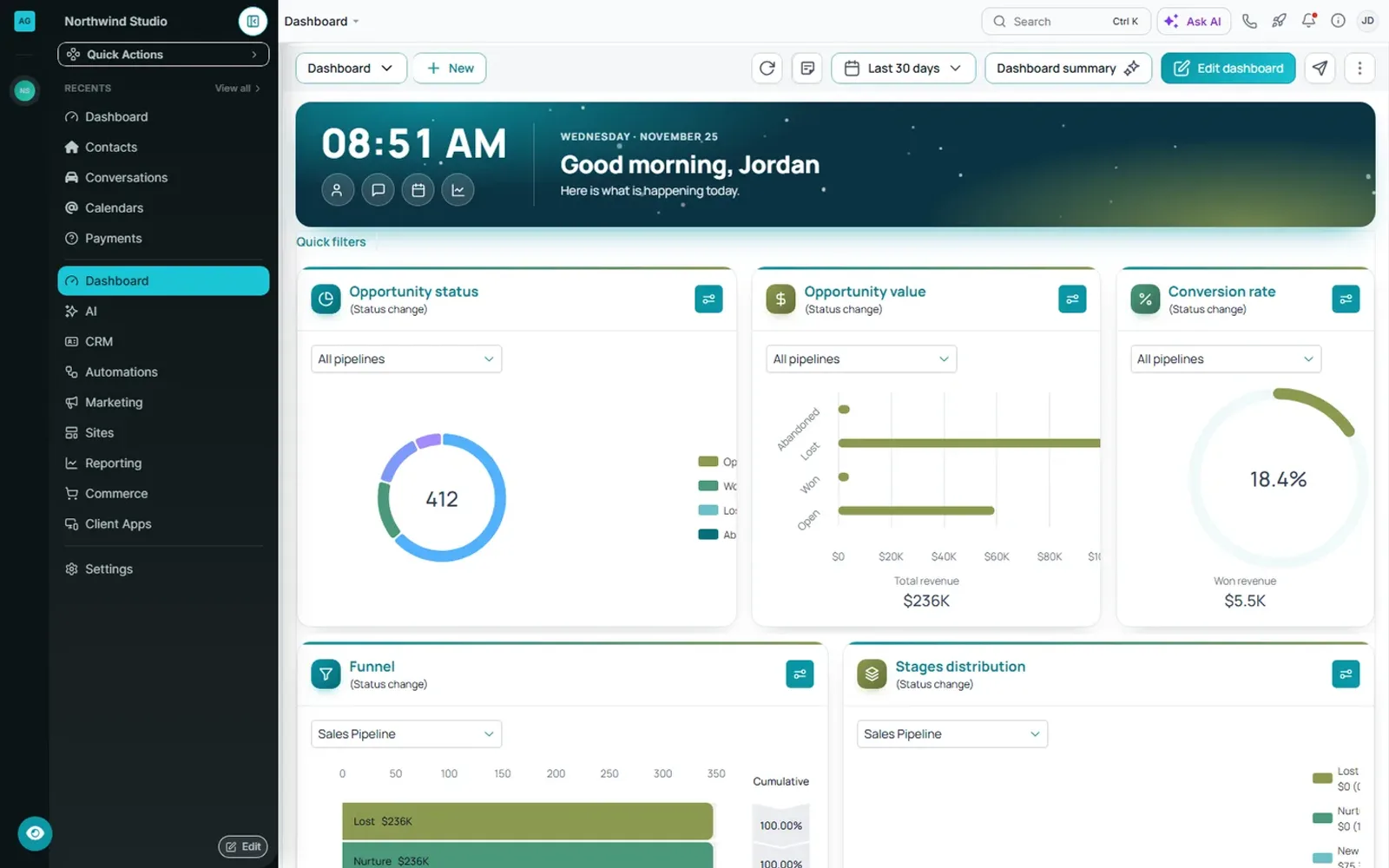
What the design changes in the new layout, measured on HighLevel’s live screens:
| Feature | What it does for your clients in the new layout | Plan |
|---|---|---|
| Brand colors | The side menu, account rail and account list on your menu color, with your text color | Starter, Pro, Agency |
| Active page and hover | The current page in your active color; hover and pressed states as a soft tint of it, with no grey boxes | Starter, Pro, Agency |
| Group panels and badges | Open groups and badges such as “New” or “Offer” in your brand tint | Starter, Pro, Agency |
| Privacy mode | The eye button sits in the new top bar and blurs contact names, emails, phone numbers and deal values | Starter, Pro, Agency |
| Welcome banner | A greeting, date, clock and quick links at the top of the Dashboard, in either layout | Starter, Pro, Agency |
| Languages and right-to-left | The menu and navigation in 15 languages, with the new layout turned right to left for Arabic, Urdu and Hebrew | Pro, Agency |
| Menu editor | Rename, reorder and hide any of HighLevel’s 19 menu items in the classic layout, with your own labels | Pro, Agency |
The design works with every template that keeps a side menu, which is most of our 31 templates. Templates built on top navigation move HighLevel’s classic menu into a bar across the top. The new layout has no classic menu to move, so for clients on the new layout, choose a side-menu template.
The builder shows the new layout too. In the free builder, the HighLevel layout switch in the preview toolbar flips between Old and New, so you can see exactly how your colors land on the new side menu, account rail and top bar before anything touches your account. The same toolbar has an Agency screen that shows HighLevel’s agency dashboard in your design.
How do you set up a branded new layout, step by step?
Preview the new layout, bring your custom code back, then check the menu, the account rail and the top bar in your brand on one sub-account before rolling it out. Most of the work is in HighLevel’s settings; the design itself needs no change if it was built for both layouts.
1. Check your design in the builder
Open your design in the free builder and switch the preview to New. Look at the side menu, the active page, the account rail and the top bar. If you use privacy mode, make sure the eye button shows in the top bar. If you have not built a design yet, start from a template and change the colors and logo.
2. Install or update the two lines
If the design is new, paste the CSS line into Settings, Company, White Label, Custom CSS and the JavaScript line into Custom JS in the agency view. Our page on the two-line install shows where each line goes. If the design is already installed, press Deploy to live and HighLevel picks up the new version.
3. Turn the new layout on for one sub-account
From the agency view, open Settings, Labs, A New Design Experience, Starting with Navigation, the Sub-account tab, then Activate Feature and pick one test sub-account. Keep the rest on the classic layout for now.
4. Turn on reuse of legacy custom code
Open Agency View, Settings, Company, White Label and switch on the option in the Custom Navigation section to reuse your legacy custom code. Without this step, the new layout runs without your design.
5. Test like a client
Log in to the test sub-account as a normal user. Reload the page, open each menu group, hover the items, open the account list and try the privacy button. Check the Dashboard, Conversations and one page with a table. Our page on GHL dashboard customization covers what a branded dashboard changes, which is a good checklist for this test.
6. Arrange the menu, if your plan allows
On HighLevel’s $297 or $497 plan, use Edit at the bottom of the menu to rename, reorder and hide groups. Save the layout and, on the $497 plan, apply it to the other sub-accounts you choose.
7. Roll out and tell the team
Activate the new layout for the remaining sub-accounts in batches. Send the team a short note: where Contacts now lives, what Recents and Pinned do, and that the brand appears a moment after a full reload.
Why does the brand appear a few seconds late in the new layout?
In the new layout HighLevel adds agency custom code only after its own app has loaded the account, the user and the session. On a full reload that takes a few seconds, and until then HighLevel shows its own look. Moving between pages inside HighLevel stays branded, because the code is already on the page.
We traced this on a live agency account in the new layout. HighLevel first loads its own app and shows its loading screen, then runs a chain of its own requests (the accounts, the user, the session, language and brand settings). Only after that does it add the agency’s Custom CSS box, a few seconds after the reload. The theme file itself arrives in well under a second once HighLevel asks for it, and for designs in English the page shows the design as soon as the stylesheet applies.
Nothing in agency custom code can run before HighLevel adds it, so no theme can remove that first plain moment. What a design can do is avoid adding delay of its own: show the page as soon as the styles are in, rather than waiting for every script. Our guide to HighLevel custom code that loads slowly covers the other causes of a slow theme and how to tell them apart.
If those first seconds matter a lot to a client, there are two honest options. Keep that client on the classic layout for now, where HighLevel adds custom code earlier, or ask HighLevel to load agency custom code sooner in the new layout through support or its ideas board.
How does the new layout work in Hebrew, Arabic and Urdu?
A design in a right-to-left language turns HighLevel’s new layout right to left: the menu frame moves to the right, the account rail sits on the outer edge, group panels open toward the page and the menu text reads right to left. A design can also keep the layout left to right and only change the language.
The new navigation positions its menu, page and panels with fixed left offsets, so a right-to-left design has to move each piece deliberately rather than just setting the page direction. Our designs handle the frame, the account rail and its account list, the group panels, the top bar and the page beside them, and keep working when the menu is collapsed.
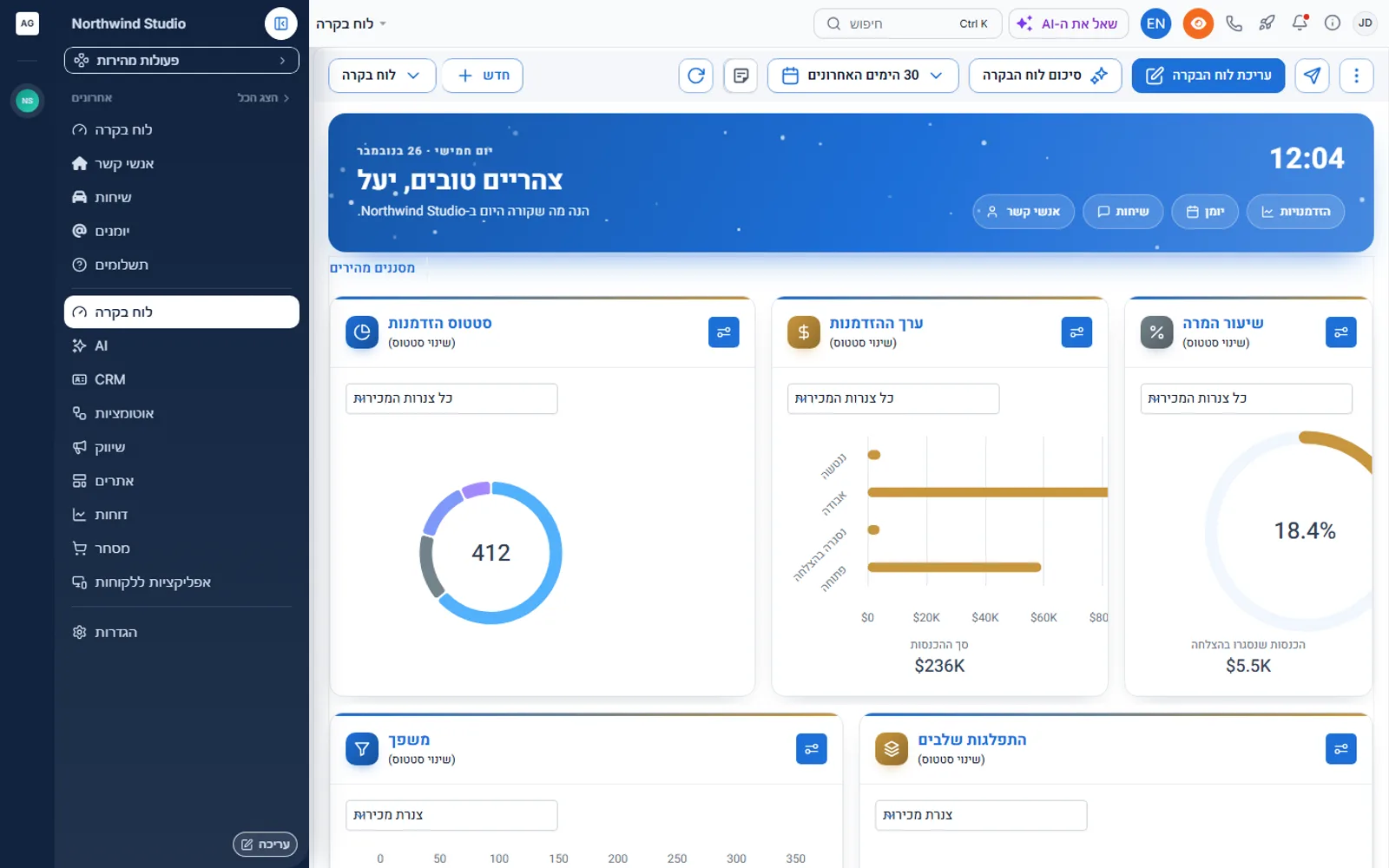
Mixed text is the detail that most often looks wrong. A Hebrew label with an English word in it, for example a product name like Ask AI, reads in the wrong order if the page keeps a left-to-right direction. Our left-to-right Hebrew and Arabic designs let each line take its own direction from its words, so those labels read correctly in either layout.
Language coverage stays the same as in the classic layout: the menu and navigation in 15 languages, with right-to-left for Arabic, Urdu and Hebrew and your own wording for any label. In Arabic and Hebrew designs, many titles, tabs and buttons on HighLevel’s own screens are translated too. Text inside HighLevel’s builders, system emails and the mobile app follows HighLevel’s own language settings. Our guide to a GoHighLevel Hebrew right-to-left dashboard goes deeper.
What can go wrong, and what doesn’t the new layout solve?
The common problems are a theme that disappears because legacy code is off, styling written for the classic sidebar that no longer matches, a few plain seconds on reload, and menu edits that do not carry over to new sub-accounts. Some needs, such as colors or the login page, sit outside HighLevel’s navigation editor entirely.
- Theme missing after the switch. Almost always the reuse toggle under White Label, Custom Navigation is off. Turn it on, then reload.
- Half-styled menu. CSS written for the classic sidebar targets elements the new layout replaced, so some parts take your colors and others stay grey. A design built for the new navigation avoids this. Our guide to GoHighLevel sidebar customization explains why sidebar selectors are fragile.
- Unreadable text in dark designs. HighLevel does not support dark mode in the new layout. A dark menu color is fine; a stylesheet that inverts the whole app is not.
- Hover states that fight your colors. HighLevel’s buttons carry their own hover colors made for a white menu. On a dark or colored menu, an unadjusted theme shows grey boxes and dark text on hover. Check hover and the current page, not just the resting menu.
- Menu edits lost. Switching the new layout off discards navigation customizations, and new sub-accounts and snapshots do not carry layouts. Keep a written copy of your layout.
- Renaming products. HighLevel’s editor renames only top-level groups. Renaming products such as Memberships or Opportunities is something our menu editor does in the classic layout; our guide to renaming GoHighLevel menu items shows the options.
- Login page and emails. The navigation editor and a dashboard theme do not change HighLevel’s system emails or mobile app. The login page is designed separately.
Our own limits, stated plainly: HighLevel does not officially support custom code, and a platform update can require a theme refresh. HighLevel is still changing the new layout, so expect occasional adjustments. Designs are served from our side, so an update reaches every install when we deploy it, without anyone re-pasting code.
Should you move clients to the new layout now?
Move clients when you have checked one sub-account end to end and your plan’s menu options suit you. Agencies that rely on renamed products or a dark theme may wait; agencies that want the grouped menu and Recents can move now, testing first and keeping a written copy of the layout.
| Your situation | Suggested approach |
|---|---|
| You use a branded design built for both layouts | Preview, test one sub-account, then roll out in batches |
| You rely on classic-sidebar CSS written by hand | Rebuild or replace it before moving, or the menu will be half-styled |
| Your clients care about the first seconds after a reload | Keep them on the classic layout for now |
| You need product names in your clients’ words | Keep the classic layout with a menu editor, or rename groups only |
| You are on HighLevel’s $97 plan | You get the new layout with the default menu; branding still applies |
| You manage many sub-accounts on the $497 plan | Save one reusable layout and apply it in your onboarding checklist |
For agencies with several client types, the per-sub-account switch is useful in itself. You can move a modern, tech-friendly client first and leave a client who depends on muscle memory on the classic layout until a quiet week. Our page on branding a single sub-account explains how one design can be limited to chosen clients while the rest of the agency stays as it is.
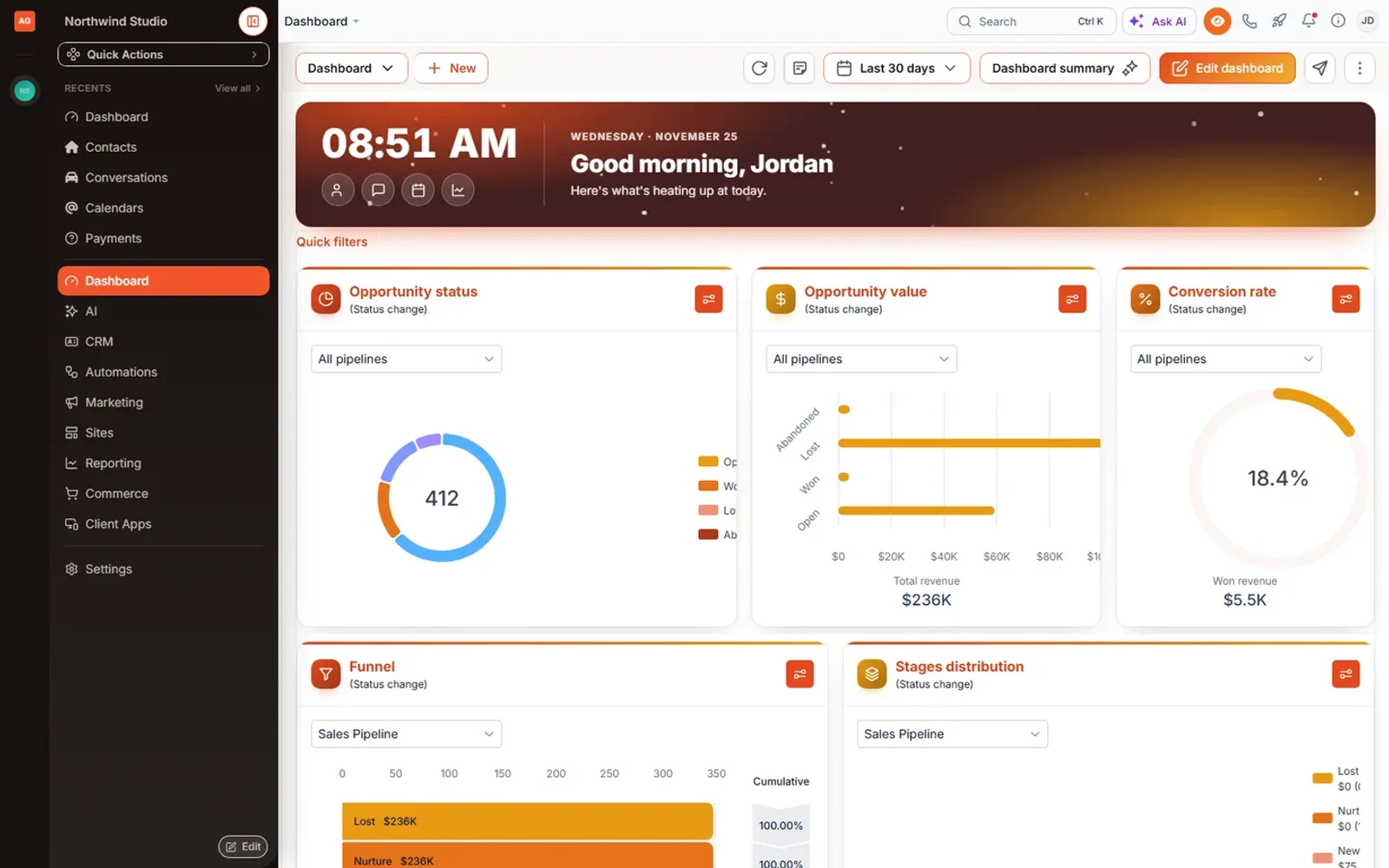
A last consideration is training. The new layout is easier for new users and briefly harder for experienced ones, who look for Contacts where it used to be. A two-minute screen recording of your branded new layout, sent before you switch a client, prevents most of the “where did everything go” messages.
What to do next
Our plans are one-time payments with no monthly fee, plus a one-time $100 setup fee on every plan, for which we install and configure the design in your HighLevel. Starter at $280 gives one design. Pro at $480 adds up to 3 designs, the menu editor, the branded login page and 15 languages. Agency at $880 allows up to 100 designs, a look designed by our team, custom CSS and JavaScript and lifetime updates. Starter and Pro include 12 months of updates, then optional at $99 a year. Current details are on the pricing page.
- Open HighLevel’s Settings, Labs and click Preview on the new layout, with the Custom CSS switch on and off.
- Open the free builder, switch the preview to New and check your colors on the new menu, account rail and top bar.
- Turn the new layout on for one test sub-account and switch on reuse of legacy custom code under White Label.
- Write down your current menu layout before you edit or switch anything off.
- Browse our features or the FAQ, and contact us if you want a design built for both layouts and installed for you.