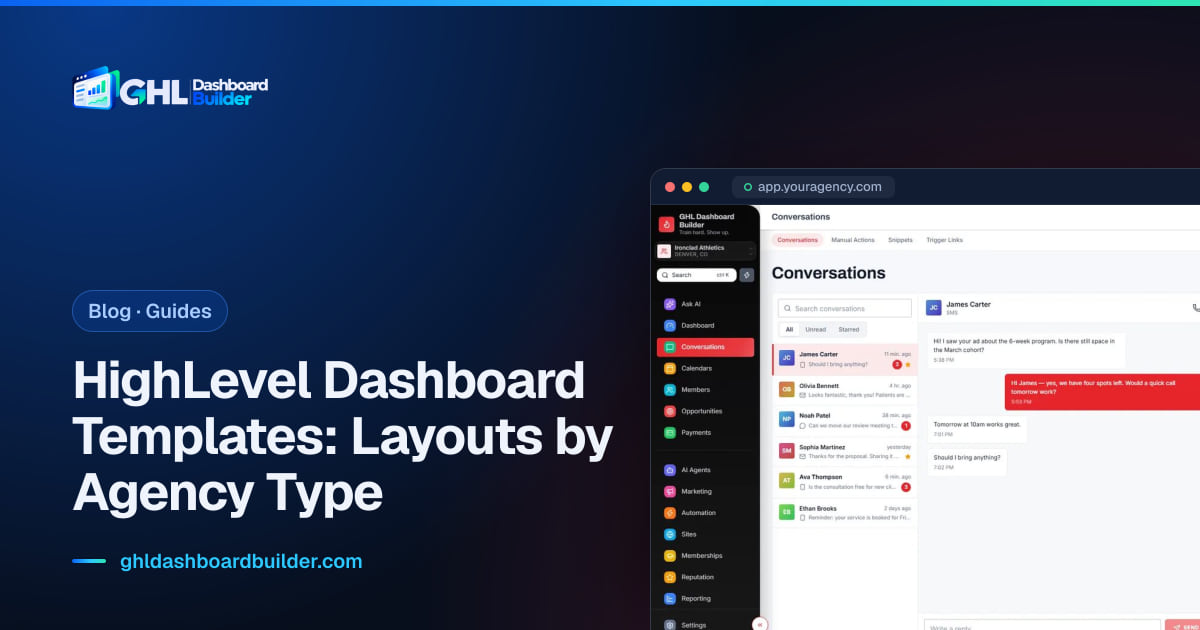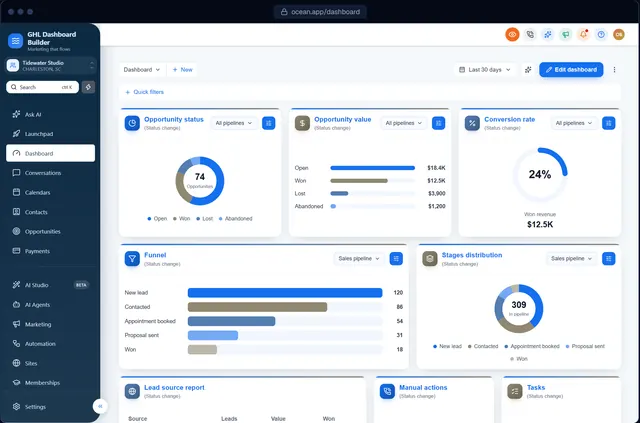
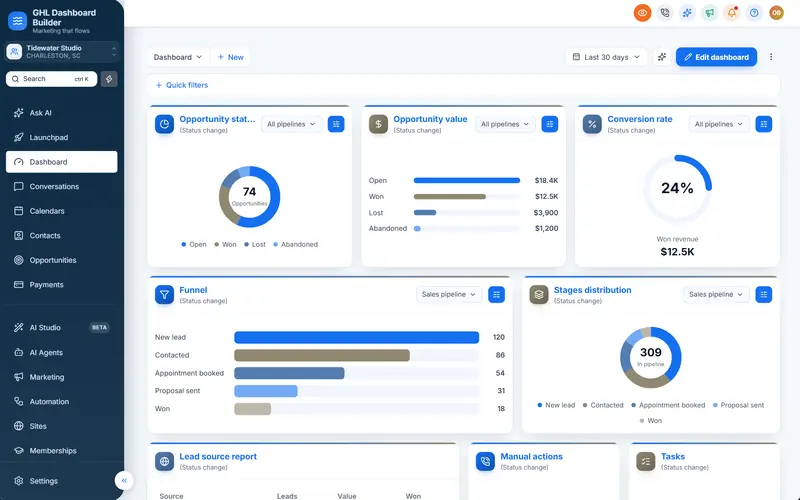
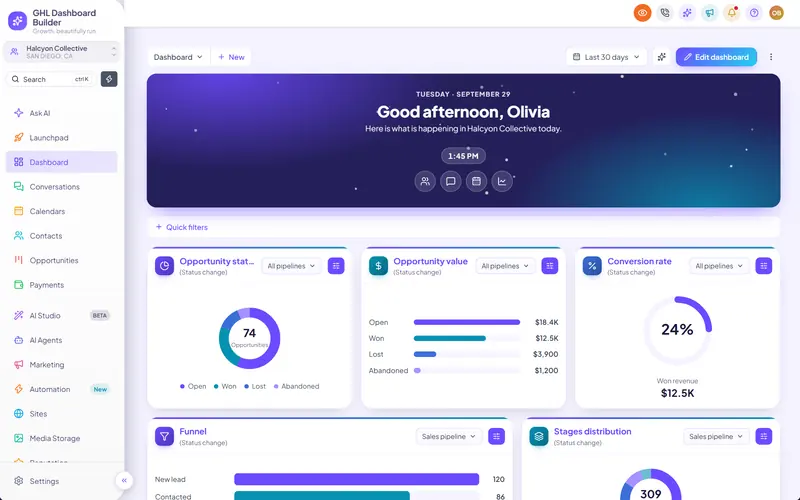
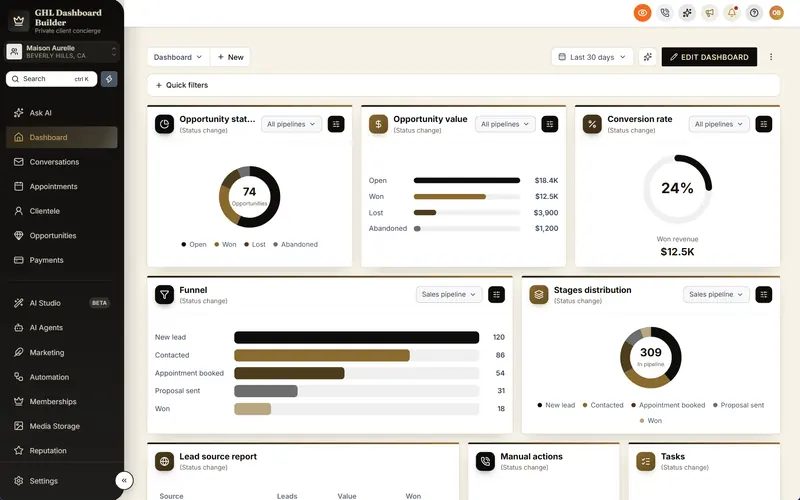
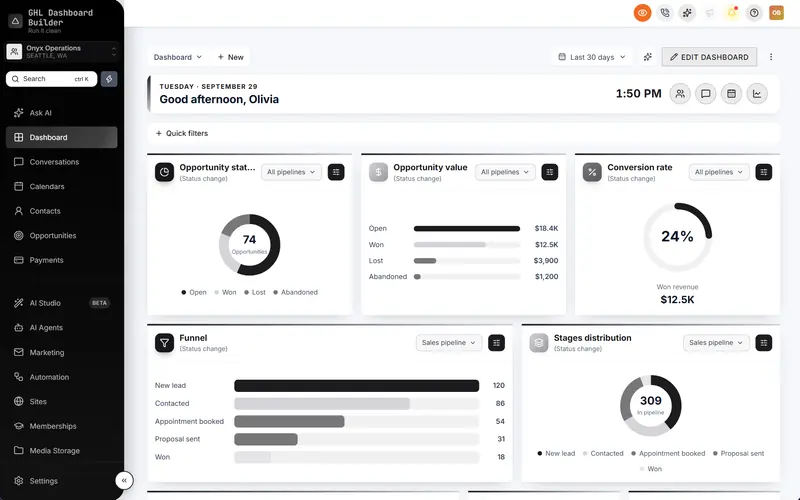
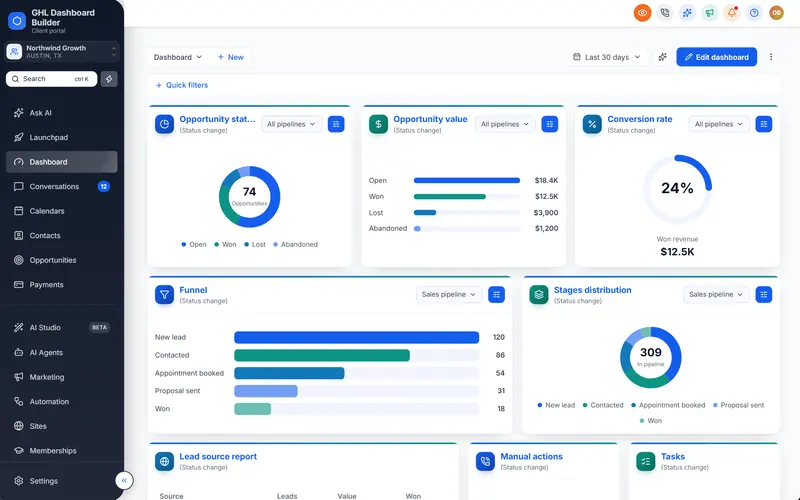
The GoHighLevel dashboard is the home page of every HighLevel (also called GoHighLevel or GHL) sub-account: a grid of widgets showing a client’s opportunities, appointments, contacts and messages for a chosen date range. Agencies also get a separate Agency Dashboard for their own business. You can add widgets, build several dashboards, control who sees them and restyle the screen around them.
That is the short answer. The longer one matters because the GoHighLevel dashboard is the first thing your clients see every morning, and most agencies only scratch its surface: they leave the default widgets in place, never set permissions, and send clients to a screen that looks exactly like every other agency’s. This guide explains what the HighLevel dashboard shows by default, how filters, permissions and custom reports work as of November 2026, where the real limits are, and how to turn the GHL dashboard into a branded start screen for each client.
What is the GoHighLevel dashboard?
The GoHighLevel dashboard is a page made of widgets: small charts, figures and lists that read a sub-account’s own data. Every sub-account has one, near the top of the left menu, and it is where most users start their day. Agencies have a second, separate dashboard in Agency View for agency-wide numbers.
When people search for “the GHL dashboard” they can mean three different things, and it helps to separate them before you change anything:
- The sub-account Dashboard page. This is what your clients and their staff see. It shows widgets for one business: its pipeline, its calendar, its leads. Each sub-account can have several dashboards, and one of them is the default.
- The Agency Dashboard. This is what you see in Agency View. It summarizes your agency, your SaaS-mode subscriptions and your reselling, not one client’s sales.
- The whole interface. Many agency owners say “dashboard” when they mean the full HighLevel screen: the sidebar, header, menu, buttons and the Dashboard page together. That is the version clients judge when they decide whether your platform feels like your own product.
The first two are HighLevel features that you configure with HighLevel’s own settings. The third is about design, and HighLevel only gives you a logo, a domain and two Custom Code boxes for it. This guide covers all three, in that order. If you want the full map of every visual area you can change, our guide to GoHighLevel dashboard customization goes area by area; this post focuses on the Dashboard page itself and what surrounds it.
What does the HighLevel dashboard show by default?
By default, the HighLevel dashboard shows a set of standard widgets for the sub-account’s sales activity: opportunity counts and values, pipeline stages, conversion figures and appointments. You can add more from the Widget Gallery, remove what the client never uses, and rearrange everything in edit mode.
HighLevel’s help article What Are Dashboard Widgets? groups widgets into categories by the data they read. At the time of writing, these include Opportunities, Appointments, Contacts, Visitor Data, Emails and a General group, with chart types such as a single number (count) and charts over time. Some categories only appear when the sub-account actually uses the matching module.
The table summarizes the categories an agency usually works with. Widget names change from release to release, so treat the examples as typical rather than a complete list.
| Widget category | Typical widgets | What it answers for the client | Best for |
|---|---|---|---|
| Opportunities | Counts by status, value of open opportunities, revenue over time | “How much business is in the pipeline, and is it moving?” | Sales-led clients: real estate, home services, B2B |
| General | Opportunity status, conversion rate, funnel, stage distribution | “Where do deals stall between stages?” | Any client with a defined pipeline |
| Appointments | Booked appointments, counts by status (confirmed, no-show) | “How full is the calendar, and how many people didn’t show?” | Clinics, med spas, salons, gyms, consultants |
| Contacts | New contacts over time, contacts by source | “Are leads coming in, and from where?” | Clients running ads or lead forms |
| Visitor Data | Website and funnel visits | “Are people reaching the pages we built?” | Clients using HighLevel funnels and websites |
| Emails | Sends, opens, clicks | “Is email marketing reaching people?” | Clients with regular campaigns |
Two practical points are easy to miss. First, a fresh sub-account has little data, so the default widgets show zeros for the first weeks; that is a bad first impression on an onboarding call, and a reason to decide in advance which widgets a new client sees. Second, widgets show what is recorded in HighLevel. If a client’s team books appointments outside HighLevel or never moves opportunities between stages, the dashboard will be accurate and still useless.
Which widgets should each type of client see first?
The best GoHighLevel dashboard is short. Pick five or six widgets that match how the client earns money and put them at the top; everything else can sit lower or on a second dashboard.
| Client type | Put these first | Leave lower or remove |
|---|---|---|
| Dental or medical practice | Appointments by status, booked appointments, new contacts by source | Pipeline value, email clicks |
| Law firm | Consultations booked, open opportunities by stage, conversion rate | Visitor data |
| Real estate team | New leads by source, opportunities by stage, value of open opportunities | Email opens |
| Home services | New leads, quotes in the pipeline, won value over time | Visitor data |
| Gym or studio | Trial bookings, no-shows, new contacts | Pipeline value, if not used |
| Your own agency (SaaS mode) | Agency Dashboard summary and SaaS metrics | Client-level widgets |
The widget layout is only half of the job, though. A practice manager who opens a perfect set of widgets inside a generic interface still sees “HighLevel” rather than your agency. That is where the third meaning of “dashboard” comes in.
Agency dashboard vs sub-account dashboard: which one is which?
The sub-account dashboard is for one business and its staff; the Agency Dashboard is for you. They live in different views, read different data and answer different questions, so you configure them separately and never show the Agency Dashboard to a client.
HighLevel’s help article on the Agency Dashboard explains that you reach it from Agency View, by choosing Agency Dashboard in the left navigation, and that it is organized into three areas: Summary, SaaS and Reselling metrics. In practice it is where you check how your agency as a whole is doing, how your SaaS-mode plans are performing and what you earn from reselling HighLevel services.
| Sub-account Dashboard | Agency Dashboard | |
|---|---|---|
| Who sees it | The client’s users (and your agency users inside that sub-account) | Agency users in Agency View |
| Where it is | Dashboard, near the top of the sub-account menu | Agency View, Agency Dashboard |
| What it reads | One business’s opportunities, appointments, contacts and messages | Agency summary, SaaS and reselling figures |
| Can you build several? | Yes, with permissions and a default | Configured by HighLevel |
| Can it be branded with custom code? | Yes, the whole page and the interface around it | Not relevant: clients never see Agency View |
| Typical mistake | Leaving default widgets that show zeros | Treating it as client reporting |
The rest of this guide is about the sub-account dashboard, because that is the one your clients judge you by. If you are unsure which settings live at agency level and which live in each sub-account, our guide to GoHighLevel agency vs sub-account settings maps them.
How does GHL Dashboard Builder change the GoHighLevel dashboard?
GHL Dashboard Builder is an independent design service that turns the standard HighLevel (GoHighLevel) dashboard into a branded platform: your colors, menu, login design, privacy mode and your clients’ language, installed with two lines of code. It leaves HighLevel’s widgets and data alone and changes the screen around them, so the dashboard looks like your agency’s software.
HighLevel’s widgets decide what numbers appear. Our designs decide what the client sees around those numbers: the sidebar in your colors, the menu in the client’s own words, a greeting at the top of the Dashboard and live figures from the account. You design it in the free builder on a live copy of HighLevel’s screens, preview it on desktop, tablet and phone, and we install it with one CSS line and one JavaScript line under Settings, Company, Whitelabel, Custom Code. Clearing the two boxes removes it. We are not affiliated with HighLevel, and the design works alongside whatever widgets you have built.
The most visible change on the Dashboard page itself is the welcome banner. Instead of opening on a grid of charts, each user is greeted by first name, with the date, a clock and quick links to the pages they use most. You choose from 12 designs and nine layouts, or put your own photo or colors behind it, in three heights.
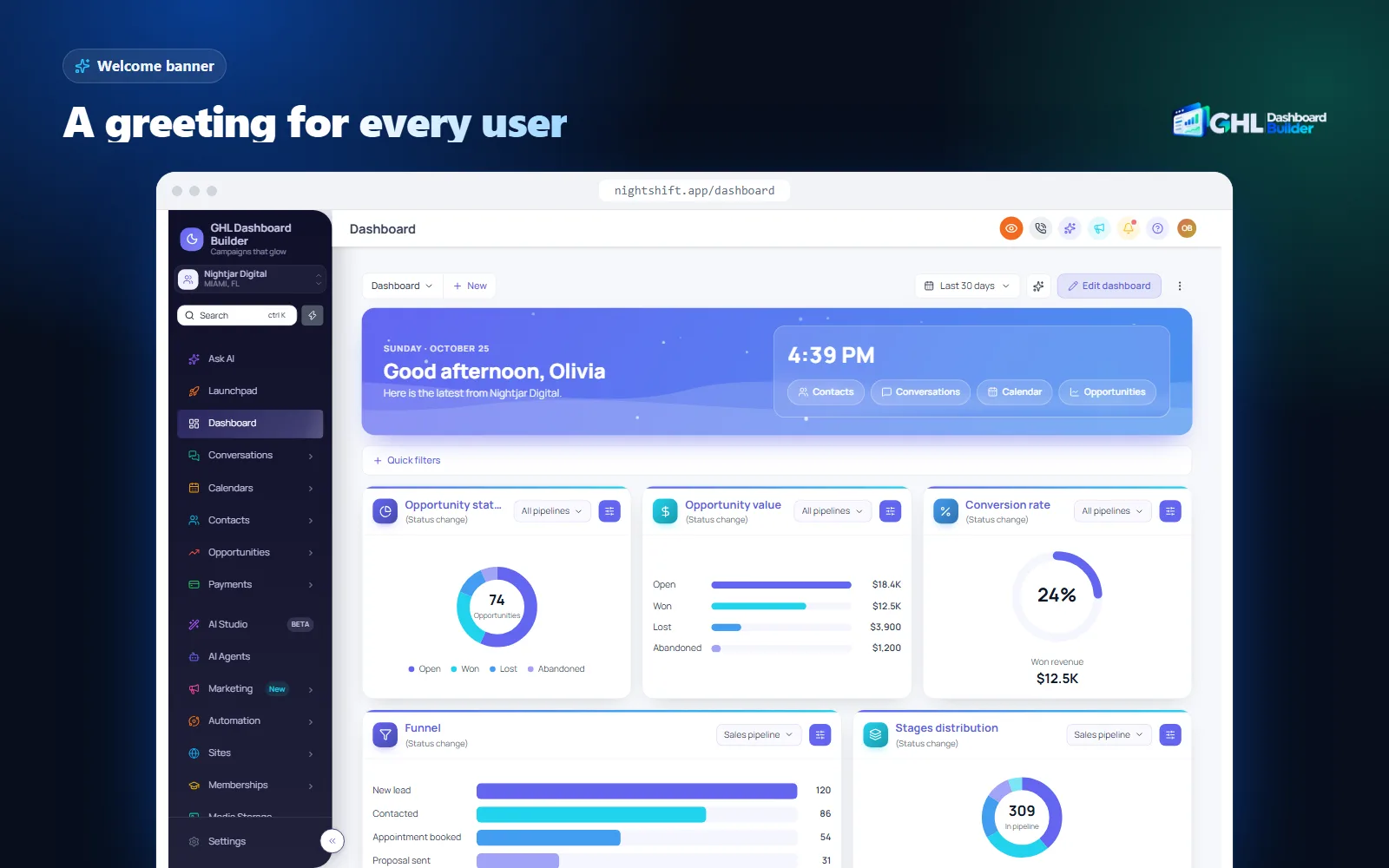
At a glance: what each feature adds to the dashboard, and which plan
The features below are the ones that change the Dashboard page and the frame around it. The full list of 18 is on our features page.
| Feature | What it does for your clients | First plan that includes it |
|---|---|---|
| Brand and colors | Your color system, fonts and favicon across the interface, not only on widgets | Starter |
| Welcome banner | A greeting by first name, date, clock and quick links at the top of the Dashboard | Starter |
| Live figures and appointments board | Unread conversations, appointments today, tasks due and the next appointments from every calendar, on the Dashboard | Starter |
| Notification pop-ups | New messages, bookings and payments slide in while the client works | Starter |
| Privacy mode | An eye button that blurs names, emails, phone numbers, conversations and deal values | Starter |
| Menu editor and live menu counts | Rename, reorder and hide any of the 19 menu items, with count badges | Pro |
| 15 languages, 3 right-to-left | Translated menu and navigation, including Arabic, Urdu and Hebrew | Pro |
| Custom CSS and JavaScript | Your own code on top of the design | Agency |
Starter costs $280, Pro $480 and Agency $880, all one-time, plus a one-time $100 setup fee on every plan, for which we install and configure the design in your HighLevel.
Infographic
The GoHighLevel dashboardby the numbers
3 of 3
HighLevel sub-account plans with multiple dashboards and custom reports
(HighLevel changelog)
31
design templates for the dashboard and the interface around it
(GHL Dashboard Builder)
12
welcome banner designs for the top of the Dashboard page
(GHL Dashboard Builder)
19
HighLevel menu items you can rename, reorder or hide
(GHL Dashboard Builder)
Sources: HighLevel changelog, Dashboard and custom report available on all plans; GHL Dashboard Builder features, November 2026.
The point of the design layer is not decoration. A client who logs in to a screen with their own name, their business’s words and today’s appointments at the top has less to learn and a clearer reason to remember who set it up. Our guide to GoHighLevel dashboard widgets and a branded welcome banner explains how to combine HighLevel’s widgets with the banner in more depth.
How do filters, custom dashboards and permissions work?
Each sub-account can have several dashboards, each with its own widgets, date filter and permissions. The dashboard-level date filter drives most widgets; a widget can override it with its own fixed range. Permissions decide who can see, edit or share each dashboard, and one dashboard is set as the default.
Date filters and widget settings
HighLevel’s article on configuring and filtering general widgets explains that general widgets follow the date filter at the top of the dashboard by default. In a widget’s advanced settings you can lock it to its own date range, so it ignores the dashboard filter, change which date it uses, and add data filters such as assigned user, tags or source.
That matters more than it sounds. If one widget is locked to “this month” and the rest follow a “last 7 days” filter, a client comparing numbers on the same screen will see figures that don’t add up. Decide on one rule per dashboard: either everything follows the dashboard filter, or each fixed widget says its period in its title.
Several dashboards per sub-account
HighLevel’s changelog entry Dashboard and custom report available on all plans says sub-accounts on all three plans, $97, $297 and $497, now have access to multiple dashboards and fully customizable reports. Prices and plan names change, so check HighLevel’s current pricing before you promise a client a feature tied to a plan.
A sensible pattern is three dashboards per client: a short default dashboard for the whole team, a sales dashboard for managers and a private agency dashboard where you track what you are responsible for, such as lead volume and response times.
Permissions and the default dashboard
HighLevel’s guide to managing dashboard permissions describes the access levels at the time of writing: Full (create, edit, share and delete), Edit, View and No Access, plus a Private toggle that keeps a dashboard to its creator. You open them from the dashboard’s three-dot menu, under Manage Permissions. Roles are linked, so lowering an admin role’s access can lower the user role below it as well.
The default dashboard is the one users see when they open the Dashboard page. HighLevel’s article on setting a default dashboard notes that every team member needs at least View permission on it. If a client’s receptionist opens Dashboard and sees an error or an empty page, check that first.
| Who | Suggested access on the default dashboard | Why |
|---|---|---|
| Your agency users | Full | You maintain the layout across clients |
| The client’s owner or manager | Edit or View | Edit if they like to add widgets; View if you want a stable layout |
| The client’s staff | View | They need the numbers, not the controls |
| Your internal agency dashboard | Private | Your margins and notes stay with you |
If you are about to review a client’s dashboard on a video call, remember that widgets and the lists one click away show real names, emails and deal values. That is a data-protection question as much as a presentation one.
Where does custom reporting live in GoHighLevel?
Custom reporting in GoHighLevel lives under Reporting, not on the Dashboard page. Reporting holds HighLevel’s dedicated reports, such as the attribution report, and Custom Reports, which you build from scratch, from an existing dashboard or from a template, then schedule by email or export as PDF for clients.
The difference is purpose. The Dashboard is a live screen people work from during the day. A report is something you send: a monthly summary for the client’s owner, a PDF for a review meeting, a scheduled email every Monday. Agencies that try to use the Dashboard as their client report usually end up taking screenshots, which is slow and easy to get wrong.
Custom Reports
HighLevel’s guide to creating, scheduling and exporting custom reports describes the flow: open Reporting, choose Custom Reports, then New Report, and either start from scratch or convert an existing dashboard into a report. The same article notes a detail that causes confusion: the report builder shows data in your browser’s time zone, while the scheduled email uses the sub-account’s time zone. An agency in London reporting on a client in Dallas will see different day boundaries in the builder and in the email.
HighLevel also has a Template Library for Custom Reports: pre-built report layouts with pages, widgets and themes already set up, which you preview and apply when you create a report. According to that article, editing a template affects future reports created from it, while existing and scheduled reports stay unchanged. If you build report layouts per niche, that behavior is what you want.
Attribution and ad reports
The attribution report answers “which source brought in the revenue?”. HighLevel’s article on tracking the ad campaign that generated your sales describes opening Reporting, Attribution Report in a sub-account to see closed revenue, won opportunities and total leads by source. Attribution only works when leads come in through HighLevel’s own forms, surveys, calendars, chat widget or order forms, so a client who takes enquiries by phone or through a third-party form will see gaps.
Ad reports for Google and Facebook sit in the same Reporting area and need the client’s ad accounts connected to the sub-account first. Until they are connected, those tabs stay empty.
Dashboard or report: which to use
| Need | Use | Why |
|---|---|---|
| The team’s daily view of leads and appointments | Dashboard (default) | Live, interactive, filtered by date |
| A manager’s sales view | A second dashboard with Edit or View | Different widgets, same data |
| A monthly summary for the client’s owner | Custom Report, scheduled | Arrives by email; no login needed |
| A PDF for a review meeting | Custom Report, exported as PDF | Fixed, shareable, printable |
| Which channel earns money | Attribution report | Revenue by source |
| A branded first screen for every user | Welcome banner and design layer | Greeting, quick links, live figures |
How do you set up a GHL dashboard for a client, step by step?
Set up a GHL dashboard in two passes: first the data layer in HighLevel (widgets, filters, permissions, default), then the design layer around it (brand, welcome banner, menu, live figures). Test both as a normal client user before anyone on the client’s team logs in.
Infographic
A client-ready GHL dashboardin six steps
- 1
Pick the numbers
Choose five or six widgets that match how the client earns money.
- 2
Build the layout
Add, remove and arrange widgets in the dashboard's edit mode.
- 3
Set permissions
Give staff View, keep Full for your agency and set the default.
- 4
Brand the frame
Design colors, menu words and a welcome banner in the free builder.
- 5
Install
Paste two lines into Settings, Company, Whitelabel, Custom Code.
- 6
Test as the client
Log in as a staff user and check every screen they use.
Part 1: the data layer in HighLevel
- Open the client’s sub-account and choose Dashboard in the left menu.
- Open the dashboard selector and add a new dashboard, or open the existing default. If you serve one niche often, start from a layout you have already built; our guide to HighLevel dashboard templates explains the Template Library, cloning and snapshots.
- Switch to Edit Dashboard and choose Add Widget. Search the Widget Gallery for the five or six widgets from the table earlier in this guide, and remove widgets the client will never use.
- For each widget, decide whether it follows the dashboard’s date filter or keeps its own fixed range. If it keeps its own, put the period in the widget’s title.
- Save, open the dashboard’s three-dot menu and choose Manage Permissions. Give the client’s staff View, decide whether the owner gets Edit, and keep Full for your agency users.
- Set this dashboard as the default, so it is what users see when they open the Dashboard page.
- If you need a monthly summary for the owner, open Reporting, Custom Reports, New Report and convert this dashboard into a report, then schedule it.
Part 2: the design layer
- Open the free builder and choose a template that fits the client, or compare a few on the template gallery. The plain HighLevel baseline shows the standard interface for comparison.
- Set the brand colors and fonts, and upload the logo.
- Turn on the welcome banner, choose a design and layout, and add the three or four quick links the client’s team uses most.
- Choose the live figures to show: unread conversations, appointments today, tasks due, new opportunities or overdue invoices.
- Decide the scope: the whole agency or only this client’s sub-account, added by link or Location ID. Our guide to the HighLevel Location ID shows where to find it.
- Choose a plan; we install the two lines in Settings, Company, Whitelabel, Custom Code as part of the one-time setup.
Part 3: test like the client
Log in as a normal user with the client’s role, not as an agency admin. Check that the default dashboard opens without errors, that the widget numbers match the period in their titles, that the welcome banner greets the user correctly and that every quick link opens. Then check the same screens in a phone browser. Menu paths in HighLevel move from time to time; if one of the names above has changed, search HighLevel’s help center for the setting’s name.
How do you make the dashboard a daily start screen?
Make the GoHighLevel dashboard a daily start screen by putting today’s work at the top: unread conversations, today’s appointments, tasks due and new opportunities, each one click from the page where it is handled. HighLevel’s widgets report on periods; a start screen tells the user what to do next.
HighLevel’s widgets are good at trends: how many leads came in this month, how the pipeline moved, how many appointments were no-shows. They are less good at the question a receptionist has at 8:30 in the morning: “What needs me right now?”. Unanswered messages sit in Conversations, today’s bookings sit in the calendar, and overdue tasks sit in another list. Staff learn to check four pages, or they miss things.
Our live figures close that gap. They read the account’s own data and show real numbers on the menu and in the welcome banner: unread conversations, appointments today, tasks due, new opportunities and overdue invoices. They refresh every minute while HighLevel is open, and each figure opens its page. The appointments board adds the next appointments from every calendar in a card at the top of the Dashboard, each one a click away from its calendar.
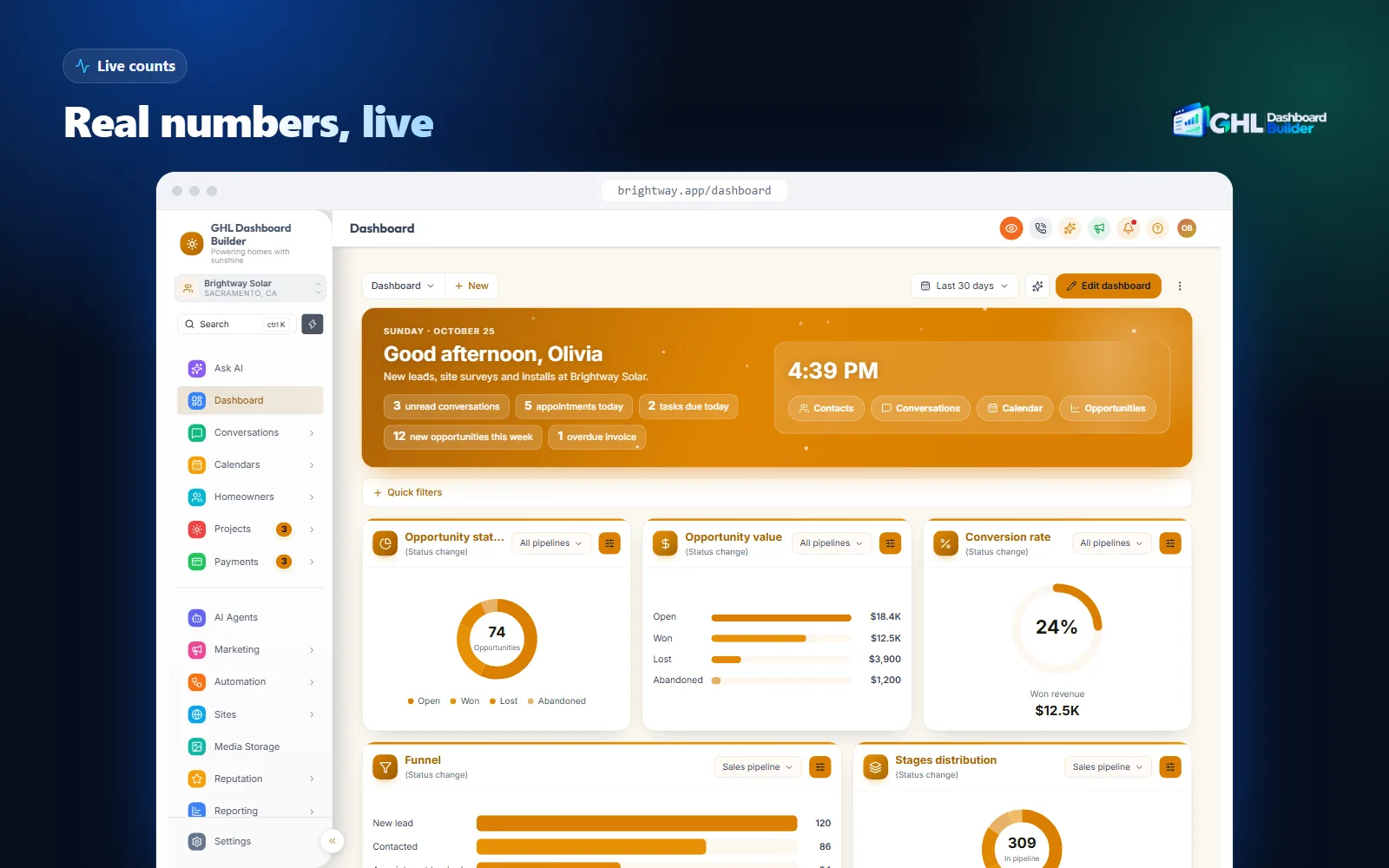
Live figures in the welcome banner and the appointments board are included from Starter; count badges on the menu come with the menu editor from Pro. None of this replaces HighLevel’s widgets. A good GHL dashboard uses both: the banner and live figures for today, the widgets underneath for the trend.
For clients who are not at the Dashboard all day, notification pop-ups do the same job wherever they are in HighLevel: new messages, bookings and payments slide in with a greeting and Reply, Mark read and Call buttons. Our guide to GoHighLevel dashboard notifications covers when pop-ups help and when they become noise.
What are the limits of the GoHighLevel dashboard?
The GoHighLevel dashboard’s main limits are that its widgets only report what is recorded in HighLevel, that its own styling options stop at the widgets, and that it offers no built-in way to greet users, rename the menu around it or show different looks to different clients. Custom code fills some of those gaps, with trade-offs of its own.
Here are the limits agencies run into most often, at the time of writing:
- Data quality. Widgets are only as good as the team’s habits. If opportunities are never moved between stages or appointments are booked in another tool, the dashboard will be precise and wrong. Fix the process before the layout.
- Copying between sub-accounts. HighLevel’s help center notes that when you duplicate a dashboard to another sub-account, data sources are not copied, so widgets that depended on them show errors until you reconnect or remove them.
- Time zones. As described above, the custom report builder uses the browser’s time zone while scheduled emails use the sub-account’s, so “yesterday” can mean two different things.
- Styling stops at the widgets. HighLevel’s dashboard themes color the dashboard and its widgets. The sidebar, header, buttons, menu wording and login page are not part of those settings.
- No greeting or start screen. There is no built-in welcome message, quick-link area or “today” summary at the top of the Dashboard page.
- Menu wording. The menu around the dashboard says Contacts and Opportunities to every client. Our guide to renaming GoHighLevel menu items explains what renaming changes and what it does not: HighLevel’s own page titles and system emails keep HighLevel’s wording.
The trade-offs of a design layer
Custom code solves the styling, greeting and wording gaps, and it is honest to name what it costs. HighLevel’s guide to agency company settings describes custom code as powerful but unsupported, and warns that changes to HighLevel’s interface may break it. A large HighLevel release can require a theme refresh; our Starter and Pro plans include 12 months of updates for that (then optional at $99 a year), and Agency includes lifetime updates.
Custom code also only runs in the web app in a browser. The LeadConnector mobile app and a white-label mobile app keep HighLevel’s own look. Text inside HighLevel’s builders, its system emails and the app follow HighLevel’s language and settings. Our installed code loads as one stylesheet and one script, about 60 KB compressed and cached after the first visit; it only changes how HighLevel looks and what its menu says, and it does not read or send your data anywhere.
| Gap in the standard dashboard | HighLevel’s own option | Design layer option | Trade-off |
|---|---|---|---|
| Widgets in brand colors | Dashboard themes | Brand colors across the whole interface | Custom code is unsupported by HighLevel |
| A greeting and quick links | None at the time of writing | Welcome banner | Web app only, not the mobile app |
| Today’s work at a glance | Widgets by period | Live figures and appointments board | Needs the data in HighLevel |
| Industry words in the menu | Custom menu links add items only | Menu editor (Pro) | HighLevel’s page titles keep its wording |
| One client looking different | Same interface for everyone | Design limited to chosen sub-accounts | One design per install scope; ask us for more |
Can one client get a different-looking dashboard?
Yes. HighLevel’s widget dashboards already differ per sub-account. For the design, one install can limit a look to chosen sub-accounts, by link or Location ID, while the rest of your agency keeps plain HighLevel. That makes it easy to pilot a branded dashboard with one premium client first.
Agency-level custom code normally applies across every sub-account, which is why a free CSS theme pasted into the agency settings changes all of your clients at once. Our scope setting solves that: choose “Only these sub-accounts” in the builder, add the client’s sub-account, and only that sub-account gets the new look. You still paste one install code, and you can add or remove sub-accounts at any time.
Plans set how many designs you can keep: Starter holds 1, Pro up to 3 and Agency up to 100. One design is shown in the sub-accounts you choose. If you want a clinic look for one client and a roofing look for another from the same agency, tell us on the contact page before you buy, so we can confirm the setup for your account.
A pilot is also the safest way to test. Pick a client who is happy to give feedback, brand their dashboard, and watch the first week: which quick links they use, whether the live figures match their own sense of the day, and whether staff ask fewer “where is…” questions on calls. Then roll it out wider, or keep it as a premium tier for the clients who value it.
What does a branded GoHighLevel dashboard cost?
HighLevel’s dashboards and custom reports come with your HighLevel plan; according to HighLevel’s changelog they are available on the $97, $297 and $497 plans. A branded design layer from GHL Dashboard Builder is a one-time payment: Starter $280, Pro $480 or Agency $880, plus a one-time $100 setup fee on every plan.
There are three ways to get the design layer. You can write the CSS and JavaScript yourself, which costs time and maintenance after every HighLevel release. You can hire a developer at their own rate. Or you can design it visually and have it installed, which is what our plans cover. There are no monthly fees; Starter and Pro include 12 months of updates, then optional at $99 a year, and Agency includes lifetime updates. You can upgrade later by paying the difference between plans, and the setup fee is never charged twice.
Source: GHL Dashboard Builder pricing, November 2026 (plan price plus the one-time $100 setup fee). No monthly fees.
Which plan fits which dashboard
- Starter fits an agency that wants one branded look: brand colors, the welcome banner, live figures, the appointments board, pop-ups and privacy mode, for the whole agency or chosen sub-accounts.
- Pro adds what changes the menu around the dashboard: the menu editor with live menu counts, 15 languages with right-to-left for Arabic, Urdu and Hebrew, a branded login page, top navigation and up to 3 designs.
- Agency fits agencies that brand many clients: up to 100 designs, a look designed by our team from your brand, your own custom code and lifetime updates.
You set your own price to clients. Many agencies include a branded dashboard in a premium tier or charge a setup fee; we take no share and charge no per-client fee. The full comparison is on our pricing page, and broader questions are answered in our FAQ. If your main goal is reselling HighLevel under your own name, our GoHighLevel white label dashboard page explains how the pieces fit, and the GHL dashboard customization page covers every area a design can change.
What to do next
You now know what the GoHighLevel dashboard shows, how its filters, permissions and reports work, and where its limits are. Turn that into a dashboard your clients will actually open:
- Audit one client’s default dashboard today. Remove widgets that show zeros or data the client never records, and keep five or six that match how they earn money.
- Fix permissions and the default. Give staff View, keep Full for your agency, and make sure everyone can open the default dashboard.
- Move client reporting to Reporting. Convert the dashboard into a Custom Report and schedule a monthly summary instead of sending screenshots.
- Design the frame around it in the free builder: your colors, the client’s menu words, a welcome banner and today’s live figures.
- Pilot with one client, limited to their sub-account, and roll it out once the first week confirms it helps.