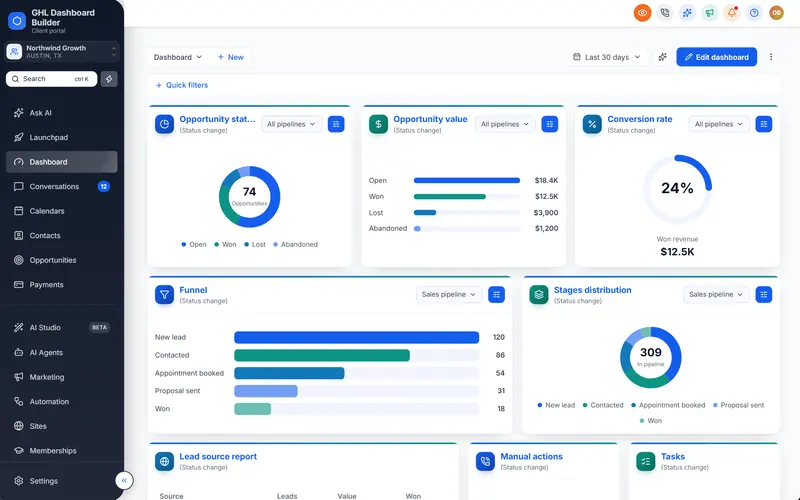
You uploaded your client’s logo in their sub-account, refreshed the page, and HighLevel still shows your agency logo in the corner. Or you changed a color for one client and every other client got it too. Both surprises come from the same place: HighLevel (also called GoHighLevel or GHL) splits branding between agency settings and sub-account settings, and the line between them is not obvious until something lands on the wrong side of it.
This guide is the map of GoHighLevel agency vs sub-account settings for branding. It lists every branding setting, which level it lives at, the menu path and who sees the result. It then covers the gap HighLevel leaves (there is no per-client design setting), how to fill it without touching your other clients, a step-by-step setup for both levels, the language settings, the limits and the costs.
What is the difference between GoHighLevel agency and sub-account settings?
Agency settings control what every client shares: the platform’s name, logo, login domain, link domain and any custom code. Sub-account settings describe one client’s business: its name, logo, address, language, domains and reusable text. In short, the agency level decides what the software looks like, and the sub-account level decides whose business it is running.
HighLevel’s structure has two layers. The agency account is your company: you manage billing, staff, the white-label settings and the list of client accounts there. A sub-account (HighLevel’s older name, still used in the help center and the API, is “location”) is one client’s workspace with its own contacts, conversations, calendars, pipelines, sites and settings.
You reach the two levels from different places. In the agency view, the gear icon at the bottom left opens agency Settings, where HighLevel’s agency settings guide describes the Company page with its basic details, a Whitelabel tab and advanced settings. Inside a sub-account, Settings in the left menu opens that client’s settings, starting with the Business Profile.
The confusion starts because both levels have a logo field, both have domains and both affect what clients see. The rule that resolves it: anything shown in the application frame itself (login page, header, menu, colors) comes from the agency level, and anything that identifies the client to their own customers (invoices, emails, sites, sending domains) comes from the sub-account level.
Where does branding live in GoHighLevel? The full settings map
Branding lives in about a dozen places, split between the two levels. The table below lists each one with its menu path at the time of writing and who actually sees it. Menu names move from time to time, so if a path differs in your account, search the setting’s name in HighLevel’s help center.
| Branding setting | Level | Menu path (at the time of writing) | Who sees the result |
|---|---|---|---|
| Agency logo | Agency | Settings → Company → Whitelabel | Everyone: login screen, app header, system emails |
| White-label desktop domain | Agency | Settings → Company → Whitelabel → Domains | Everyone who logs in through the browser |
| API domain for system links | Agency (also sub-account) | Settings → Company → Whitelabel → Domains | Your clients’ customers, in links inside SMS and email |
| Privacy and terms links | Agency | Settings → Company | Users who open your legal links |
| Custom CSS and Custom JavaScript | Agency only | Settings → Company → Whitelabel → Custom Code | Every sub-account, unless the code itself is scoped |
| White-label mobile app | Agency | Separate HighLevel setup and app store review | Mobile app users |
| Business logo | Sub-account | Settings → Business Profile | Agency Accounts list, invoices, emails |
| Friendly and legal business name | Sub-account | Settings → Business Profile | Messages and workflows (friendly), compliance registration (legal) |
| Default platform language | Sub-account | Settings → Business Profile → Platform Language | New users of that sub-account |
| Custom values | Sub-account | Settings → Custom Values | The client’s customers, in messages, sites and funnels |
| Site and funnel domains | Sub-account | Settings → Domains & URL Redirects | Visitors to the client’s sites |
| Dedicated email sending domain | Sub-account | Settings → Email Services → Dedicated Domain | Recipients of the client’s emails |
| Client portal branding | Sub-account | Client portal settings | The client’s own customers in the portal |
Three things stand out in this map. First, the only place to change how the application itself looks is the agency-level Custom Code area. Second, the sub-account has plenty of branding settings, but almost all of them face the client’s customers rather than the client’s own staff. Third, nothing in HighLevel’s settings lets one client see a different app design from another. The rest of this guide is about working with those three facts.
Which branding settings live at agency level?
Agency-level branding is everything that makes HighLevel look like your platform rather than HighLevel: the logo, the login domain, the link domain, legal links and custom code. These settings are shared by every sub-account, so they should carry your agency’s brand, not a single client’s. You set them once and review them after any rebrand.
The agency logo
The logo on the Whitelabel tab is the one users see most. HighLevel’s agency settings guide says it appears on the login screen, in the app header and in system-generated emails, and recommends an image of about 350 by 180 pixels and no larger than 2.5 MB. Because it shows in every sub-account, a client’s logo uploaded here would appear for all your other clients too.
The white-label desktop domain
The white-label domain is the address users type to log in, such as app.youragency.com instead of HighLevel’s own address. HighLevel’s domain setup guide covers it together with the other domain types. It is set up with a DNS record that points a subdomain at HighLevel, then added in the agency settings. There is one white-label login domain for the whole agency, which is why the login page cannot differ per client.
The API domain for system-generated links
Links that HighLevel generates (forms, surveys, calendars, trigger links and similar) use a shared HighLevel domain unless you brand them. HighLevel’s article on branding system-generated links sets this under Company, Whitelabel, Domains with an Add Domain wizard, and reminds you to click Update Company at the bottom of the page to save. The same help content notes that branded API domains can be configured at both agency and sub-account levels, so a large client can have links on their own domain.
Legal links and basic details
The Company page also holds your agency’s name, contact details and the privacy and terms links your users can open. Replace any default links with your own policies, because a client who clicks “Terms” and lands on another company’s page will notice.
Custom CSS and Custom JavaScript
The Custom Code area holds two boxes: Custom CSS (styles) and Custom JavaScript (behavior). Whatever you paste there loads in the HighLevel interface your users see, across sub-account views. This is the only route to changing colors, fonts, the sidebar, the menu wording or the dashboard layout. HighLevel does not officially support custom code, so a platform update can occasionally require the code to be refreshed. Our complete guide to HighLevel custom CSS explains how the boxes behave and what tends to break.
Which branding settings live in each sub-account?
Sub-account branding identifies the client’s business: its logo and names in the Business Profile, its default language, its custom values, and the domains its sites and emails use. These settings mostly face the client’s own customers. They do not change the colors or layout of the app the client’s staff work in.
The Business Profile
Inside the sub-account, Settings opens on the Business Profile. HighLevel’s Business Profile article explains the main branding fields:
- Business logo. It represents the sub-account in the Accounts list of your agency view and can be used in features such as invoices and emails, through the merge field
{{location.logo_url}}. - Friendly business name. The name used when messages and workflows insert the account’s name (
{{location.name}}). - Legal business name. Used for compliance registration, so it must match the client’s legal documents exactly.
This is the answer to the most common question in this area. The Business Profile logo does not replace the logo in the app header, because the header uses the agency logo from the Whitelabel tab. Uploading a client logo in the Business Profile is still worth doing, since invoices and emails can use it, but it will not make the client’s dashboard look like their own.
Custom values
Custom values store reusable pieces of text for a sub-account: the business name, a booking link, a support phone number, a brand tagline. HighLevel’s custom values guide describes creating them under Settings, Custom Values and inserting them into conversations, workflows, websites and funnels. Updating a value updates every place that uses it, which keeps the client’s details consistent across templates you copy between accounts.
Domains for sites, emails and the client portal
Each sub-account connects its own domains. Websites and funnels connect under Settings, Domains & URL Redirects, as HighLevel’s root domain and subdomain guide describes. A dedicated email sending domain is added under Settings, Email Services, Dedicated Domain; HighLevel’s Google dedicated domain guide lists five DNS records for it (two TXT, two MX and one CNAME). The client portal setup guide lets each sub-account set its own portal domain, logo, favicon and color scheme.
So the client’s customers can meet the client’s brand everywhere: on the website, in the sender address, in links and in the portal. The client’s staff, meanwhile, log in at your agency domain and work in an app that looks the same as every other client’s, unless you change it at agency level.
How does GHL Dashboard Builder fit between agency and sub-account settings?
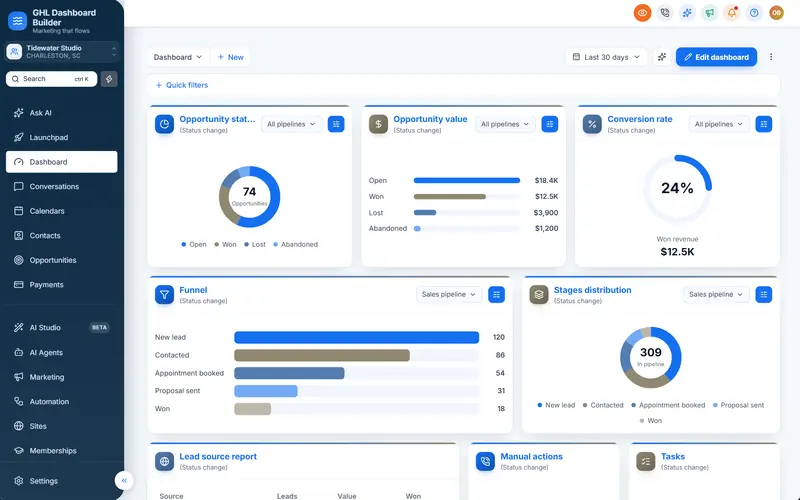
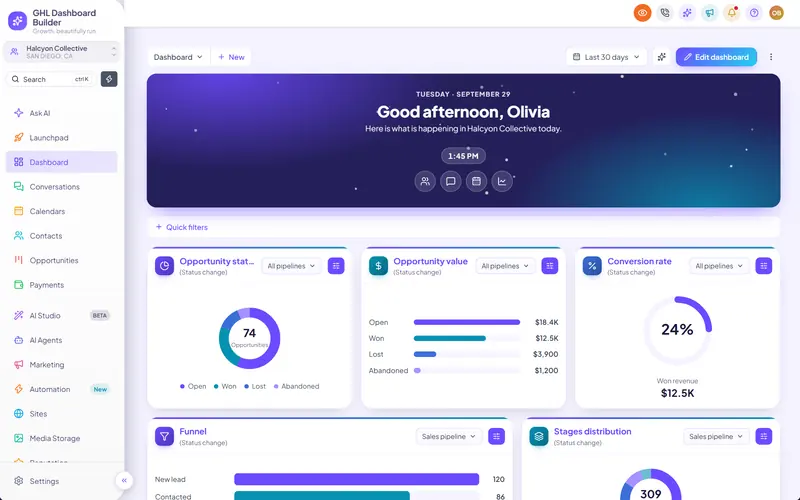
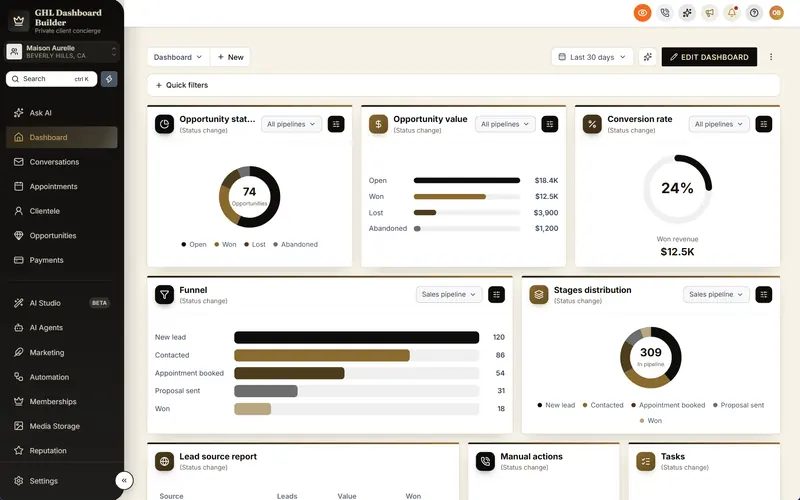
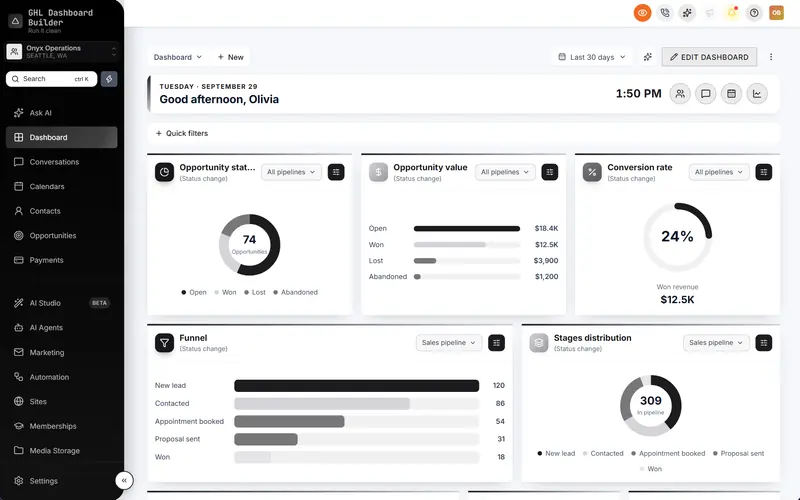
GHL Dashboard Builder fills the one gap the settings map leaves: the look of the app itself, for all clients or only chosen ones. The design installs once in the agency’s Custom Code area and can be limited to sub-accounts you pick by link or Location ID. Your other sub-accounts and the agency view stay exactly as they are.
GHL Dashboard Builder is an independent design service that turns the standard HighLevel (GoHighLevel) dashboard into a branded platform: your colors, menu, login design, privacy mode and your clients’ language, installed with two lines of code. It is not affiliated with HighLevel. It works with HighLevel’s own settings rather than replacing them: the white-label domain, agency logo and mobile app stay where HighLevel puts them, and the design restyles the interface in the browser.
Infographic
Agency and sub-account brandingby the numbers
1
Custom Code area in HighLevel, shared by every sub-account
(HighLevel Help Center, agency settings)
200
sub-accounts you can list for one design from a single install
(GHL Dashboard Builder)
2
lines of code install the whole design: one CSS, one JavaScript
(GHL Dashboard Builder)
5
DNS records for one sub-account's dedicated email sending domain
(HighLevel Help Center, LC Email)
Sources: HighLevel Help Center (agency settings; Google dedicated sending domain setup); GHL Dashboard Builder.

Here is what each feature adds on top of HighLevel’s settings, and which plan includes it. Prices are one-time, and every plan includes our installation for a one-time $100 setup fee.
| Feature | What it does for your agency’s clients | Plan |
|---|---|---|
| Brand and colors | Your color system, fonts and favicon across HighLevel’s screens | Starter and up |
| Sidebar and header | HighLevel’s sidebar and header in your colors, with a branded sub-account switcher | Starter and up |
| Chosen sub-accounts | The design shows only in the sub-accounts you list (up to 200 per design) | Starter and up |
| Welcome banner and live counts | A greeting with the user’s first name, quick links and real numbers on the Dashboard | Starter and up |
| Privacy mode | An eye button that blurs names, emails, phones, conversations and deal values | Starter and up |
| Menu editor | Rename, reorder and hide any of HighLevel’s 19 menu items | Pro and up |
| Languages and right-to-left | Menu and navigation in 15 languages, right-to-left for Arabic, Urdu and Hebrew | Pro and up |
| Login page design | A branded design for your white-label sign-in page | Pro and up |
| Custom CSS and JavaScript, up to 100 designs | Your own code on top, and many saved designs | Agency |
The full list of 18 features, with a page for each, is on the features overview. Every design can start from one of our 27 templates, and you can see any of them on the templates page before choosing.
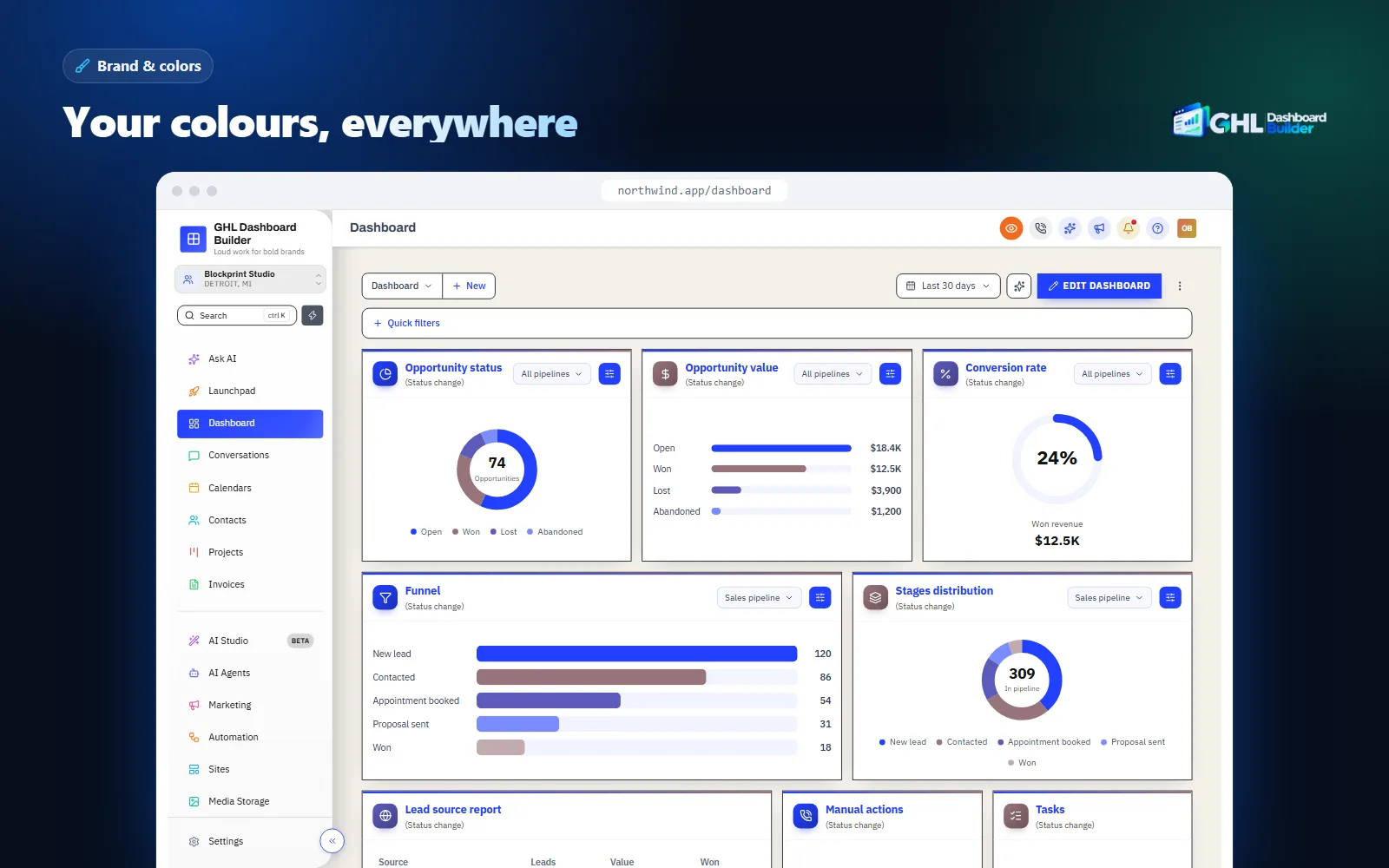
What the client sees afterwards: they log in at your white-label domain as before, then land in a HighLevel that carries your colors, fonts and menu. Their contacts, automations and permissions are untouched, because the code changes how HighLevel looks and what its menu says, not what it stores. HighLevel’s sub-account settings, such as the Business Profile and custom values, keep working exactly as described above.
Why can’t you style one GoHighLevel sub-account from its own settings?
Because HighLevel has no Custom Code box inside a sub-account. Custom CSS and Custom JavaScript exist only in agency settings and load in every sub-account. To style one client differently, the agency-level code must check which sub-account is open, using its Location ID, and switch the design on only there.
Every sub-account has a unique Location ID. You find it in the browser address bar after /location/ while you are inside that sub-account, or on the sub-account’s Business Profile page. HighLevel’s address for a sub-account’s dashboard looks like /v2/location/<id>/dashboard, so code running in the browser can read the ID and decide whether to apply a design.
Writing that check by hand is possible, and our guide to GoHighLevel sub-account branding walks through the logic. The hard parts are the edges: HighLevel loads pages without a full reload, so the code must notice when a user moves from a listed sub-account to an unlisted one, remove the design cleanly, and never leave styles behind in the agency view.
GHL Dashboard Builder handles those edges for you. In the builder or your account dashboard, choose “Only these sub-accounts” and paste each sub-account’s link or Location ID; the ID is picked out of the link automatically. You still paste one install code at agency level. Moving between a listed sub-account and anywhere else reloads the page once so the look switches cleanly, and the design is removed the moment a user leaves a listed sub-account.
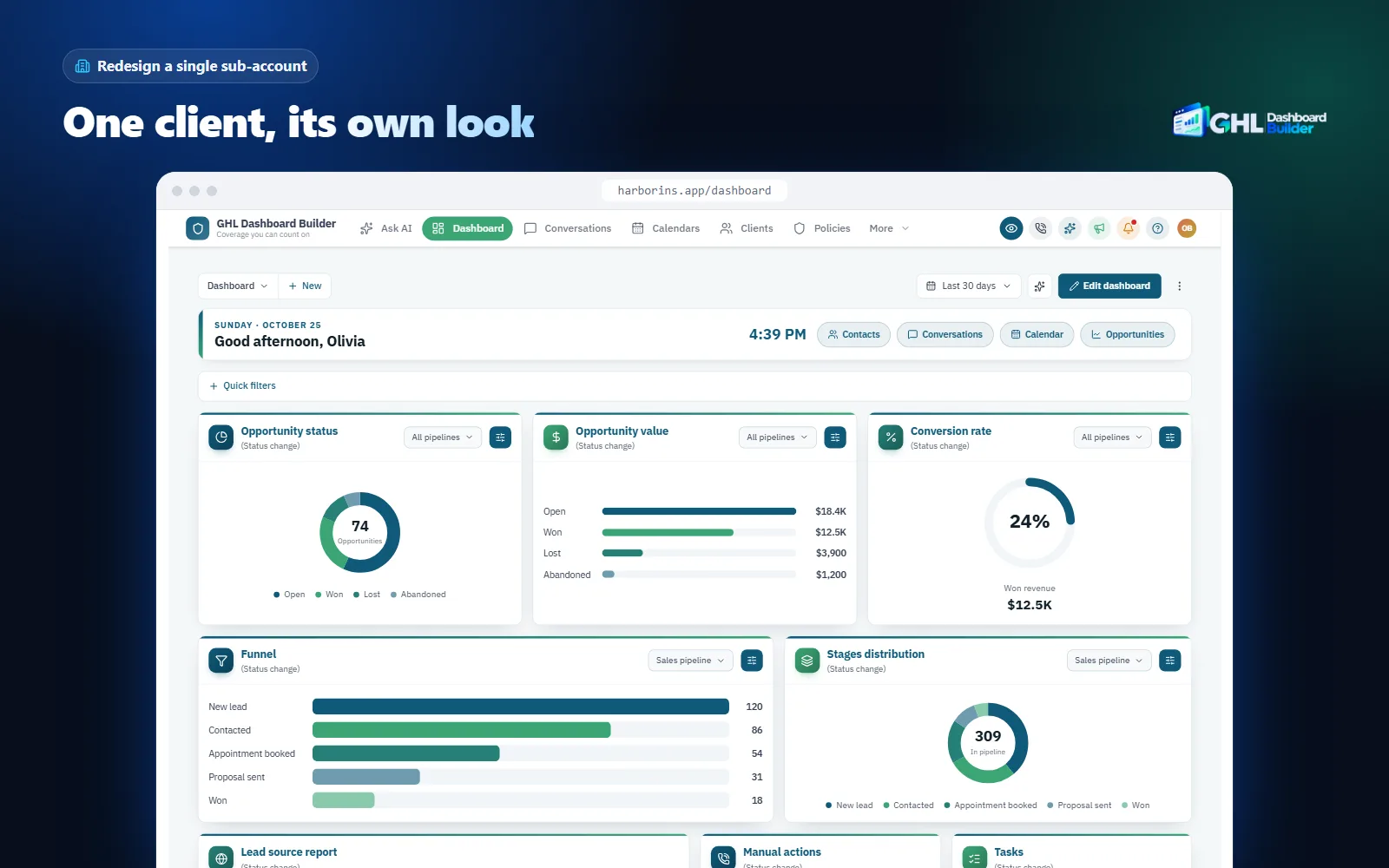
Two limits matter before you sell this. One install shows one design in the sub-accounts you choose, because HighLevel has a single agency-wide Custom Code area; Pro keeps up to 3 saved designs and Agency up to 100, but if you need different looks for different clients at the same time, talk to us before you buy so we can plan it with you. And the login page stays HighLevel’s own when a design is limited to chosen sub-accounts, because the login page appears before anyone has picked a sub-account.
Common reasons agencies brand only some sub-accounts: a premium client who pays for “their own software”, a pilot with one friendly client before a full roll-out, a demo sub-account used on sales calls, or a single niche client (a clinic, say) whose wording would confuse everyone else. The single sub-account page lists what you need and what stays plain.
Agency or sub-account: which level should own each branding decision?
Put a decision at agency level when every client should share it, and at sub-account level when it describes one client’s business. When a decision is about one client but can only be made at agency level, such as the app’s design, use scoped code so it reaches only that client. The table turns that rule into decisions.
| Decision | Best level | Why |
|---|---|---|
| The platform’s name and logo in the header | Agency | Every user sees it; it is your product’s identity |
| The login address | Agency | HighLevel has one white-label login domain per agency |
| Colors, fonts and layout for all clients | Agency (Custom Code) | One design keeps support and training simple |
| A premium client’s own look | Agency code, scoped to that sub-account | No sub-account setting exists for design |
| The client’s name in messages and workflows | Sub-account (Business Profile, custom values) | It changes per client and feeds merge fields |
| The client’s logo on invoices and emails | Sub-account (Business Profile) | Their customers should see the client, not you |
| Sender address and website domain | Sub-account | Deliverability and trust depend on the client’s own domain |
| Menu wording for an industry | Agency code, scoped if only some clients share the industry | Menu labels are not a HighLevel setting |
| The language staff work in | Sub-account default plus each user’s profile | Teams in one account can differ |
The number of saved designs you need follows from this table. If every client shares one look, a single design is enough. If you run separate looks for drafts, demos and roll-outs, you need more saved designs, and the plans differ there.
Source: GHL Dashboard Builder pricing, October 2026
Each saved design can cover the whole agency or only the sub-accounts you choose. Remember the earlier limit: saved designs help you prepare and switch looks, while one install shows one design in its chosen sub-accounts at a time. If your plan depends on several clients seeing different designs simultaneously, raise it with us first rather than assuming.
If you want to see how a design would look on your own brand before deciding which level it belongs to, the builder shows it on a live copy of HighLevel’s screens without connecting to your account.
How do you set up branding at agency and sub-account level, step by step?
Work from the outside in: agency identity first, then each client’s Business Profile and domains, then the dashboard design, then a test as a client user. Doing it in this order means each layer is in place before the next one depends on it. The cards summarize the order; the full steps with menu paths follow.
Infographic
Branding both levels of HighLevelin six steps
- 1
Agency identity
Logo, name and legal links on the Company page.
- 2
Agency domains
White-label login domain and API domain for links.
- 3
Client profile
Business Profile logo, names and default language.
- 4
Client domains
Site domain, sending domain and custom values.
- 5
Install the design
Two lines in Custom Code, scoped to chosen sub-accounts if needed.
- 6
Test as a client
Log in as a client user and check every screen.

Step 1: Set the agency identity
- In the agency view, click the gear icon at the bottom left to open Settings, then open Company.
- Fill in the agency name and contact details, and replace the privacy and terms links with your own policies.
- Open the Whitelabel tab and upload your agency logo (HighLevel recommends about 350 by 180 pixels, at most 2.5 MB, per its agency settings guide).
- Click Update Company at the bottom of the page to save.
Step 2: Connect the agency domains
- On the Whitelabel tab, open Domains and add your white-label login domain (for example app.youragency.com), following the DNS instructions HighLevel shows.
- Add an API domain (for example links.youragency.com) so system-generated links carry your brand.
- Save with Update Company, wait for DNS to update, and log in at the new address in a private browser window.
Step 3: Complete each client’s Business Profile
- Switch into the client’s sub-account and open Settings → Business Profile.
- Upload the client’s logo, enter the friendly business name and the legal business name exactly as on their documents.
- Set the default Platform Language if the client’s team works in another language.
- Save, then check the client’s logo appears in your agency’s Accounts list.
Step 4: Connect the client’s domains and custom values
- Under Settings → Domains & URL Redirects, connect the client’s website or funnel domain.
- Under Settings → Email Services → Dedicated Domain, add the client’s sending domain and create the DNS records HighLevel lists.
- Under Settings → Custom Values, create values for the details your templates repeat: business name, booking link, support phone.
- If the client uses the client portal, set its domain, logo and colors in the portal settings.
Step 5: Install the dashboard design
- Design the look in the builder, or let us design it with you, and decide whether it covers the whole agency or chosen sub-accounts.
- For chosen sub-accounts, add each one by link or Location ID.
- In the agency view, open Settings → Company → Whitelabel → Custom Code. Paste the CSS line into Custom CSS and the JavaScript line into Custom JavaScript, then save. On every plan we do this for you as part of the one-time $100 setup fee.
- Later design changes go live when you press Deploy to live, without pasting again. If you change the list of chosen sub-accounts, copy the updated install code and paste it again.
Step 6: Test as a client user
- Create or use a test user with the same role your client’s staff have.
- Log in at the white-label domain in a private window, open a listed sub-account and check the Dashboard, Contacts, Conversations, Calendars and Opportunities.
- Open an unlisted sub-account and the agency view to confirm they are unchanged.
- Send a test email and open a system-generated link to check the sending domain and API domain.
A written list of the details to check before a client sees anything is in our GoHighLevel white-label checklist.
What about language: agency, sub-account or user?
Language sits at three levels in HighLevel. Each sub-account can set a default platform language in its Business Profile, each user can override it in their own profile, and a design installed at agency level can translate the menu and navigation for chosen sub-accounts. Knowing which layer controls which text saves a lot of confusion.
HighLevel’s platform language article describes the first two layers: a default under the sub-account’s Business Profile, Platform Language, and a personal override under My Profile, Platform Language. It lists languages such as Spanish, German, French, Portuguese, Italian, Dutch and the Nordic languages. Community feature requests on HighLevel’s ideas board report that new users do not always inherit the sub-account’s language, so check a new user’s profile after inviting them.
Before you promise a client their own language, check HighLevel’s current list for it. Right-to-left languages need more than translated words: staff who read Arabic, Urdu or Hebrew expect the whole layout mirrored, with the menu on the right side of the screen, which matters for agencies with clients in the Gulf, Pakistan or Israel.
GHL Dashboard Builder’s language setting translates the dashboard’s menu and navigation into 15 languages and switches the layout to right-to-left for Arabic, Urdu and Hebrew, with your own wording for any label. Combined with Chosen sub-accounts, that means one Arabic-speaking client can work right to left while your English-speaking clients keep the standard layout. Text inside HighLevel’s own pages, builders, system emails and the mobile app still follows HighLevel’s language settings, so set the sub-account’s platform language too.
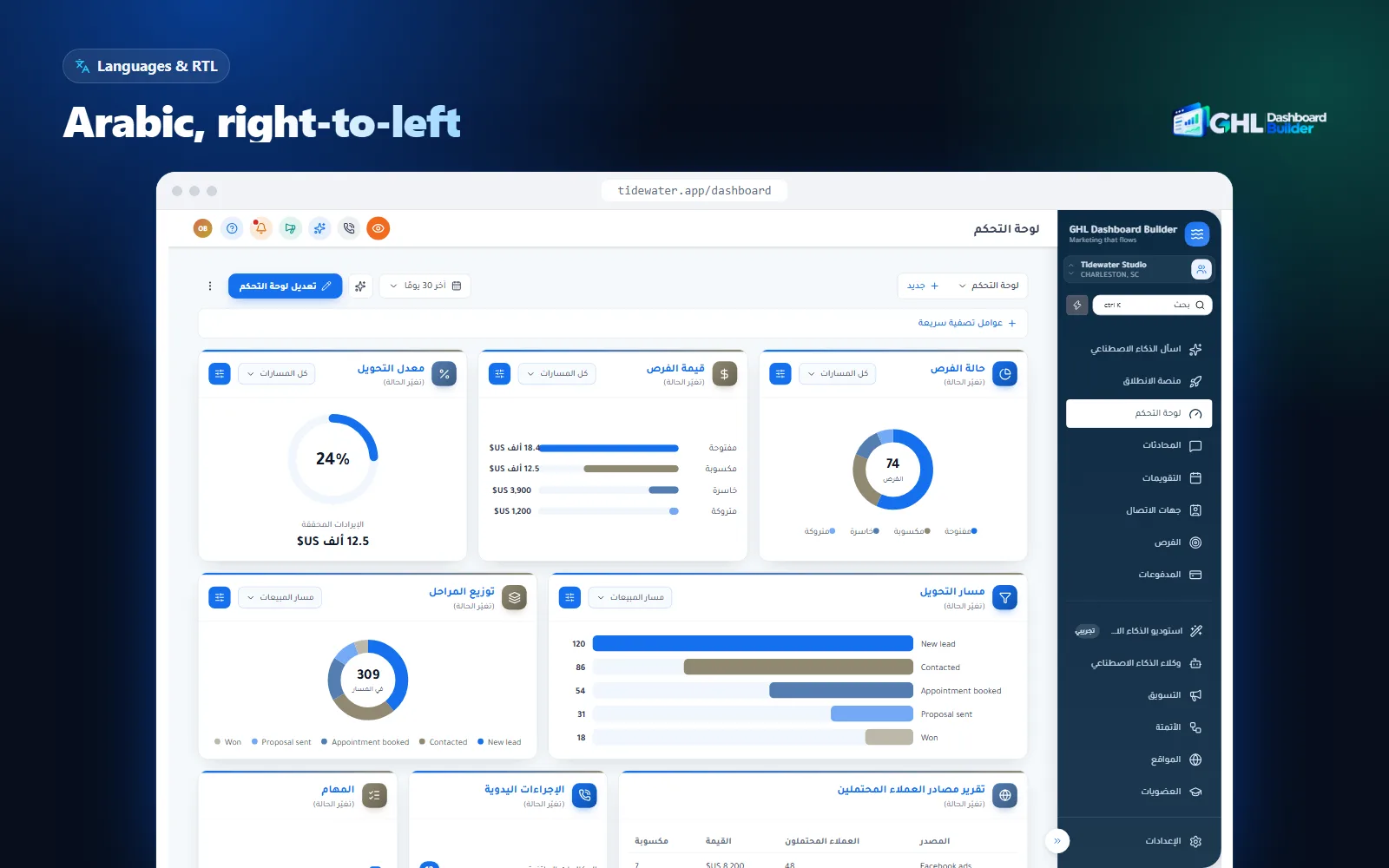
The full breakdown of what is translated and what is not is in our guide to GoHighLevel languages, and the right-to-left details for one language are on the Arabic language page.
What can go wrong, and what doesn’t this solve?
Most branding problems in HighLevel come from setting something at the wrong level, or from expecting a sub-account setting to change the app’s look. A few come from custom code itself. Here are the usual ones, with the fix for each.
A client’s logo uploaded at agency level. If you put one client’s logo on the Whitelabel tab, every client sees it. Keep your agency logo there, put client logos in their Business Profiles, and use a scoped design if a premium client needs their own look inside the app.
Expecting the Business Profile logo in the header. As covered above, it shows in the Accounts list, invoices and emails, not in the header. This is expected behavior, not a bug.
Code that leaks between clients. Hand-written CSS without a Location ID check styles every sub-account. Code with a check but no handling for HighLevel’s in-app navigation can leave styles behind when a user switches accounts. Test by moving between a listed sub-account, an unlisted one and the agency view.
Platform updates. HighLevel does not officially support custom code, and a large release can change the page structure the code relies on. Starter and Pro include 12 months of updates from us that cover this, then optional updates at $99 a year; Agency includes lifetime updates. Without updates the theme keeps working as it is, but a future HighLevel change could need a refresh.
The login page. There is one white-label login page per agency. A design limited to chosen sub-accounts does not change it, and the installed code does not change HighLevel’s login page on its own at the time of writing; we design the login page with you on Pro and Agency.
DNS and email. Domains need correct DNS records, and a sending domain set up wrongly hurts deliverability. These are HighLevel and DNS tasks; a dashboard design does not touch them.
What a design does not do. It does not change HighLevel’s permissions, data, automations, the mobile app or HighLevel’s system emails. Those stay under HighLevel’s own settings. A fair summary: HighLevel’s settings brand what the client’s customers see, and a dashboard design brands what the client’s staff see every day.
If you are comparing routes for the in-app look (building it yourself, hiring a developer or a ready-made service), our comparison of GoHighLevel white-label options weighs effort, cost and risk for each.
How much does it cost to brand both levels?
HighLevel’s own settings cost nothing extra beyond your HighLevel plan, apart from domains you buy and any usage-based services. A dashboard design from GHL Dashboard Builder is a one-time payment: Starter $280, Pro $480 or Agency $880, plus a one-time $100 setup fee on every plan. There are no monthly fees.
What each plan means for agency and sub-account branding:
- Starter, $280 one-time. One design, for the whole agency or chosen sub-accounts. Brand colors, fonts, sidebar, header, buttons, welcome banner, appointments board, live counts, notification pop-ups and privacy mode. 12 months of updates.
- Pro, $480 one-time. Up to 3 saved designs, the menu editor, 15 languages with right-to-left, the branded login page and top navigation. 12 months of updates.
- Agency, $880 one-time. Up to 100 saved designs, one look designed from scratch by our team, custom CSS and JavaScript, downloadable code and lifetime updates.
Every plan adds the one-time $100 setup fee, for which we install the design in your HighLevel, configure it and check every screen. After the first 12 months, updates are optional at $99 a year on Starter and Pro. You can upgrade later by paying the difference between plans ($200 from Starter to Pro, $400 from Pro to Agency), and the setup fee is not charged again. The full comparison is on the pricing page, and common questions about installing and removing the design are answered in our FAQ.
You can resell the branded dashboard to clients at your own price, as a setup fee, a premium tier or part of a monthly plan. We take no share and charge no per-client fee. For a broader walkthrough of the whole white-label setup, our guide to white-labeling HighLevel so it looks like your own software covers the order of work end to end.
What to do next
- Audit both levels today. Open your agency’s Company page and one client’s Business Profile, and compare them against the settings map above. Note anything at the wrong level, especially a client logo on the Whitelabel tab.
- Fill in every Business Profile. Upload each client’s logo, set friendly and legal names and the default platform language, so invoices, emails and merge fields carry the right brand.
- Brand your links and sending domains. Add an API domain at agency level and a dedicated sending domain for clients who send a lot of email.
- Decide the app’s look by level. Choose whether one design should cover every client or only chosen sub-accounts, and try it on a live copy of HighLevel in the free builder.
- Test as a client. Log in at your white-label domain as a client-role user, then check a listed sub-account, an unlisted one and the agency view before you tell clients anything has changed.