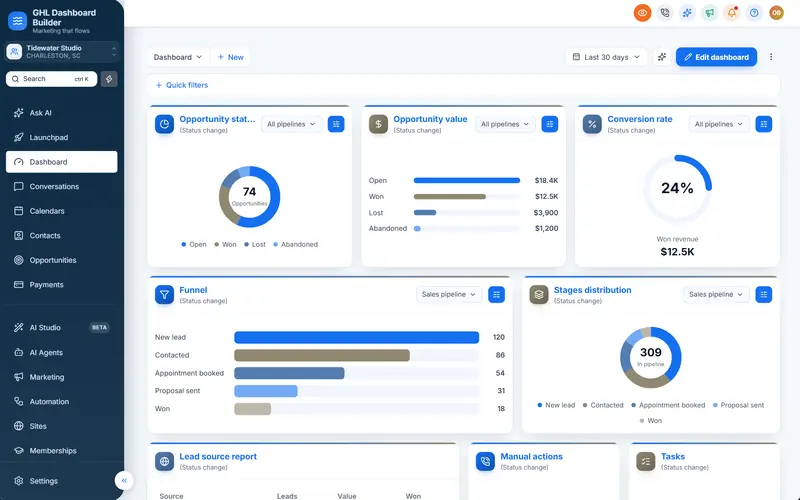
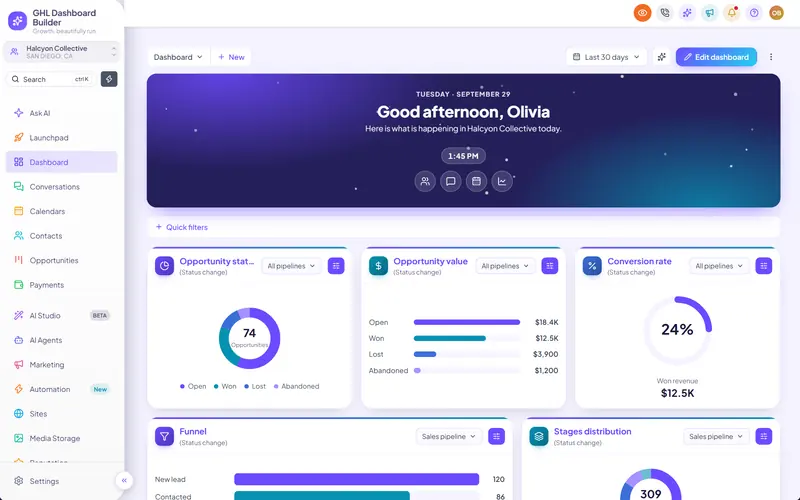
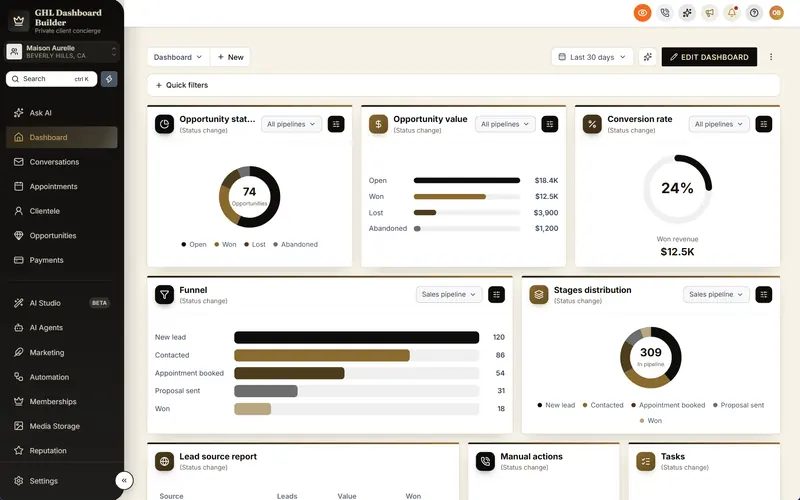
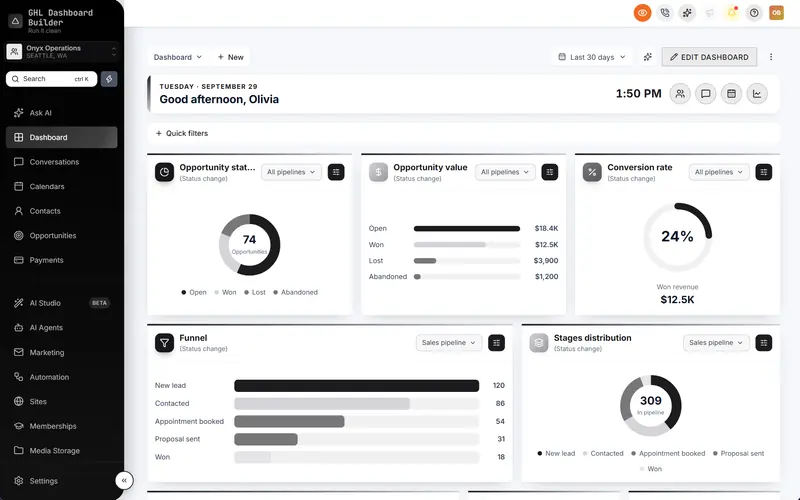
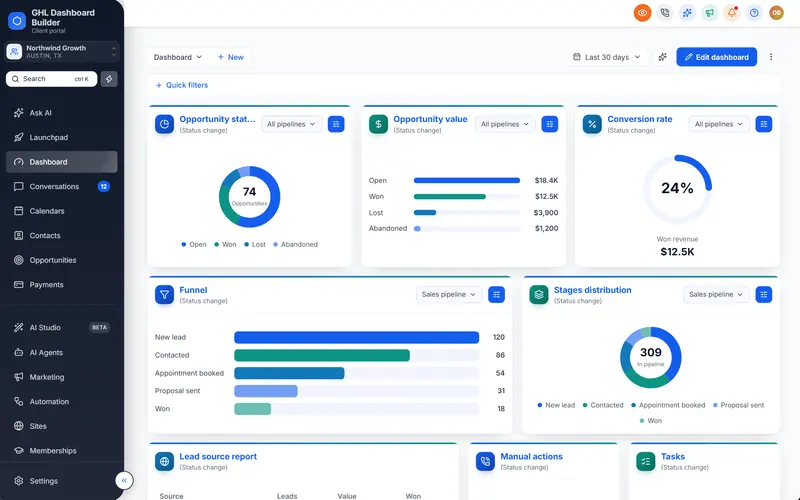
You have seen the screenshots in agency groups: a HighLevel dashboard with renamed menu items, a help button in the corner, a chat widget for clients, a toggle that blurs phone numbers on screen shares. Most of that is custom JavaScript. You want the same, but you also know that a script pasted into the wrong place can break the app for every client at once, and nobody at HighLevel will debug it for you.
This guide explains HighLevel custom JS (in HighLevel, also called GoHighLevel or GHL) for agency owners who are not full-time developers. It covers where the Custom JavaScript box is and what it reaches, what JavaScript can do that CSS cannot, which scripts belong there and which do not, how to add one safely step by step, how to write scripts that survive HighLevel updates, how much they cost in speed, and how to roll back. GHL Dashboard Builder is an independent design service and is not affiliated with HighLevel. Where our product writes the JavaScript for you, we say exactly what it does and which plan includes it.
What is HighLevel custom JS, and what does it change?
HighLevel custom JS is JavaScript an agency adds to the HighLevel app through its Custom Code settings. It runs in the browser of everyone who uses the app: your team and your clients’ users. It can change text, add buttons and widgets, and react to the page that is open. It cannot change how HighLevel’s servers work.
A useful way to think about it is that HighLevel delivers a web page, and your script runs on that page after it arrives. Everything the script does happens on the user’s screen, in their browser tab. If the script renames “Opportunities” to “Deals” in the menu, the word changes on the screen; HighLevel’s database, reports and API still call them opportunities. If the script adds a help button, the button exists only in the browser of the person looking at it.
That has two consequences that shape the rest of this guide:
- Custom JavaScript is powerful. A script on the page can read what the page shows, click what a user can click and add anything to the screen. That is why it can do jobs CSS cannot.
- Custom JavaScript is fragile. A script depends on how HighLevel builds its pages. When HighLevel changes its interface, a script that looked for a particular element may find nothing, or the wrong thing.
HighLevel’s own wording reflects both sides. Its agency company settings article presents custom CSS and JavaScript as powerful but unsupported, and gives examples of JavaScript uses such as live chat widgets, Google Analytics and tracking pixels. “Unsupported” is not a ban. It means HighLevel gives you the box and leaves the code to you, so you need a way to test it, maintain it and remove it.
Custom JavaScript is also only one of several ways to customize HighLevel. Colors, fonts and layout belong in CSS, which our complete guide to HighLevel custom CSS covers in depth. This guide is about the cases where CSS is not enough.
Where do you add custom JavaScript in GoHighLevel?
Agency-wide custom JavaScript goes in the agency view under Settings, Company, Whitelabel, Custom Code, in the box called Custom JavaScript, next to Custom CSS. Code there runs in the HighLevel app for every sub-account. Funnels, websites, community groups and Marketplace apps have their own places for scripts, which only reach those parts.
The path at the time of writing:
- Switch to the agency view with the account switcher at the top of the sidebar.
- Open Settings, then Company.
- Open the Whitelabel tab (labelled White Label in some accounts).
- Scroll to Custom Code. You will see Custom CSS and Custom JavaScript.
The JavaScript box expects the code wrapped in script tags. That is how most vendor snippets are delivered and how our own install line is written. The CSS box is the opposite: it takes plain CSS without style tags. Swapping the two is one of the most common reasons a pasted snippet does nothing.
Not every script belongs in that box. HighLevel has several places where code can run, and each reaches a different audience:
| Where the code goes | What it reaches | Who runs it |
|---|---|---|
| Agency view: Settings, Company, Whitelabel, Custom Code, Custom JavaScript | The HighLevel app: every page, every sub-account | Your team and your clients’ users |
| A funnel or website: its tracking code and custom code settings | That site’s published pages | Visitors to the site |
| A community group: Settings, Branding, Advanced Options | One community group | Members of that group |
| A Marketplace app with custom JavaScript | Accounts that install the app | Users of the accounts where it is installed |
| A workflow’s Custom Code action | Automations | HighLevel’s workflow engine, not the user’s screen |
The last two rows have their own rules. HighLevel’s guide to Marketplace apps with custom JavaScript limits custom JavaScript to apps distributed to agencies, and its review guidelines ask for readable, self-contained code without remote file references or scripts loaded on the fly, with a review time of up to 10 days. Those rules apply to apps, not to your own agency box, but they are a sensible standard for any code you paste.
Community groups also show a safety net that the agency box lacks. HighLevel’s article on custom CSS and JS for community groups describes a Test Preview button, a Live Mode switch and a way to load a group without custom code, and states that HighLevel does not provide guidance or support for writing, debugging or maintaining custom code. The agency box has no preview: what you save is live. Our guide to where to add GoHighLevel custom CSS and how to roll it back explains the backup routine that replaces that missing safety net.
One more setting can change whether your script runs at all. HighLevel’s article on custom CSS and JavaScript with the Custom Navigation says legacy custom code is disabled by default once Custom Navigation is enabled. The code is not deleted, and a toggle in the White Label settings lets it run again, but HighLevel warns that compatibility is not guaranteed. If a script stopped working on the day your agency tried the new navigation, check that toggle before you debug anything.
What can custom JavaScript do that CSS cannot?
CSS changes how existing things look: colors, sizes, spacing, fonts, and whether an element is shown or hidden. JavaScript changes what is there: it can rewrite text, add new buttons and panels, respond to clicks, check which page or sub-account is open, and load widgets from other services. Use CSS whenever it can do the job, and JavaScript only when it cannot.
That rule matters because CSS is the safer tool. A broken CSS rule usually leaves an element unstyled. A broken script can throw errors, slow every page or block clicks. So the question for every idea is: can CSS do this alone?
| What you want | CSS alone? | JavaScript needed? | Notes |
|---|---|---|---|
| Brand colors, fonts, corners and shadows | Yes | No | The core of every theme |
| Hide a menu item or a button | Yes, visually | No | Hidden is not removed; the page is still reachable by its address |
| Rename a menu item (Contacts to Patients) | No | Yes | CSS can only fake text; JavaScript changes the real label |
| Reorder menu items | Partly | Usually | Reliable reordering needs a script |
| Add a help button, a banner or a custom link | No | Yes | New elements need a script |
| Show live numbers (unread messages, tasks due) | No | Yes | The numbers come from the page, read by a script |
| Blur client data during a screen share, on demand | No | Yes | A toggle needs a click handler |
| Different looks for different sub-accounts | No | Yes | The script checks which sub-account is open |
| Load a chat widget or analytics | No | Yes | Vendor scripts, with the privacy questions in the next sections |
| Right-to-left layout for Arabic, Urdu or Hebrew | Partly | Yes | A script sets the page direction; CSS mirrors the layout |
Notice the pattern. Everything in the “JavaScript needed” column is about content, behavior or context: what the screen says, what happens on a click, and which client is looking. That is the useful territory for custom JS in HighLevel. If a script you are offered only changes colors, ask why it is not CSS.
Renaming is the job agencies ask for most. HighLevel can rename some standard objects itself, and our guide to renaming GoHighLevel menu items compares HighLevel’s own settings with a script that changes the menu wording. The short version: HighLevel’s settings are the supported route where they exist, and a script covers the menu labels they do not reach.
How does GHL Dashboard Builder use custom JavaScript for you?
GHL Dashboard Builder is an independent design service that turns the standard HighLevel (GoHighLevel) dashboard into a branded platform: your colors, menu, login design, privacy mode and your clients’ language, installed with two lines of code. The JavaScript part of that design is written for you from the choices you make in the builder, so you get the jobs in the table above without writing or maintaining a script.
You design visually: you rename and reorder the menu, switch on privacy mode, choose pop-ups and banners, and pick the sub-accounts the design applies to. The builder generates the CSS and the JavaScript from those choices. You install them as one CSS line in Custom CSS and one JavaScript line in Custom JavaScript, or we install them for you as part of the one-time $100 setup fee on every plan.
Here is what the generated JavaScript does, and which plan includes each part:
| Feature | What it does for your agency’s clients | Plan |
|---|---|---|
| Menu editor | Rename, reorder and hide any of HighLevel’s 19 menu items, with New and Beta labels and your own custom items | Pro and Agency |
| Live counts | Real numbers from HighLevel on the menu and in the welcome banner: unread conversations, appointments today, tasks due, new opportunities, overdue invoices | Starter (Dashboard figures); menu counts from Pro |
| Notification pop-ups | New messages, bookings and payments slide in with a greeting, with Reply, Mark read and Call, quiet hours and an optional chime | Starter and up |
| Privacy mode | An eye button in the header that blurs contact names, emails, phone numbers, the conversation list and deal values | Starter and up |
| Welcome banner | A greeting with the user’s first name, date, clock and quick links on the Dashboard | Starter and up |
| Languages and right-to-left | The menu and navigation in 15 languages, with right-to-left layout for Arabic, Urdu and Hebrew | Pro and Agency |
| Sub-account targeting | The design applies to the whole agency or only to sub-accounts you choose, by link or Location ID | Starter and up |
| Your own custom CSS and JavaScript | Your code added after the generated theme, so your rules win | Agency |
| Full code download | The complete CSS and JavaScript files, instead of the two hosted install lines | Agency |
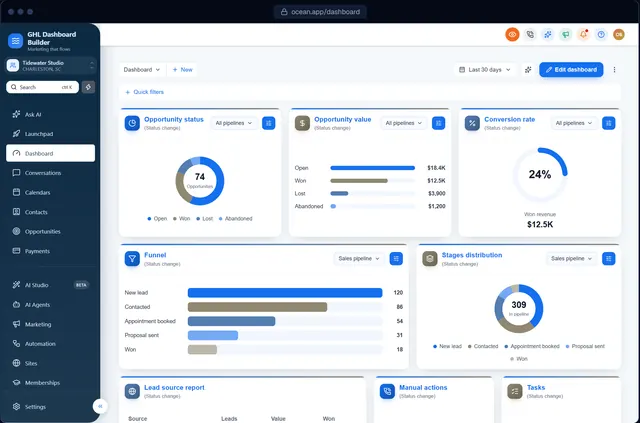
What your clients see afterwards is their own menu wording, live numbers and a header that fits their business, on the HighLevel screens they already know. Behind the scenes, HighLevel is unchanged: the generated code only changes how the interface looks and what its menu says, and it does not send your clients’ data anywhere. The free builder never connects to your HighLevel account at all.
The menu is where most agencies notice the difference first, because it is the part of HighLevel every user reads all day.
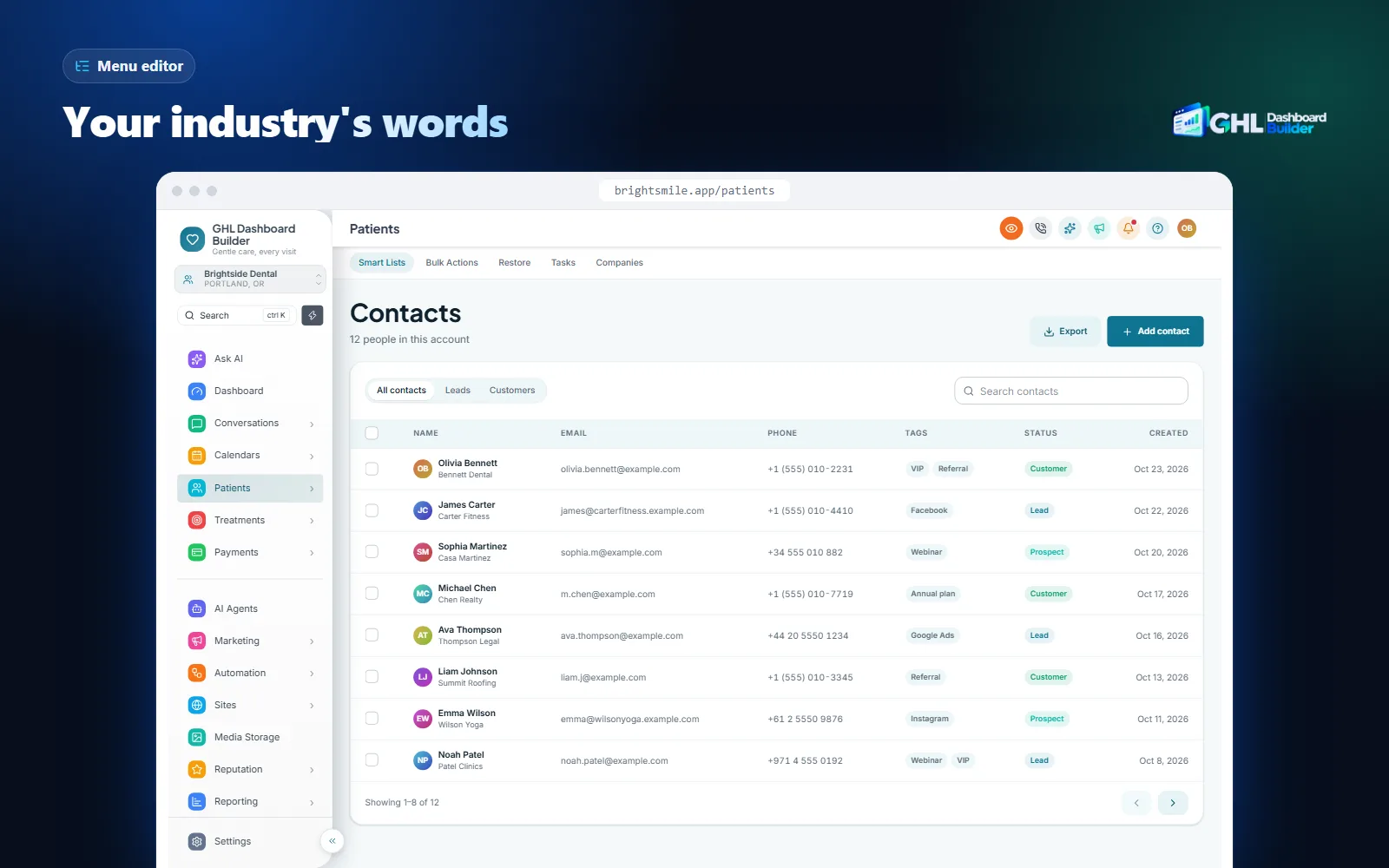
A menu editor is a good example of why generated code is easier to live with than a hand-written script. A renaming script has to find each menu item, change its label, and do it again every time HighLevel redraws the menu. When HighLevel changes how the menu is built, every hand-written script that renames items needs fixing. With a generated theme, that fix happens once, in the generator, and reaches every design. Our plans include 12 months of these updates (lifetime on Agency), then optional updates at $99 a year; without them the theme keeps working as it is.
The features page shows all 18 features, and the GHL custom CSS page explains what the generated CSS and JavaScript cover in more detail. If your main reason for custom JS is menu wording, start with the menu editor below.
Infographic
JavaScript you don't have to writeby the numbers
2
lines to install: one in Custom CSS, one in Custom JavaScript
(GHL Dashboard Builder)
19
HighLevel menu items you can rename, reorder or hide
(GHL Dashboard Builder)
~60 KB
compressed theme: one stylesheet and one script, cached after the first visit
(GHL Dashboard Builder)
$880
one-time Agency plan that adds your own CSS and JavaScript, plus a $100 setup fee
(GHL Dashboard Builder pricing)
Source: GHL Dashboard Builder product and pricing pages, November 2026.

Which scripts belong in the agency Custom JavaScript box?
Scripts that change the interface for your users belong there: menu wording, buttons, banners, privacy toggles, live counts and a support chat for your clients. Scripts that collect data about your clients’ users, load code you cannot read, or contain secrets do not. When a script could go either way, ask what it reads, where it sends it, and who maintains it.
A simple test helps: imagine your client’s operations manager reading the script and asking what it does. If the honest answer is “it changes the menu” or “it adds our help chat”, it probably belongs. If the answer is “it records what your staff click and sends it to a service we use”, you need a good reason, a written agreement with the vendor and probably a word with the client.
| Kind of script | Fit for the agency box? | Why |
|---|---|---|
| Menu labels, reordering, custom menu links | Good fit | Changes only what users see; nothing leaves the browser |
| Privacy toggle that blurs client data | Good fit | Protects data on screen shares; reads nothing out |
| Welcome banner, help button, quick links | Good fit | Adds elements; no data collected |
| Support chat widget for your clients | Usually fine | Check what the widget records and where its data is stored |
| Product analytics or session recording | Think twice | Records what your clients’ staff do inside their CRM, which may include personal data on screen |
| Scripts from a forum or a group post | Only after review | You are responsible for code you did not write |
| Scripts that load other scripts from unknown servers | Keep out | The code can change at any time without you seeing it |
| Code with API keys, passwords or private tokens | Keep out | Anyone signed in can read the script in their browser |
| Deliberately unreadable (obfuscated) code | Keep out | You cannot check what it does |
Analytics deserve a closer look, because HighLevel’s own article mentions Google Analytics and tracking pixels as typical uses. Tracking your own funnels is one thing. Tracking your clients’ users inside their CRM is another: their screens show patients, customers, deal values and conversations. Before you add a recording or analytics tool to the agency box, read what it captures, whether it masks form fields and text, and whether your client agreements and local data-protection law allow it.
The secrets row is the one that catches people out. Anything in the Custom JavaScript box is sent to every user’s browser, where anyone can open the developer tools and read it. An API key or a webhook address in that box is published to every user of every sub-account. If a script needs a secret, it needs a server, not a snippet.
Is custom JavaScript in HighLevel safe?
Custom JavaScript is as safe as the code you put in the box. A script there runs inside your clients’ signed-in HighLevel session, so it can read what the page shows and act in the page as that user. Code you have read, from sources you trust, that sends nothing out, is low risk. Code that loads other files or sends data elsewhere needs real scrutiny.
The reason is how browsers work. A script added to a page runs with the same access as the page’s own code. The OWASP cheat sheet on third-party JavaScript management describes the main risks of third-party scripts in exactly these terms: the script can change without notice, it can read data from the page, and it can send that data to other servers. OWASP’s recommendations include keeping third-party code to a minimum, reviewing it, and fixing the exact version you load.
Three habits cover most of that advice for a HighLevel agency:
- Read before you paste. If you cannot tell what a script does, ask someone who can. That applies to free snippets most of all.
- Know where every file comes from. A script that loads a file from another server runs whatever that server sends today. Prefer providers you have an agreement with, and know who can change the file.
- Limit who can edit the box. Agency admins can change Custom Code. Keep that group small, and note every change with a date in your backup file.
Our own install line is a hosted script, so this trade-off applies to us too, and you should weigh it. The two install lines load one stylesheet and one script from our servers, which is what lets you change a design and press Deploy to live without touching HighLevel again. If your policy requires every byte to sit inside HighLevel, the Agency plan lets you download the full CSS and JavaScript files and paste those instead. The generated code changes styling, menu labels and the features you switch on, and does not send your clients’ data anywhere.
Safety on screen is the other side of the same question. Even with clean code in the box, every demo, support call or recorded walkthrough risks showing real client names, emails, phone numbers and deal values. A script is the right tool for that job, because it can blur data on demand and only in the browser of the person sharing their screen.
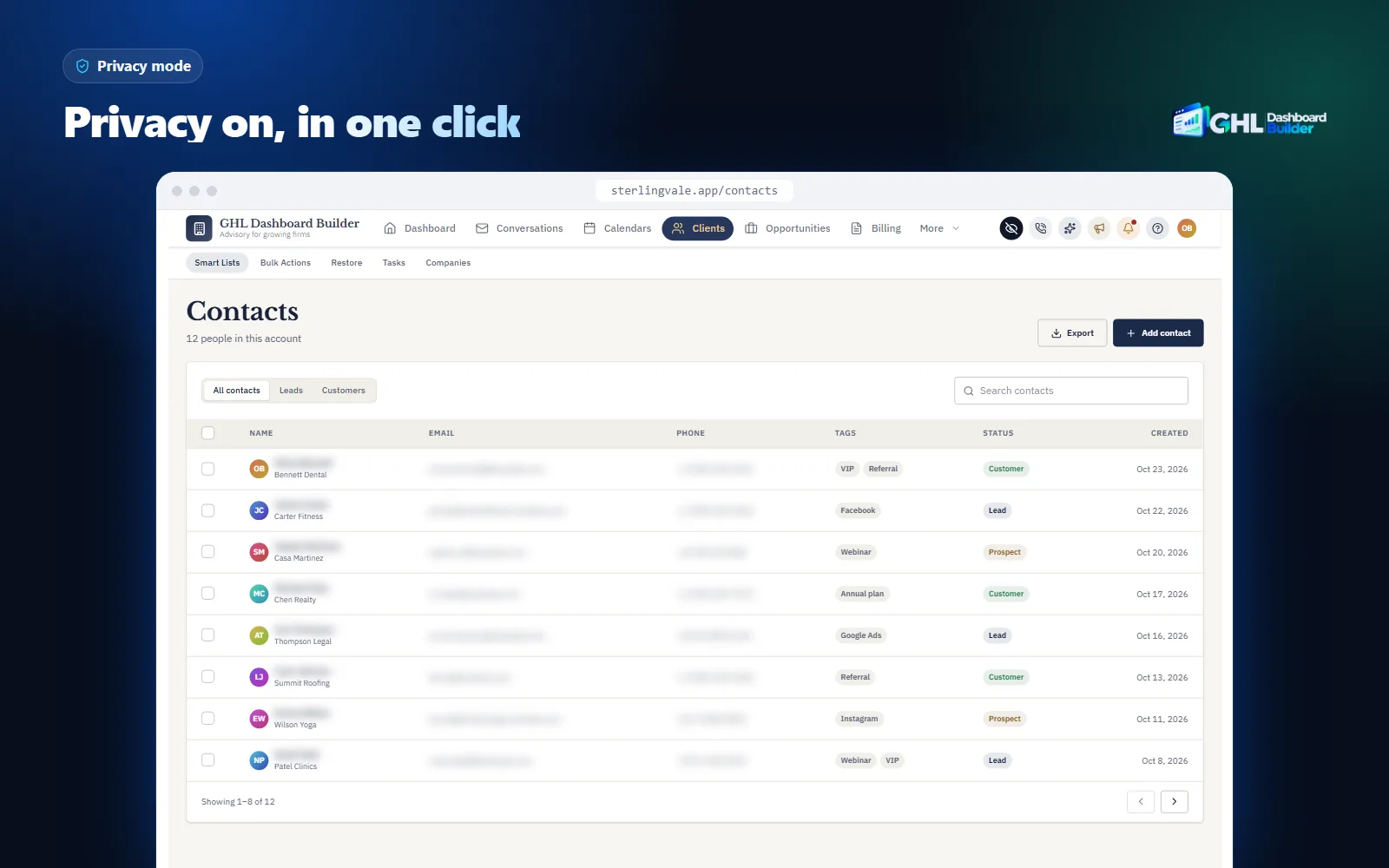
Privacy mode in our designs is an eye button in HighLevel’s header. When it is on, contact names, emails and phone numbers (in tables, links and fields), the conversation list and opportunity values are blurred, at the strength you choose. It starts off on every page load, so nobody stays blurred by accident, and it reads nothing out of the page. Our guide to GoHighLevel privacy mode covers when to use it on calls and recordings.
How do you add custom JS to HighLevel safely, step by step?
Write or get the script, review it, back up the current Custom Code, test it where only you are affected, paste it into the Custom JavaScript box, then check it as a client would in a private window. Keep the backup until the script has run without problems for at least a week of normal use.
Infographic
Add custom JS to HighLevelin seven steps
- 1
Define the job
Write down what the script changes and on which pages.
- 2
Review the code
Read it, check every outside address and remove secrets.
- 3
Back up the boxes
Copy Custom CSS and Custom JavaScript into a dated file.
- 4
Test on your screen
Run it in the browser console before saving it.
- 5
Paste and save
Add it inside script tags in Custom JavaScript.
- 6
Check as a client
Open a private window and a test sub-account.
- 7
Watch and log
Re-check after HighLevel releases and note each change.

Menu paths follow HighLevel’s help center at the time of writing. If a label differs in your account, search the help center for the setting’s name.
1. Define the job in one sentence
Write down what the script should do, on which pages and for whom: “Add a Help button linking to our support site on every page, for all users.” A one-sentence job keeps the script small and makes it easy to tell later whether it still works. If the sentence needs the word “and” three times, split it into separate, smaller scripts.
2. Review the code before it goes anywhere near HighLevel
- Read the whole script. Look for addresses starting with
https://and find out what each one is. - Remove any API key, password, token or webhook address. They would be readable by every user.
- Check that the script is wrapped in a function so its variables do not collide with HighLevel’s own code.
- Check that the script can run twice without adding things twice. Section 8 shows why that matters.
3. Back up the Custom Code boxes
- In the agency view, open Settings, Company, Whitelabel, Custom Code.
- Copy everything in Custom CSS and Custom JavaScript into a text file named with today’s date.
- Store the file somewhere your team can find it in a hurry. That file is your rollback.
4. Test the script on your own screen first
- Open HighLevel in your browser and open the developer tools console (F12, or Cmd+Option+J on a Mac in Chrome).
- Paste the script’s code (without the script tags) into the console and press Enter.
- Check the result on the pages the script is meant to change, then navigate to two or three other pages and check nothing else broke.
- Reload the page to remove the test. Nothing you run in the console reaches other users.
5. Paste and save
- Return to Custom Code and paste the script into Custom JavaScript, after any code that is already there, inside its own script tags.
- Make the first line inside the script tags a comment with the date and the job:
// 2026-11-07: Help button. - Save. The script is now live for every user from their next page load.
6. Check as a client would
- Open a private window, sign in as a test user in a test sub-account, and hard-refresh (Ctrl+Shift+R, or Cmd+Shift+R on a Mac).
- Visit the Dashboard, Conversations, Contacts, Opportunities and Settings, and use one feature on each.
- Open the console and look for red errors from your script.
- Check on a phone browser if your clients use HighLevel there.
7. Watch, log and re-check
Keep the backup for at least a week. Re-check the script after HighLevel announces interface changes, and after enabling anything that changes navigation, such as Custom Navigation. Log every change in the same dated file, so anyone on your team can see what is in the box and why.
The free builder lets you try the menu wording, privacy mode, banners and language that would otherwise need a script, on a live copy of HighLevel’s screens, before anything is installed.
How do you write HighLevel scripts that survive updates?
Write scripts that wait for the element they need, run safely more than once, do very little work each time, and fail quietly. HighLevel redraws parts of the page as users move between screens, so a script that runs once on page load will miss most of the app. Watching for changes, with a short pause between checks, is the reliable pattern.
HighLevel, like most modern web apps, swaps screens without reloading the whole page. When a user moves from Contacts to Opportunities, the menu may stay while the main area is rebuilt; sometimes the menu is redrawn too. A script that added a button on the first page load will find the button gone after the next redraw, and a script that renamed a menu item will see the old name come back.
The browser has a built-in tool for this. MDN’s documentation on MutationObserver describes it as an interface that watches for changes to the page’s structure and calls your function when they happen, batched after the changes finish. A HighLevel script can use it to notice that the page changed and put its own changes back.
Here is the shape of a well-behaved agency script. It adds a Help link in the corner of every page, and it is written to survive redraws, double-pasting and errors:
<script>
(function () {
  // Run once, even if the script is pasted twice.
  if (window.__agencyHelpLink) return;
  window.__agencyHelpLink = true;

  function addHelpLink() {
    if (document.getElementById('agency-help-link')) return; // already on the page
    var link = document.createElement('a');
    link.id = 'agency-help-link';
    link.href = 'https://help.youragency.com';
    link.target = '_blank';
    link.rel = 'noopener';
    link.textContent = 'Help';
    link.style.cssText = 'position:fixed;right:16px;bottom:16px;z-index:50;padding:8px 14px;border-radius:999px;background:#1f6feb;color:#fff;font:600 14px sans-serif;text-decoration:none';
    document.body.appendChild(link);
  }

  try {
    addHelpLink();
    var timer;
    new MutationObserver(function () {
      clearTimeout(timer);
      timer = setTimeout(addHelpLink, 250); // one check after the page settles
    }).observe(document.body, { childList: true, subtree: true });
  } catch (error) {
    // Never let an agency script break HighLevel for clients.
  }
})();
</script>
Each part of that script solves a specific problem:
- The outer function keeps the script’s names private, so they cannot clash with HighLevel’s code or another script in the box.
- The run-once flag stops a second copy of the script from doubling everything if someone pastes it twice.
- The “already on the page” check makes the function safe to call as often as needed. Programmers call this idempotent: running it ten times has the same result as running it once.
- The short pause (debounce) means the script checks once after a burst of changes, instead of hundreds of times while HighLevel draws a page.
- The try and catch turn an unexpected error into nothing, instead of a broken page for every client.
Choosing what to target matters as much as the structure. Element names that HighLevel generates automatically, long chains of nested elements and positions such as “the third button” are the first to break after a release. Prefer stable signals: an element’s visible role, an identifier that looks deliberate, or the page address. When the target cannot be found, the script should do nothing rather than guess. Our guide to fixing GoHighLevel custom CSS that is not working explains the same selector problem for CSS, and the advice carries over to scripts.
Finally, keep every script in one place outside HighLevel, ideally in version control, with the date it was last tested. The box in HighLevel is where the code runs, not where it should live.
How much does custom JavaScript slow HighLevel down?
A small, well-written script costs almost nothing. Slow scripts are the ones that do heavy work on every page change, load large third-party files, or run long blocks of code that freeze the screen. web.dev counts any task over 50 milliseconds as a long task, and rates an interaction delay over 500 milliseconds as poor.
Speed matters more in a CRM than on a website, because your clients’ staff click through HighLevel all day. A delay of a fraction of a second on every click adds up to a tool that feels slow, and clients blame the tool, which carries your brand.
Two browser measures explain what to watch. web.dev’s guide to optimizing long tasks defines a long task as any piece of work that keeps the browser busy for more than 50 milliseconds, during which it cannot respond to the user. web.dev’s article on Interaction to Next Paint rates the delay between a click and the screen updating as good at 200 milliseconds or less and poor above 500 milliseconds. Every script in the agency box adds to the work the browser does on each screen.
Source: web.dev: Optimize long tasks; web.dev: Interaction to Next Paint (INP).
In practice, four habits keep scripts light:
- Do little per change. Check for your element and stop. Do not scan the whole page on every redraw.
- Pause before acting. The debounce in the previous section’s example turns hundreds of checks into one.
- Keep third-party widgets few. Each chat, analytics or recording tool brings its own files and work. One you use beats three you tried.
- Load once, cache forever. A script file the browser can cache costs its download only on the first visit.
HighLevel’s own help center connects custom code with performance problems. Its article on CRM loading states and the impact of custom CSS and JS names custom code that conflicts with the app’s loader as a possible cause of pages that stall, and recommends testing in a private window, then clearing site data and hard-refreshing.
For reference, our theme loads as one stylesheet and one script, about 60 KB compressed, cached by the browser after the first visit. It only changes how HighLevel looks, what its menu says and the features you switch on.
Can custom JavaScript run in only one sub-account?
Not through a HighLevel setting: code in the agency box loads in every sub-account. A script can check which sub-account is open, usually from the Location ID in the page address, and only act there. That is how per-client looks work, and it is worth getting right, because a mistake shows one client’s branding to another.
HighLevel’s sub-account pages include the Location ID in their address. A script can read the address, compare the ID with a list, and stop if the current sub-account is not on it. Because HighLevel changes screens without reloading the page, the script has to repeat that check after every navigation, not only on the first load, or the look follows a user who switches from a branded sub-account to an unbranded one.
The agency view needs its own rule. When your team switches to the agency view, no sub-account is open, and the script should do nothing. The login page is a special case too: it appears before anyone signs in, so a script cannot know which client is visiting, and every user of your white-label domain sees the same sign-in page. Our guide to GoHighLevel sub-account branding walks through these edge cases with examples.
| What you want | Possible with agency custom JS? | How |
|---|---|---|
| The same script for every sub-account | Yes | Paste it without any check |
| A script that runs in one or a few sub-accounts | Yes | Check the Location ID in the address on every page change |
| A script in the agency view only | Yes, with care | Check that no sub-account is open |
| Different sign-in pages for different clients | No | The login page appears before the client is known |
| Per-sub-account Custom Code boxes in HighLevel itself | Not at the time of writing | Requested on HighLevel’s ideas board |
GHL Dashboard Builder does this targeting for you. In the builder or your dashboard, choose “Only these sub-accounts” and add each sub-account by pasting its link or Location ID. That sub-account gets the new look, while your other sub-accounts and the agency view stay plain HighLevel, from the same single install. Starter includes 1 design, Pro up to 3 and Agency up to 100, each for the whole agency or chosen sub-accounts. One design is shown in those sub-accounts; if you need different looks for many clients, talk to us about the setup first.
What goes wrong with HighLevel custom JS, and how do you roll back?
The common problems are a script that does nothing, a script that works on the first page and then stops, duplicated buttons, slow or stuck pages, and a script that broke after a HighLevel release or a navigation change. Restoring your dated backup fixes all of them in a minute; finding the cause can wait until clients are working again.
Work through this table when something looks wrong:
| What you see | Likely cause | What to do |
|---|---|---|
| The script does nothing at all | Missing script tags, pasted in Custom CSS, or a syntax error | Check the tags and the box, then look for red errors in the console |
| It works on the first page, then stops | The script runs once and HighLevel redraws the page | Watch for changes as in the example above |
| Buttons or labels appear twice | The script runs again without checking | Add a run-once flag and an “already on the page” check |
| Pages are slow or stuck loading | Heavy work on every change, or a conflict with HighLevel’s loader | Test in a private window; roll back, then fix the script |
| It stopped after enabling Custom Navigation | Legacy custom code is disabled by default with Custom Navigation | Check the toggle in the White Label settings, then test the script on the new navigation |
| It broke after a HighLevel release | The element it targeted changed or moved | Roll back, then update the target |
| One client sees another client’s look | The sub-account check runs only on the first load | Repeat the check after every page change |
| Your change does not appear | Browser cache | Hard-refresh with Ctrl+Shift+R or Cmd+Shift+R, or use a private window |
Rolling back is the same for every row:
- In the agency view, open Settings, Company, Whitelabel, Custom Code.
- Replace the contents of Custom JavaScript with the version in your dated backup file, or delete the new script block.
- Save, then hard-refresh in a private window and check that HighLevel loads normally.
- Tell your team what was rolled back, and fix the script on your own screen before trying again.
To remove all custom code, clear both boxes and save. Nothing else in the account changes: custom code lives only in those boxes and in your users’ browsers.
There are also limits that no script removes, and it is better to know them before you promise clients anything:
- HighLevel does not officially support custom code. HighLevel describes it as unsupported, and a large HighLevel update can change the page enough to need a fix. That is true of our generated code too, which is why our plans include 12 months of updates (lifetime on Agency).
- Scripts change the screen, not the data. A renamed menu item does not rename reports, exports, emails or the API.
- Hidden is not removed. Hiding a menu item with a script or CSS does not stop a user reaching that page by its address. Use HighLevel’s roles and permissions for access.
- The mobile app is separate. Custom JavaScript runs in the web app in a browser. HighLevel’s mobile app does not load the agency box.
- HighLevel’s own text follows HighLevel. Text inside HighLevel’s pages, builders and system emails follows HighLevel’s language settings, not your script.
Hosted install lines make the update half of this easier. With our two-line install, a design change goes live with Deploy to live, and HighLevel picks up the new version without anyone opening Custom Code again.
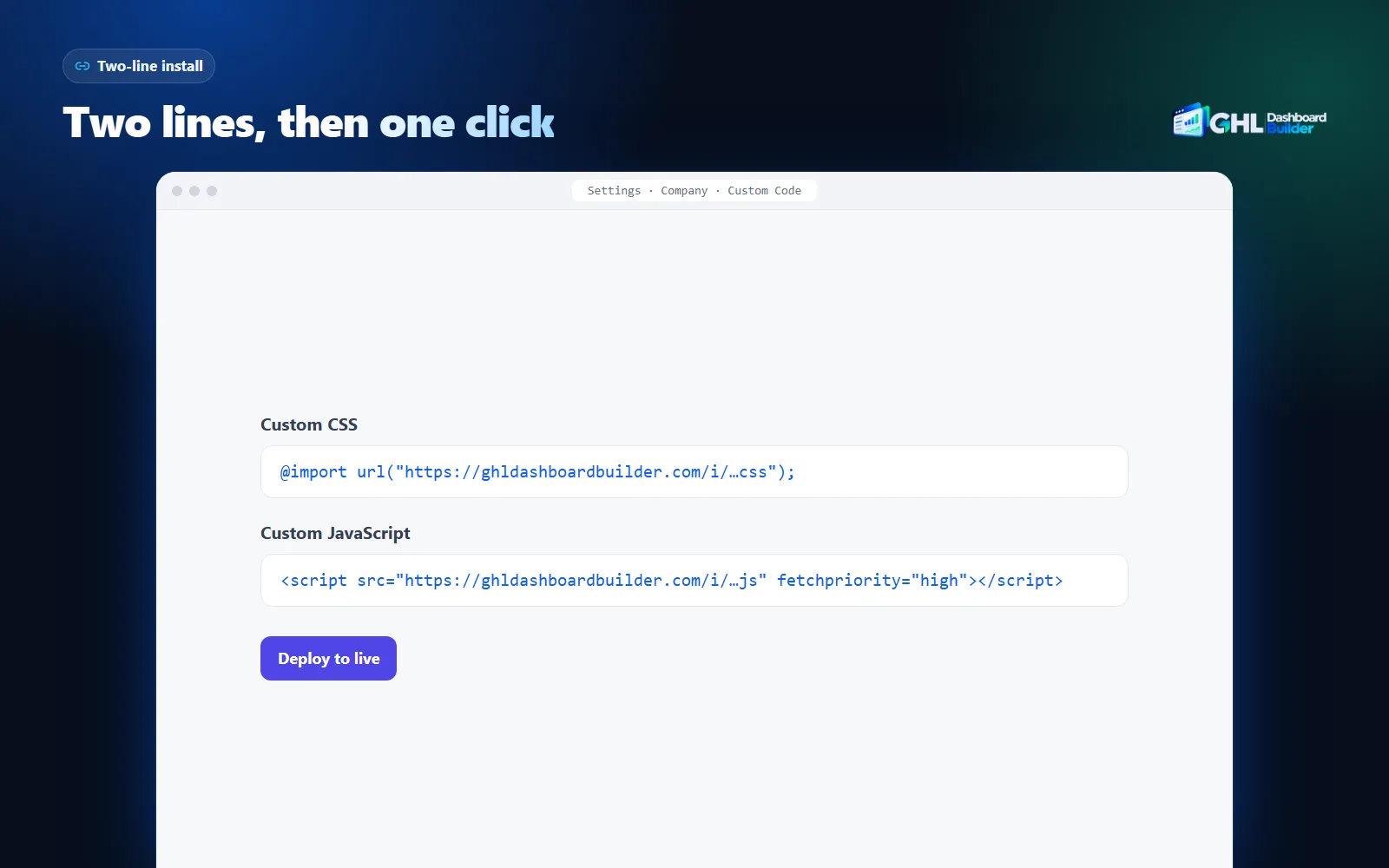
Because the lines never change, the backup is two short lines rather than pages of code, and removing the theme means clearing two boxes. If you write your own scripts as well, keep them below the install line, each in its own script block with a dated comment, so you can remove one without touching the others.
Write it yourself, hire a developer or use a builder?
Write scripts yourself for small, single jobs you can read and test, such as a help link. Hire a developer for custom behavior that is specific to your agency and needs maintenance. Use a builder for the common jobs, such as menu wording, privacy mode, live counts and sub-account targeting, so someone else keeps them working through HighLevel’s changes.
The deciding question is not who writes the first version. It is who fixes the script on the morning after a HighLevel release, while your clients are waiting. Our comparison of a GoHighLevel developer and a dashboard builder looks at that question for CSS and JavaScript together.
| Question | Write it yourself | Hire a developer | Generated by GHL Dashboard Builder |
|---|---|---|---|
| Coding needed | Yes | No, for you | No |
| Best for | Small single jobs | Agency-specific features | Menu, privacy, live counts, pop-ups, banners, targeting |
| Preview before installing | Browser console only | Depends on the developer | Yes, on desktop, tablet and phone |
| Upkeep after HighLevel changes | You | The developer, per fix | 12 months included, lifetime on Agency |
| What goes into HighLevel | Your script | Their script | One CSS line and one JavaScript line |
| Adding your own code | Yes | Yes | Yes, on Agency, after the generated theme |
| Cost model | Your time | Hourly or project rates | One-time: Starter $280, Pro $480, Agency $880, plus a $100 setup fee |
The routes also combine well. Many agencies use a builder for the common jobs and keep one or two small scripts of their own, such as a support chat or a custom help link. On the Agency plan, your own CSS and JavaScript are added after the generated theme, so your code runs alongside it from the same install.
Our plans are one-time payments with no monthly fees: Starter $280 for 1 design, Pro $480 for up to 3 designs with the menu editor, login page and 15 languages, and Agency $880 for up to 100 designs, a look designed by our team, your own custom CSS and JavaScript and lifetime updates. Every plan adds a one-time $100 setup fee, for which we install and configure the design in your HighLevel and check every screen. The pricing page lists everything in each plan, and the FAQ answers the common install and safety questions.
What to do next
- Audit the box. Open Settings, Company, Whitelabel, Custom Code today and list every script in Custom JavaScript with what it does and who added it. Remove anything nobody can explain.
- Back it up. Copy both Custom Code boxes into a dated file before your next change, so any problem is a one-minute rollback.
- Move looks to CSS. For each script, ask whether CSS could do the same job. Replace the ones that only change colors or sizes.
- Check navigation. If your agency uses or plans to try Custom Navigation, check the legacy custom code toggle and test every script on the new navigation.
- Try the common jobs without code. Open the free builder and try your menu wording, privacy mode and language on a live copy of HighLevel’s screens before you write another script.