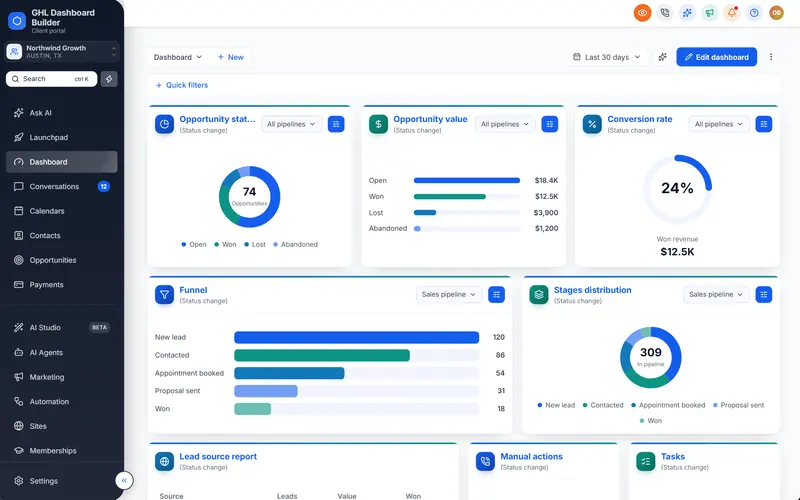
A tool you want to connect asks for your client’s “Location ID”. A developer needs it to fix a script. You want to brand one client’s account and leave the others alone, and every guide says “add the Location ID”. If you have never seen the term in HighLevel (also called GoHighLevel or GHL), it is not obvious what it is, where it lives or why so many things depend on it.
This guide answers those questions in order. It explains what the HighLevel Location ID is, the two places to find it, what HighLevel and outside tools use it for, how it differs from the Company ID, Contact ID and API key, how to use it to brand a single sub-account step by step, how developers use it in custom code, whether it is safe to share, and the mistakes that cause most “invalid location” errors.
What is a HighLevel Location ID?
A HighLevel Location ID is the unique code HighLevel assigns to every sub-account in your agency. HighLevel originally called sub-accounts “locations”, and the identifier kept that name. When a tool, a script or a help article asks for a location ID, a sub-account ID or a locationId, it means the same string.
HighLevel’s help article on finding a client’s Location ID describes it as a unique ID given to every sub-account in your agency account. The developer documentation shows the history in its page titles: the endpoint for reading a client account is called Get Sub-Account (Formerly Location), and its path still ends in /locations/{locationId}.
Three terms help before going further:
- Agency: your top-level HighLevel account, where you manage clients, billing and white-label settings. HighLevel’s API calls it a company.
- Sub-account: one client’s workspace with its own contacts, calendars, conversations and pipelines. Each one has exactly one Location ID.
- Agency view: the part of HighLevel you see before you switch into a client. It has no Location ID because it is not a sub-account.
A Location ID looks like a string of upper-case letters, lower-case letters and numbers, for example AbC123xYz456LmN789Qr (a made-up example). It carries no meaning on its own: you cannot tell the client’s name, country or plan from it. Its only job is to point to one sub-account without any doubt, which is why two clients called “Smile Dental” can sit side by side in your agency without being mixed up.
The Location ID stays with the sub-account for its whole life. Renaming the business in Business Profile changes the name, not the ID. Creating a new sub-account, even from a snapshot of an existing one, produces a new ID. That last point matters later: anything you set up by Location ID for the old account does not carry over to the copy.
Where do I find my HighLevel Location ID?
You find a HighLevel Location ID in two places, both inside the sub-account: in the browser address bar after /location/, and on the sub-account’s Settings, Business Profile page. Both show the same string. Neither is available from the agency view, so switch into the client’s sub-account first.
HighLevel’s help article on the Location ID lists both routes. At the time of writing they work like this.
Method 1: the browser address bar
- From your agency view, switch into the client’s sub-account using the account switcher or your list of sub-accounts.
- Open any page inside it, such as the Dashboard or Contacts.
- Look at the address bar. The address has the form
https://app.gohighlevel.com/v2/location/<id>/dashboard, or the same path on your own white-label app domain. - Copy the characters between
/location/and the next/. That is the Location ID.
Some HighLevel pages and older links carry the ID as a parameter instead, as locationId=<id> in the address. The value after the equals sign is the same Location ID.
Method 2: Settings, Business Profile
- Inside the sub-account, open Settings at the bottom of the left menu.
- Business Profile opens first. According to HighLevel’s Business Profile settings article, this page holds the sub-account’s business name, logo and other details.
- Find the Location ID on that page and copy it.
The address bar is the fastest route when you are already working in the account. The Business Profile page is easier to explain to a client or a new team member over email, because it does not depend on reading a long address.
Quick check before you paste it anywhere
Paste the copied ID into a plain text editor before you use it. Check that it has no spaces at either end, no slash, and no extra characters such as /dashboard. Location IDs are case-sensitive in practice: abc and ABC are different strings to every tool that compares them, so never retype one by hand.
How does GHL Dashboard Builder use the Location ID?
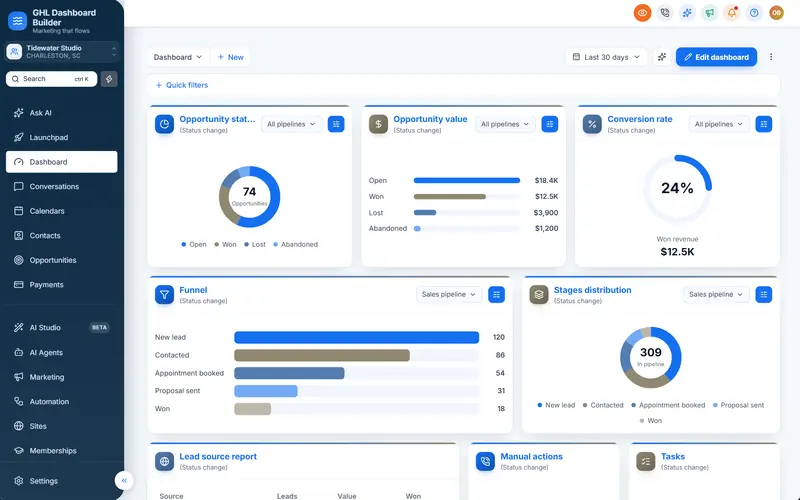
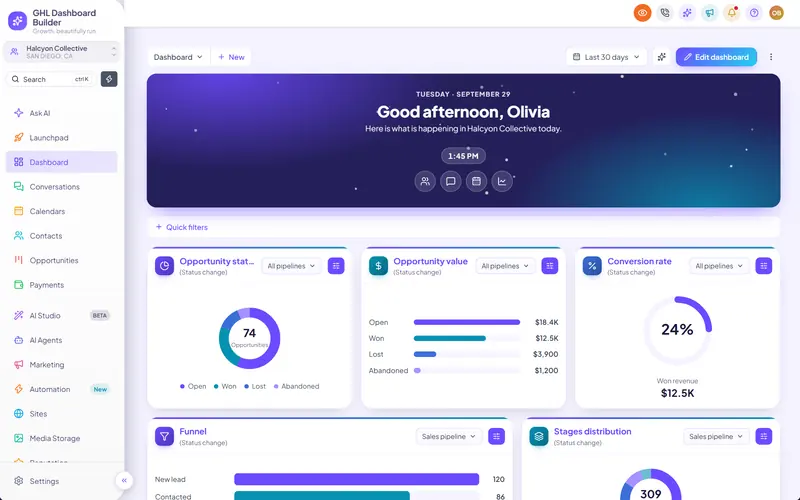
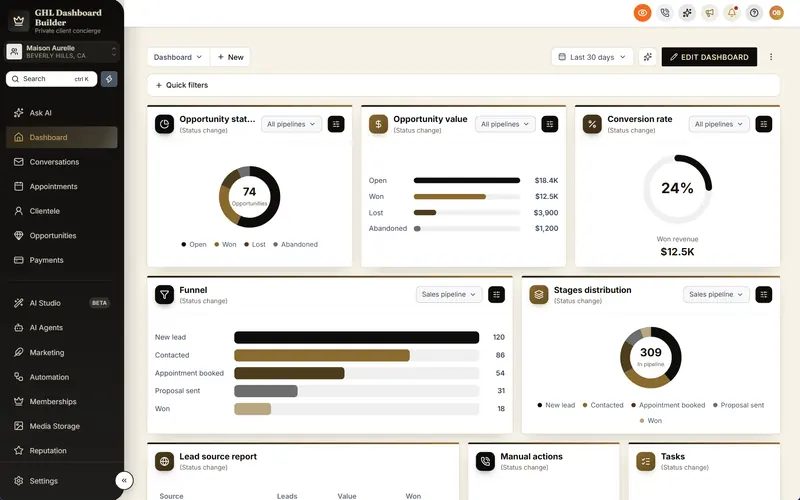
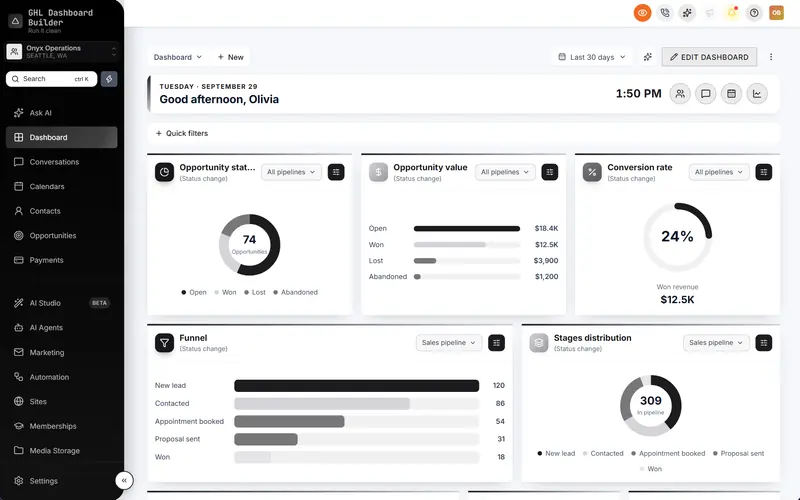
GHL Dashboard Builder uses the Location ID to decide where a design appears. You can install a design for your whole agency, which needs no IDs, or choose Only these sub-accounts and add each client by its link or Location ID. The design then appears inside those sub-accounts only, and everything else stays plain HighLevel.
GHL Dashboard Builder is an independent design service that turns the standard HighLevel (GoHighLevel) dashboard into a branded platform: your colors, menu, login design, privacy mode and your clients’ language, installed with two lines of code. It is not affiliated with HighLevel. The design installs in your agency’s Custom Code settings, and limiting it to chosen sub-accounts is part of every plan, starting with Starter.
The reason a Location ID is needed at all is that HighLevel’s Custom CSS and Custom JavaScript live in the agency’s settings, under Settings → Company → Whitelabel → Custom Code, and load in every sub-account. Our guide to GoHighLevel agency vs sub-account settings maps which settings sit at which level. Because there is no Custom Code box inside a sub-account, the code itself has to check which sub-account is open, and the Location ID in the address is how it knows.
In the builder, or in your account dashboard after you buy, you open the Sub-accounts section, choose Only these sub-accounts and paste each sub-account’s link or ID. If you paste the whole address, the ID after /location/ is picked out for you. You can give each entry a name of your own, such as “Smile Dental (pilot)”, so the list stays readable when it grows. One design can be limited to up to 200 sub-accounts.
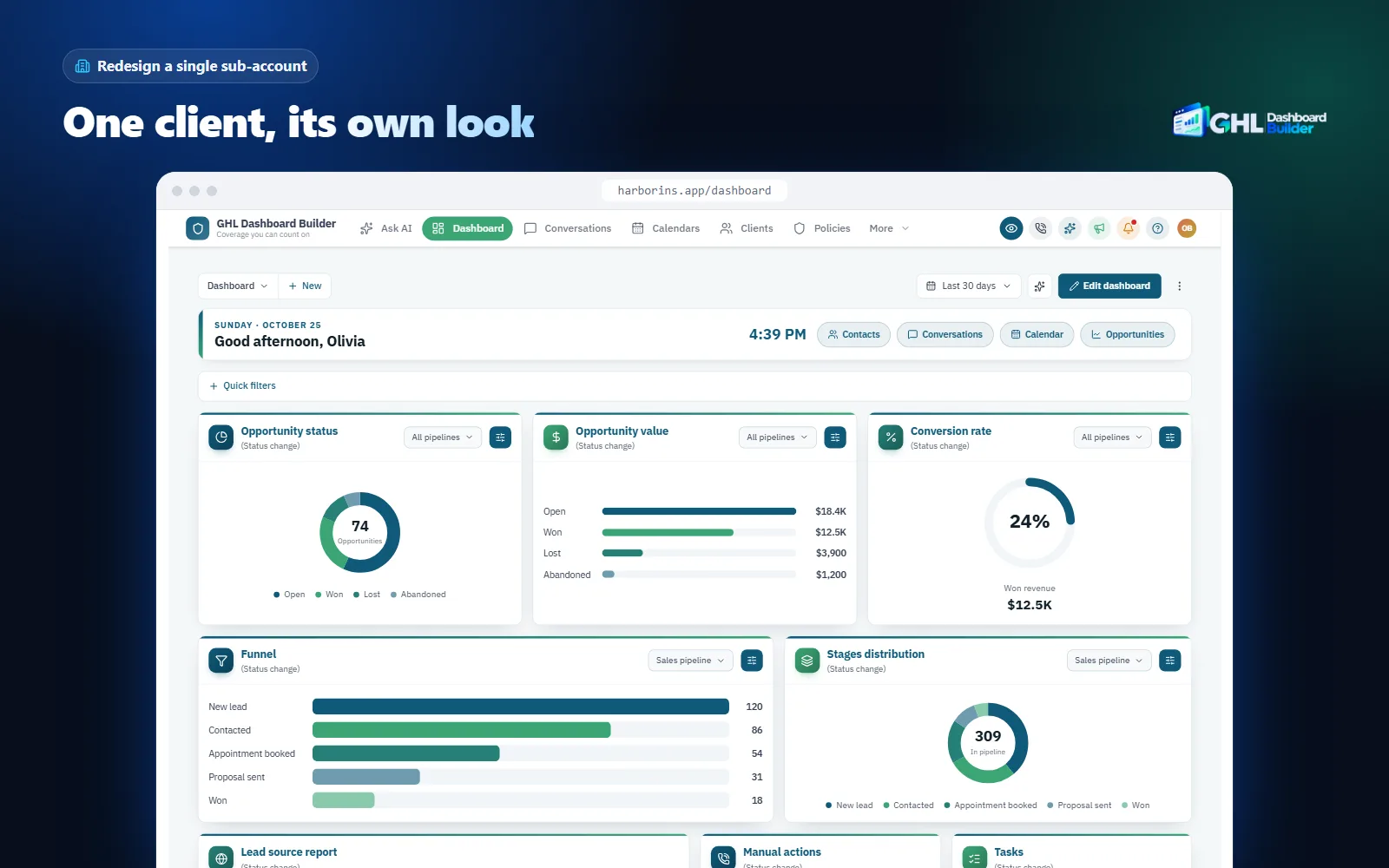
What your clients see afterwards depends on where they are. Inside a listed sub-account, users see your colors, menu, dashboard and the other parts of the design. Inside an unlisted sub-account, in the agency view and on the login page, they see HighLevel as it was. When someone moves between a listed and an unlisted sub-account, the page reloads once so the look switches cleanly instead of half-applying.
Here is how the features that depend on the Location ID fit together, and which plan includes each one.
| Feature | What it does for your clients | Plan |
|---|---|---|
| Chosen sub-accounts | Shows the design only in the sub-accounts you list by link or Location ID, up to 200 per design | Starter, Pro, Agency |
| Two-line install | One CSS line and one JavaScript line in Custom Code, for the agency or the chosen sub-accounts | Starter, Pro, Agency |
| Live counts | Shows the open sub-account’s own numbers: unread conversations, appointments today, tasks due, new opportunities, overdue invoices | Starter (dashboard figures), Pro and Agency (also menu counts) |
| Privacy mode | Blurs names, emails, phone numbers, the conversation list and deal values while you share your screen | Starter, Pro, Agency |
| Menu editor | Renames, reorders and hides any of HighLevel’s 19 menu items in the sub-accounts the design covers | Pro, Agency |
| Languages and right-to-left | Puts the menu and navigation in one of 15 languages, with right-to-left for Arabic, Urdu and Hebrew | Pro, Agency |
The full list of 18 features is on the features page, and our longer guide to GoHighLevel sub-account branding covers the use cases for branding one client: a premium client, a pilot, a niche client or a client in another language.
What is the Location ID used for in GoHighLevel?
The Location ID tells HighLevel and every connected tool which client’s data to read or change. HighLevel’s API addresses sub-account data by Location ID, private integration tokens and rate limits work per sub-account, and outside tools such as dialers and reporting apps ask for it when you connect them. Custom code uses it to act only in chosen accounts.
The HighLevel API
HighLevel’s public API (version 2) is documented on its developer marketplace, and its help article on the API points developers there. Many endpoints either sit under a sub-account’s path, such as /locations/{locationId}, or take a locationId value to say which sub-account a search runs in. A request for contacts, calendars or opportunities without the right Location ID either fails or reads another client’s data, if the token allows it.
The API also needs a token that proves who is asking. An agency token can be exchanged for a sub-account token: HighLevel’s documentation for getting a location access token from an agency token asks for both the agency’s company ID and the sub-account’s Location ID. That pairing is a useful reminder of how the two IDs relate: the company ID names the agency, and the Location ID names one client inside it.
Private integration tokens
A private integration token is a key you create in HighLevel so that your own scripts or a trusted tool can call the API. HighLevel’s private integrations documentation says they exist for both agencies and sub-accounts. Integration vendors’ guides, at the time of writing, tell users to create the token inside the sub-account under Settings → Private Integrations when the tool works with one client’s data, and to pair that token with the same sub-account’s Location ID.
Rate limits per sub-account
HighLevel counts API usage per app and per resource, where a resource is one sub-account or one agency. Its rate limits page lists a burst limit of 100 requests per 10 seconds and a daily limit of 200,000 requests, for each app on each sub-account. So an integration installed in two sub-accounts has a separate budget in each, and a busy client cannot use up another client’s allowance.
Infographic
The HighLevel Location IDby the numbers
2
places to find it: the address bar and Settings, Business Profile
(HighLevel Help Center)
100
API requests per 10 seconds, per app, on each sub-account
(HighLevel API rate limits)
200,000
API requests per day, per app, on each sub-account
(HighLevel API rate limits)
200
sub-accounts one GHL Dashboard Builder design can be limited to
(GHL Dashboard Builder)
Sources: HighLevel Help Center and API documentation (rate limits), November 2026; GHL Dashboard Builder sub-account settings.

Third-party tools and webhooks
Outside tools that work with one client’s HighLevel data often ask for the Location ID during setup. The dialer Wavv, for example, publishes its own guide on finding your Location ID in HighLevel for that reason. If a tool connects through HighLevel’s marketplace and you pick the sub-account in a list, the tool reads the ID itself and you never have to copy it.
Workflows can send data out too. HighLevel’s outbound webhook workflow action packages data about the contact and the trigger and sends it to a URL you choose. If the receiving system serves several clients, check a test payload for the field that identifies the sub-account, or add the Location ID yourself as custom data, so the receiver files each event under the right client.
Support and your own records
When you report a problem to HighLevel support or to a developer, including the Location ID of the affected sub-account saves a round of questions, because business names are not unique. It is also worth keeping the ID in your own client list next to the client’s name, plan and domain, so that anyone on your team can set up an integration without logging in to look it up.
Location ID vs Company ID, Contact ID and API key: what is the difference?
The Location ID names one sub-account. The Company ID names your agency. A Contact ID names one person inside a sub-account, and an API key or token proves who is allowed to ask. Tools ask for different ones, and giving a tool the wrong kind of ID makes the connection fail or find nothing.
| Identifier | What it identifies | Where you see it | Who usually asks for it |
|---|---|---|---|
| Location ID (sub-account ID) | One client’s sub-account | Address bar after /location/, Settings → Business Profile | Integrations working with one client, custom code, support |
| Company ID (agency ID) | Your whole agency account | Agency-level settings and API responses | Agency-level apps, token exchange, SaaS tools |
| Contact ID | One contact record inside a sub-account | The address of a contact’s page, at the time of writing after /contacts/detail/ | Workflows, webhooks and scripts that update one person |
| User ID | One team member’s login | API responses about users | Tools that assign tasks or conversations to staff |
| API key or token | Permission to call the API, not an account | Created in agency or sub-account settings, shown once | Every integration that reads or writes data |
Two pairings cause most confusion. First, a Company ID and a Location ID are both IDs and look alike, but an agency-level tool given a Location ID, or a sub-account tool given a Company ID, will reject it or find nothing. Second, an ID is not a key: a Location ID says which account, a token says who may open it. A tool almost always needs both.
If a form field is labeled vaguely, such as “Account ID” or “HighLevel ID”, check the tool’s own help article. When the tool works with one client’s contacts or calendars, it is almost always the Location ID. When it manages several clients or your billing, it is usually the Company ID.
Why do live dashboard numbers depend on the Location ID?
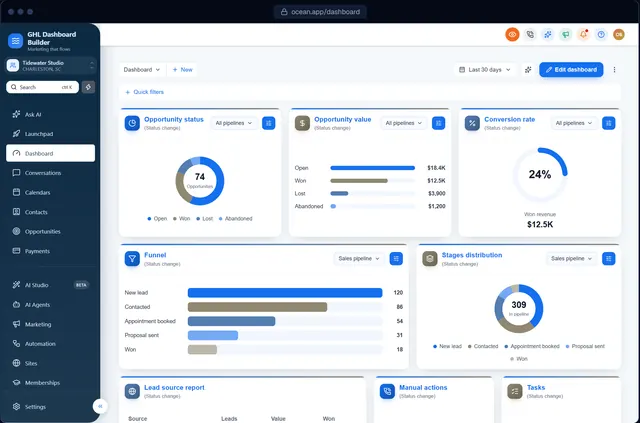
Because every number in HighLevel belongs to one sub-account. Unread conversations, today’s appointments and overdue invoices are stored per client, so anything that shows them has to know which sub-account is open. HighLevel’s own pages do this from the address, and so do GHL Dashboard Builder’s live counts.
A client’s team rarely thinks about this, but it explains a few things you see as an agency. When you switch from one client to another, the numbers on the Dashboard change even though the screen looks the same. When you open the agency view, client numbers disappear, because there is no sub-account open. And a report built for one client cannot accidentally show another’s figures, as long as the ID is right.
GHL Dashboard Builder’s live counts follow the same rule. They read the open sub-account’s Location ID from the address and ask HighLevel for that sub-account’s numbers, using the same session as HighLevel’s own page. The figures appear as badges on the menu and in the welcome banner: unread conversations, appointments today, tasks due, new opportunities this week and overdue invoices. The numbers are kept in the browser’s memory and are sent nowhere except back to HighLevel.
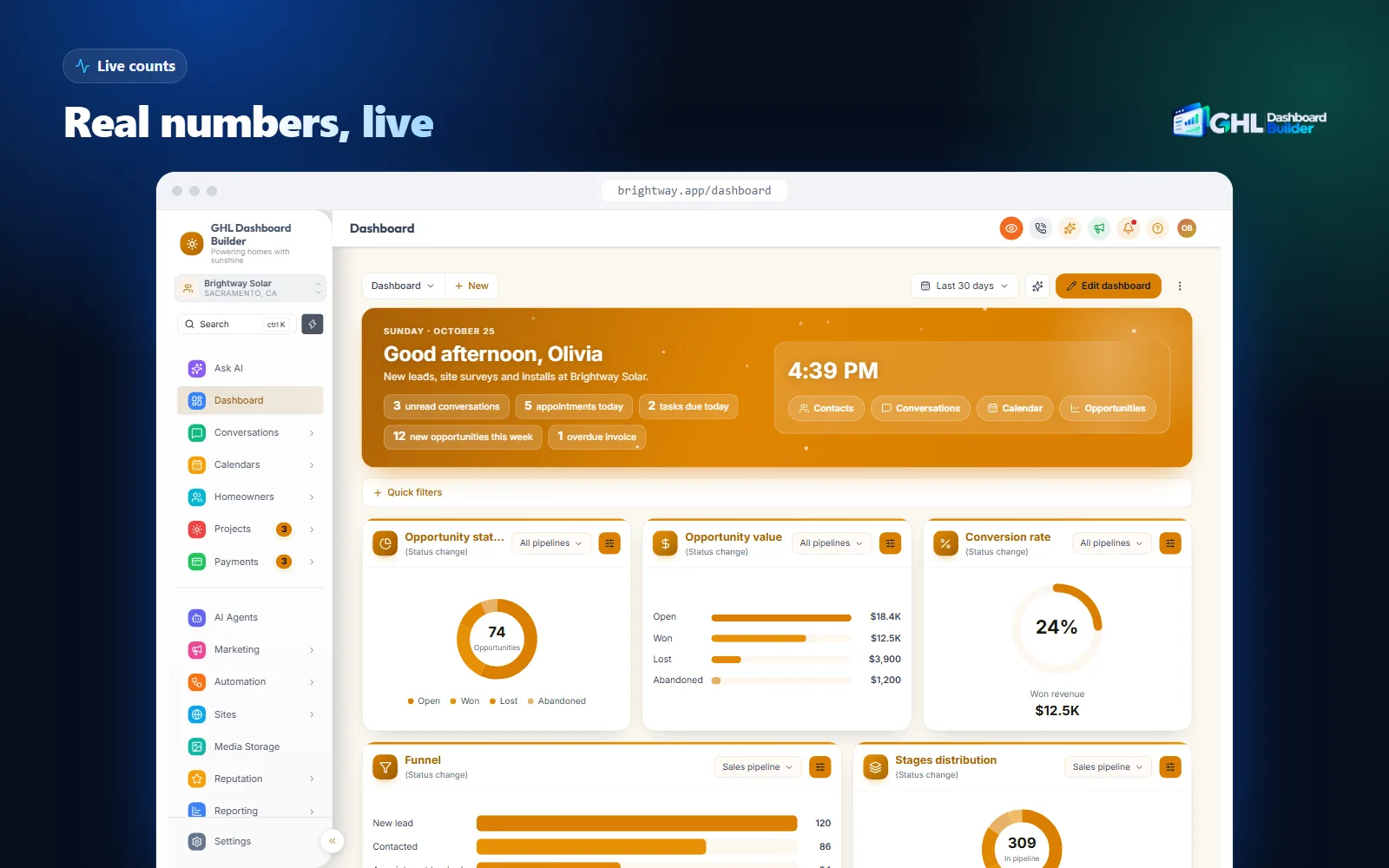
Because the counts are tied to the Location ID, they are always the numbers of the client whose account is open. A user who works in three sub-accounts sees three sets of figures, each in the right place, without any setup per client. Unread conversations refresh every minute and when the page changes; the other figures every five minutes and when the browser tab comes back into view.
This is also why live counts work well with a scoped design. If you limit a design to two premium clients, only those two see the badges and the welcome banner figures, and the rest of your agency keeps HighLevel’s standard screens.
How do you use a Location ID to brand one sub-account, step by step?
Find the client’s Location ID, add it to your design’s sub-account list, install the two lines once at agency level, and test a listed and an unlisted sub-account. The install takes about five minutes, and on every plan we install it for you as part of the one-time $100 setup fee.
Infographic
Brand one sub-account by Location IDin five steps
- 1
Copy the ID
Open the client's sub-account and copy the code after /location/.
- 2
Design the look
Pick a template and set the client's colors, logo and menu in the builder.
- 3
Choose the scope
Select Only these sub-accounts and paste the link or Location ID.
- 4
Install once
Paste the two lines into Settings → Company → Whitelabel → Custom Code.
- 5
Test both sides
Check a listed sub-account, an unlisted one and the agency view.

The steps below assume you have agency admin access and that your agency’s white-label settings, such as the app domain and logo, are already in place. Our guide to where to add GoHighLevel custom CSS shows the Custom Code area in detail.
1. Copy the Location ID
- Switch into the client’s sub-account from the agency view.
- Copy the code after
/location/in the address bar, or copy the ID from Settings → Business Profile. - Paste it into a note next to the client’s name, so you can check it later.
2. Design the look
- Open the free builder and pick a template, or start from the client’s colors and logo.
- Set the menu wording, the welcome banner and the other parts you want this client to see.
- Check the result on desktop, tablet and phone in the live preview.
3. Limit the design to the client
- Open the Sub-accounts section of the design.
- Choose Only these sub-accounts.
- Paste the client’s link or Location ID and give the entry a name you will recognize.
- Add any other sub-accounts that should get the same design. The list can hold up to 200.
4. Install the two lines
- In HighLevel’s agency view, open Settings → Company → Whitelabel → Custom Code.
- Paste the CSS line into Custom CSS and the JavaScript line into Custom JavaScript.
- Save, then refresh any open HighLevel tabs.
If your agency already has other custom code in those boxes, leave it in place and add the two lines alongside it, then test both. Our two-line install page explains how later changes go live with Deploy to live, without pasting the code again.
5. Test both sides
- Open the listed sub-account and check the Dashboard, Contacts, Conversations and the pipeline board.
- Switch to an unlisted sub-account: it should look like plain HighLevel.
- Open the agency view and the login page: both should be unchanged.
- Switch back to the listed sub-account. The page reloads once and the design returns.
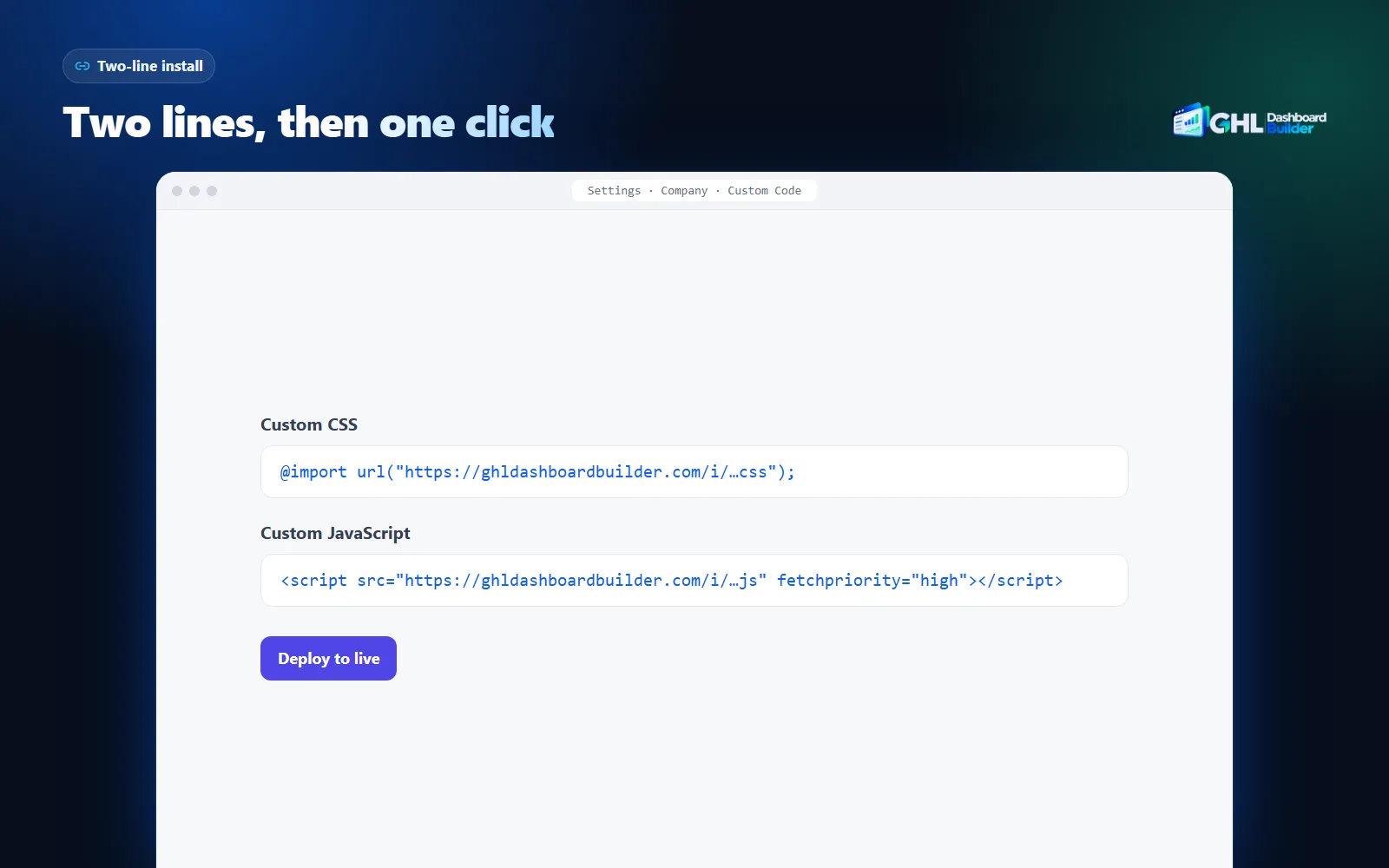
When a client later leaves, or a pilot ends, remove the client’s entry from the list and press Deploy to live. You do not need to touch HighLevel’s Custom Code again, and the other listed clients keep their design.
How do developers use the Location ID in custom code?
Developers read the Location ID from the page address with JavaScript and run their code only when it matches a list. It sounds simple, but HighLevel switches pages without reloading, so a script also has to notice when the user moves to another sub-account and undo what it changed.
The basic pattern is a regular expression on location.pathname that captures the part after /location/. If the captured ID is on the list, the script adds a marker to the page, for example an attribute on the <html> element, and every CSS rule is written to match only under that marker. If the ID is not on the list, the script does nothing. Our guide to HighLevel custom JavaScript covers how such scripts load and where they run.
The hard parts come after the first page load:
- In-app navigation. HighLevel is a single-page app: switching sub-accounts or pages changes the address without a full reload. A script that checks the ID only once keeps the design on after the user leaves the listed client. The script has to watch for address changes and react.
- Leftovers. Anything the script added, such as a banner or extra buttons, stays on the page when the user switches unless the script removes it. A clean reload when moving between listed and unlisted accounts is the safest fix, and it is what GHL Dashboard Builder’s install does.
- Unscoped CSS. A single style rule written without the marker styles every sub-account. On a large stylesheet one missed rule is easy to overlook, and it makes part of the design appear in clients who were never meant to see it.
- Pages without an ID. The agency view, the login page and some settings screens have no
/location/in the address. The code must treat a missing ID as “not listed”, not as an error.
If you write the CSS by hand, our page on GHL custom CSS explains what a generated stylesheet handles for you, and the guide to GoHighLevel custom CSS that is not working covers caching and selector problems that look like scope problems but are not.
The table below compares writing your own Location ID check with using a scoped design from GHL Dashboard Builder. Both are valid; they differ in who carries the maintenance.
| Question | Your own Location ID script | GHL Dashboard Builder scoped design |
|---|---|---|
| Who writes the ID check | Your developer | Generated with the design |
| Switching between sub-accounts | Must be handled in your code | Reloads once when moving between listed and unlisted accounts |
| Scoping every style rule | Must be done rule by rule | Every rule is scoped automatically |
| Adding or removing a client | Edit the list and re-paste the code | Edit the list and press Deploy to live |
| After HighLevel updates | Your developer re-tests and fixes | Covered by the updates included in your plan |
| Cost | Developer time | One-time plan price plus the $100 setup fee |
Is it safe to share a HighLevel Location ID?
It is safe to share with tools and people you trust, but do not publish it. A Location ID alone does not give anyone access, because HighLevel’s API also requires a token and the app requires a login. It does identify a client account, so treat it like an internal account number.
The reason it is not a secret in the strict sense is in the API documentation: every request is sent with an access token or private integration token as a Bearer header, as the Get Sub-Account documentation shows. Without a valid token for that sub-account, knowing the ID does not let anyone read the data. Tokens are the real secret: store them in a password manager, give each one only the scopes it needs, and remove tokens a tool no longer uses.
There are still good reasons to keep Location IDs private. An ID ties a client’s account to your agency, it helps a stranger who already has a leaked token aim it at the right account, and posting it in a public forum alongside a client’s name says more about your client list than you may want. When you ask for help in a community group, replace the ID with a placeholder such as <location-id>.
The most common way IDs and client data leak is not a forum post but a screen share. Copying a Location ID from the address bar during a support call, a sales demo or a recorded training video often means showing the sub-account’s contacts, conversations and deal values on screen at the same moment. Our guide to hiding client data with GoHighLevel privacy mode covers safe screen-sharing routines in detail.
What can go wrong with Location IDs?
The usual problems come from copying the wrong thing, copying from the wrong account, or forgetting that a new sub-account has a new ID. A few come from expecting the ID to do more than it does. The table lists the typical symptoms and what to check first.
| Symptom | Likely cause | What to check |
|---|---|---|
| Integration says “invalid location” | Extra space, missing character or wrong letter case | Copy the ID again from the address bar and paste it into a plain text editor |
| Integration connects but shows no data | Token created in another sub-account, or at agency level | Create the token inside the same sub-account as the Location ID |
| Data appears in the wrong client | The ID of a similarly named sub-account was used | Compare the ID with the one on that client’s Business Profile page |
| Scoped design does not appear | The ID is not on the list, or the list was not deployed | Check the list, press Deploy to live, then refresh the client’s tab |
| Scoped design appears in another client | Hand-written CSS without the scope marker | Find the unscoped rule, or use a generated scoped design |
| A copied sub-account has no design or integrations | A snapshot copy has a new Location ID | Add the new ID to the design and reconnect the integrations |
| Too many requests (error 429) | One app exceeded the per-sub-account rate limit | Slow the tool down or spread its work; limits are per app and sub-account |
There are also limits worth knowing before you promise a client anything. A Location ID does not change what HighLevel shows by itself: the login page is shared by the whole agency and appears before anyone picks a sub-account, so no Location ID can scope it. HighLevel’s mobile app does not run your custom code, so a scoped design is a browser feature. And HighLevel does not officially support custom code, so a large HighLevel update can occasionally require a theme refresh, which the updates included in our plans cover.
Finally, a Location ID scope shows one design in the sub-accounts it lists. If you want a different look for each of several clients, tell us which clients and which looks on the contact page and we will plan it with you; the number of saved designs per plan is listed on the pricing page. Common questions about scoping, installing and removing a design are answered in our FAQ.
Which plan do you need to scope a design by Location ID?
Every GHL Dashboard Builder plan can limit a design to chosen sub-accounts by Location ID, starting with Starter at $280 as a one-time payment. There are no monthly fees. Every plan also has a one-time $100 setup fee, for which we install and configure the design in your HighLevel.
The plans differ in how many designs you can save and which parts of HighLevel you can change, not in whether Location ID scoping is available.
Source: GHL Dashboard Builder pricing, November 2026 (config/site.ts and config/plans.ts). One-time payments, no monthly fees.
- Starter ($280) suits an agency that wants one branded design, for the whole agency or for the sub-accounts it lists. It includes any of the 27 templates customized to your brand, the welcome banner and live dashboard figures, notification pop-ups, privacy mode, one round of changes and 12 months of updates.
- Pro ($480) adds up to three designs, the menu editor with live menu counts, a branded login page in 25 designs, and the menu and navigation in 15 languages with right-to-left for Arabic, Urdu and Hebrew. It includes three rounds of changes and 12 months of updates.
- Agency ($880) suits agencies branding many client accounts: up to 100 designs, a look designed from scratch by our team, your own custom CSS and JavaScript, downloadable code files and lifetime updates.
Starter and Pro include 12 months of updates; after that, updates are optional at $99 a year, and the theme keeps working without them. You can upgrade later by paying the difference between plans, and the setup fee is never charged twice. If you run HighLevel in SaaS mode and want each client account to feel like your own product, our guide to GoHighLevel SaaS mode white-labeling explains how scoping fits that model, and the GHL dashboard customization page shows what a full design changes.
What to do next
- List every client you serve with each sub-account’s Location ID, business name and domain, copied from the address bar or Business Profile, so your team never has to look one up during a call.
- Check your existing integrations: confirm that each one uses the right Location ID and a token created in the same sub-account, and remove tokens you no longer use.
- Pick one client for a pilot and try their colors, menu and welcome banner in the free builder before you touch their account.
- Limit the pilot design to that client’s Location ID, install the two lines, and test a listed sub-account, an unlisted one and the agency view.
- If several clients need different looks, or other languages such as those on our languages page, write down which ones and talk to us before you buy, so the plan fits.