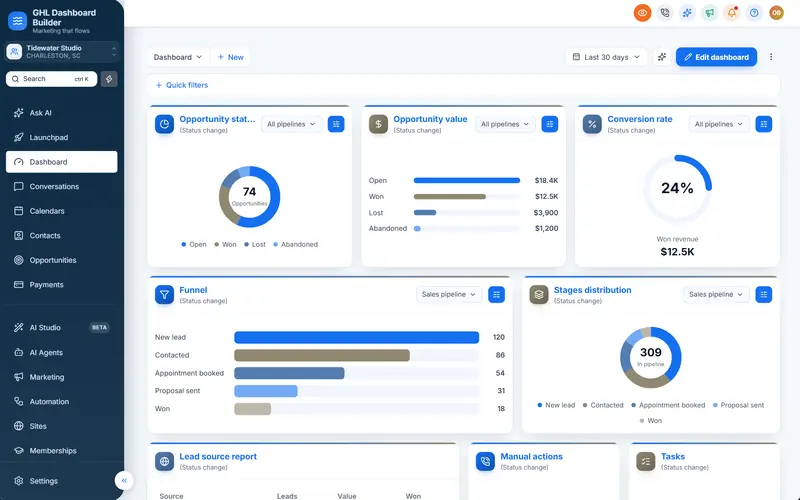
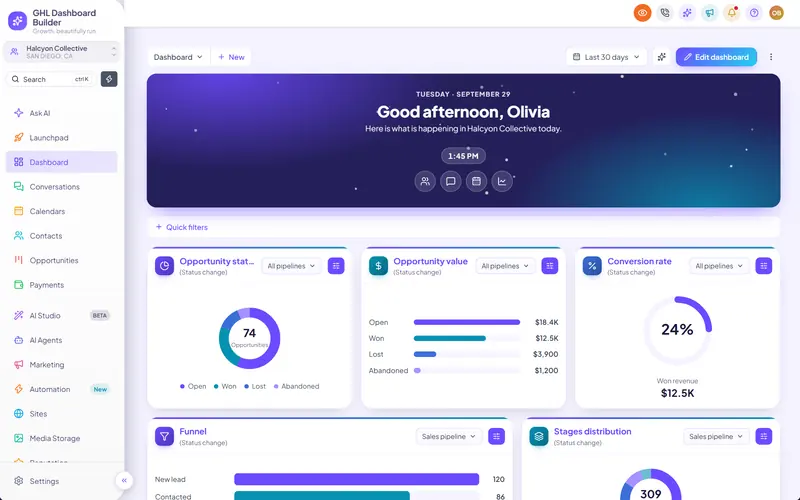
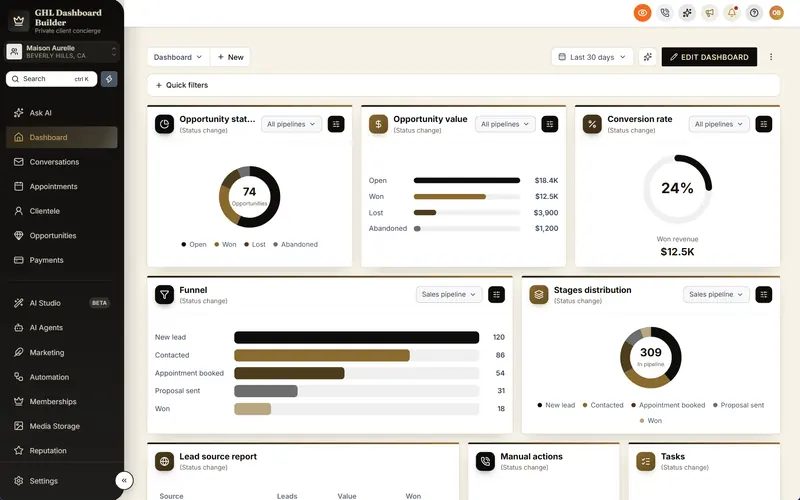
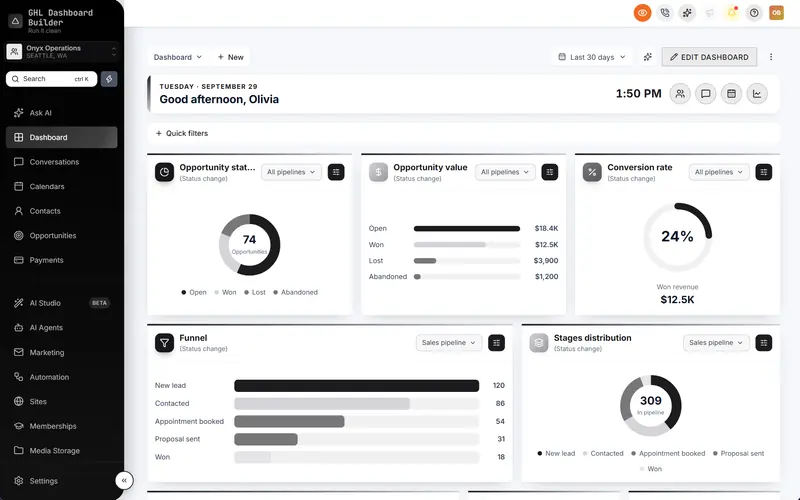
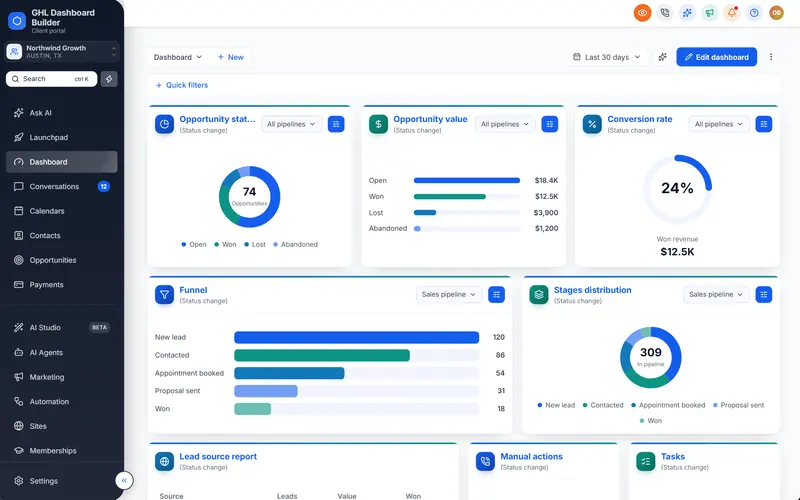
You switched on SaaS mode, built three plans, connected Stripe and shared your sign-up link. A stranger pays, gets an account within seconds and logs in. What they see is a capable CRM with your logo in the corner, wrapped in the same colors, menu and empty dashboard as every other HighLevel reseller’s product. If they have tried a competitor built on the same platform, they may recognize it on the first screen. Your product page promised software; the first login shows a resold tool.
This guide explains how to give a GoHighLevel SaaS mode white label platform the look and feel of a real product. HighLevel (also called GoHighLevel or GHL) gives SaaS-mode resellers strong selling machinery: plans, prices, trials, billing and automatic account creation. It leaves the everyday interface mostly as it is. We cover what SaaS mode does and does not brand, what a new customer sees from sign-up to first dashboard, how plan permissions and menu wording fit together, a step-by-step setup with HighLevel’s menu paths, whether premium tiers can look different, what it costs, and the limits you should know before you promise anything. GHL Dashboard Builder is an independent design service and is not affiliated with HighLevel; where our product helps, we say exactly what it does and what it does not.
What is GoHighLevel SaaS mode, and what does it leave unbranded?
SaaS mode is HighLevel’s way for an agency to sell the platform as its own subscription software. You create plans with your prices and features, customers pay through Stripe, and HighLevel creates their sub-account automatically. It covers selling, billing and provisioning. It does not change the colors, menu wording, sign-in design or first screen of the web app.
HighLevel’s guide to the SaaS Configurator describes it as the way agencies package, price, sell and manage recurring plans for client sub-accounts under their own brand. At the time of writing, it walks you through four jobs: connect payments (Stripe, or your agency sub-account’s payments), choose a currency, create plans with prices and trial periods, and generate a sale link that new customers use to sign up. When someone buys, HighLevel creates their sub-account on the plan they chose. HighLevel can also rebill phone, email and other usage to your customers with your markup.
The pieces that make the product look like yours come from other places:
- Agency white-label settings give you a white-label domain for the web app, your logo and favicon, and your legal links. HighLevel’s agency settings article also covers the Custom CSS and Custom JavaScript boxes, which HighLevel describes as powerful but unsupported.
- The white-label mobile app is a separate paid add-on, listed in HighLevel’s pricing guide. Check the current price there before you promise customers an app in your name.
- The interface itself (colors, fonts, the sidebar, the menu labels, the dashboard layout, the sign-in page design) stays standard HighLevel unless you change it with custom code or a theme.
Here is the split at a glance.
| Part of the product | What controls it | Branded by default in SaaS mode? |
|---|---|---|
| Plans, prices, trials, checkout | SaaS Configurator and Stripe | Yes, your prices and plan names |
| Account creation after purchase | SaaS mode | Yes, automatic |
| Web address and logo | Agency white-label settings | Yes, once you set them |
| Mobile app name and icon | White-label mobile app add-on | Only with the add-on |
| Colors, fonts, buttons, sidebar | Custom CSS or a theme | No, standard HighLevel look |
| Menu wording and order | Custom code or a theme (plus per-plan features) | No, HighLevel’s labels |
| First dashboard screen | Custom code or a theme | No, HighLevel’s default Dashboard |
| Sign-in page design | White-label settings plus custom design | Logo only |
The result is a common pattern: the checkout and the bill say your brand, while the product people use for hours a week looks like everyone else’s. Our earlier comparison of GoHighLevel white-label options goes through the built-in route, do-it-yourself CSS and done-for-you designs in more detail.
What does a SaaS customer see from sign-up to first dashboard?
A SaaS customer meets your product in a fixed order: your sales page, the checkout, a welcome email, the sign-in page, the first dashboard and then the menu. SaaS mode and the white-label settings brand the first steps. From the sign-in page onward, what the customer sees is mostly standard HighLevel unless you change it.
That order matters more in SaaS mode than in a normal agency setup. When you onboard an agency client by hand, you are on a call, you explain the screens, and the client trusts you before they log in. A self-serve SaaS customer has no one beside them. They decide in the first minutes whether the product looks finished, whether it was built for their kind of business and whether they know where to click next.
Walk the journey yourself with a test purchase and write down what you see at each step. This table is the checklist we use.
| Step in the customer’s journey | What they see without extra work | What a product-grade version looks like |
|---|---|---|
| Sales page and checkout | Your page and your prices | Same, with the product name used consistently |
| Welcome email | Whatever your SaaS setup sends, often generic wording | Your product name, the sign-in link on your domain, one clear first task |
| Sign-in page | Your logo on HighLevel’s standard sign-in card | A sign-in page in your colors and layout, with a line about the product |
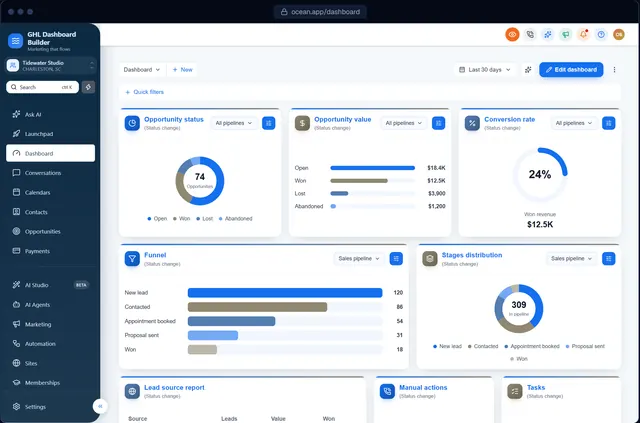
| First dashboard | HighLevel’s default Dashboard with empty widgets | A greeting with the user’s name, quick links to the first tasks, your colors |
| Sidebar and menu | HighLevel’s labels, order and icons | Your product’s words, only the tools on the customer’s plan, in the order of their work |
| Buttons, cards, tabs | HighLevel’s blue | Your brand color on every control |
| Mobile app | HighLevel’s app, or yours with the add-on | Your app with the add-on |
Two of these steps are entirely in HighLevel’s hands: account creation and billing. The rest are design work. The agency-level guide to what HighLevel brands at agency and sub-account level explains where each built-in setting lives, if you are not sure which screen to open.
A note on honesty: customers may still ask what the product runs on. Branding is about a consistent experience, not about hiding facts. Describing your product as built on established CRM infrastructure, with your own setup, support and design, is accurate and usually enough.
Why does a generic dashboard matter more for a SaaS product?
A SaaS customer pays for software, so the software is the product they judge every month. A generic dashboard tells them the product is a reseller’s account, invites price comparison with other resellers and gives them nothing that feels made for their business. A branded, simplified interface makes your product recognizably yours and easier to start using.
There are three practical reasons, none of which depends on invented statistics.
Comparison shopping is easy. Many agencies resell HighLevel, and a buyer who searches for CRM software for their industry will see several products built on it. When two products look identical inside, the buyer compares price and little else. A distinct interface, with your colors, your words and your first screen, gives you something to compare on besides price.
Self-serve customers have no guide. Your onboarding call is replaced by the first screen. If the first screen is HighLevel’s default Dashboard with empty charts, the customer has to work out where to start. A welcome banner with three quick links (“Import contacts”, “Connect your calendar”, “Send your first campaign”) does part of what the onboarding call would have done.
Plans need to feel different. If your Basic and Premium plans look the same on screen and only differ by locked features, customers see the lock before they see the value. A cleaner menu for each plan, and a premium look for your top tier where it fits, make the difference visible.
Infographic
SaaS mode brandingby the numbers
$497
a month: HighLevel's Agency Pro plan, where SaaS mode is listed
(HighLevel pricing page, at the time of writing)
2
lines of code install a GHL Dashboard Builder design for every sub-account
(GHL Dashboard Builder)
100
designs on our Agency plan, one per client sub-account if you need them
(GHL Dashboard Builder)
15
menu languages, including Arabic, Urdu and Hebrew right to left
(GHL Dashboard Builder)
Sources: gohighlevel.com/pricing (checked November 2026; prices can change); GHL Dashboard Builder plans and features.

The $497 figure comes from HighLevel’s pricing page at the time of writing, which lists SaaS mode under the Agency Pro plan, next to Starter at $97 and Unlimited at $297 a month. If you already pay for that plan to sell software, the interface is the part of your product your customers spend the most time with, and the part that is still standard.
None of this means a branded dashboard guarantees lower churn or more signups. We have no data that proves it and will not claim it. Churn has many causes: price, support, results and fit. What branding does is remove one avoidable reason for a customer to feel they bought a generic tool.
How does GHL Dashboard Builder brand a GoHighLevel SaaS mode white label product?
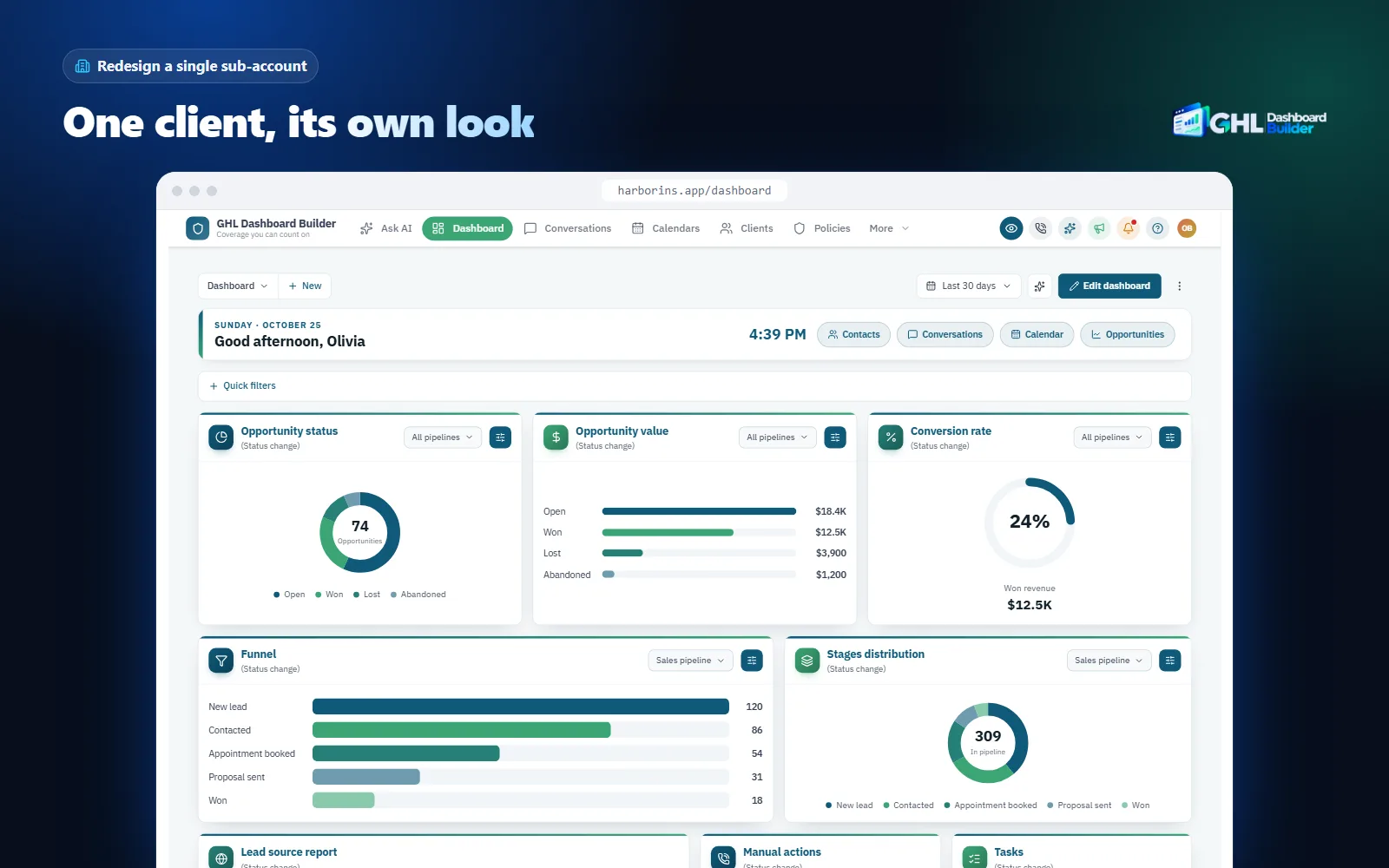
GHL Dashboard Builder is an independent design service that turns the standard HighLevel (GoHighLevel) dashboard into a branded platform: your colors, menu, login design, privacy mode and your clients’ language, installed with two lines of code. For a SaaS-mode product, the useful pieces are brand colors, the menu editor, the welcome banner, the login page design, top navigation and agency-wide scope.
The design sits on top of HighLevel’s real layout, so the screens stay where your customers and your support team expect them. It restyles the interface in the browser: HighLevel’s built-in white-label settings still handle the domain, logo and mobile app. Because the code is installed at agency level, it applies across the interface your users see, including every sub-account. That is the property that matters for SaaS: an account the SaaS Configurator creates at 3 a.m. after a checkout shows your design from its first login, with no manual step.
The features that matter for a SaaS product
| Feature | What it does for your SaaS customers | Plan |
|---|---|---|
| Brand and colors | Your primary, accent, sidebar and header colors, fonts, logo and favicon on every screen | Starter and up |
| Buttons, cards and forms | Your brand color on buttons, tabs, tags, dropdowns and the pipeline | Starter and up |
| Welcome banner | A greeting with the user’s first name, date, clock and your quick links on the Dashboard | Starter and up |
| Appointments board and live counts | Next appointments and real numbers (unread conversations, tasks due) on the first screen | Starter and up |
| Notification pop-ups and privacy mode | New messages, bookings and payments slide in; an eye button blurs client data on shared screens | Starter and up |
| Menu editor | Rename, reorder and hide any of HighLevel’s 19 menu items, add New and Beta labels | Pro and up |
| Login page design | 25 login designs in your colors for your white-label sign-in page | Pro and up |
| Top navigation | HighLevel’s menu moved into a bar across the top, like many SaaS products | Pro and up |
| 15 languages | Translated menu and navigation, with right-to-left for Arabic, Urdu and Hebrew | Pro and up |
| Several designs | Up to 3 designs on Pro and up to 100 on Agency, each for the whole agency or chosen sub-accounts | Pro and Agency |
| Custom code and full files | Your own CSS and JavaScript; download the full theme files | Agency |
The full list of 18 features is on the features page, and the who it’s for page explains how SaaS-mode resellers use them next to agencies and niche specialists.
Brand colors are the base of everything else. You set a primary color, an accent, the sidebar and header colors, surfaces and status colors, a heading and body font from Google Fonts, your logo and your favicon. Every HighLevel screen picks them up, including the Dashboard’s charts, so the product reads as one system instead of a blue CRM with your logo on top.
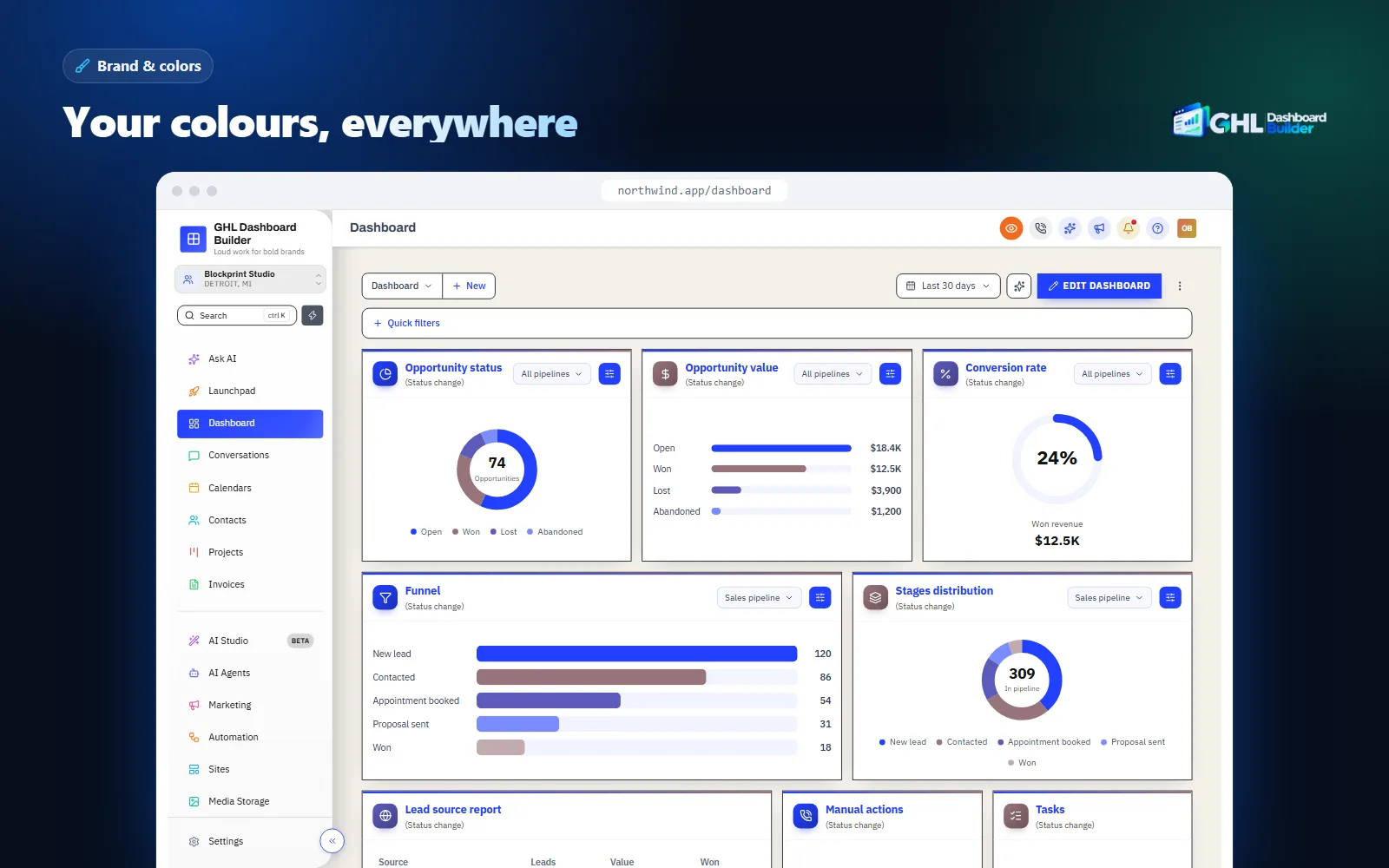
For a SaaS product, choose colors you can keep for years, because your sales page, emails and help articles will use them too. A dark sidebar with one strong accent (as in our Vertex template) reads as technical software; a light, warm palette reads as friendlier. Check contrast on buttons before you commit: white text on a pale brand color can fall below the WCAG minimum of 4.5 to 1 for normal text.
How do you make a new customer’s first screen feel like onboarding?
Replace HighLevel’s default Dashboard greeting with a welcome banner that names the user, shows the date and offers quick links to your product’s first tasks. Below it, show real numbers and the next appointments. A self-serve customer then lands on a screen that tells them where to start, instead of empty charts.
The welcome banner sits at the top of HighLevel’s Dashboard. It shows the user’s first name, the date and a clock, plus quick links you choose. There are 12 designs and nine layouts, or your own photo or colors behind it, in three heights. For a SaaS product, the quick links are the useful part: point them at the three things a new customer must do in their first week. For a booking product that might be “Set your hours”, “Connect your calendar” and “Share your booking link”. For a lead-generation product, “Import your contacts”, “Connect your number” and “Launch your first campaign”.
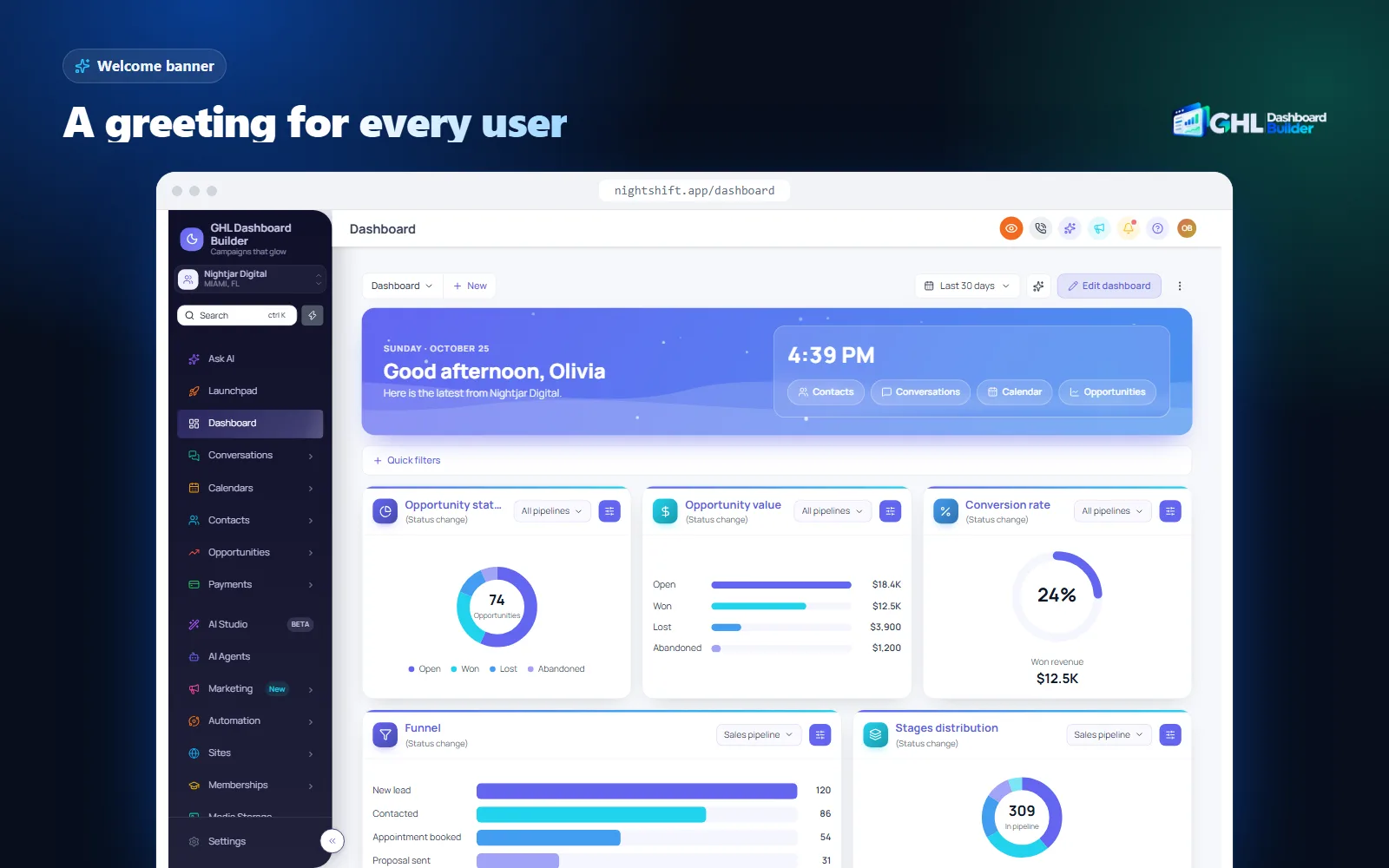
Under the banner, live counts and the appointments board show real numbers from HighLevel: unread conversations, appointments today, tasks due, new opportunities and overdue invoices. For a customer who has just signed up, those counts are zero, which is fine; within a week they become the reason to open the product every morning. Notification pop-ups add new messages, bookings and payments as they arrive, with quiet hours and an optional chime.
Write the banner’s quick links as instructions, not features. “Conversations” tells a new customer nothing; “Reply to your new leads” tells them what to do. Our guide to the GoHighLevel welcome banner has more examples of greetings and quick links by industry.
One honest limit: the banner is the same for every user who sees that design. It greets each person by their own first name, but it does not change its links by plan or by how far the customer has got. If your onboarding needs step-by-step tracking, keep that in HighLevel’s own onboarding settings, your emails and your workflows, and use the banner as the always-visible shortcut.
Can you brand the GoHighLevel sign-in page for SaaS customers?
Yes. HighLevel’s white-label settings put your logo on the sign-in page of your white-label domain, and a custom design can change the rest: colors, layout, background and a short line about your product. From our Pro plan, you choose one of 25 login designs in your colors for that page.
The sign-in page is the screen your customers see most often after the dashboard, often every morning. In SaaS mode it is also the first screen after the welcome email, so it sets the tone for the product. A standard sign-in card with a logo looks like a portal; a sign-in page in your colors, with your product line beside the form, looks like the product you sold.
Our login designs range from a clean card and a brand panel to photo splits and a highlights panel, in your colors, or your own gradient behind the sign-in card: linear, oval, circle or color wheel, with 2 to 5 colors. The design installs on your white-label sign-in page with your agency logo and HighLevel’s Platform Language picker. You can show or hide the Google button, the forgot-password link and the terms line.
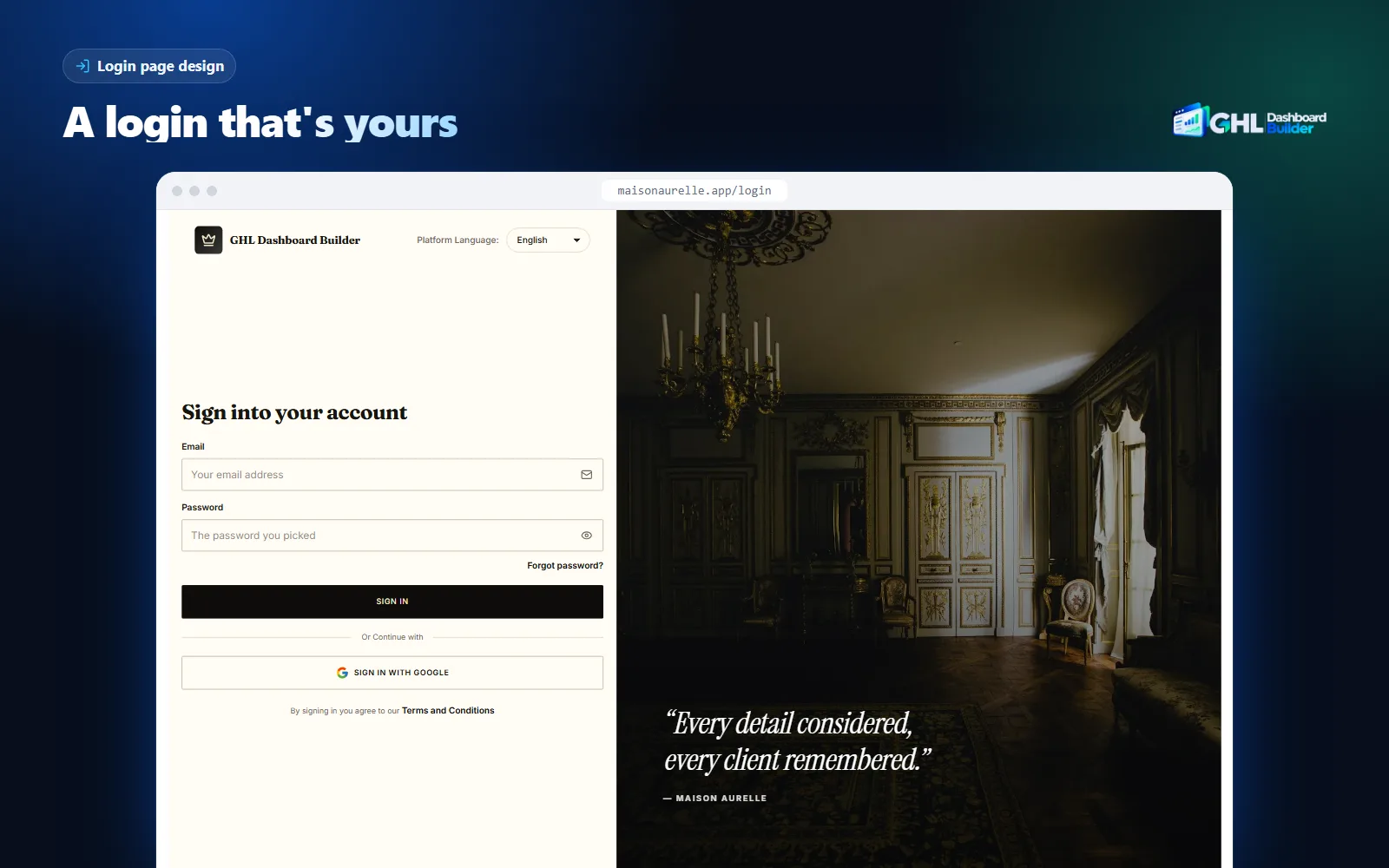
Keep the sign-in page plain enough to load quickly and work on a phone. One product line (“Bookings, reminders and reviews for busy studios”) does more than a paragraph. If you sell in a right-to-left market, test the page in the customer’s language. Our guide to making GoHighLevel look like your own software covers the domain and logo settings this design builds on.
How do SaaS plans, feature permissions and the menu fit together?
HighLevel’s SaaS Configurator decides which features each plan can use; a dashboard theme decides how the product looks and what the menu calls things. Use plan feature permissions to control access, and the menu editor to rename, order and tidy the menu. A theme that hides a menu item does not remove a permission.
HighLevel’s help article on managing feature permissions for sub-accounts describes the flow at the time of writing: open the SaaS Configurator, create or open a plan, go to the feature selection area and choose the features to include. You can also enable or disable supported features for a single client. Those settings decide what a customer on that plan can actually use.
The menu editor works on a different layer. It renames, reorders and hides any of HighLevel’s 19 menu items, adds New and Beta labels and your own custom items. That is how a SaaS product gets its own vocabulary: Contacts becomes Customers or Patients, Opportunities becomes Deals or Jobs, Calendars becomes Bookings. Our guide to renaming GoHighLevel menu items lists common renames by industry.
The two layers work best together. A practical split:
| Goal | Use HighLevel’s plan permissions | Use the dashboard theme |
|---|---|---|
| Stop Basic customers using a premium feature | Yes, turn it off for that plan | No, hiding a menu item is not a lock |
| Call Contacts “Customers” in your product | No | Yes, menu editor |
| Put the most-used page first | No | Yes, reorder the menu |
| Remove clutter nobody on any plan uses | Optional, turn it off everywhere | Yes, hide it in the menu |
| Mark a new feature for customers | No | Yes, New or Beta label |
| Show your product in the customer’s language | Partly (HighLevel’s own language settings) | Yes, menu and navigation in 15 languages |
A common mistake is to hide a premium tool in the menu and assume Basic customers cannot reach it. They may still reach it by a direct link or from another screen. Always lock access in the SaaS Configurator first, then tidy the menu.
The menu editor also helps if you sell in more than one language. HighLevel’s own pages follow HighLevel’s language settings, while our design translates the menu and navigation into 15 languages, with right-to-left layout for Arabic, Urdu and Hebrew and your own wording for any label. The languages page lists all 15. Text inside HighLevel’s builders, system emails and the mobile app still follows HighLevel.
See your product’s look before you change anything
The free builder never connects to your HighLevel account, so you can try several looks for your product without touching live customers. Show the preview to two or three existing customers and ask one question: “Does this look like the product you pay for?” Their answer is more useful than any template gallery.
If you are choosing between looks, start from a finished template and change it rather than starting blank. The templates gallery has 27 designs, from dark technical looks to calm light ones and industry versions with menu wording already set. For a business-to-business SaaS product, the Executive template uses navy and muted gold with serif headings and top navigation, which reads more like stand-alone software than a CRM sidebar.
How do you set up SaaS mode branding, step by step?
Set up HighLevel’s selling side first (Stripe, plans, features), then its white-label identity (domain, logo), then the interface design, installed once at agency level. Finish with a test purchase that walks the customer’s whole journey. The order matters because the design should reflect your final plans and menu.
Infographic
SaaS mode brandingin six stages
- 1
Finish your plans
Stripe, currency, plans, prices and trial periods in the SaaS Configurator.
- 2
Lock features per plan
Turn features on or off for each plan in the feature permissions.
- 3
Set your identity
White-label domain, logo, favicon and legal links in agency settings.
- 4
Design the interface
Colors, menu words, welcome banner and sign-in page in the builder.
- 5
Install once
Two lines in Custom Code, applied to the whole agency.
- 6
Buy your own product
Make a test purchase and walk every screen as a customer.

Menu paths below are as HighLevel’s help center describes them at the time of writing; HighLevel moves settings from time to time, so search the help center if a label differs in your account.
1. Finish the selling side in the SaaS Configurator
- Switch to Agency View and open SaaS Configurator.
- Connect Stripe if you have not already. At the time of writing, HighLevel’s SaaS mode guide names Stripe as the payment provider for SaaS mode.
- Choose your currency, then create each plan with its name, price and trial period.
- Generate the sale link for each plan and keep it for your sales page.
Use the same plan names in your sales page, emails and, if you label features in the menu, in the product itself. A customer who bought “Growth” should not see “Pro” anywhere.
2. Lock features for each plan
- In the SaaS Configurator, open a plan.
- Go to the feature selection area and choose what the plan includes.
- Repeat for each plan, and note which menu items each plan uses. You will need that list for the menu design.
3. Set the white-label identity
- In Agency View, go to Settings → Company → Whitelabel (in some accounts labelled Agency Settings).
- Set your white-label domain for the web app, your logo and favicon, and your legal links.
- If you sell a mobile app, order the white-label mobile app add-on separately and plan its name and icon to match.
4. Design the interface
- Open the free builder and pick a template or start from your colors.
- Set the brand colors, fonts and logo. Check button contrast.
- Rename and reorder the menu with your product’s words, and hide items no plan uses.
- Write the welcome banner’s quick links as the first three tasks of a new customer.
- Choose a login design for the sign-in page.
- Preview on desktop, tablet and phone, then save the design.
With GHL Dashboard Builder, after you choose a plan you send your logo, colors and menu wording through a short form, we build the design and send a live preview link to review, usually within 1 to 2 business days, and you request changes within your plan’s revision rounds.
5. Install once, for the whole agency
- Go to Settings → Company → Whitelabel → Custom Code.
- Paste the CSS line into Custom CSS and the JavaScript line into Custom JavaScript, and save.
- Leave the design’s scope set to the whole agency, so every account SaaS mode creates gets the look.
On every plan we do this for you as part of the one-time $100 setup fee and check every screen. Later changes do not need a new install: change the design, press Deploy to live, and HighLevel picks up the new version. To remove the design, clear both boxes.
6. Buy your own product
- Open your sale link in a private browser window and buy the cheapest plan with a real card or a coupon.
- Read the welcome email, sign in from it and note every screen until you send your first message.
- Check the menu against the plan’s permissions: nothing visible that the plan cannot use, nothing missing that it can.
- Repeat on a phone browser.
Should every SaaS customer get the same look, or can premium tiers differ?
For self-serve plans, give every customer the same agency-wide design: it applies to each new account automatically and keeps support simple. A different look for a premium tier is possible by limiting a second design to chosen sub-accounts, but those accounts must be added by link or Location ID, so it suits tiers you onboard by hand.
Here is how scope works in GHL Dashboard Builder. One install carries your designs. Each design applies either to the whole agency or only to the sub-accounts you choose, which you add by pasting the sub-account’s link or its Location ID. Chosen sub-accounts show their design; everything else shows the agency-wide design. Pro includes up to 3 designs and Agency up to 100. One design is shown per sub-account.
That gives SaaS resellers three workable patterns:
- One look for everyone. One agency-wide design. Every signup gets it. This is the right default for most self-serve SaaS products.
- A premium look for a top tier. The agency-wide design for self-serve plans, plus a second design limited to your premium customers’ sub-accounts. You add each premium account when you onboard it, which fits a tier that includes a setup call anyway.
- A product per niche. If you run two products on one HighLevel agency (for example one for dentists and one for gyms), you can give each its own design and limit it to that product’s sub-accounts. New signups must then be added to the right design, so plan a step in your onboarding for it, or talk to us before you choose this route.
What we do not promise is a different automatic design per customer from one install. If your product idea depends on that, contact us first and we will tell you plainly what is possible. Our guide to GHL sub-account branding covers finding the Location ID and the edge cases in detail.
What does it cost to brand a SaaS-mode product?
Branding has two costs: HighLevel’s plan, which you already pay for SaaS mode, and the design work, which you pay once with a builder or service or keep paying with a developer. GHL Dashboard Builder plans are one-time payments of $280, $480 or $880, plus a one-time $100 setup fee on every plan, with no monthly fees.
The chart puts our first payment next to a year of HighLevel’s Agency Pro plan, so you can see the branding cost in proportion to what you already spend on SaaS mode.
Source: HighLevel Agency Pro at $497 a month on gohighlevel.com/pricing (checked November 2026; prices can change), times 12. GHL Dashboard Builder plans from our pricing page, November 2026, each including the one-time $100 setup fee.
Which of our plans fits depends on what your product needs, not on its size:
- Starter ($280 plus $100 setup) gives one design from any of our 27 templates, customized to your brand: logo, colors, fonts, sidebar, header, buttons, the welcome banner, appointments board, live figures, notification pop-ups and privacy mode. It suits a SaaS product that keeps HighLevel’s menu words.
- Pro ($480 plus $100 setup) adds the menu editor, the branded login page, 15 languages, top navigation and up to 3 designs. Most SaaS products need the menu editor and the sign-in page, so it is the plan we suggest for most SaaS resellers.
- Agency ($880 plus $100 setup) adds up to 100 designs, a look designed from scratch by our team from your brand, your own custom CSS and JavaScript, the full theme files and lifetime updates.
Starter and Pro include 12 months of updates, then updates are optional at $99 a year; without them the theme keeps working as it is. You can upgrade by paying the difference between plans. You pay us once and set your own prices: we take no share of what your SaaS customers pay you and charge no per-customer fee. The pricing page has the full plan contents.
What can go wrong, and what doesn’t branding solve?
Custom code is unsupported by HighLevel, so a large HighLevel update can require a theme refresh. A theme does not change the mobile app, system emails or the text inside HighLevel’s own pages, and it does not replace plan permissions, support or a product people want. Know these limits before you sell the look.
HighLevel updates. HighLevel’s agency settings article describes custom CSS and JavaScript as unsupported and warns that changes to HighLevel’s interface may break custom code. For a SaaS product, a broken style hits every customer at once. Our 12 months of updates (lifetime on Agency) exist to keep the theme in step with HighLevel’s changes; if you build your own CSS, budget time to check it after every major release. Our guide to why GoHighLevel custom CSS stops working lists the usual causes.
The mobile app. HighLevel’s help center states that custom CSS is not supported in the iOS and Android apps. Customers who live in the app will see the white-label app (with the add-on) or HighLevel’s app, not your web theme.
Emails and HighLevel’s own pages. System emails follow HighLevel’s templates. Text inside builders, settings pages and most screens follows HighLevel’s language settings, even when your menu is translated.
Permissions. As covered above, hiding is not locking. Lock features per plan in the SaaS Configurator.
Support load. A renamed menu means your help articles and videos must use your words. If your knowledge base says “Opportunities” while the product says “Deals”, customers will get lost. Rewrite the five most-read help articles when you rename the menu.
Screen sharing. If you sell through live demos, you will be sharing a real account on calls. Privacy mode blurs contact names, emails, phone numbers, the conversation list and deal values with one click; our guide to hiding client data in GoHighLevel explains how to use it on sales calls.
Script safety. Custom JavaScript runs for every user in your agency, which in SaaS mode means every paying customer.
Which branding route suits your SaaS stage?
Free CSS snippets are enough to test the idea with a handful of customers. A developer suits a product that needs unusual changes and has budget for ongoing maintenance. A builder or done-for-you design suits most SaaS resellers who want a finished, maintained look without writing code. Pick by how many customers would be hurt if the theme broke.
| Route | Good for | Upfront effort | Ongoing upkeep | Trade-off |
|---|---|---|---|---|
| HighLevel’s built-in white label only | Testing SaaS mode with first customers | Low | None | Product looks like every other reseller’s |
| Free CSS themes from the web | Small changes, a tight budget | Low to medium | You fix breaks yourself | Code quality varies; no menu, banner or sign-in design |
| A freelance developer | Unusual, product-specific changes | Medium to high | Paid per fix, or a retainer | Depends on one person being available after updates |
| GHL Dashboard Builder | A finished product look with menu, first screen and sign-in page | Low: we design and install | Included for 12 months (lifetime on Agency) | One design per sub-account; custom code only on Agency |
Whatever route you choose, decide who fixes the theme when HighLevel changes, before you have 200 customers on it. Our white-label checklist for GoHighLevel is a useful pass before launch, and the hub guide to white-labeling HighLevel covers the identity settings in full.
What to do next
- Buy your own product. Make a test purchase through your sale link and write down every screen a new customer sees, from the welcome email to the first message sent.
- Lock features per plan. In the SaaS Configurator, check each plan’s feature permissions before you change anything in the menu.
- Write your product’s words. List the menu items each plan uses, what your customers call them and the first three tasks of a new customer.
- Try the look. Put your colors, logo, menu words and sign-in design together in the free builder and show the preview to two customers.
- Install it once, agency-wide. Install the design for the whole agency, deploy it, and run the test purchase again to confirm a brand-new account gets it.