Privacy mode: hide client data in one click
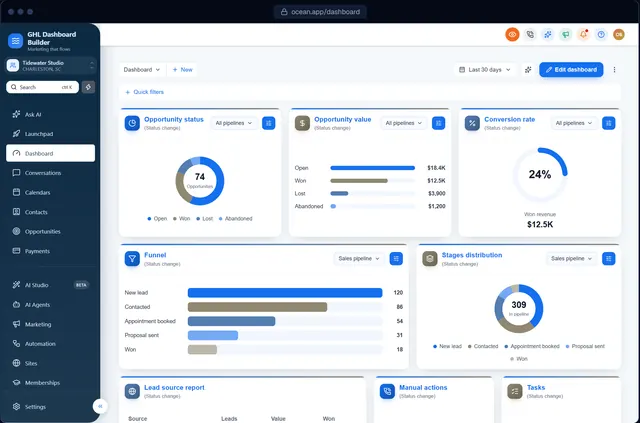
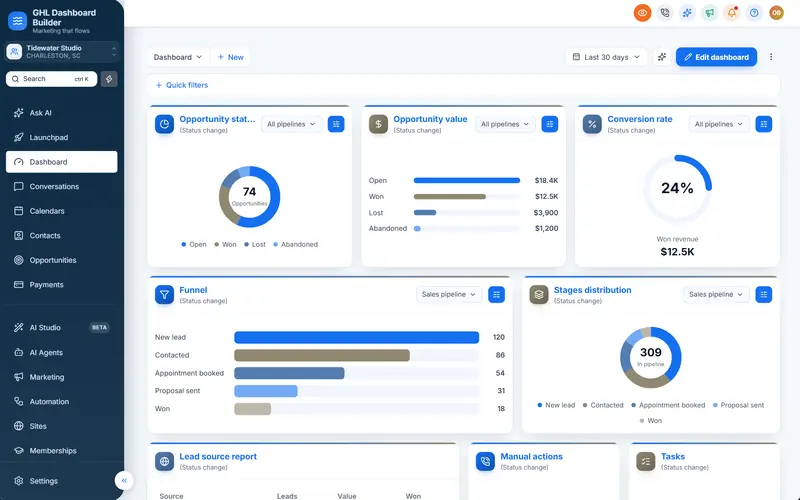
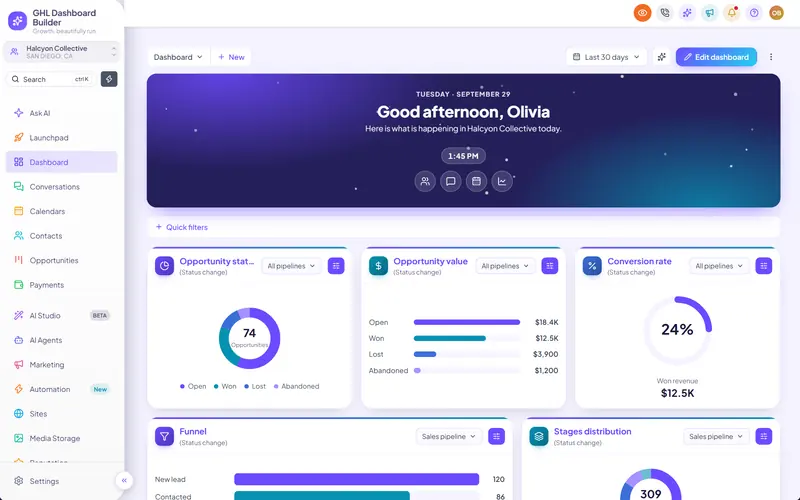
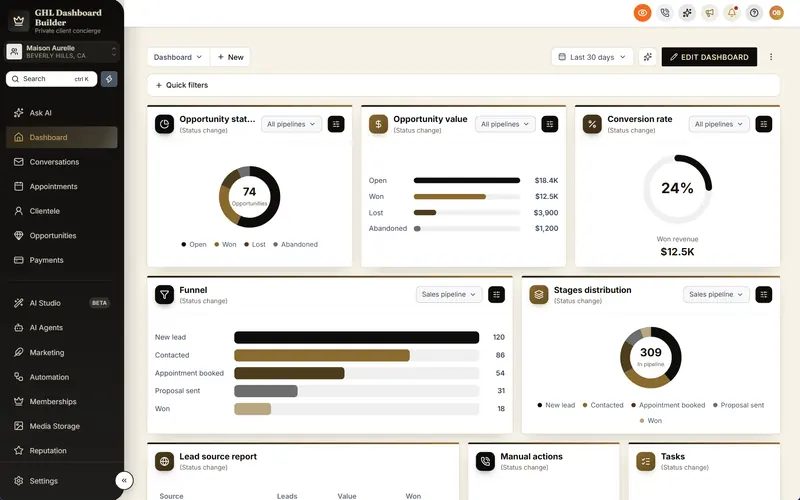
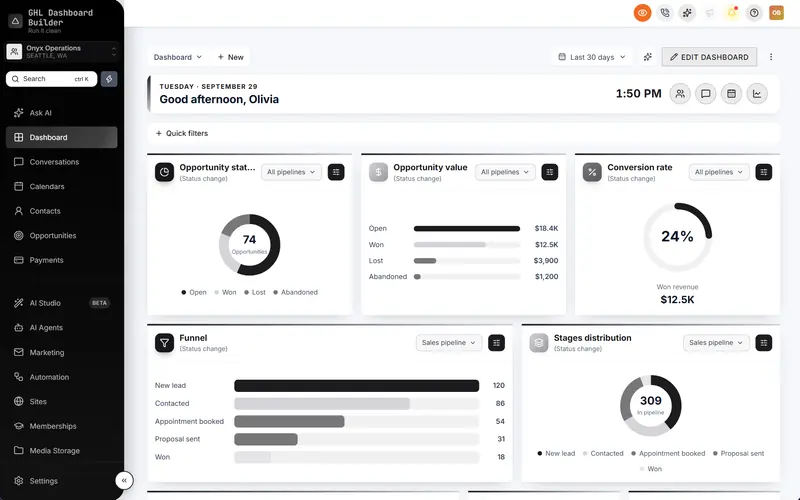
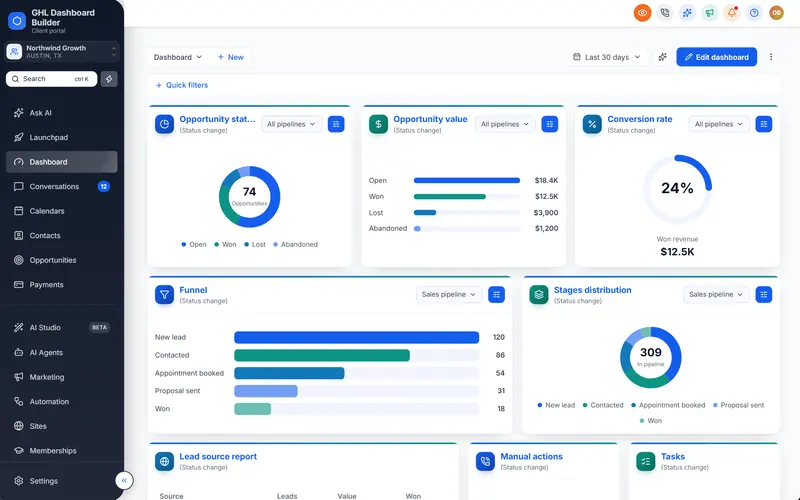
An eye button in HighLevel's header blurs names, emails, phone numbers, conversations and deal values, so you can share your screen or record a demo without exposing clients.
Included from the Starter plan · Installs in HighLevel with two lines
How do I hide contact details in HighLevel when sharing my screen?
HighLevel has no privacy mode. GHL Dashboard Builder adds an eye button to HighLevel's header: one click blurs contact names, emails, phone numbers, the conversation list and opportunity values on every page, and another click shows them again. The blur strength and button color are yours to set.
Last updated
What's included
- An eye button in HighLevel's header
- Blurs contact names, emails and phone numbers
- Blurs the conversation list and opportunity values
- Adjustable blur strength
- Remembers the setting as you move between pages
- Notification pop-ups hide details while it's on
How it works
Privacy mode in three steps
Design it free in the builder; nothing changes in HighLevel until it's installed.
- 1
Turn it on
Switch on the privacy button and pick its color and blur strength.
- 2
Install
Paste the two install lines into HighLevel.
- 3
Click the eye
Before a screen share, click the eye in the header; click again to show everything.
FAQ
Questions about privacy mode
Does privacy mode change any data?
No. It only blurs what's on your screen; nothing in HighLevel changes.
Does it work on every page?
It blurs contact details, conversations and deal values across HighLevel's pages.
Ready to make HighLevel look like your own platform?
Try the builder free, then choose a plan to get your install code.