

Two lines to install, one click to update
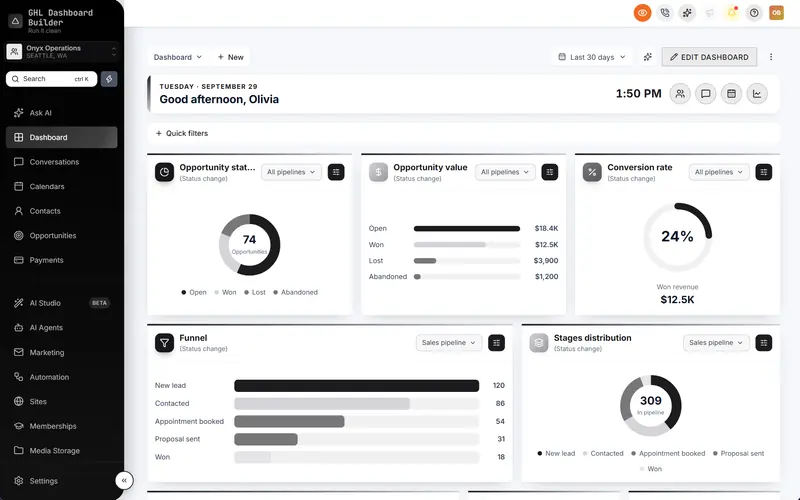
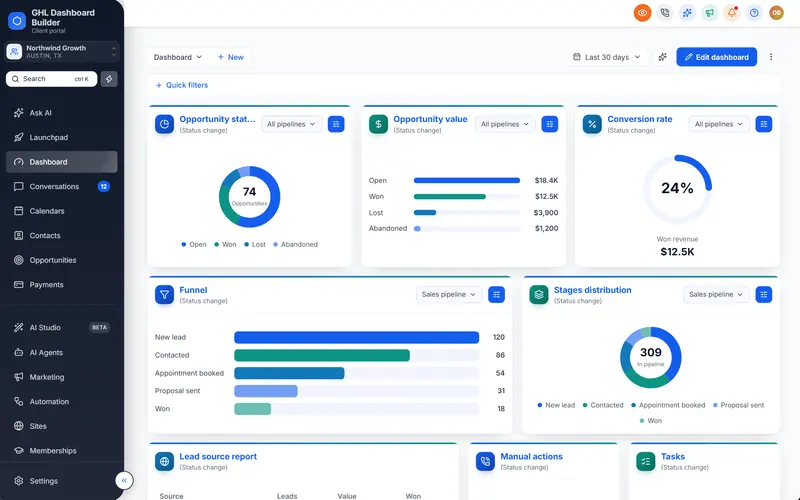
Your design goes into HighLevel as one CSS line and one JavaScript line in Custom Code. Change the design later, press Deploy to live, and HighLevel picks up the new version.
Included from the Starter plan · Installs in HighLevel with two lines
Custom CSS
@import url("https://ghldashboardbuilder.com/i/…css");Custom JavaScript
<script src="https://ghldashboardbuilder.com/i/…js" fetchpriority="high"></script>How do I install a custom theme in HighLevel?
In HighLevel, open Settings → Company → Whitelabel → Custom Code and paste two lines: one in Custom CSS and one in Custom JavaScript. Save and refresh, and every sub-account shows the new look. Later changes go live with Deploy to live, without touching HighLevel again. Clear the two fields to remove it.
Last updated
What's included
- One CSS line and one JavaScript line
- Deploy to live updates HighLevel without re-pasting
- Remove it any time by clearing the two fields
- Every sub-account, or only the ones you choose
- We can install it for you
How it works
Two-line install in three steps
Design it free in the builder; nothing changes in HighLevel until it's installed.
- 1
Copy the two lines
From your account, copy the CSS line and the JavaScript line.
- 2
Paste into HighLevel
Settings → Company → Whitelabel → Custom Code: paste each line and save.
- 3
Refresh
Reload HighLevel; the new look shows in every sub-account it applies to.
FAQ
Questions about two-line install
Will it break HighLevel?
No. It only restyles HighLevel's interface; clear the two fields and HighLevel is back to normal.
Do I need to paste again after changing the design?
No. Press Deploy to live and HighLevel picks up the new version.
Ready to make HighLevel look like your own platform?
Try the builder free, then choose a plan to get your install code.