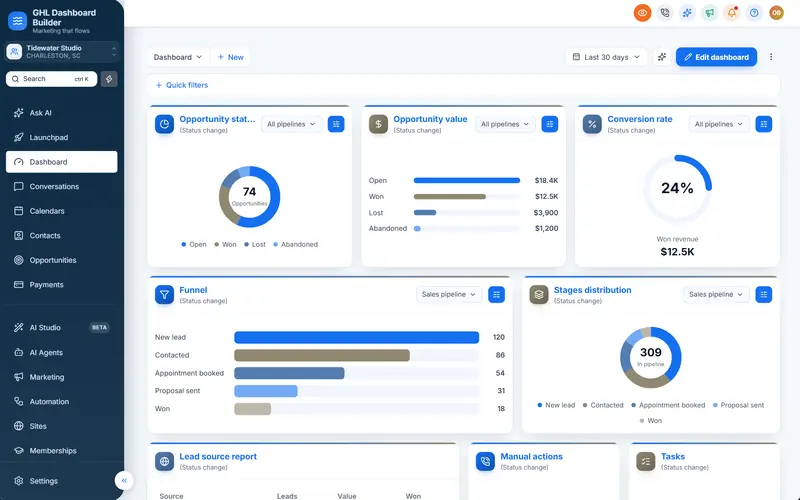
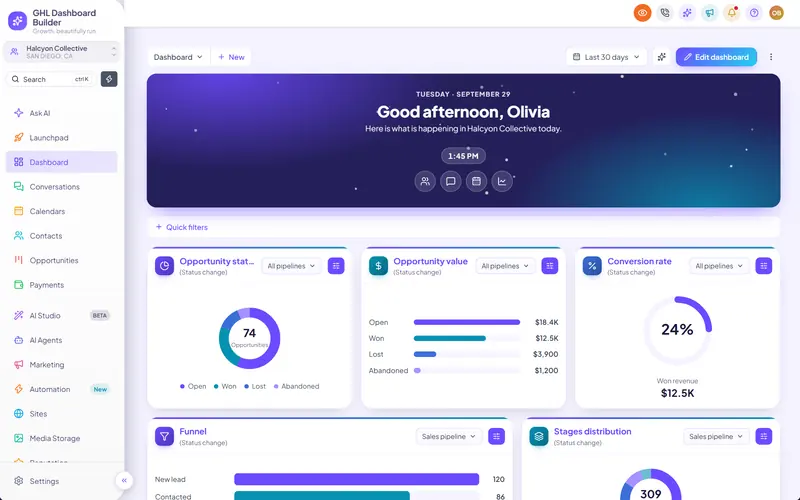
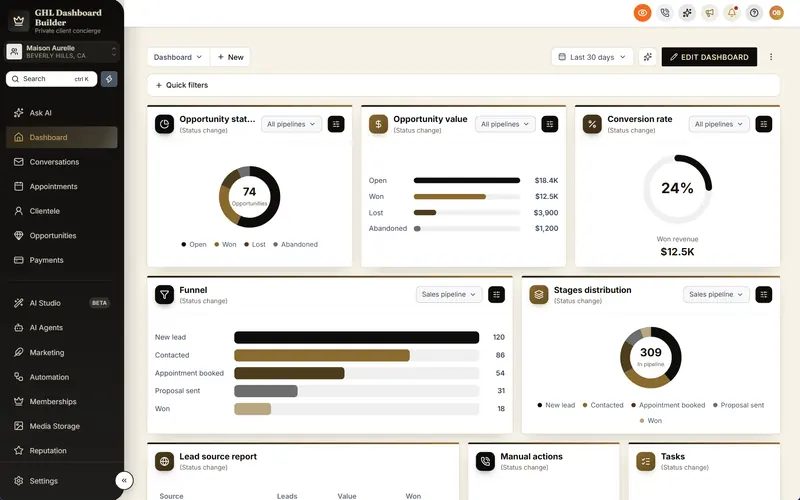
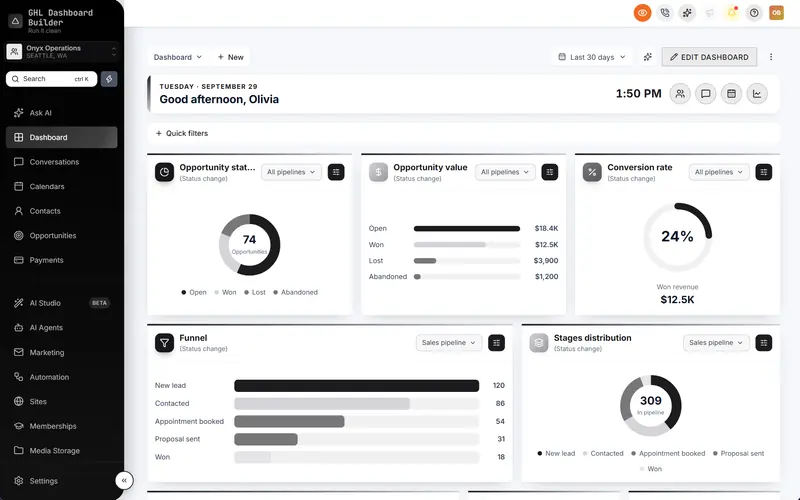
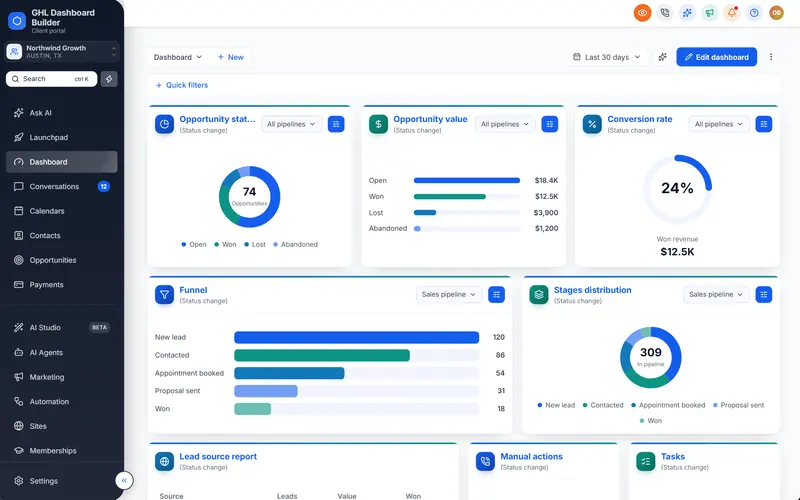
You pasted the CSS, clicked save, reloaded HighLevel, and nothing changed. Or the theme worked for months and one morning the sidebar is back to the default colors, a dropdown has white text on a white background, and a client asks why “Patients” says “Contacts” again. When GoHighLevel custom CSS is not working, the code is rarely mysterious; the cause is almost always one of a short list.
This guide is the troubleshooting companion to our complete guide to HighLevel custom CSS. It covers HighLevel (also called GoHighLevel or GHL) and walks through how to tell your problem from HighLevel’s, the common causes with a fix for each, a step-by-step repair routine with exact menu paths, how to test a fix on one client before everyone sees it, and how to stop the same breakage from coming back after the next platform release.
Why is my GoHighLevel custom CSS not working?
GoHighLevel custom CSS fails for five common reasons: the code is in the wrong box, a syntax error stops the rules after it, HighLevel’s own styles win the specificity contest, the browser shows a cached copy, or a HighLevel update changed the markup your selector targets. Each one leaves a different clue, so you can tell them apart in a few minutes.
It helps to know what “not working” can mean, because there are three different failures that look alike from the outside. Either nothing in your code applies anywhere, or some rules apply and others do not, or the code worked before and stopped. The first usually points to placement or a fatal syntax problem. The second points to specificity or a single broken selector. The third almost always points to a HighLevel release or a cache.
HighLevel is open about the risk. Its agency settings guide describes custom JavaScript and CSS as powerful but unsupported, and warns that changes made to HighLevel’s core interface may break your code. That is not a reason to avoid custom CSS; it is a reason to treat a theme as something you maintain rather than something you paste once.
The table maps the symptom you see to the cause to check first.
| What you see | Most likely cause | First thing to check |
|---|---|---|
| Nothing applies, anywhere | Wrong box, or code saved in a sub-account field | That the code is in the agency Custom CSS box under Whitelabel |
| Nothing applies after a certain line | A syntax error (missing brace, stray tag) | The last rule that works, and the line after it |
| Hosted theme never loads | An @import placed below other rules | That the @import is the first line in the box |
| Some rules apply, some do not | HighLevel’s rules are more specific | Crossed-out declarations in DevTools |
| One screen reverted to default | A HighLevel release changed that screen | Whether your selector still matches anything |
| Works for you, not for a client | Cache, or a role that sees different screens | A private window, then the client’s role |
| Renamed menu items reverted | Script timing on HighLevel’s page changes | Whether the script re-applies after navigation |
| Login page unstyled or flashes default | Login page rules or load order | That login rules are CSS, not JavaScript |
| Pages hang on a loading spinner | A script error or rule fighting the loader | Clearing the code temporarily |
How do you tell whether the problem is your code or HighLevel?
Remove your code from the equation for a few minutes. Open HighLevel in a private browser window, and if the problem is still there, clear the Custom CSS and Custom JavaScript boxes and reload. If the problem disappears without your code, it is in your code. If it stays, it is HighLevel’s, and their support team should hear about it.
HighLevel’s own troubleshooting advice for funnels and websites uses the same principle: remove custom code elements and check whether the issue persists. The app works the same way. The step that agencies skip is the backup, so do that first.
Isolate in this order
- Copy both boxes into a file. In the agency view, open Settings, then Company, then the Whitelabel tab, and scroll to Custom Code. Copy the contents of Custom CSS and Custom JavaScript into a text file with today’s date in its name. This is your rollback.
- Try a private window. A private window starts without the cached files and extensions of your normal browser. If the problem vanishes there, it is a cache or an extension, not the code.
- Try another user. Log in as a user with a different role, or a different sub-account. If only one role or one sub-account is affected, note which screens that role opens.
- Clear the code briefly. Empty both boxes, save, and reload in the private window. Do this at a quiet hour, because every user sees plain HighLevel while the boxes are empty.
- Restore and narrow down. Paste the code back. If the cause was your code, remove one section at a time (or comment it out) until the problem disappears, then fix that section.
Read the browser’s verdict
The browser already knows why a rule is not applying; you only have to look. In Chrome, right-click the element that looks wrong and choose Inspect. The Elements panel opens with that element selected, and its Styles pane lists every CSS rule that applies to it, as Google’s guide to viewing and changing CSS in DevTools shows.
Two readings cover most cases. If your rule is not listed at all, its selector does not match this element: the selector is wrong, or HighLevel changed the markup. If your rule is listed but its declaration is struck through, the selector matched and another rule won: that is a specificity or order problem. Those two readings point to different fixes, which is why checking first saves time.
What are the most common causes, and how do you fix each one?
The causes below cover nearly every “GHL custom CSS not working” report. Work through them in this order, because the early ones are quick to rule out and the later ones take longer to fix. Each has a clear sign in the browser and a specific repair.
1. The code is in the wrong box
HighLevel has several Custom CSS fields, and they do not share code. The agency field under Settings, Company, Whitelabel, Custom Code styles the HighLevel app for your users, including sub-account views. Funnels and websites have CSS in their builder settings, and forms, surveys and quizzes have their own field, as HighLevel’s guide to custom CSS for forms, surveys and quizzes explains.
So CSS meant for the dashboard does nothing when it sits in a funnel’s settings, and CSS meant for a form does nothing in the agency box. The sign is simple: your rule never appears in DevTools on the page you expected. The fix is to move it to the field that serves that page.
2. A syntax error stops the rules after it
CSS is forgiving in a way that hides mistakes. When a browser meets something it cannot parse, it discards that declaration or rule and carries on, so one missing closing brace can swallow every rule that follows it. The sign is a clean cut-off: everything above a certain line works, nothing below it does.
The usual offenders are a missing }, a missing ; before the next property, a curly quote pasted from a document, and HTML pasted into a CSS box. The Custom CSS box takes plain CSS rules; a <style> tag copied from a forum post is not CSS, and the parser treats the text around it as an invalid rule. Paste your code into any CSS validator or code editor with syntax highlighting, and the broken line usually stands out at once.
3. An @import line sits below other rules
Many hosted themes, including ours, install with a single @import line that loads the full stylesheet from another address. The CSS standard requires @import rules to come before all other rules except @charset and @layer, and MDN’s @import reference is explicit that an import placed after other rules is ignored.
This catches agencies who add a quick fix at the top of the box and push the import line down. The result looks like the whole theme was removed, even though the line is still there. The sign in DevTools is that no rule from the hosted stylesheet appears anywhere. The fix is to keep the @import as the very first line and put any extra rules below it.
4. HighLevel’s rules are more specific than yours
When the Styles pane shows your declaration struck through, another rule won the cascade. Browsers decide between conflicting rules by importance, then by specificity, then by order. MDN’s specificity guide explains the weighting: an ID outweighs any number of classes, and a class outweighs any number of element names.
HighLevel’s interface is built from component styles with specific selectors, and some of its declarations already carry !important. According to MDN’s !important reference, an important declaration overrides normal declarations, and when two important declarations compete, the more specific selector wins. So a plain rule loses to HighLevel’s important rule, and an important rule with a weaker selector can still lose.
The fix is to match the winning rule’s strength, not to scatter !important everywhere. Click the winning rule’s source in DevTools, note its selector, and write yours to be slightly more specific, for example by prefixing it with a stable parent such as the app’s root element. Add !important only to the declarations that still lose.
5. The browser is showing a cached copy
Browsers keep copies of stylesheets so pages load faster. That is good for your clients and confusing for you: you change the theme, reload, and see the old version. Google’s DevTools team covers this in its guide to inspecting, clearing and disabling caches, including the hard reload and the option to empty the cache and reload.
The sign is a mismatch between people: the change shows in a private window but not in your usual one, or shows for you but not for a client. The fix for testing is a hard reload (Ctrl+Shift+R on Windows, Cmd+Shift+R on Mac) or ticking Disable cache in the DevTools Network panel while it is open. For clients, a hard reload once is usually enough; a hosted theme that serves a new version when you publish makes stale copies much less likely.
6. A HighLevel release changed the markup
This is the cause behind most “it worked yesterday” reports. Your selectors describe HighLevel’s page structure, and HighLevel changes that structure when it improves a screen. When a class is renamed or a component is rebuilt, the old selector matches nothing, so that screen returns to the default look while the rest of your theme still works. The section on updates below covers this in depth.
7. JavaScript ran too early or only once
HighLevel behaves like a single-page application: moving from Contacts to Conversations swaps the content without a full page load. A script that renames menu items or adds a banner when the page first loads can therefore run before the element exists, or lose its changes when HighLevel redraws that part of the screen.
The sign is a change that appears and disappears, or appears only after a manual reload. The standard browser tool for reacting to redraws is the MutationObserver, which calls your code whenever elements are added or removed. A script built on it re-applies its changes each time HighLevel redraws, instead of running once and hoping.
8. The code is fighting HighLevel’s loader
A rule that hides a loading element, or a script that throws an error early, can leave a page stuck on a spinner. HighLevel has a dedicated help article on CRM loading states and the impact of custom CSS and JS, which describes an infinite loading state when a page does not load within a set time, such as 30 seconds, and how custom code can interfere.
The sign is a page that loads fine with the boxes empty and hangs with your code. Open the DevTools Console and look for red errors that name your script. Fix or remove the failing script first; a CSS rule that hides spinners or overlays globally is the next suspect.
How does GHL Dashboard Builder keep a theme working after HighLevel updates?
GHL Dashboard Builder replaces hand-maintained CSS with a maintained theme. You design the look visually, we install it in your HighLevel with two lines, and when a HighLevel release changes a screen we update the theme on our side, so your Custom Code boxes stay the same. Starter and Pro include 12 months of updates, then optional at $99 a year; Agency includes lifetime updates.
GHL Dashboard Builder is an independent design service that turns the standard HighLevel (GoHighLevel) dashboard into a branded platform: your colors, menu, login design, privacy mode and your clients’ language, installed with two lines of code. It is not affiliated with HighLevel, and it uses HighLevel’s own Custom Code settings rather than any hidden access. The design restyles HighLevel’s interface in the browser; HighLevel’s built-in white-label settings still handle the domain, logo and mobile app.
Infographic
Custom code in HighLevelby the numbers
2
lines install a full theme: one in Custom CSS, one in Custom JavaScript
(GHL Dashboard Builder)
~60 KB
compressed size of the theme's stylesheet and script, cached after the first visit
(GHL Dashboard Builder FAQ)
30 s
example wait before HighLevel shows a page as stuck in an infinite loading state
(HighLevel Help Center, CRM loading states)
28
HighLevel updates counted in one week of March 2026 by a third-party roundup
(GHL Experts weekly roundup, March 19-25, 2026)
Sources: GHL Dashboard Builder; HighLevel Help Center (CRM loading states); GHL Experts weekly roundup (March 19-25, 2026).

That last figure explains why maintenance matters. A third-party HighLevel weekly roundup from GHL Experts counted 28 HighLevel updates in a single week of March 2026. Most releases never touch the screens a theme styles, but some do, and each one that does is a chance for a selector to stop matching.
Here is how each part of the product maps to the causes above, and which plan includes it. Prices are one-time, with a one-time $100 setup fee on every plan for which we install and configure the design in your HighLevel.
| Feature | What it does for your agency’s clients | Plan |
|---|---|---|
| Two-line install | One CSS line and one JavaScript line; the CSS import is placed first, so the theme always loads | Starter and up |
| Deploy to live | Design changes reach HighLevel without re-pasting, so the boxes never drift out of date | Starter and up |
| Theme updates | We update the theme when HighLevel changes a screen it styles | 12 months on Starter and Pro, then optional $99 a year; lifetime on Agency |
| Live device preview | See the design on desktop, tablet and phone before anything touches your account | Starter and up |
| Chosen sub-accounts | Test a design on one sub-account while every other client keeps their current look | Starter and up |
| Menu editor | Renames, reorders and hides any of HighLevel’s 19 menu items, re-applied as HighLevel redraws the menu | Pro and up |
| Your own CSS and JavaScript | Your code loads after the generated theme, so your rules win without specificity fights | Agency |
| Full code download | See and download the complete CSS and JavaScript files instead of the hosted links | Agency |
The full list of 18 features is on the features overview, and the FAQ answers the common questions about safety and installation. Several causes from the list above simply do not arise with this setup: the code is generated, so there are no syntax slips; the import line is generated in the right position; and the script part also re-attaches the theme’s stylesheet if a HighLevel screen drops it.
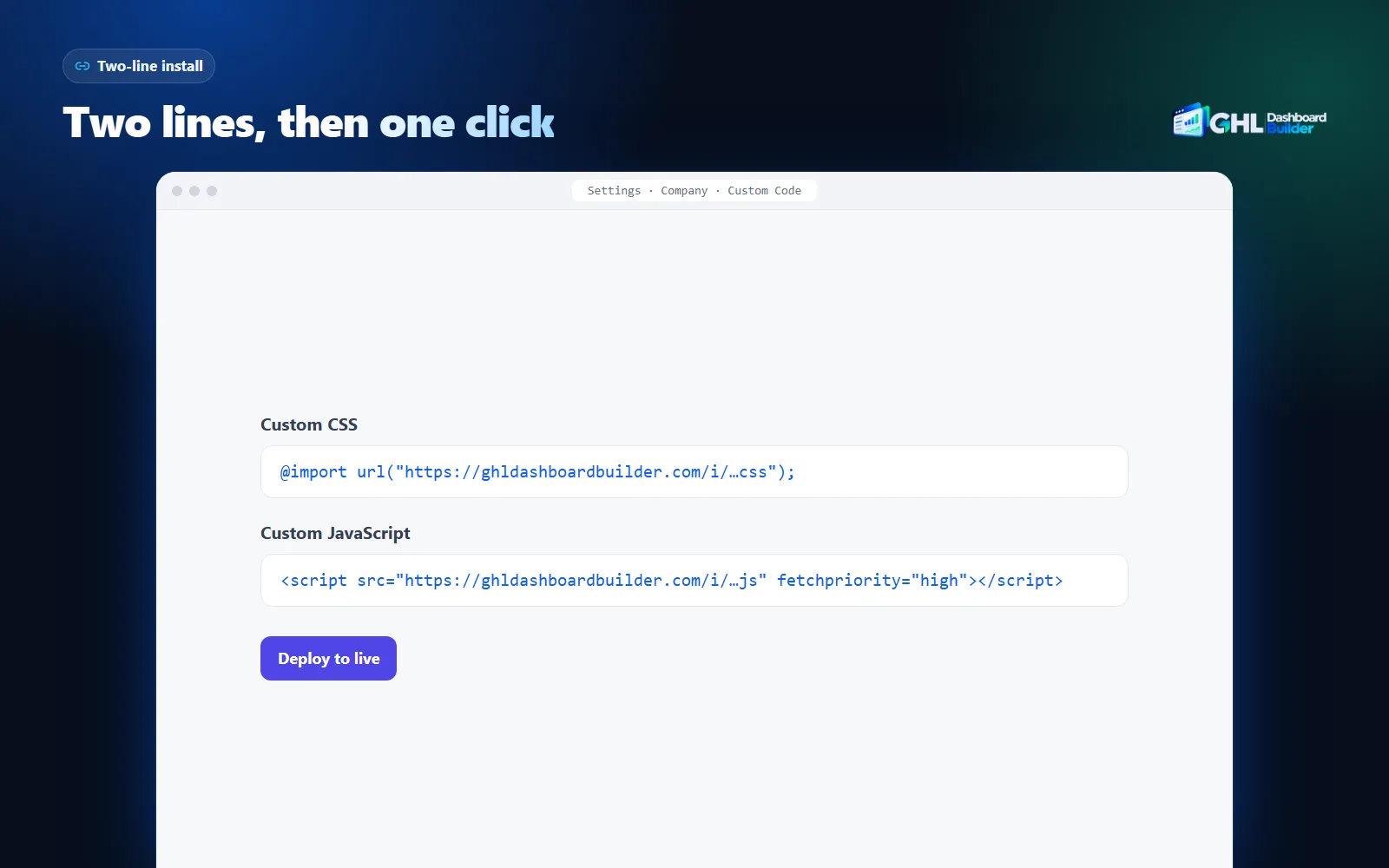
What changes for you after installation is mostly what you no longer do. You do not re-paste a long stylesheet when you change a color; you edit the design and press Deploy to live, and HighLevel picks up the new version through the same two lines. You do not keep a selector map up to date for every release; that is part of the updates. And if you ever want plain HighLevel back, you clear the two boxes.
There are trade-offs to state plainly. HighLevel does not officially support custom code, so a large HighLevel update can still break part of a theme for a short time until it is refreshed. Updates are included for 12 months on Starter and Pro; without renewing them, the theme keeps working as it is, but fixes for later HighLevel changes are not included. And hosted install lines depend on the theme files loading from our site, which is why Agency also offers the full files to download.
Why does GoHighLevel custom CSS break after an update?
Because a theme’s selectors are a description of HighLevel’s page structure, and that structure changes when HighLevel ships a redesigned screen or a new component. The rule does not throw an error; it quietly stops matching. That is why the breakage looks partial: one screen loses its styling while the others keep it.
HighLevel publishes its releases in a changelog on its ideas and feedback board, and it ships often. Not every release is a risk. A new workflow action, a billing change or an AI feature rarely changes the sidebar’s markup. The releases to watch are the ones that mention a redesigned screen, a new navigation, a “new look” for a module, or a feature graduating out of beta into the standard interface.
Which selectors break first
Some ways of pointing at an element are much more fragile than others. Our HighLevel custom CSS guide ranks them in detail; the short version is in the table below.
| Selector style | Example of the idea | How likely it is to survive a release |
|---|---|---|
| Element position | “the third link in the second list” | Low: any added item shifts the count |
| Long chains of generated classes | Classes that look like random letters or hashes | Low: generated names change when code is rebuilt |
| Deep descendant chains | Five or six levels of nesting | Low to medium: one wrapper added breaks the chain |
| Readable component classes | A class named for the component, such as a nav item | Medium: stable until that component is redesigned |
| Stable attributes | An id or a data attribute naming the menu item | Higher: often kept so HighLevel’s own code can find the element |
| Text content | Matching by a label’s wording | Not possible in CSS; needs JavaScript, and breaks with translation |
The signs a release changed your screens
A release that affected your theme usually shows one of a few patterns. A single screen returns to default colors. A newly added pop-up or dropdown inherits a text color you set globally and becomes unreadable. A hidden menu item reappears because its attribute changed. Or a layout rule built for an old element now hits a new one, and parts of the screen overlap.
Each pattern has its own fix, but they share one rule: fix the selector, not the symptom. Stacking a new !important rule on top of a broken one adds code without removing the cause, and the next release breaks both. Replace the broken selector with a more stable one, and note in a comment which release you checked it against.
Why did my renamed or hidden menu items come back?
Menu wording is not a CSS job. CSS can recolor, resize and hide what is on the page, but it cannot change the text “Contacts” to “Patients”. Renames are JavaScript, and on HighLevel that JavaScript has to cope with the menu being redrawn as people move between pages, or the old labels come back.
Hidden items are a slightly different case. A hide rule can be CSS, as long as it targets something stable about the item, such as an attribute naming it. When HighLevel changes that attribute or rebuilds the menu, the rule stops matching and the item reappears. Clients notice this one quickly, because the item you hid was usually hidden for a reason.
HighLevel has added native options in this area too. It offers custom menu links for adding your own items to the sidebar, and our guide on how to rename GoHighLevel menu items compares the native settings with code-based renames. For renaming and reordering the standard items, code is still the route at the time of writing.
If you write the script yourself, three habits prevent most reversions. Run the rename again whenever the menu changes, using a MutationObserver on the menu’s container rather than a one-time run. Match items by a stable attribute, not by their position or current text. And keep the original labels in your script so that removing the code restores HighLevel’s wording cleanly. Our sidebar customization guide shows which sidebar changes are CSS-only and which need script.
If you would rather see a finished, maintained theme on HighLevel’s screens than debug your own, the builder shows one on a live copy of HighLevel without connecting to your account.
How do you fix GoHighLevel custom CSS step by step?
Back up, isolate, inspect, fix the selector, test in a private window, then roll out. Doing the steps in this order means you never lose working code, never guess at the cause, and never show a half-fixed theme to every client at once. The cards summarize the routine; the full steps with menu paths follow.
Infographic
Fixing GoHighLevel custom CSSin six steps
- 1
Back up
Copy both Custom Code boxes into a dated file.
- 2
Isolate
Private window, another role, then the boxes cleared.
- 3
Inspect
Find the element in DevTools: missing rule or crossed out.
- 4
Fix the cause
Repair syntax, order, specificity or the selector.
- 5
Test safely
Hard-refresh and check every screen and role.
- 6
Roll out
Save, tell clients to refresh, note the date.

Step 1: Back up the current code
- Switch to the agency view and open Settings (the gear at the bottom of the sidebar).
- Open Company, then the Whitelabel tab, and scroll down to Custom Code.
- Copy everything in Custom CSS and Custom JavaScript into a text file named with today’s date.
- Store the file outside HighLevel, in the same place as your previous versions.
Step 2: Isolate the problem
- Open HighLevel in a private window and go to the screen that looks wrong.
- If it looks correct there, the cause is cache or an extension: hard-refresh your normal window and stop here.
- If it still looks wrong, log in as a user with a different role and check the same screen.
- If you need certainty, clear both boxes, click save, reload, and see whether the problem disappears. Paste your backup back straight afterwards.
Step 3: Inspect the element
- Right-click the element that looks wrong and choose Inspect.
- In the Styles pane, look for your rule. Use the filter box to search for the property, such as
background. - Rule missing: the selector does not match. Look at the element’s current classes and attributes in the Elements panel.
- Rule crossed out: the selector matched and lost. Click the winning rule to see its selector and source.
- Open the Console and note any red errors that mention your script.
Step 4: Fix the cause
- For a syntax problem, find the first rule that fails and check the braces and semicolons just above it.
- For an import problem, move the
@importline to the very top of the Custom CSS box. - For a specificity problem, make your selector slightly stronger than the winner, then add
!importantonly where it still loses. - For a changed screen, replace the old selector with one built on a stable attribute or a readable component class, and add a comment with the date.
- For a script problem, make it re-run when the relevant part of the page changes, and guard it so one error cannot stop the rest.
Step 5: Test before you trust it
- Hard-refresh (Ctrl+Shift+R on Windows, Cmd+Shift+R on Mac) or tick Disable cache in the Network panel.
- Walk through a fixed list of screens: Dashboard, Conversations, Contacts, Opportunities, Calendars, Settings, and the agency view.
- Open a dropdown, a modal and a date picker on each, because those are where global text colors cause trouble.
- Repeat as a user with the client’s role, and on a narrow window to check the tablet layout.
Step 6: Roll out and record
- Save the final code and copy it into a new dated backup file.
- Tell clients who reported the issue to refresh once.
- Write down which HighLevel release, if any, caused the change, so you know which screens to check next time.
How do you test a fix without affecting every client?
Test where clients cannot see it. The agency Custom Code boxes load in every sub-account, so a fix pasted straight in is live for everyone the moment you save. Two safer routes exist: preview the design away from HighLevel first, or limit it to one test sub-account until it is right.
Previewing outside HighLevel is the cheapest test. In GHL Dashboard Builder, the design is shown on a live copy of HighLevel’s own screens, including the Dashboard, Contacts, Conversations, Calendars, the Opportunities board and the login page, on desktop, tablet and phone. Nothing reaches your account until you install, so you can try a change, look at every screen and discard it at no risk.
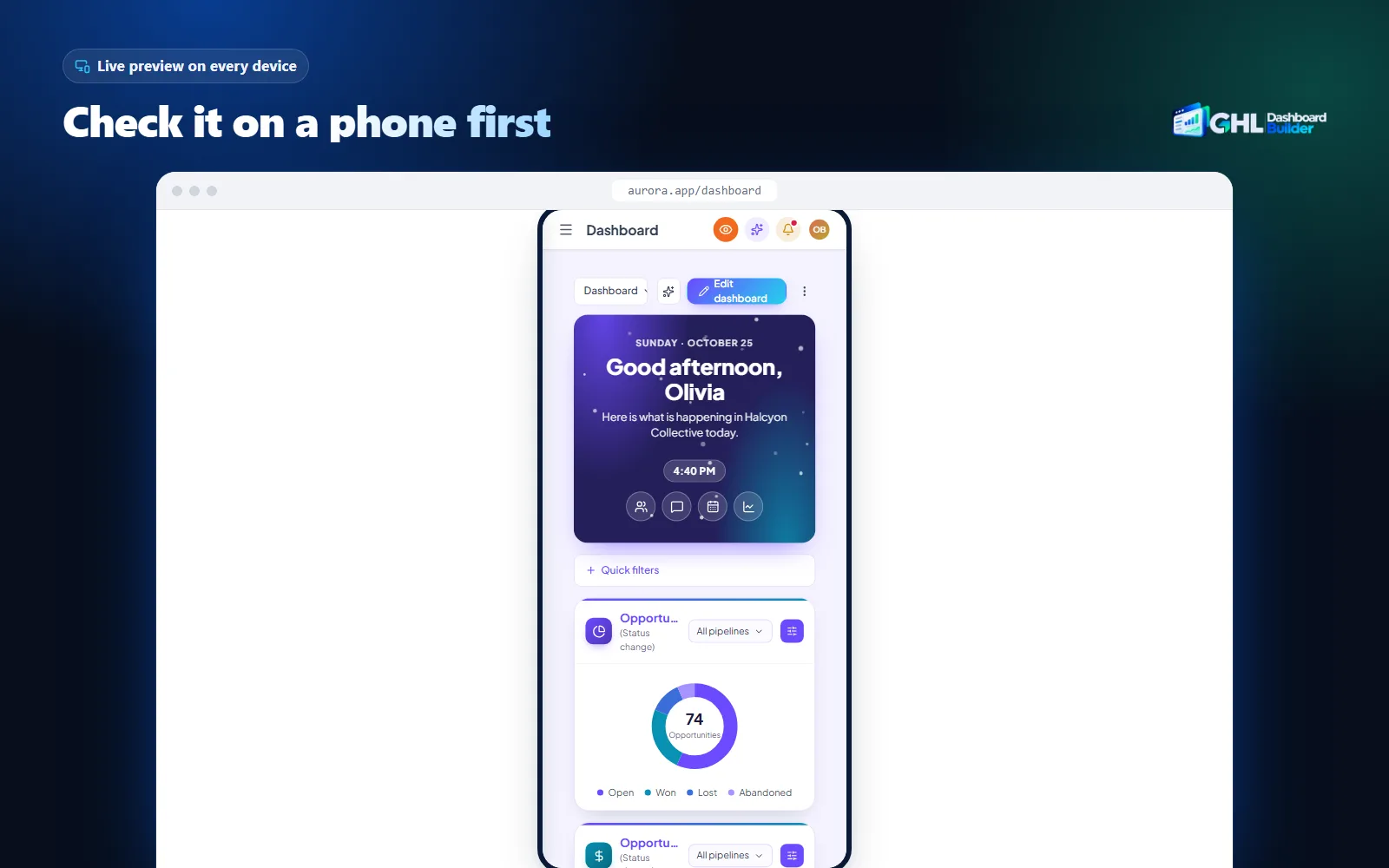
A preview cannot reproduce everything, though. Real data, real user roles and the latest HighLevel release only exist in your account. For those, test in one sub-account: an internal demo account is ideal, or a friendly client who has agreed to see changes first.
Doing that by hand means writing code that checks which sub-account is open. Every sub-account has a unique Location ID, which appears in the browser address after /location/ when you are inside it, and our guide to GoHighLevel sub-account branding explains the logic. The edge cases are what make it tricky: HighLevel changes pages without a full reload, so the code must also remove the design cleanly when a user leaves the test sub-account.
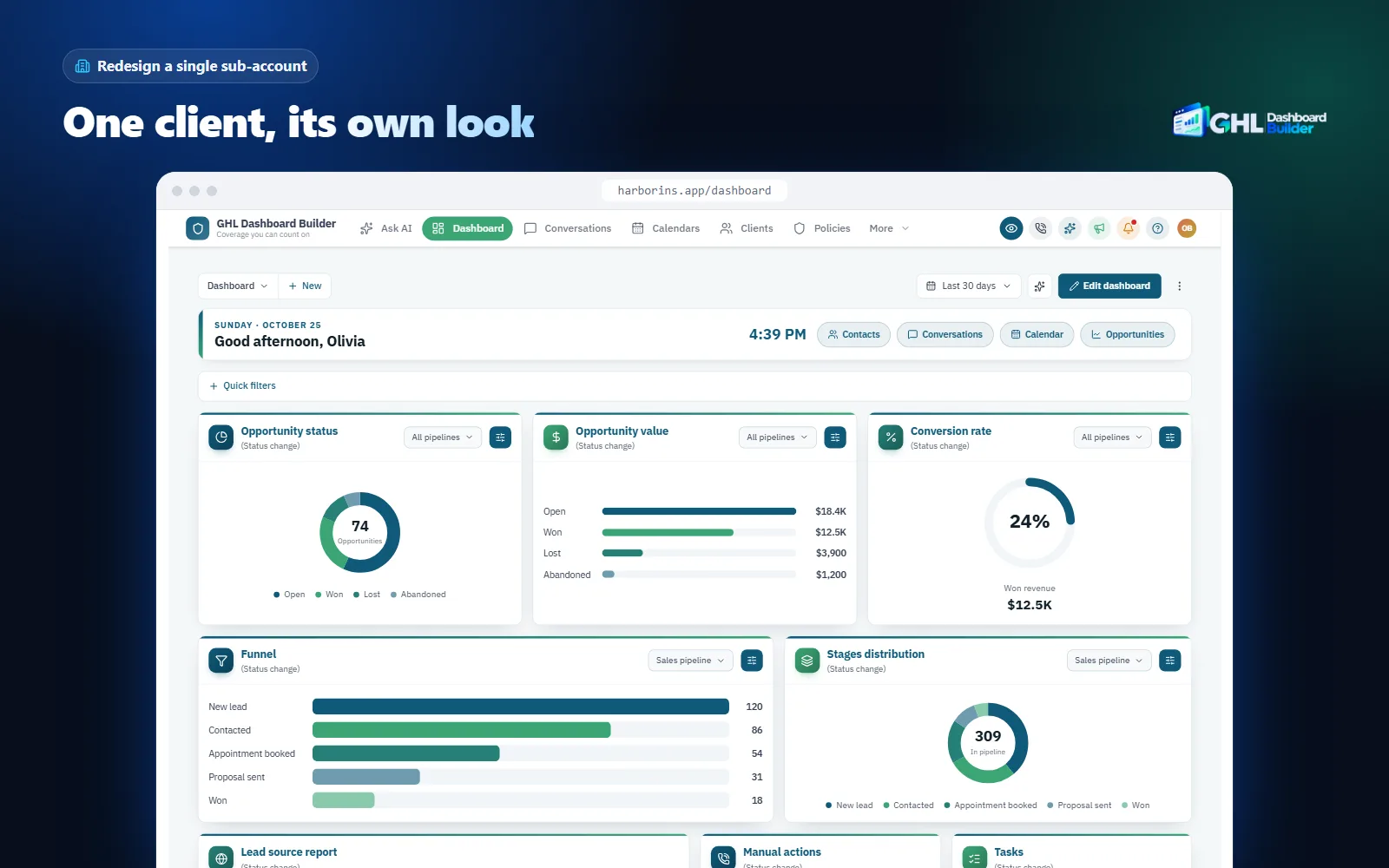
In GHL Dashboard Builder you choose “Only these sub-accounts” and paste the test sub-account’s link or Location ID; the ID is picked out of the link for you. You still install one code at agency level. When the design looks right in the test account, you add more sub-accounts or switch it to the whole agency, without touching HighLevel’s boxes again.
One limit to plan around: one install shows one design in the sub-accounts you choose, because HighLevel has a single agency-wide Custom Code area. If you need different looks for different clients at the same time, talk to us before you buy so we can plan it with you. And the login page cannot be limited to a sub-account, because people see it before they have chosen one.
Should you fix it yourself, hire a developer or use a maintained theme?
Fix it yourself if the theme is small, you are comfortable in DevTools and only your own agency depends on it. Hire a developer for one-off custom work you will maintain in-house. Use a maintained theme when clients rely on the look every day and you would rather not be the person checking selectors after each release.
The honest comparison is about who carries the maintenance, not about the first install. Any route can produce a good-looking dashboard on day one. The difference shows on the morning after a HighLevel release, when something stops matching and a client notices before you do. Our comparison of GoHighLevel white-label options covers the wider choice, including HighLevel’s built-in settings; the table below focuses on keeping custom CSS working.
| Question | Fix it yourself | Hire a developer | Maintained theme (GHL Dashboard Builder) |
|---|---|---|---|
| Who finds HighLevel’s selectors | You | The developer | We do, and keep them current |
| Who notices a broken screen | You or your clients | You, then you contact the developer | We update the theme for HighLevel changes during your update period |
| What sits in HighLevel’s boxes | The whole stylesheet and script | The whole stylesheet and script | One CSS line and one JavaScript line |
| Changing a color later | Edit many rules and re-paste | A new request to the developer | A color picker, then Deploy to live |
| Testing on one client first | Write sub-account checks yourself | Ask for it as extra work | Built in: chosen sub-accounts |
| Ongoing cost | Your time | Each request, at the developer’s rate | One-time plan; updates included for 12 months (Starter, Pro) or lifetime (Agency) |
| Full control of every line | Yes | Yes | On Agency, with your own CSS and JavaScript loaded after the theme |
Free snippets from forums and theme sites sit between the first two columns. They are a fair way to learn, and some are well made, but you inherit the selectors of whoever wrote them, at the HighLevel version they wrote them against. Our article on GoHighLevel dashboard themes, free versus custom-built looks at that trade-off in more detail.
If you choose the maintained route, the cost question is how long you want updates. Updates are what cover HighLevel changes, so the chart shows what three years cost on each plan if you keep them running the whole time, including the one-time $100 setup fee.
Source: GHL Dashboard Builder pricing, October 2026: plan price + $100 one-time setup + $99 a year for updates in years 2 and 3 (Starter and Pro); Agency includes lifetime updates
The renewal is optional. Without it, a Starter or Pro theme keeps working as it is; what stops is our work to keep it in step with later HighLevel changes. If you would rather start from a finished look than design from scratch, each of our 27 templates is a complete, maintained theme you can tailor to your brand.
What can’t custom CSS fix in GoHighLevel?
Custom CSS changes how HighLevel’s web app looks in a browser, and nothing else. It cannot change data, permissions or features, it does not reach the mobile app, and it cannot change text on its own. Knowing these limits saves hours spent debugging something that was never possible.
- Text and wording. CSS cannot rename “Contacts” or translate a label. That needs JavaScript, which is why our menu and translated navigation run as script, in 15 languages with right-to-left layout for Arabic, Urdu and Hebrew. Text inside HighLevel’s own pages, builders, system emails and the mobile app still follows HighLevel’s language settings.
- The mobile app. The Custom Code boxes style the web app. HighLevel’s mobile app does not load them; its branding comes from HighLevel’s own white-label app options.
- The login page’s behavior. On the white-label sign-in page, HighLevel applies the Custom CSS but does not run the Custom JavaScript. Login changes must therefore be pure CSS, which is how our login designs are built. Scripts that try to change the login page will do nothing there.
- Funnels, websites and forms. They have their own CSS fields, as covered above. The agency box will not style them.
- One client only, by CSS alone. CSS cannot tell sub-accounts apart. Limiting a look to one client needs script that checks the Location ID.
- HighLevel’s own bugs. If a problem stays with the boxes empty, no CSS will fix it properly. Report it to HighLevel support with the steps to reproduce it.
There are risks on the code side too. A rule that hides or recolors things globally can catch new elements HighLevel adds later, so keep rules scoped to the areas you mean. Scripts run with the same access as the page, so only paste code from sources you trust, and review what a script does before adding it. And every addition has a small cost in load time, so remove code you no longer use rather than leaving it in the box.
How do you stop GoHighLevel custom CSS from breaking again?
You cannot stop HighLevel from changing its screens, but you can make breakages rare, small and quick to fix. Write fewer, sturdier selectors, keep the code organized and backed up, check a fixed list of screens after significant releases, and load the stylesheet from one place so a fix reaches every account at once.
Write for the next release, not this one
Prefer stable attributes and readable component classes over generated class names and positions. Keep selectors short. Put your brand colors in CSS custom properties at the top of the file, so a color change is one edit rather than forty. Group rules by screen with a comment at the top of each group saying when you last checked it.
Keep a release-day routine
- Watch the changelog. Skim HighLevel’s changelog each week for redesigned screens, new navigation or modules leaving beta.
- Run your screen list. Within a day of a release that touches the interface, walk through the same screens, dropdowns and roles you use for testing.
- Check the console. A red error from your script is easier to fix the day it appears than a week later.
- Update the dated backup after every change, so your rollback is never older than your live code.
Load once, fix once
If you manage several agency accounts, or set up HighLevel for other agencies, pasting a full stylesheet into each one means repeating every fix in each one. A theme loaded from one address means one fix reaches all of them. That is how our two-line install works: the lines in HighLevel stay the same, and what they load is updated when you press Deploy to live or when we refresh the theme for a HighLevel change.
Know when to stop maintaining it yourself
A small theme for your own agency is easy to keep up. A theme that clients see every day, across many sub-accounts, with renamed menus, live features and a branded login, is a product that needs upkeep. If you find you are spending time after each release rather than on clients, compare that time with the one-time plans on our pricing page; every plan includes our installation for the one-time $100 setup fee.
What to do next
- Back up your Custom Code boxes today, before you change anything, and keep dated copies outside HighLevel.
- Diagnose with the two readings: open the broken element in DevTools and check whether your rule is missing (selector) or crossed out (specificity or order).
- Check the quick causes first: the right box, the
@importon the first line, a hard refresh in a private window. - Set up a release-day screen list and run it after any HighLevel release that changes the interface.
- Compare the maintained route: try your brand on HighLevel’s screens in the free builder, and if you are thinking about the wider branding picture, our guide to making GoHighLevel look like your own software covers the rest.