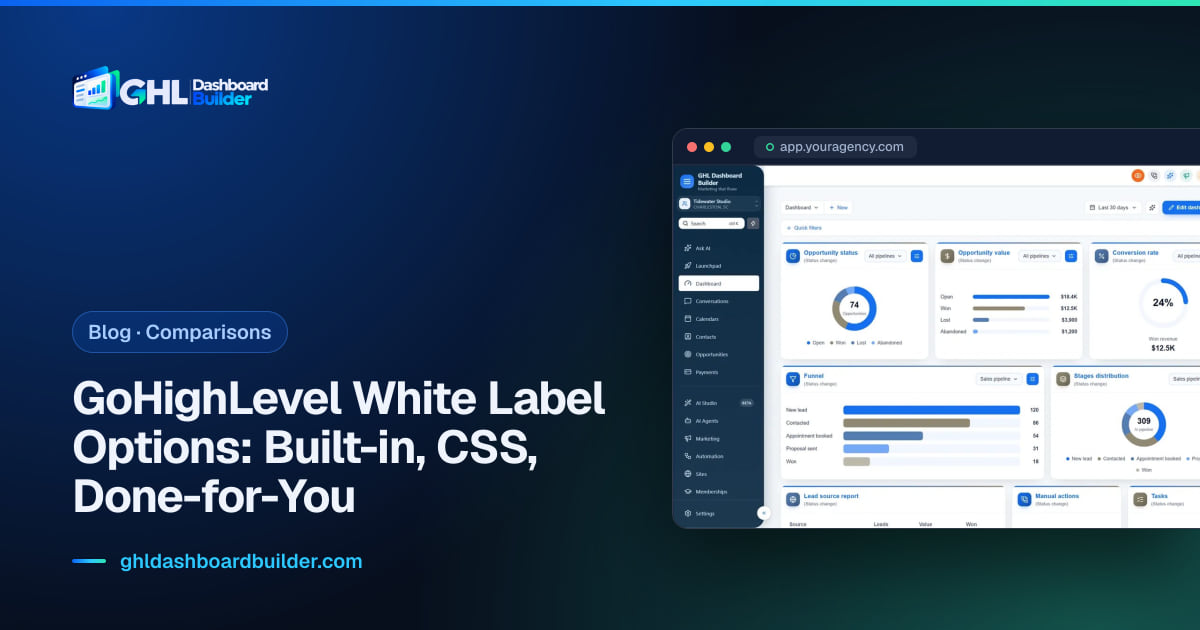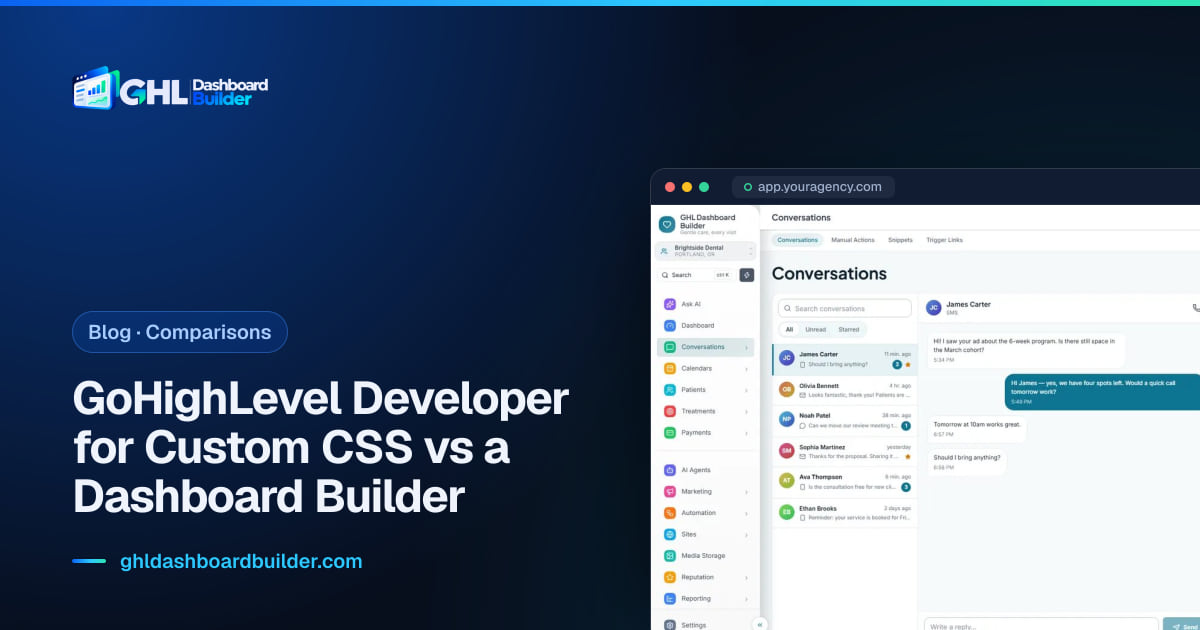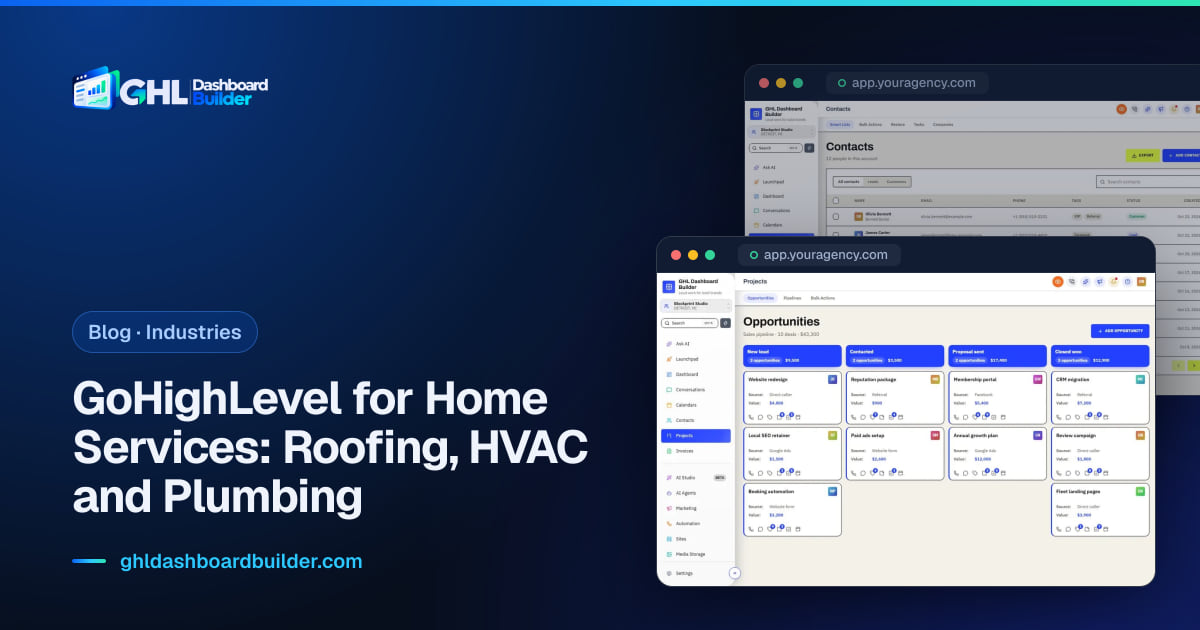
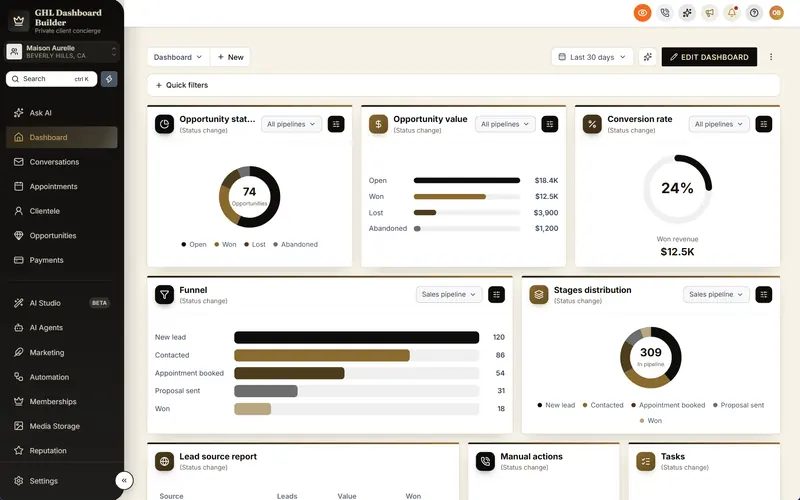
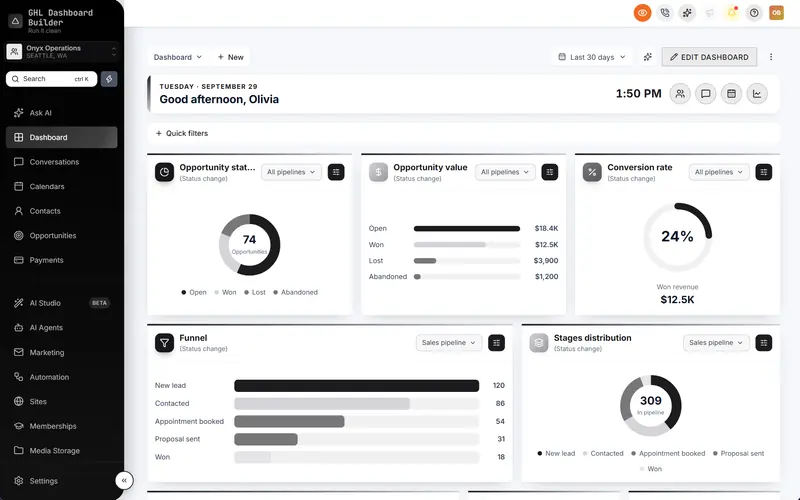
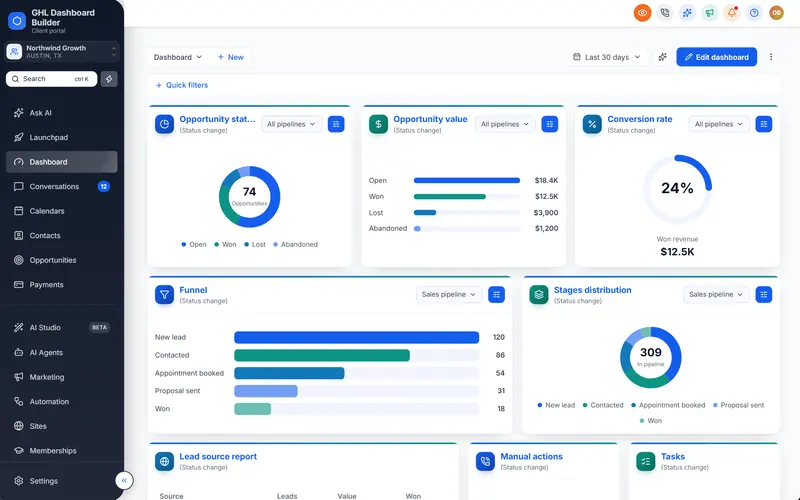
Search for “GoHighLevel dashboard themes” and you find two kinds of answer. One is a free block of CSS that promises a new look in five minutes. The other is a paid service that promises your own software. Agency owners are left asking the practical questions: is the free code safe, will it break, does it actually make HighLevel look like my brand, and what does my client see on Monday morning?
This guide answers those questions. It explains what a theme is in HighLevel (also called GoHighLevel or GHL), what HighLevel’s own theme and white-label settings already change, how free CSS themes compare with a custom-built theme on cost, risk and upkeep, and how to choose a look by audience, industry and readability. It then shows how GHL Dashboard Builder handles themes, which plan includes what, how a theme is installed and rolled back, and the limits no theme gets around.
What is a GoHighLevel dashboard theme?
A GoHighLevel dashboard theme is a set of style rules, usually custom CSS and often some JavaScript, that changes how HighLevel’s web interface looks. It is pasted into the agency’s Custom Code settings and applies across the screens your users see. A theme changes colors, fonts, the sidebar and buttons; it does not change HighLevel’s features or data.
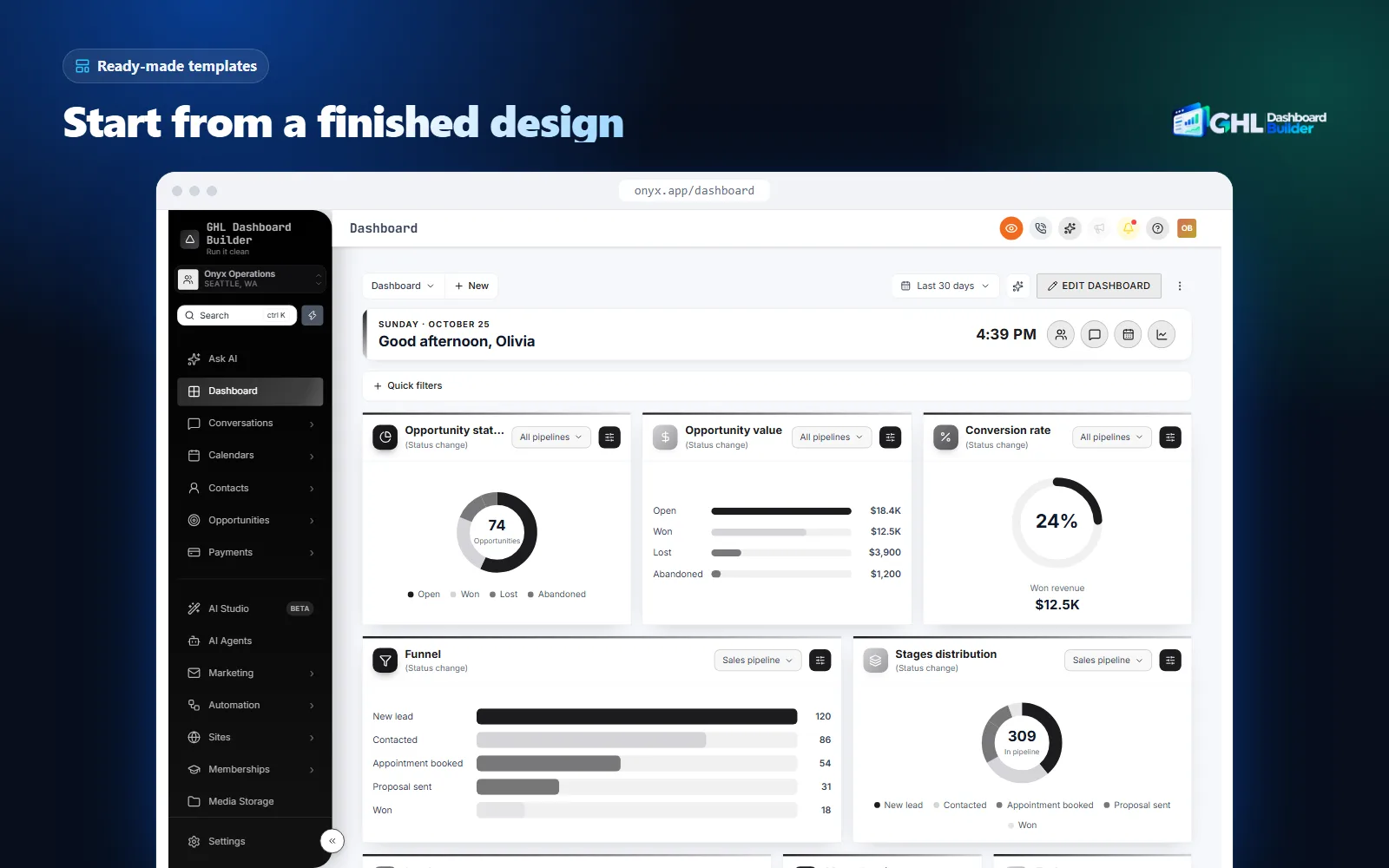
HighLevel draws its interface in the browser. CSS (Cascading Style Sheets, the language that sets colors, sizes and spacing on a web page) can restyle anything HighLevel draws, as long as the rules can find the right elements. JavaScript (the language that makes pages interactive) can go further: change the words in the menu, move items, add a welcome banner or a button. That extra power is also why JavaScript needs more care, which the safety section below covers.
HighLevel’s agency company settings article describes a Whitelabel tab that holds the logo, domains, a theme choice, Custom CSS and Custom JavaScript. Code added to those boxes applies to the HighLevel interface your users see, including every sub-account (one client’s workspace, which HighLevel also calls a location).
Three kinds of “theme” get mixed up in conversations about HighLevel, so it helps to separate them:
- HighLevel’s built-in theme setting. A light or dark choice for the agency-level view. It is free and supported, and it does not reach sub-accounts.
- A free CSS theme. Code someone has published for anyone to copy. Usually a color scheme for the sidebar, header and buttons.
- A custom-built theme. A design made for your brand, often with JavaScript for menu wording and extra widgets, tested across HighLevel’s screens and maintained over time.
The rest of this guide compares the last two, because the first one is a starting point everyone should set anyway.
What do HighLevel’s own theme and white-label settings change?
HighLevel’s built-in settings change your logo, favicon, domains, policies and an agency-level light or dark theme. According to HighLevel’s help center, the agency theme does not affect your sub-accounts’ dashboards. So the screens your clients use every day keep HighLevel’s standard look until you add custom code.
That last point surprises many agency owners. HighLevel’s help article on agency company settings describes two theme options, Light Mode and Dark Mode, chosen as the default for the agency view, and says the choice does not change sub-account dashboards. HighLevel’s ideas board also carries a request to create light and dark mode for all users, not just the agency level, which tells you per-user choice was not available when the request was posted.
Steps: set up the built-in layer first
Menu names move from time to time, so check the help article if your screen looks different.
- Open the agency settings. In the agency view, open Settings, Company, then the Whitelabel tab.
- Upload your logo and favicon. These appear at the top of the sidebar, on the white-label login page and in other places HighLevel shows your brand.
- Connect your white-label domain. Clients should sign in on your address, not HighLevel’s.
- Pick the agency theme. Light or dark for your own agency view. It is a preference for your team, not a client-facing brand.
- Look at a sub-account as a client user. Sign in with a test user that has the User role. What you see there is the screen a theme has to restyle.
Do this before you install any theme. A theme builds on these settings; it doesn’t replace them, and your logo and domain still come from here.
Free GoHighLevel CSS themes vs a custom-built theme: how do they compare?
Free themes win on up-front cost and speed for a single color change. A custom-built theme wins on brand fit, coverage of HighLevel’s screens, menu wording, language and upkeep. The right choice depends on who will look at the dashboard: your own team, or clients paying you for a platform.
Community sites publish free themes with copy-paste code. At the time of writing, for example, GHL Experts publishes a free set of GoHighLevel dashboard color schemes in blue, green, grey and dark, each with CSS and a companion JavaScript file for the icons. Resources like this are useful for learning how HighLevel’s interface is built and for a quick change on your own account.
The comparison below looks at what changes once clients are involved.
| Question | Free CSS theme | Custom-built theme |
|---|---|---|
| Up-front cost | None | A one-off fee or your developer’s time |
| Brand fit | A preset palette you adjust by editing code | Built from your brand colors, fonts and logo |
| What it changes | Mostly sidebar, header, buttons and accents | Colors plus menu, dashboard, pipeline board, login design and more |
| Menu wording (Patients, Jobs, Members) | Rarely | Often included |
| Languages and right-to-left | Rarely | Possible, with care for Arabic, Urdu and Hebrew |
| Testing across screens | Whatever the author tested | Checked on the screens your clients use |
| Who fixes it after a HighLevel update | You | The provider, if updates are included |
| Code you must trust | Someone else’s, often unsigned and unversioned | A provider you can contact |
| Per-client control | Applies to every sub-account | Depends on the tool; some can limit it |
| Best for | Your own agency view, learning, quick tests | Client-facing accounts and SaaS-mode resellers |
Neither column is “right”. A solo consultant who only wants the sidebar in their blue can paste a free theme and move on. An agency that sells HighLevel as its own software needs every screen to look finished, the menu to use the client’s words, and someone accountable when an update breaks it. Our comparison of GoHighLevel white-label options weighs the built-in settings, do-it-yourself CSS and done-for-you services side by side if you are still at that decision.
Are free GHL themes safe to install?
CSS-only themes are low risk: CSS changes how the page looks and cannot read your data by itself. Themes that include JavaScript are a different matter, because JavaScript runs with the same access as HighLevel’s page in your browser. Read every line before you install one, and never paste code you don’t understand into a client-facing account.
The OWASP Third Party JavaScript Management cheat sheet names three risks of running someone else’s JavaScript: losing control over changes to your application, arbitrary code running on your users’ machines, and sensitive data leaking to third parties. Inside HighLevel, “sensitive data” means your clients’ contacts, conversations and payment details, so these risks are concrete.
A five-minute safety check for any free theme
- Separate the CSS from the JavaScript. If the theme is CSS only, the main risk is a broken layout, not your data.
- Look for remote loading. In the JavaScript, search for
http,src=,fetch(,XMLHttpRequestandimport(. Code that loads another script from an address you don’t recognize can change at any time without you knowing. - Look for data being sent. Anything that reads form fields, cookies or local storage and sends them somewhere is a red flag in a theme. A theme has no reason to send data anywhere.
- Check the date. Code written for an older HighLevel interface may target elements that no longer exist, and fail quietly.
- Install it on a test sub-account first. Agency Custom Code applies to everyone, so test with a staging account and a client-level user before any client sees it.
The same questions apply to paid themes
Paying for a theme does not remove the need to ask. A fair question to any provider, including us, is what the code does and where it loads from. GHL Dashboard Builder’s installed code only changes how HighLevel looks and what its menu says, and does not send data anywhere; the builder never connects to your HighLevel account. On Starter and Pro the theme installs as two hosted links that load the current version of your design. The trade-off is that you rely on us to host it. The Agency plan lets you download the full CSS and JavaScript files if you prefer to review and host them yourself.
How does GHL Dashboard Builder handle GoHighLevel themes?
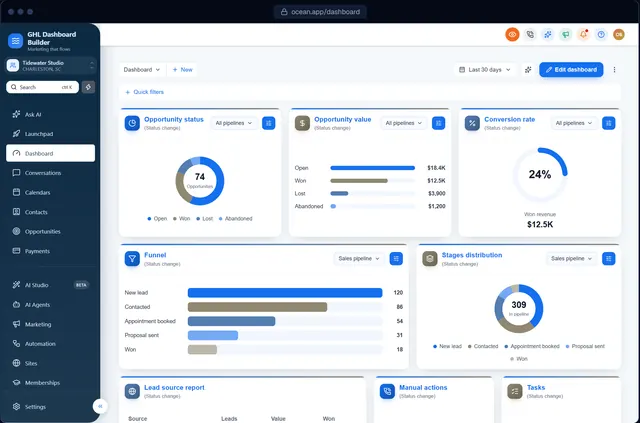
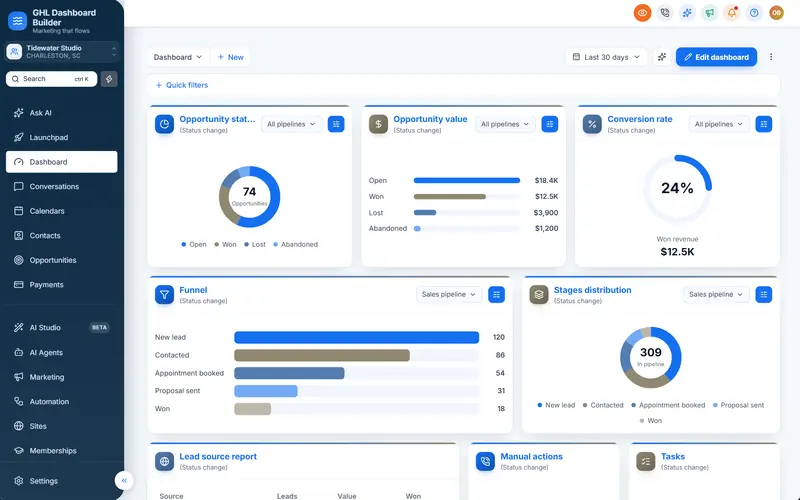
GHL Dashboard Builder is an independent design service that turns the standard HighLevel (GoHighLevel) dashboard into a branded platform: your colors, menu, login design, privacy mode and your clients’ language, installed with two lines of code. For themes, it gives you 27 finished templates to start from, a visual builder to change them to your brand, and an installed theme that is kept working through HighLevel’s changes.
The service is not affiliated with HighLevel. It works through the same Custom Code settings described above, so it restyles the interface HighLevel already renders rather than replacing it. Your automations, calendars, pipelines and permissions keep working the way HighLevel built them.
What a theme includes, and the plan for each part
| Feature | What it does for your clients | Plan |
|---|---|---|
| 27 templates | Modern, corporate, dark, minimal, creative, luxury and industry looks to start from | Starter and up |
| Brand and colors | Primary, accent, sidebar, header, surface and status colors, plus your fonts and favicon | Starter and up |
| Sidebar and header | HighLevel’s own sidebar in your colors, with colored or 3D menu icons and a branded sub-account switcher | Starter and up |
| Buttons, cards and forms | Your brand color on buttons, tabs, tags and dropdowns, with gradient, outline or glass buttons | Starter and up |
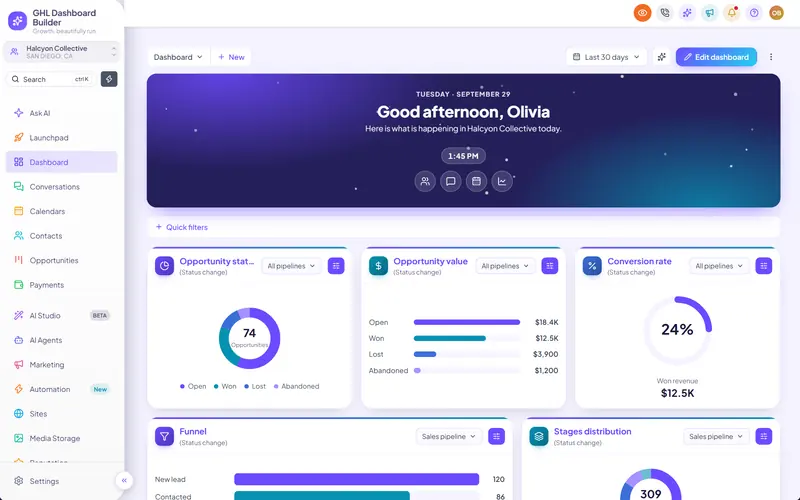
| Welcome banner and live figures | A greeting with the user’s first name, date, clock and quick links, and real counts from HighLevel | Starter and up |
| Privacy mode | An eye button that blurs names, emails, phone numbers and deal values on screen shares | Starter and up |
| Every editor option, beyond the templates | Layout, navigation, effects and top navigation | Pro |
| Menu editor | Rename, reorder and hide any of the 19 menu items | Pro |
| Login page design | 25 login designs in your colors | Pro |
| 15 languages | Translated menu and navigation, right-to-left for Arabic, Urdu and Hebrew | Pro |
| A look designed by our team | One design made from scratch from your brand | Agency |
| Custom CSS and JavaScript | Your own code on top of the theme, and the full files to download | Agency |
Every one of the 18 features, with what installs and what is preview-only, is on the features page. If you are looking for the commercial overview of building a theme visually, see our GoHighLevel theme builder page.
How it installs
You design the theme in the free builder on a live copy of HighLevel’s screens, on desktop, tablet and phone. After you choose a plan, we install it for you as part of the one-time $100 setup fee: one CSS line goes into Custom CSS and one JavaScript line into Custom JavaScript under Settings, Company, Whitelabel, Custom Code, and we check every screen. It takes about 5 minutes. The theme loads as one stylesheet and one script, about 60 KB compressed and cached by the browser after the first visit. To remove it, clear both boxes.
What your clients see afterwards
A client signs in on your white-label domain and sees HighLevel in your colors, with your logo, your sidebar and icon style, a greeting with their first name on the Dashboard, and buttons and tabs in your brand color. On Pro, the menu uses their words and, if you choose, their language. HighLevel’s features work exactly as before; the theme changes how HighLevel looks and what its menu says, not what it does.
How do you choose a GoHighLevel theme for your clients?
Choose by audience first, industry second and taste last. Ask who opens the dashboard every day, what they need to find quickly, and what impression the client’s own customers should get on a shared screen. Then pick a palette that reads well, and only then worry about whether it is your favorite color.
Start from the audience
- A busy front desk (clinics, salons, gyms) needs calm colors, large clear labels and the daily items at the top. Light sidebars with one strong accent work well.
- A sales team (real estate, dealerships, solar) lives in the pipeline and conversations. Strong highlights and live counts help them see what is waiting.
- Owners and partners (law firms, finance, consulting) expect something composed: navy, charcoal, serif headings, few effects.
- Consumer-facing brands (detailers, pet care, events) can carry more color and personality, because the dashboard is part of how they present themselves.
- Your own team spends hours in HighLevel across many accounts. A dark sidebar with a single bright highlight is easy to scan all day.
Then match the industry
GHL Dashboard Builder’s 27 templates fall into seven categories. Industry templates come with wording and features tuned to a niche; the others are general looks you recolor.
27 templates. The two ready-made Arabic dashboards (Noor and Noor LTR, from Pro) are counted separately. Source: GHL Dashboard Builder template catalogue, October 2026
| Client type | A template to start from | Why it fits |
|---|---|---|
| Dental and medical practices | Clinic | White sidebar and medical teal, with Contacts renamed to Patients |
| Roofing, HVAC and home services | Roofline | Navy and safety orange, live job counts and today’s schedule on the dashboard |
| Real estate teams | Estate | Warm neutrals and brass with serif headings and top navigation |
| Gyms and trainers | Forge | Near-black sidebar, electric red, Contacts renamed to Members |
| Law firms and financial advisors | Counsel | Navy and oxblood with serif headings, Opportunities renamed to Matters |
| Spas, salons and wellness | Serene | Sage, blush and sand on a quiet light sidebar |
| Insurance, mortgage and finance | Harbor | Steel teal with top navigation and solid-bar privacy mode for client calls |
| Agencies that want a technical edge | Obsidian | Pure black sidebar, graphite accents and monospaced headings |
| Arabic-speaking clients | Noor | A ready-made Arabic dashboard, right to left (Pro) |
The full gallery, with a preview of each design and the features it switches on, is on the templates page.
Wording is part of the theme
A theme that changes colors but leaves “Contacts” and “Opportunities” in the menu still feels generic to a dental practice or a roofer. That is the most common gap in free themes, which rarely touch the menu. Our guide to renaming GoHighLevel menu items explains what HighLevel renames natively and what needs JavaScript.
Light or dark sidebar: which GoHighLevel theme is easier to read?
Both can be easy to read; contrast decides, not the color itself. The W3C’s WCAG guidance asks for at least 4.5 to 1 between normal text and its background, and 3 to 1 for icons and controls people need to see. A dark sidebar with near-white text passes easily; a mid-tone brand color behind white text often fails.
What the standards say
The W3C’s Contrast (Minimum) criterion sets 4.5 to 1 for normal text and 3 to 1 for large text. Menu labels in HighLevel are small, so 4.5 to 1 is the number to aim for. The Non-text Contrast criterion asks for 3 to 1 for the visual parts of controls and graphics, which covers menu icons and the marker on the active item.
For dark themes, Google’s Material Design guidance on dark themes recommends a dark grey surface, #121212, rather than pure black, and notes that pure white body text on that surface has a contrast level of at least 15.8 to 1. Dark grey also lets lighter surfaces show depth, which pure black can’t.
The first three are minimums from WCAG 2.2 level AA. The last is Material's figure for white text on its recommended dark surface. Source: W3C, Understanding WCAG 2.2: Contrast (Minimum) and Non-text Contrast; Material Design 2: Dark theme
Practical rules for either choice
- Dark sidebar. Use a deep version of your brand color or a dark grey, near-white menu text, and your brand color for the active item. Check the active item’s text against the highlight, not against the sidebar.
- Light sidebar. Use white or a very light tint, dark grey text and a strong accent for the active item. Light sidebars suit clinics, spas and anyone who wants a calm, open feel.
- Don’t rely on color alone. Keep a shape on the active item (a filled pill or a bar) so people who see color differently still know where they are.
- Don’t promise dark mode. A theme can darken the sidebar and header, but HighLevel’s pages stay light in sub-accounts. Sell “a dark menu”, not “dark mode”.
Our GoHighLevel sidebar customization guide goes deeper into sidebar colors, icon styles and top navigation, with a four-color recipe you can test.
Why do GoHighLevel themes break after updates?
Themes break because they depend on HighLevel’s page structure: the ids, class names and nesting of the elements the CSS targets. When HighLevel redesigns a screen or renames an element, rules that pointed at the old names stop matching, and that part of the page goes back to HighLevel’s standard look. HighLevel doesn’t officially support custom code, so it doesn’t promise those names stay the same.
How breakage shows up
- Colors fall back on one screen. The sidebar is branded, but a redesigned Conversations or Calendars page shows HighLevel’s blue again.
- Spacing goes wrong. A rule that hid or moved an element now hits a different one, leaving a gap or a cut-off label.
- JavaScript stops adding things. A banner, renamed menu item or button disappears because the script can’t find the place it used to attach to.
- Loading feels slow. Heavy or badly written scripts can delay how fast HighLevel’s pages appear, so keep custom code small.
How to make a theme last longer
- Use short selectors. Target an element by a stable id where one exists, not by long chains such as
div > div > divor by position withnth-child. - Define colors once. Put your brand colors in custom properties at the top of the stylesheet, so a change is one edit, not a search through hundreds of lines.
- Keep the last working version. Save a dated copy before every change. Rolling back is then a paste, not an investigation.
- Check after HighLevel releases. Open the main screens as a client user after each significant update, and fix problems before clients report them.
- Decide who owns the fix. With a free theme, it is you. With a service, check what updates are included and for how long.
Our complete guide to HighLevel custom CSS covers selectors that survive updates, specificity and a release-day routine in detail, if you plan to maintain your own code.
How GHL Dashboard Builder handles updates
Starter and Pro include 12 months of updates, during which we keep the theme working through HighLevel’s changes and you get new features as they ship. After that, updates are optional at $99 a year; without them the theme keeps working as it is. Agency includes lifetime updates. Because the install lines point to the hosted, current version of your design, a fix reaches your HighLevel without anyone editing the Custom Code boxes again.
How do you install and test a GoHighLevel theme safely?
Install a theme in Settings, Company, Whitelabel, Custom Code: CSS in the Custom CSS box, JavaScript in the Custom JavaScript box. Save, reload HighLevel in a fresh tab and test it as a client-level user on the screens clients use most. Keep the previous version so you can roll back in seconds.
Install
- Copy the current code out first. If the Custom CSS or Custom JavaScript boxes already hold code, paste it into a dated note. This is your rollback.
- Open the Custom Code area. In the agency view, open Settings, Company, the Whitelabel tab, then Custom Code.
- Paste the CSS and the JavaScript into their own boxes. Don’t put JavaScript in the CSS box or the other way round.
- Save, then reload HighLevel in a new browser tab so the new code loads.
Test
- Sign in as a client-level user in a test sub-account.
- Open the daily screens: Dashboard, Conversations, Calendars, Contacts and Opportunities. Check colors, text contrast, buttons and the active menu item.
- Collapse and expand the sidebar, open Settings and come back, and try the sub-account switcher.
- Check a narrow window and a phone browser. Themes that look fine on a wide screen can crowd a small one.
- Open a builder screen such as an email or funnel editor, and confirm nothing in it is hidden or unreadable.
Roll back
Clear both boxes, or paste back the version you saved, and save. HighLevel returns to its standard look straight away and no data changes either way. With GHL Dashboard Builder, the same applies: clearing the two boxes removes the theme.
Installing and removing a theme are also covered on our FAQ page, with answers on what the installed code does and doesn’t touch.
Can each client have a different GoHighLevel theme?
Not with HighLevel’s settings alone. Agency Custom Code applies to every sub-account, and HighLevel’s ideas board carries a request for per sub-account customization of colors, CSS and JavaScript. GHL Dashboard Builder can limit a design to the sub-accounts you choose, from one install.
This matters more for themes than for almost anything else. A free theme pasted into Custom Code changes every client at once, including clients who never asked for a new look. That makes pilots and premium tiers awkward.
How limiting a design works
In the builder or your account dashboard, choose Only these sub-accounts and add each one by pasting its link or its Location ID. Those sub-accounts get the theme; your other sub-accounts and the agency view stay plain HighLevel. You can add or remove sub-accounts any time without reinstalling.
When to use it
- A pilot. Try a branded theme with one friendly client for a week before rolling it out.
- A premium tier. Offer a branded platform in a higher-priced package and apply the design only to clients who pay for it. You set the price and keep what you charge.
- One client in another language. An Arabic-speaking client can have a design limited to their sub-account, with the menu on the right. The Arabic language page shows what that looks like.
One design is shown in those sub-accounts. If you want several different looks for different clients, talk to us about your setup first, so we can recommend the right plan and arrangement. Our guide to GoHighLevel sub-account branding explains the per-client options in more depth.
What can’t a GoHighLevel theme change?
A theme changes how HighLevel looks in the browser and, with JavaScript, what its menu says. It can’t change HighLevel’s features, the mobile app, the light background of HighLevel’s pages, or the text inside HighLevel’s own builders and system emails. Knowing these limits keeps your promise to clients honest, whichever kind of theme you choose.
| Limit | What it means | What to do |
|---|---|---|
| The mobile app | The LeadConnector app and a white-label app keep HighLevel’s look | Tell app-first clients before launch |
| Page backgrounds | HighLevel’s pages stay light in sub-accounts | Sell a dark menu, not dark mode |
| Text inside HighLevel’s pages | Builders, system emails and page content follow HighLevel’s language settings | Translate the menu and navigation; set HighLevel’s language for the rest |
| Domain, logo and app branding | These come from HighLevel’s white-label settings, not the theme | Set them first in the Whitelabel tab |
| Features and data | A theme doesn’t add HighLevel features or change data | Use HighLevel’s settings for permissions and access |
| Official support | HighLevel doesn’t officially support custom code | Plan for an occasional theme refresh after big updates |
| Preview-only options | Some looks in a builder may not install | Ask which options install before you buy |
In GHL Dashboard Builder, the 15 languages translate the dashboard’s menu and navigation, with right-to-left layout for Arabic, Urdu and Hebrew; text inside HighLevel’s own pages, builders, system emails and the mobile app follows HighLevel’s language settings. Some layouts you can try in the builder are design previews only, and the install code comes with notes listing any preview-only option your design uses. For a full list of what to brand beyond the theme, see our guide to making GoHighLevel look like your own software.
Which GHL Dashboard Builder plan fits your theme?
Starter fits an agency that wants one finished template in its brand colors. Pro fits agencies that need the menu in the client’s words, a branded login page, 15 languages or up to 3 designs. Agency fits agencies that brand many clients, want a look designed from scratch by our team, or want their own custom code on top.
All three plans are one-time payments with no monthly fee: Starter $280 (1 design), Pro $480 (up to 3 designs) and Agency $880 (up to 100 designs), plus a one-time $100 setup fee on every plan for us to install and configure it in your HighLevel. Starter and Pro include 12 months of updates, then optional updates at $99 a year; Agency includes lifetime updates. You can upgrade later by paying the difference, and the setup fee isn’t charged twice. The full comparison is on the pricing page.
No monthly fees. Starter and Pro include 12 months of updates, then optional at $99 a year; Agency includes lifetime updates. Source: GHL Dashboard Builder pricing, October 2026
A quick way to decide
| If you need… | Choose |
|---|---|
| One template, recolored to your brand, for the whole agency or chosen sub-accounts | Starter |
| The menu renamed for an industry, a login design or a second language | Pro |
| Up to 3 different designs, for example one per key client | Pro |
| A look built from scratch from your brand guidelines | Agency |
| Your own CSS or JavaScript on top, or the full files to host yourself | Agency |
| Many client designs and no renewals to think about | Agency |
Compare that with a free theme honestly. A free theme costs nothing up front, but the time to adjust it to your brand, test it on every screen and repair it after updates is yours. Estimate the hours you expect to spend on it in the first year, put your own hourly rate against them, and compare that figure with a plan price.
What to do next
- Set the built-in layer. Upload your logo and favicon, connect your white-label domain and choose the agency theme in Settings, Company, Whitelabel.
- Decide who the theme is for. If it is only your own agency view, a free CSS theme you have read line by line may be enough. If clients will see it, plan for testing and updates.
- Pick a starting look by audience and industry. Shortlist two or three templates, then check menu text against 4.5 to 1 contrast.
- Preview it before installing anything. Open the free builder, start from a template, change it to your brand and look at it on desktop, tablet and phone.
- Pilot with one client. Limit the design to one sub-account, collect feedback for a week, keep your rollback copy, then roll it out to the rest.