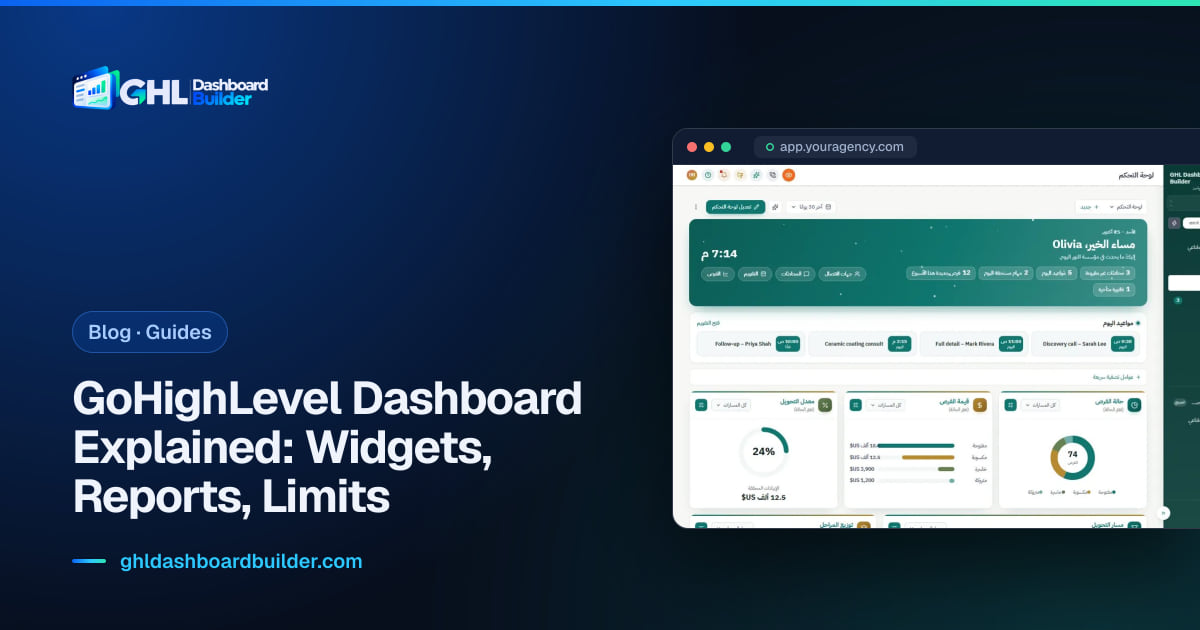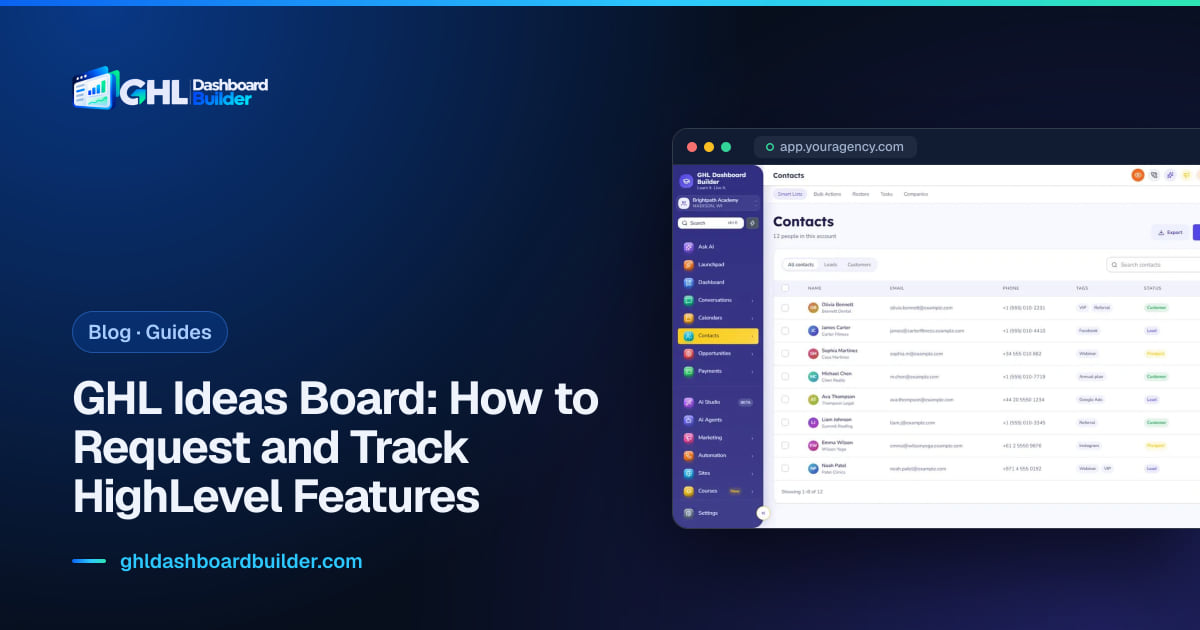
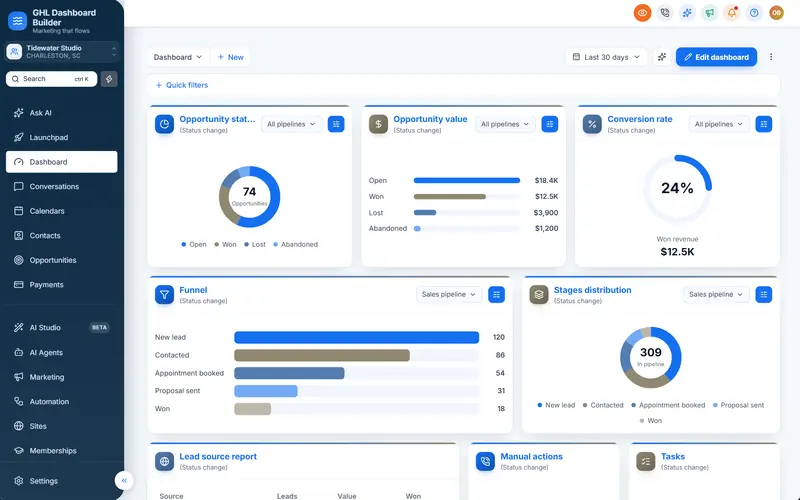
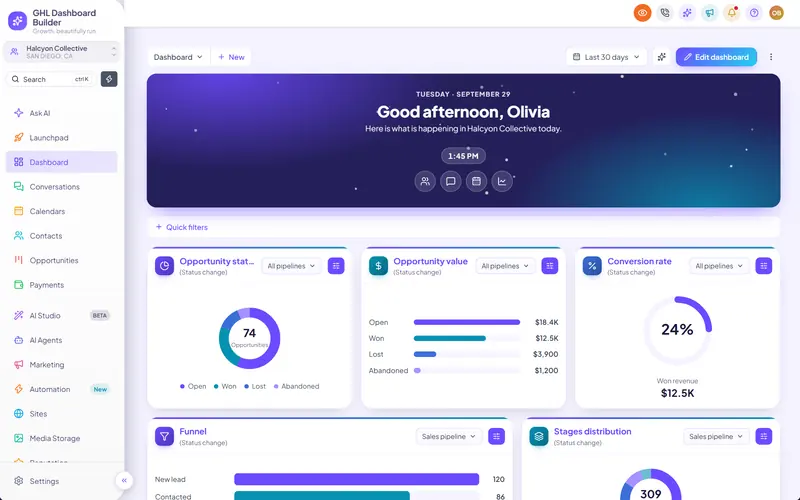
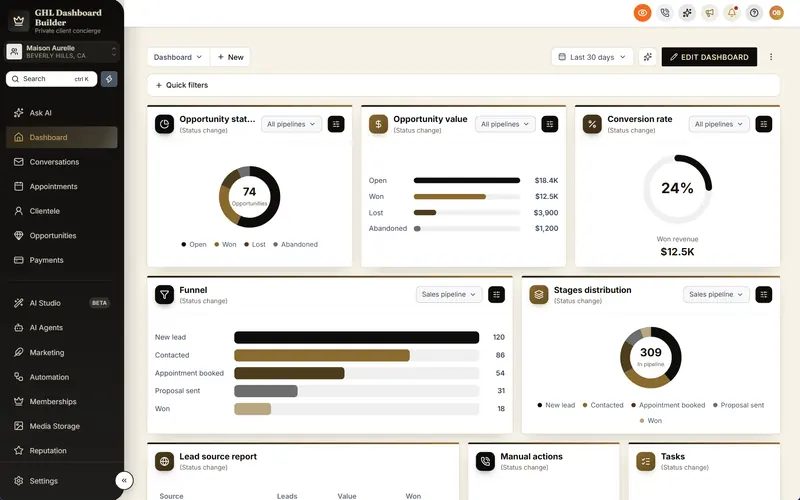
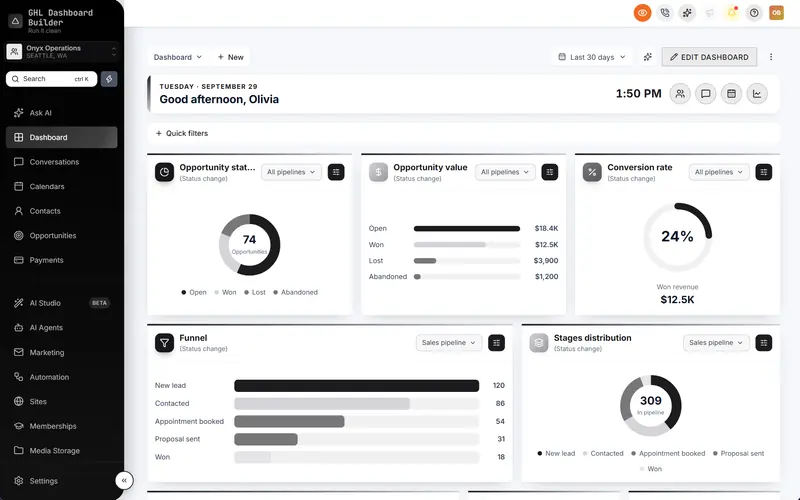
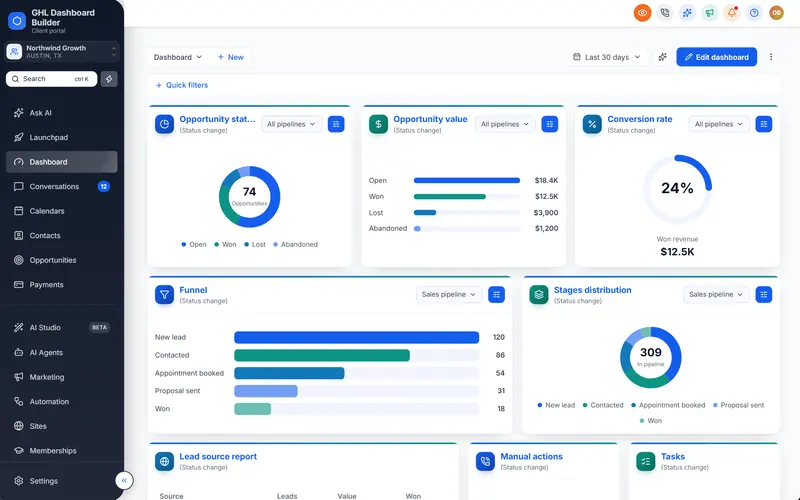
A HighLevel dashboard template is a ready-made starting point for a client’s dashboard, so you don’t build every sub-account from a blank screen. HighLevel (also called GoHighLevel or GHL) offers widget templates that decide which data appears; a design template decides how the whole dashboard looks and what its menu says, matched to the client’s industry.
Most agencies searching for a GoHighLevel dashboard template want both at once: a Dashboard page that shows a dentist’s appointments or a roofer’s open jobs, inside an interface that looks like the agency’s own software. This guide explains the two kinds of template, what HighLevel’s Template Library, cloning and snapshots can do, which design fits each agency type, and how to apply one step by step, including the limits you should know before you promise anything to a client.
What is a HighLevel dashboard template?
A HighLevel dashboard template is any saved starting point you reuse for a sub-account’s dashboard. In practice the phrase covers two different things: widget layouts that HighLevel stores and copies for you, and design templates that restyle HighLevel’s interface through custom code. They solve different problems and work well together.
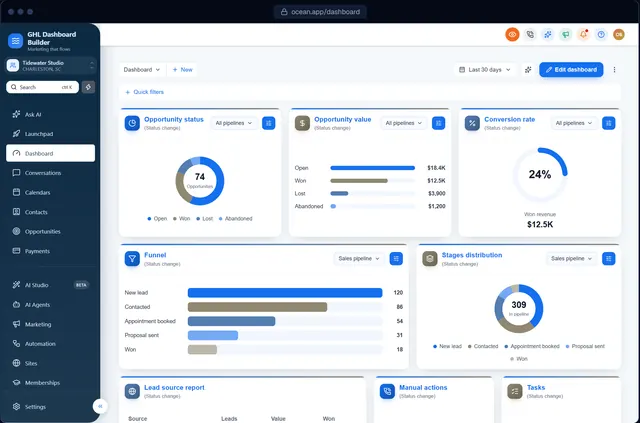
The first kind lives inside HighLevel. Every sub-account has a page called Dashboard, built from widgets: charts, figures and lists for opportunities, appointments, conversations, calls, revenue and more. HighLevel’s article on the sub-account Dashboard page describes adding a new dashboard from a template library or by cloning an existing one. A widget template answers the question “what numbers does this client see when they log in?”
The second kind sits on top of HighLevel. A design template changes the colors, fonts, sidebar, header, buttons, the wording of the left menu, the welcome area at the top of the Dashboard and, in our case, the login page. It answers a different question: “does this look like my agency’s product, built for this client’s trade, or like the same software every other agency resells?”
An agency that uses only widget templates gets useful numbers inside a generic interface. An agency that uses only a design template gets a branded interface around whatever widgets happen to be there. The rest of this guide treats them as two layers: data first, then design.
Which kinds of HighLevel dashboard templates are there?
There are four common starting points: HighLevel’s Template Library, a cloned or duplicated dashboard, a snapshot, and a design template installed through Custom Code. The first three copy widgets and settings between sub-accounts. Only the fourth changes the look of the interface the client works in every day.
The table compares them on what agencies usually ask: what each one copies, who can use it, and what it leaves untouched.
| Starting point | What it copies or changes | Where you use it | What it leaves untouched |
|---|---|---|---|
| HighLevel Template Library | A ready-made widget layout for a new dashboard | Sub-account, Dashboard, add a dashboard | Colors outside the widgets, menu, sidebar, login page |
| Clone Existing Dashboard | A copy of a dashboard inside the same sub-account | Sub-account, Dashboard, add a dashboard | Other sub-accounts |
| Duplicate to another sub-account | A dashboard copied into a second sub-account (agency roles) | The dashboard’s three-dot menu | Data sources, which must be reconnected |
| Snapshot | Dashboards and other assets packed with a whole account setup | Agency view, snapshots | The interface design |
| Design template (custom code) | Colors, fonts, sidebar, menu wording, welcome banner, buttons, board, login design | Agency Settings, Company, Whitelabel, Custom Code | Which widgets each dashboard holds |
| Free CSS color theme | Mostly colors of the sidebar and buttons | Agency Custom CSS box | Menu wording, language, updates |
Two details from HighLevel’s help center matter here. According to its guide to duplicating a dashboard to another sub-account, data sources are not duplicated, so widgets that depended on them show as errors in the copy until you reconnect or delete them. And HighLevel’s dashboard permissions article says only agency roles can duplicate a dashboard to another sub-account.
Snapshots are the usual way agencies roll out a full niche setup: pipelines, calendars, workflows and dashboards together. HighLevel’s guide to loading a snapshot into an existing sub-account notes that when a snapshot includes dashboards, you can choose which one becomes the destination’s default. That makes a snapshot the strongest tool for the data layer. It still leaves the client looking at HighLevel’s standard interface.
How do HighLevel’s own dashboard templates work?
HighLevel’s native dashboard templates work at the widget level. You add a dashboard from the Template Library or clone one you already built, then edit the widgets, set permissions and choose a default. At the time of writing these options sit in the dashboard selector and the three-dot menu on each dashboard; HighLevel moves menus often, so check the current help articles.
Build the widget layout once
Start in one sub-account you treat as the master for a niche. HighLevel’s article on adding widgets with the Widget Gallery describes the flow: open Dashboard, pick the dashboard, choose Edit Dashboard, then Add Widget. The gallery previews each widget, can be searched and filtered by module, and shows some categories only when the module is in use, such as custom objects.
For a niche template, keep the layout short. Five to eight widgets that answer the client’s daily questions beat twenty charts nobody reads. A clinic wants appointments today, no-shows and new patient enquiries. A roofer wants new leads, quotes sent and jobs won. A law firm wants consultations booked and open matters.
Style the widgets with HighLevel’s dashboard themes
HighLevel also has its own theme setting for dashboards. Its guide to customizing dashboard themes shows how to pick a predefined theme or build one in edit mode, for the whole dashboard or a single widget. This colors the widgets themselves. It does not touch the sidebar, header, menu wording or login page around them.
Set the default and the permissions
HighLevel’s guide to setting a default dashboard explains that the default is what users see when they open the Dashboard page, and that every team member needs at least view permission on it. Set the niche dashboard as the default so the client’s staff land on the right numbers, and keep internal agency dashboards private.
Reuse it across clients
From there you have three ways to reuse the layout: clone it inside the same sub-account for a variant, duplicate it to another sub-account with an agency role, or include it in a snapshot so every new client of that niche starts with it. After duplicating, open every widget and reconnect any data source that did not carry over.
Our guide to GoHighLevel dashboard widgets and a branded welcome banner goes deeper on widget choice. For the broader picture of what you can and can’t change, read GoHighLevel dashboard customization.
How does GHL Dashboard Builder handle HighLevel dashboard templates?
GHL Dashboard Builder adds the design layer HighLevel’s own templates leave out. GHL Dashboard Builder is an independent design service that turns the standard HighLevel (GoHighLevel) dashboard into a branded platform: your colors, menu, login design, privacy mode and your clients’ language, installed with two lines of code. We are not affiliated with HighLevel.
Our catalogue has 31 design templates. Twenty-seven are available on every plan, and two more, Noor and Noor LTR, are ready-made Arabic dashboards included from the Pro plan. Twelve are industry templates built for a specific kind of business, with the menu already renamed in that trade’s words: Patients for a clinic, Matters for a law firm, Listings for real estate, Jobs for home services. You can browse all of them on our HighLevel dashboard templates page.
Each template restyles HighLevel’s real interface rather than replacing it. Your client still clicks the same Contacts, Calendars and Opportunities pages they know, so no training changes, but the sidebar, header, cards, buttons, tabs, pipeline board and Dashboard all carry the agency’s brand. You choose a template, change its colors, logo, fonts and menu labels in the free builder, and we install it.
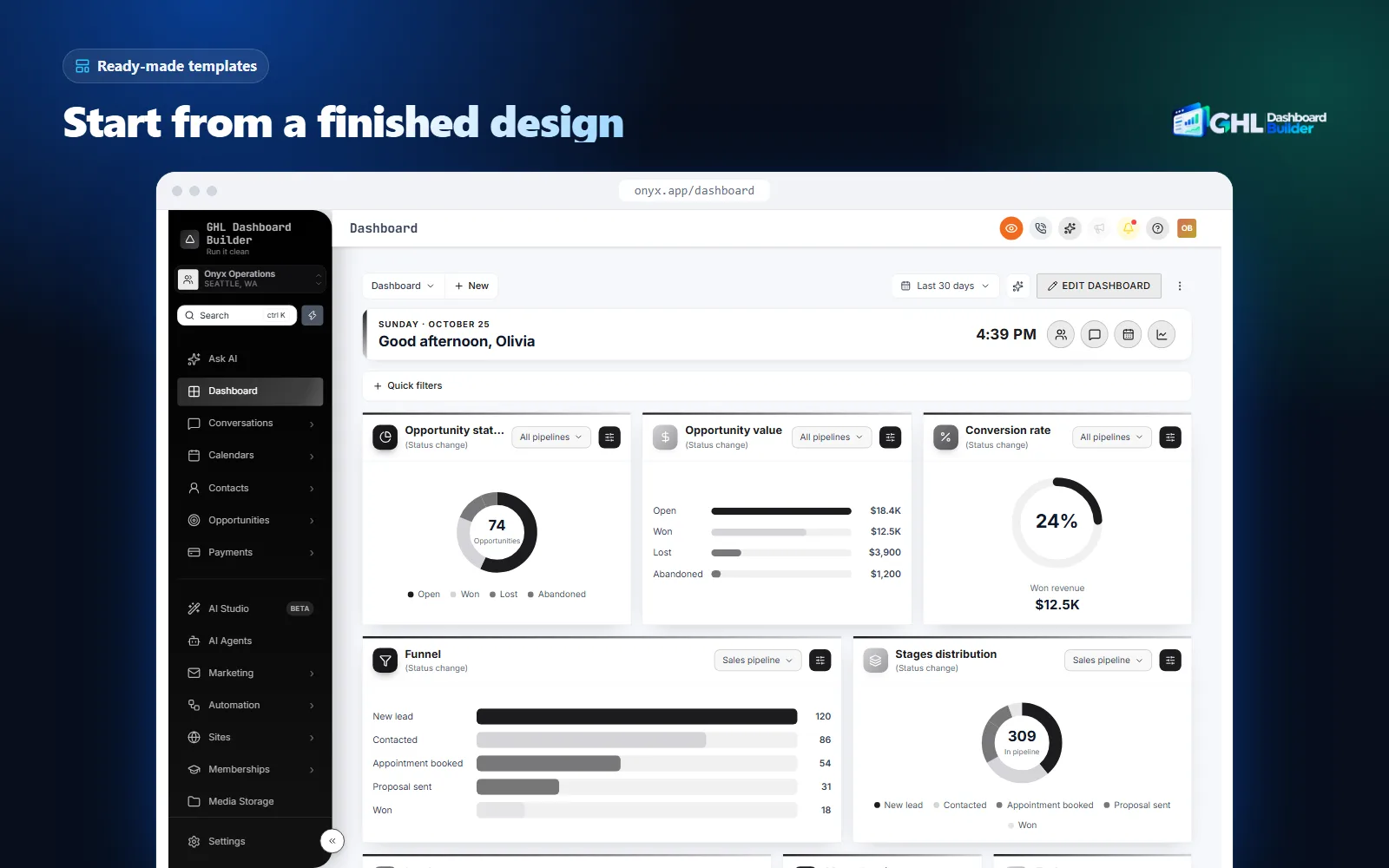
The templates come in three layouts. Simple templates keep HighLevel’s own layout and recolor it. Top bar templates move the menu into a full-width bar across the top, with a More menu and a Settings mega menu. Premium templates add hover menus that show every page of a menu item and a welcome banner on the Dashboard with a greeting, clock and quick links.
At a glance: what a template includes and which plan
| Feature | What it does for your agency’s clients | Plan |
|---|---|---|
| Templates | 27 finished looks, including 12 industry designs, as the starting point | All plans |
| Brand and colors | Your color system, fonts and favicon across the dashboard | All plans |
| Welcome banner | A greeting with the user’s first name, date, clock and quick links on the Dashboard | All plans |
| Live figures and appointments board | Real numbers from HighLevel in the welcome banner and the next appointments at the top of the Dashboard (live counts on the menu come with Pro) | All plans |
| Menu editor | Rename, reorder and hide any of HighLevel’s 19 menu items | Pro and Agency |
| Top navigation | The menu in a bar across the top, with a Settings mega menu | Pro and Agency |
| Languages | Menu and navigation in 15 languages, 3 of them right-to-left | Pro and Agency |
| Arabic dashboards | Noor, right to left, and Noor LTR, ready-made in Arabic | Pro and Agency |
| Login page design | 25 login designs in your colors | Pro and Agency |
| A look designed from scratch | Our team designs a template from your brand | Agency |
The design installs as two lines: one CSS line and one JavaScript line in HighLevel’s Custom Code settings. On every plan we install it for you as part of the one-time $100 setup fee, and it takes about 5 minutes once the design is approved. Afterwards, the client opens their sub-account and sees the agency’s colors, their own trade’s words in the menu and, on a Premium template, a welcome banner that greets them by name.
Infographic
Our HighLevel dashboard templatesby the numbers
31
design templates: 27 on every plan plus 2 Arabic dashboards from Pro
(GHL Dashboard Builder template catalogue)
12
industry templates with the menu renamed for that trade
(GHL Dashboard Builder template catalogue)
3
layouts to choose from: Simple, Top bar and Premium
(GHL Dashboard Builder template catalogue)
2
lines of code to install, in HighLevel's Custom Code settings
(GHL Dashboard Builder)
Source: GHL Dashboard Builder template catalogue and install process, November 2026.
The point of starting from a template is speed with fewer decisions. Instead of choosing forty colors and twenty labels from nothing, you begin with a design that already works on HighLevel’s screens, then change only what makes it yours. Our GoHighLevel theme builder page explains how that editing works.
Which HighLevel dashboard template fits each agency type?
Match the template to the client’s trade first and to taste second. The words in the menu, the tone of the colors and the numbers on the Dashboard should feel like they were built for that kind of business. The table pairs common agency niches with the design template made for them and a widget layout to build in HighLevel alongside it.
| Agency type or client | Design template | Menu renamed in the template | Layout | Widgets to put on the HighLevel dashboard |
|---|---|---|---|---|
| Dental and medical practices | Clinic | Contacts to Patients, Opportunities to Treatments | Premium | Appointments today, no-shows, new patient enquiries |
| Law firms and financial advisors | Counsel | Contacts to Clients, Opportunities to Matters | Simple | Consultations booked, open matters, follow-ups due |
| Insurance and mortgage teams | Harbor | Contacts to Clients, Opportunities to Policies | Top bar | Quotes sent, renewals due, policies won |
| Real estate teams and brokerages | Estate | Contacts to Clients, Opportunities to Listings | Top bar | New buyer leads, showings booked, listings by stage |
| Gyms and personal trainers | Forge | Contacts to Members | Simple | Trial bookings, new members, missed classes |
| Restaurants and cafés | Saffron | Calendars to Reservations | Simple | Reservations today, review requests, campaign replies |
| Spas, salons and wellness | Serene | Calendars to Bookings | Simple | Bookings today, rebooking rate, unread messages |
| Car dealerships and service shops | Torque | Opportunities to Deals | Premium | Test drives booked, deals by stage, service follow-ups |
| Coaches and course creators | Scholar | Memberships to Courses | Premium | New sign-ups, calls booked, course enrolments |
| Roofing, HVAC and plumbing | Roofline | Customers, Jobs and Schedule | Premium | New leads, quotes sent, jobs won, today’s schedule |
| Auto detailing and ceramic coating | Shine | Contacts to Clients, Opportunities to Bookings | Premium | Bookings, follow-ups, reviews |
| Solar installers | Solstice | Contacts to Homeowners, Opportunities to Projects | Premium | New leads, site surveys, overdue invoices |
| Pet groomers and vet clinics | Paws | Contacts to Pet parents, Opportunities to Visits | Premium | Grooms today, check-ins, reminders sent |
| Wedding planners and photographers | Bloom | Contacts to Couples, Opportunities to Events | Premium | Consultations, contracts sent, events by month |
| Arabic-speaking clients (Arabic dashboards) | Noor or Noor LTR | The menu in Arabic | Premium | The client’s own key numbers |
The widget suggestions are starting points for you to build in HighLevel, not part of the design template. A design template restyles the Dashboard page and its welcome banner; which charts sit on it is still decided in HighLevel’s Widget Gallery.
Templates for your own agency and SaaS-mode products
Not every client is a niche business. For your own agency account, or for a SaaS-mode product sold under your brand, a general look usually fits better than an industry one. Aurora is a light violet design with a welcome banner and suits a modern software feel. Executive and Atlas are corporate looks with top navigation. Ember, Midnight, Nova and Obsidian are dark designs for teams that work long hours in the dashboard. Lumen is minimal and hides rarely used modules. Ocean keeps the native HighLevel menu in its original order on a deep-navy sidebar, which is useful when a client is attached to HighLevel’s layout.
Why the menu words matter as much as the colors
A receptionist at a dental practice looks for patients, not contacts. A paralegal tracks matters, not opportunities. When the menu uses the client’s own words, there is less to explain on the onboarding call and fewer support questions later. Our guide to renaming GoHighLevel menu items covers how renaming works and what it does not change: HighLevel’s own page titles and system emails keep HighLevel’s wording.
If you serve one niche in depth, our industry guides add the setup around the template, such as GoHighLevel for law firms, with its notes on wording, privacy and onboarding.
Premium includes hover menus or a Dashboard welcome banner; Top bar moves the menu into a bar across the top. Source: GHL Dashboard Builder template catalogue, November 2026
Every industry template is a draft, not a finished product. Before you show it to a client, change the colors to the client’s brand or yours, check the renamed labels against the words the client’s team actually uses, and hide menu items they will never open.
Simple, Top bar or Premium: which layout should you choose?
Choose Simple when the client already knows HighLevel and you want branding without moving anything. Choose Top bar when the team works on wide tables and calendars and wants the full screen width. Choose Premium when the Dashboard is the client’s first screen every morning and should greet them, show live numbers and give quick links.
Of our 31 templates, 8 use the Simple layout, 5 use Top bar and 16 are Premium, as the chart above shows. Here is how the three compare on the questions agencies ask before deciding.
| Question | Simple | Top bar | Premium |
|---|---|---|---|
| Does the menu stay where HighLevel puts it? | Yes, on the left | No, it moves to a bar across the top | Yes, with hover menus showing every page |
| Is there a welcome banner on the Dashboard? | Not by default; you can add one | Harbor has one; others can add one | Yes, with greeting, clock and quick links |
| Who it suits | Teams used to HighLevel, conservative clients | Office teams on large screens, calendar-heavy work | Clients who log in daily and value a polished first screen |
| Training needed | None | A short tour of where the menu went | None for the menu; point out the quick links |
| Plan to customize the layout itself | All plans | Pro and Agency, for top navigation | Banner on all plans; hover menus edited on Pro and Agency |
The welcome banner and the live figures shown in some Premium banners are available on every plan, so a Simple template can also gain a banner later. Top navigation is a layout change, so customizing it belongs to Pro and Agency.
A useful test: watch how the client’s team uses HighLevel today. If they live in Conversations and Calendars on a laptop, a Simple or Premium sidebar keeps those one click away. If the office runs on a large monitor with the pipeline open all day, a Top bar layout gives the board more room.
Light or dark
Dark templates look striking in a demo but can be harder to read for long sessions in a bright office. Whichever you choose, check that menu text has enough contrast against the sidebar. The W3C’s contrast minimum asks for a ratio of at least 4.5 to 1 for normal text. Our older guide to GoHighLevel dashboard themes compares light and dark sidebars in more depth.
How do you apply a HighLevel dashboard template step by step?
Apply the two layers in order: build the widget dashboard in HighLevel first, then pick, brand and install the design template, then test on one sub-account before rolling it out. The first niche takes the most work; every later client of the same niche reuses both layers.
Infographic
Apply a HighLevel dashboard templatein seven steps
- 1
Build the widgets
Add a dashboard from HighLevel's Template Library or your own layout.
- 2
Set the default
Make it the default dashboard and check view permissions.
- 3
Pick a design
Choose the template that matches the client's trade.
- 4
Brand it
Set colors, logo, fonts and menu words in the free builder.
- 5
Choose sub-accounts
Apply it to the whole agency or only chosen clients.
- 6
Install two lines
One CSS and one JavaScript line go into Custom Code.
- 7
Test and roll out
Check every screen on one sub-account, then copy it on.
Part 1: the widget layer in HighLevel
- Open the master sub-account for the niche and go to Dashboard.
- Open the dashboard selector and add a new dashboard. Choose From Template Library for a ready-made layout, or Clone Existing Dashboard to start from one you already have.
- Choose Edit Dashboard, then Add Widget, and keep only the widgets the client needs every day. Add a title or text element to label sections if it helps.
- Save, then open the three-dot menu and choose Set as default dashboard. Confirm that every user who should see it has at least view permission.
- For each new client of the same niche, use Duplicate to another sub-account from the three-dot menu, or include the dashboard in your niche snapshot. Reconnect any widget that shows an error after copying.
Part 2: the design layer
- Open our templates and preview the one that matches the client, on desktop and phone.
- Open it in the free builder. Set the brand colors, upload the logo, choose fonts and adjust the menu labels.
- Decide where it applies: the whole agency, or only chosen sub-accounts, added by link or Location ID. Our guide to the HighLevel Location ID shows where to find it.
- Choose a plan. We send a preview link, take your changes within your plan’s revision rounds, and install the design in Settings, Company, Whitelabel, Custom Code: the CSS line in Custom CSS and the JavaScript line in Custom JavaScript.
- Reload HighLevel in a fresh tab, log in as a user of the target sub-account and click through Dashboard, Conversations, Calendars, Contacts, Opportunities and Settings.
Part 3: test before every client sees it
Use one internal test sub-account first. Check the Dashboard on a laptop, a large monitor and a phone browser. Read every menu label aloud as the client would. Open a pipeline with real-looking deals and a calendar with several bookings, because empty screens hide layout problems. Only then switch the design on for live clients.
Can different clients get different dashboard templates?
Yes for the widget layer, with conditions for the design layer. HighLevel’s widget dashboards are per sub-account, so every client can have its own. A design template installs once at agency level; GHL Dashboard Builder can limit it to chosen sub-accounts, and one design is shown in those sub-accounts.
HighLevel’s agency Custom Code applies across the interface your users see, including every sub-account. That is why a free CSS theme pasted into the agency settings changes every client at once. HighLevel’s article on using custom CSS and JavaScript with the Custom Navigation confirms that this code is configured at agency level and normally applies across all sub-accounts.
GHL Dashboard Builder adds a scope setting. In the builder or your account, choose “Only these sub-accounts” and add each one by its link or Location ID. Those sub-accounts get the design; the rest of your agency and the agency view stay plain HighLevel, from the same single install. You can add or remove sub-accounts at any time.
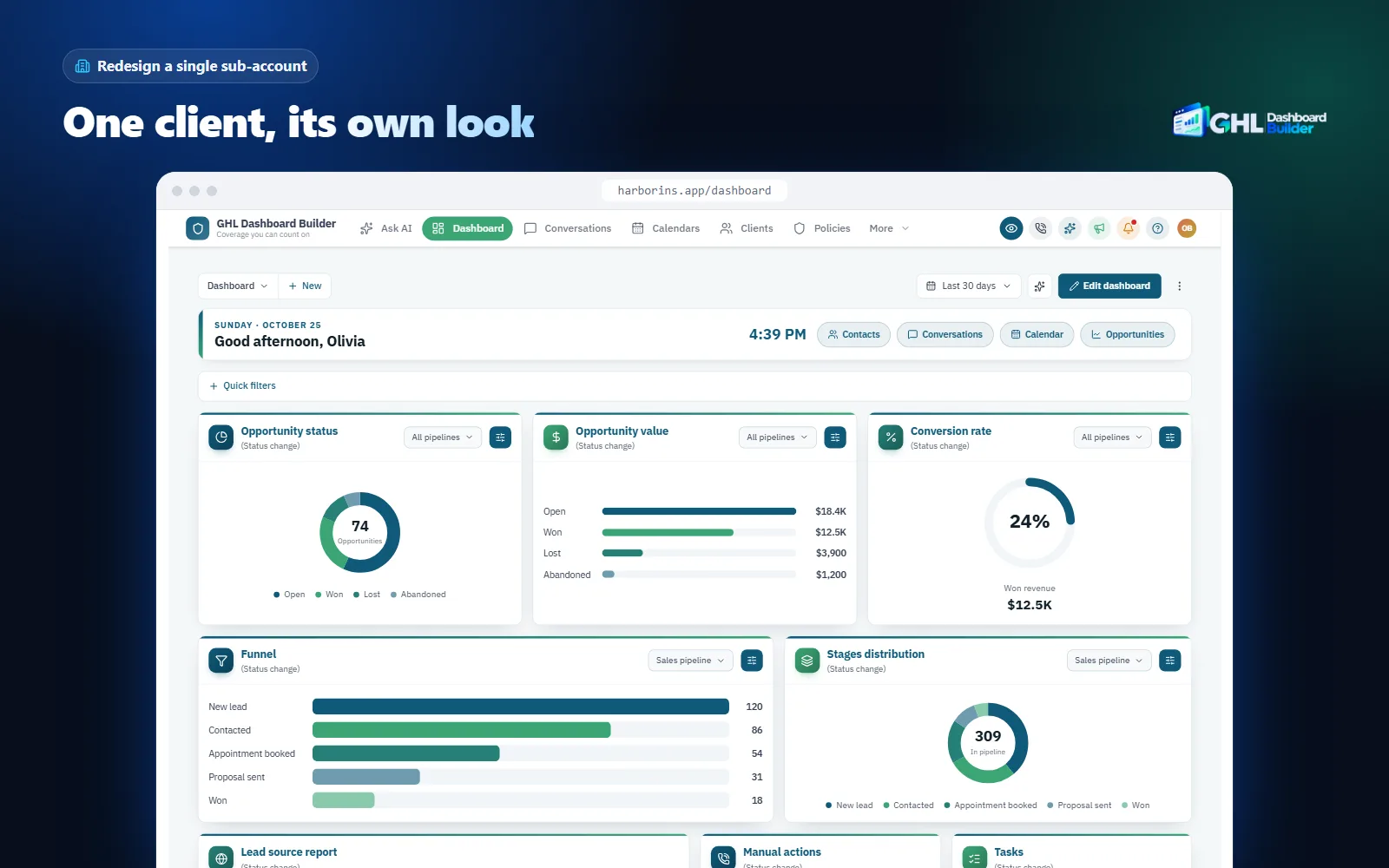
That makes a few common setups simple. Pilot a template with one friendly client before rolling it out. Give a premium tier of clients a branded dashboard as a paid upgrade. Keep your own agency view unbranded while clients see your product.
Plans set how many designs you can keep: Starter holds 1, Pro up to 3 and Agency up to 100. One install shows one design in the sub-accounts you choose. If you want a clinic look for one client and a roofing look for another from the same agency, talk to us through the contact page before you buy, so we can confirm the setup for your account.
How do you compare a template with the plain HighLevel dashboard?
Put them side by side. Our plain HighLevel baseline shows HighLevel’s default sub-account interface before any customization, with the same live viewer as every template, so you can switch between them and see exactly what changes. It is also the best way to show a client what they are paying for.
A side-by-side check is more useful than a list of features, because clients judge with their eyes. Open the baseline in one tab and the template in another, then compare the same screen: the Dashboard first, then Contacts, a pipeline and the calendar.
Use this checklist when you compare.
| Check | What to look for | Why it matters |
|---|---|---|
| First screen | Does the Dashboard greet the user and show the numbers they need? | It is the screen clients see most |
| Menu wording | Do the labels match the client’s trade? | Less training, fewer questions |
| Brand | Are colors, logo and fonts the agency’s, not HighLevel’s? | The product feels like yours |
| Contrast | Is menu and button text easy to read? | Readability for long sessions |
| Pipeline | Do stage headers and cards look consistent with the rest? | Owners check deals daily |
| Phone browser | Does the layout hold on a small screen? | Owners check from their phones |
| Login page | Does the sign-in page match the dashboard? | First impression on every login |
If a template passes on all seven, you have a design you can sell. If it fails on contrast or wording, fix those before anything else: they matter more than the exact shade of the sidebar.
What can’t a HighLevel dashboard template change?
A design template changes how HighLevel looks and what its menu says in the web app. It cannot change HighLevel’s data, its builders, its system emails or its mobile app, and it relies on HighLevel’s page structure, which HighLevel can change. Widget templates have their own limits around copying data sources.
Be clear with clients about these limits before you sell:
- The mobile app. Design templates run in the browser. The LeadConnector app and a white-label mobile app keep HighLevel’s own look. The design does show in phone browsers.
- Text inside HighLevel’s pages. Menu labels change; page titles, builders, workflow screens and system emails keep HighLevel’s wording and follow HighLevel’s language settings.
- The data on the Dashboard. A design template restyles widgets but does not choose them. Building the right widget layout is still your job in HighLevel.
- Copied dashboards. As noted above, data sources are not carried over when you duplicate a dashboard to another sub-account; reconnect them.
- The login page code. The installed code does not change HighLevel’s login page by itself. We design the login page with you on Pro and Agency, from 25 designs.
- HighLevel updates. HighLevel doesn’t officially support custom code. A mirror of its agency company settings article warns that custom code is unsupported and that changes to the core interface may break it. The Custom Navigation article cited above is a real example: legacy custom code is turned off by default when the new navigation is enabled, and code written for the old navigation may not work as expected.
The last point is why updates matter more than the price of a template. A free theme that breaks after a HighLevel release leaves you fixing selectors on a Friday evening. Starter and Pro include 12 months of updates that keep the design working through HighLevel’s changes, then updates are optional at $99 a year; Agency includes lifetime updates. Without updates, a theme keeps working as it is until HighLevel changes something it depends on.
Common mistakes when rolling out a template
The most common mistake is installing a design at agency level for every client before testing it on one. The second is renaming menu items without asking the client’s staff which words they use. The third is promising a “fully translated” or “fully custom” HighLevel; the honest promise is a branded web dashboard with the client’s words in the menu, which is what clients actually see every day.
How much does a HighLevel dashboard template cost?
HighLevel’s own Template Library, cloning and duplicating are part of the platform. Free CSS themes cost nothing but rarely include updates or menu wording. A GHL Dashboard Builder template is a one-time payment, from $280 for Starter, plus a one-time $100 setup fee for installing and configuring it in your HighLevel.
Our three plans, with no monthly fees:
- Starter, $280 one-time: 1 design from any of the 31 templates, customized to your brand, with the welcome banner, appointments board, live figures, notification pop-ups and privacy mode. One round of changes and 12 months of updates.
- Pro, $480 one-time: everything in Starter, up to 3 designs, the menu editor, top navigation, the branded login page with 25 designs, 15 languages including Arabic, Urdu and Hebrew right-to-left, and the two Arabic dashboards. Three rounds of changes and 12 months of updates.
- Agency, $880 one-time: everything in Pro, up to 100 designs, a look designed from scratch by our team from your brand, custom CSS and JavaScript, and lifetime updates. Five rounds of changes.
Every plan adds the one-time $100 setup fee, charged once. You can upgrade later by paying the difference between plans. You also set your own price to clients: you can include a branded dashboard in a premium tier or charge a setup fee, and we take no share and charge no per-client fee. See the full comparison on our pricing page, and the features overview for everything a design can include.
Which plan fits which template plan
If you serve one niche and want one polished look, Starter is enough, as long as the template’s built-in menu wording suits the client. If you need to change the menu words, use top navigation or serve clients in another language, Pro is the practical minimum. If you run many niches and want a look designed around your brand, Agency gives you room for up to 100 designs.
What to do next
You now know the difference between HighLevel’s widget templates and a design template, and how to combine them. Turn it into a working client dashboard with these steps:
- Pick one niche you already serve and build its widget dashboard in a test sub-account, using HighLevel’s Template Library as a starting point. Set it as the default.
- Choose the matching design template from our template gallery and compare it with the plain HighLevel baseline on the same screens.
- Brand it in the free builder with your client’s colors, logo and menu words, and check the preview on a phone.
- Decide the scope: the whole agency, or one pilot client first. For a broader view of what else you can change, read our guide to GHL dashboard customization.
- Choose a plan when you are happy with the preview, and let us install it. Then add the widget dashboard to your niche snapshot so every new client starts with both layers.