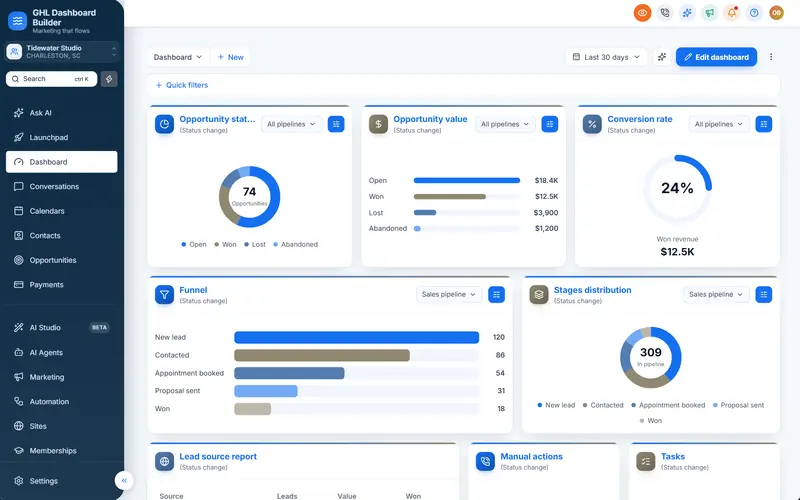
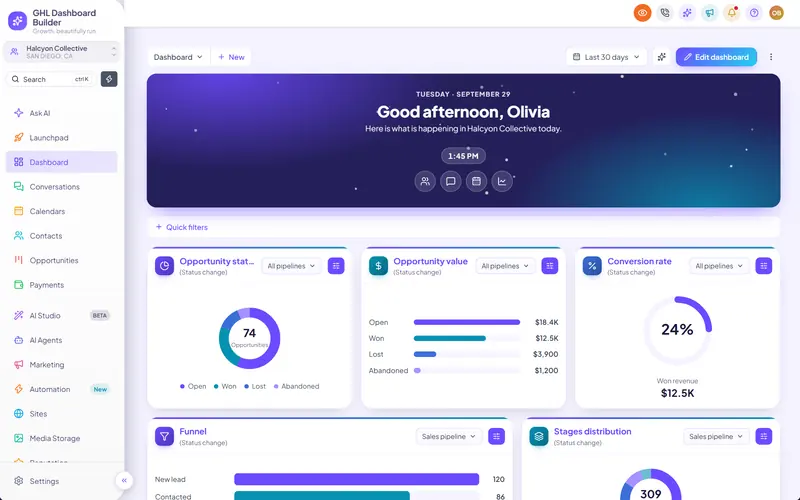
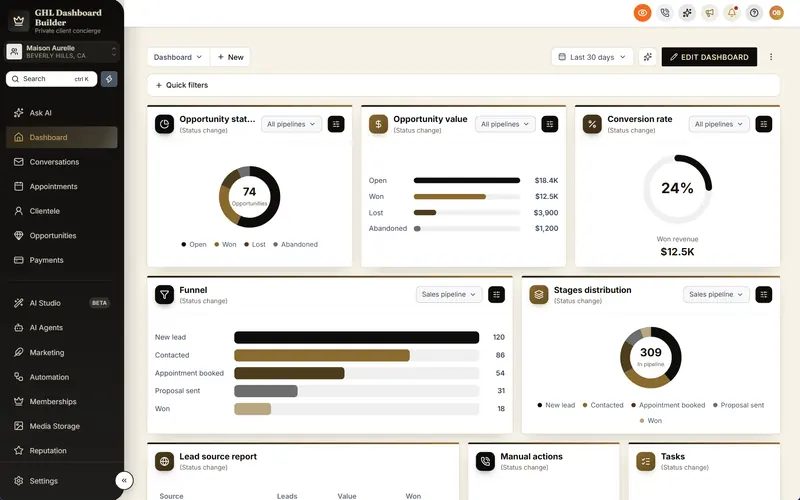
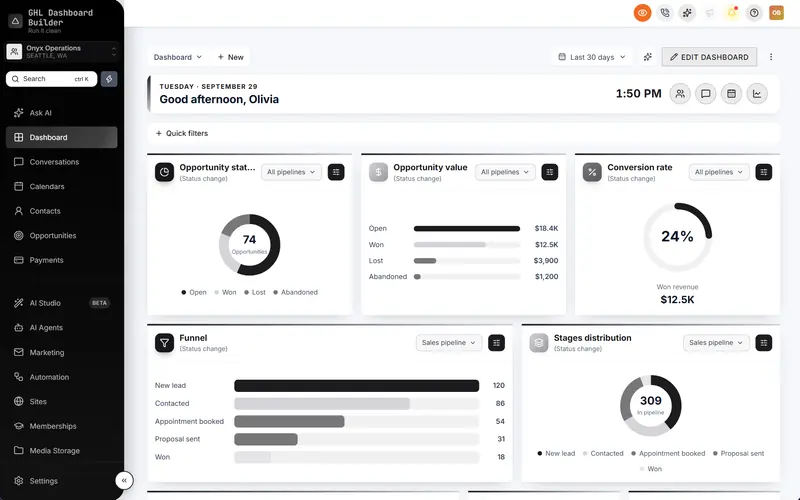
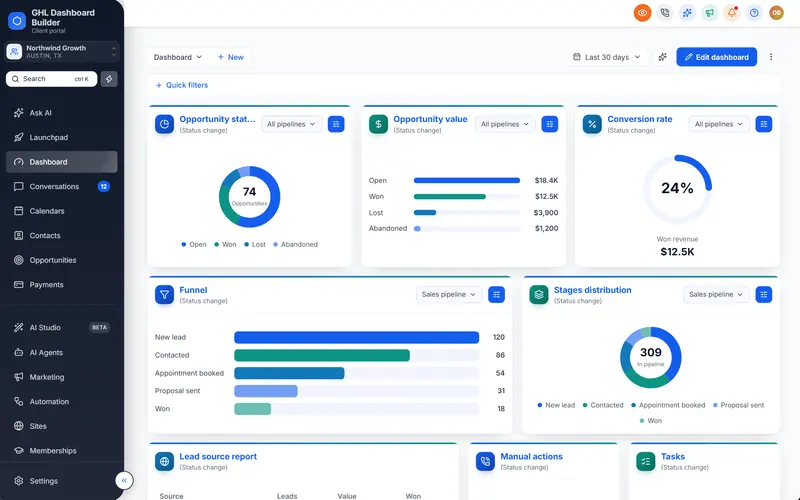
HighLevel for coaches and education businesses means using HighLevel (also called GoHighLevel or GHL) as one system for leads, discovery calls, course sales, student onboarding and follow-up, with courses hosted in its Memberships area and a dashboard branded so the coach’s team sees their own academy, not a generic marketing tool.
The problem usually shows up in the first week. You sell a coach or a tutoring center on automated follow-up and a course area, and they log in to a blue interface where the menu says Memberships instead of Courses, Opportunities instead of enrollments, and a dozen tools they will never open. This guide covers what coaches and education businesses actually use HighLevel for, the menu words that fit, a discovery-call pipeline, course and onboarding setup, the rules on earnings claims and student data, a step-by-step build, the limits and how to pick a setup for each kind of client. GHL Dashboard Builder is an independent design service and is not affiliated with HighLevel; where our product helps, we say exactly what it does and where it stops.
What does HighLevel do for coaches and education businesses?
HighLevel handles the business around the coaching: capturing leads from ads, webinars and social posts, booking discovery calls, taking payments, delivering courses through Memberships, onboarding new clients, reminding students about sessions and asking for reviews. It does not do the coaching itself, and it is not a full learning management system with grade books or accredited records.
That distinction matters when you scope a coaching client. A coach buys HighLevel to stop juggling a page builder, a booking tool, an email platform, a course host and a payment app. The more of those jobs HighLevel takes over, the more the coach’s team lives inside it every day, which is why the way it looks and reads starts to matter.
Here is how HighLevel’s main modules map to a typical coaching or education business, with the words the team actually uses.
| HighLevel module | What a coach or education business uses it for | Words the team uses |
|---|---|---|
| Contacts | Leads, applicants, clients, students, parents | Students, clients, members |
| Conversations | Texts, emails, web chat and social messages in one inbox | Messages, inbox |
| Calendars | Discovery calls, coaching sessions, tutoring slots, group calls | Sessions, bookings, calls |
| Opportunities | Leads moving from application to enrollment | Enrollments, applications |
| Memberships | Courses, offers, the client portal and communities | Courses, academy, programs |
| Payments | Program fees, payment plans, invoices | Payments, invoices |
| Automation | Onboarding, session reminders, nurture sequences | Sequences, follow-up |
| Sites | Funnels, webinar pages, application forms | Funnels, landing pages |
| Reputation | Review requests after a program ends | Reviews |
Who logs in
In a solo coaching business, HighLevel is used by the coach and maybe one virtual assistant who manages the inbox and calendar. In a coaching company, there are sales closers who run discovery calls, client success managers who handle onboarding and several coaches who only need their own sessions. In a tutoring center or language school, the front desk books trial lessons, teachers check their schedules and the owner watches enrollments. Each person wants something different on the first screen, which shapes the dashboard later in this guide.
Why coaching and education are a real niche for agencies
The market is large and already online. The 2025 ICF Global Coaching Study, conducted by PwC for the International Coaching Federation, puts global coaching revenue at $5.34 billion and counts 122,974 coach practitioners worldwide. The same study found that only 19% of coaches invested in new technology, including AI, in the past year, while 54% see better coaching platforms and technology as a priority for meeting future client demand.
That gap is the opportunity. Most coaches know they need better systems but have not built them. An agency that arrives with a ready coaching setup, in the coach’s own words and colors, solves a problem the coach already feels. None of these figures proves that a branded dashboard sells more programs, and we do not claim it does.
Infographic
Coaching businessesby the numbers
122,974
coach practitioners worldwide in the 2025 study
(ICF Global Coaching Study 2025)
$5.34B
global coaching revenue, the highest ICF has recorded
(ICF Global Coaching Study 2025)
19%
of coaches invested in new technology in the past year
(ICF Global Coaching Study 2025)
Source: International Coaching Federation, 2025 ICF Global Coaching Study, conducted by PwC.

Which coaching and education businesses fit HighLevel, and how do they differ?
Solo coaches, coaching companies, course creators, tutoring and test-prep centers, language and music schools and corporate training firms can all run on HighLevel. They differ in how they sell: coaches sell through discovery calls, course creators through funnels and launches, and education centers through trial lessons and term enrollments. Decide which model your client runs before you build anything.
Solo coaches
Life, health, career and business coaches who work alone usually sell a few high-value programs. Their HighLevel work is an application form, a booking link for a discovery call, a payment link after the call and a simple onboarding sequence. They want the system to feel calm and personal, because they spend their day on calls, not in software.
Coaching companies and group programs
Larger coaching businesses run group programs with several coaches, a sales team and a client success team. They need clear pipelines, round-robin call assignment, permissions that keep each coach to their own clients and dashboards that show the day’s calls. Their community and course areas often hold hundreds of members.
Course creators
Course creators sell recorded programs through funnels, webinars and launches. HighLevel’s Memberships area hosts the course, offers handle the price and access, and workflows deliver the onboarding emails. The pipeline matters less; email lists, launch dates and payment plans matter more.
Tutoring, test-prep, language and music schools
Education centers sell trial lessons and term enrollments, often to parents on behalf of children. Their HighLevel work is booking trials, confirming lessons, reminding families about sessions, chasing unpaid invoices and re-enrolling students for the next term. The front desk is the heaviest user, and it is often a part-time role with high turnover, so a clear menu saves real training time.
Corporate training and workshops
Trainers who sell to companies run longer sales cycles with proposals, multiple contacts per account and scheduled cohorts. HighLevel handles the proposal follow-up, workshop registrations and post-training surveys. Their branding needs are often the strictest, because the trainer’s client sees the material.
How does GHL Dashboard Builder set up HighLevel for coaches and course creators?
GHL Dashboard Builder puts the coach’s or school’s brand on HighLevel and reshapes the screens the team uses most: a menu in coaching words, a welcome banner with today’s sessions, pop-ups for new messages and bookings, privacy mode for screen shares and a design limited to the sub-accounts you choose. It installs with two short lines of code.
GHL Dashboard Builder is an independent design service that turns the standard HighLevel (GoHighLevel) dashboard into a branded platform: your colors, menu, login design, privacy mode and your clients’ language, installed with two lines of code. For a coaching or education client, the parts that matter are the Scholar template, the menu editor, the welcome banner, notification pop-ups, live counts and single sub-account targeting. The full list is on our features page.
The Scholar template
Scholar is our education and coaching starting point: an indigo sidebar with sunny yellow highlights, rounded cards and friendly headings, made for course creators, coaches and schools. Its menu renames Memberships to Courses and flags it as new, hides the App Marketplace, and adds a New course button to the header. Its welcome banner reads “Your students, courses and bookings at {business}, all in one place,” and the login design is a minimal card over a study photo. Every color can be swapped for the coach’s brand. See it on the Scholar template page.
What each feature does for the coach’s team, and which plan includes it
| Feature | What it does for the coach’s or school’s team | Plan |
|---|---|---|
| Scholar template | A finished education look, recolored to the coach’s brand | Starter and up |
| Brand and colors | The coach’s colors, fonts and logo across HighLevel’s screens | Starter and up |
| Welcome banner and appointments board | A greeting with today’s date and the next sessions and discovery calls on the Dashboard | Starter and up |
| Notification pop-ups | New messages, bookings and payments slide in with Reply, Mark read and Call | Starter and up |
| Privacy mode | One click blurs student names, emails, phone numbers, conversations and deal values | Starter and up |
| Single sub-account | The coaching design shown only in the sub-accounts you pick | Starter and up |
| Menu editor and live menu counts | Rename, reorder and hide any of HighLevel’s 19 menu items; unread and today’s counts on the menu | Pro |
| Languages and right-to-left | The menu and navigation in 15 languages, with right-to-left for Arabic, Urdu and Hebrew | Pro |
| Login page design | A branded sign-in page on your white-label domain | Pro |
| A look designed by our team | A design built from scratch for a coaching brand | Agency |
Starter ($280) gives one design from any of our 31 templates, with the welcome banner, pop-ups and privacy mode but without the menu editor. Pro ($480) adds up to 3 designs, the menu editor, 15 languages and the branded login page. Agency ($880) adds up to 100 designs, a look designed by our team, custom CSS and JavaScript and lifetime updates. All three are one-time payments with no monthly fee, plus a one-time $100 setup fee on every plan, for which we install and configure the design in your HighLevel. Starter and Pro include 12 months of updates, then optional at $99 a year. Current details are on the pricing page.
How it installs and what the coach sees
The design becomes one CSS line and one JavaScript line pasted into HighLevel at Settings, Company, Whitelabel, Custom Code, which takes about five minutes, and on every plan we do the install for you. After that, the coach logs in on your white-label domain and sees their own colors, a menu that says Courses, a greeting with today’s sessions and a pop-up the moment a lead replies. The builder never connects to your HighLevel account, and the installed code changes styling and menu labels only; it does not read or send student data anywhere.
One limit to state clearly to every coaching client: the design styles the HighLevel app the coach and their team log in to. Students reach their courses through HighLevel’s client portal and course pages, which follow HighLevel’s own portal and course settings, so brand those with the logo, colors and domain options HighLevel provides there.
Which menu words should a coaching account use?
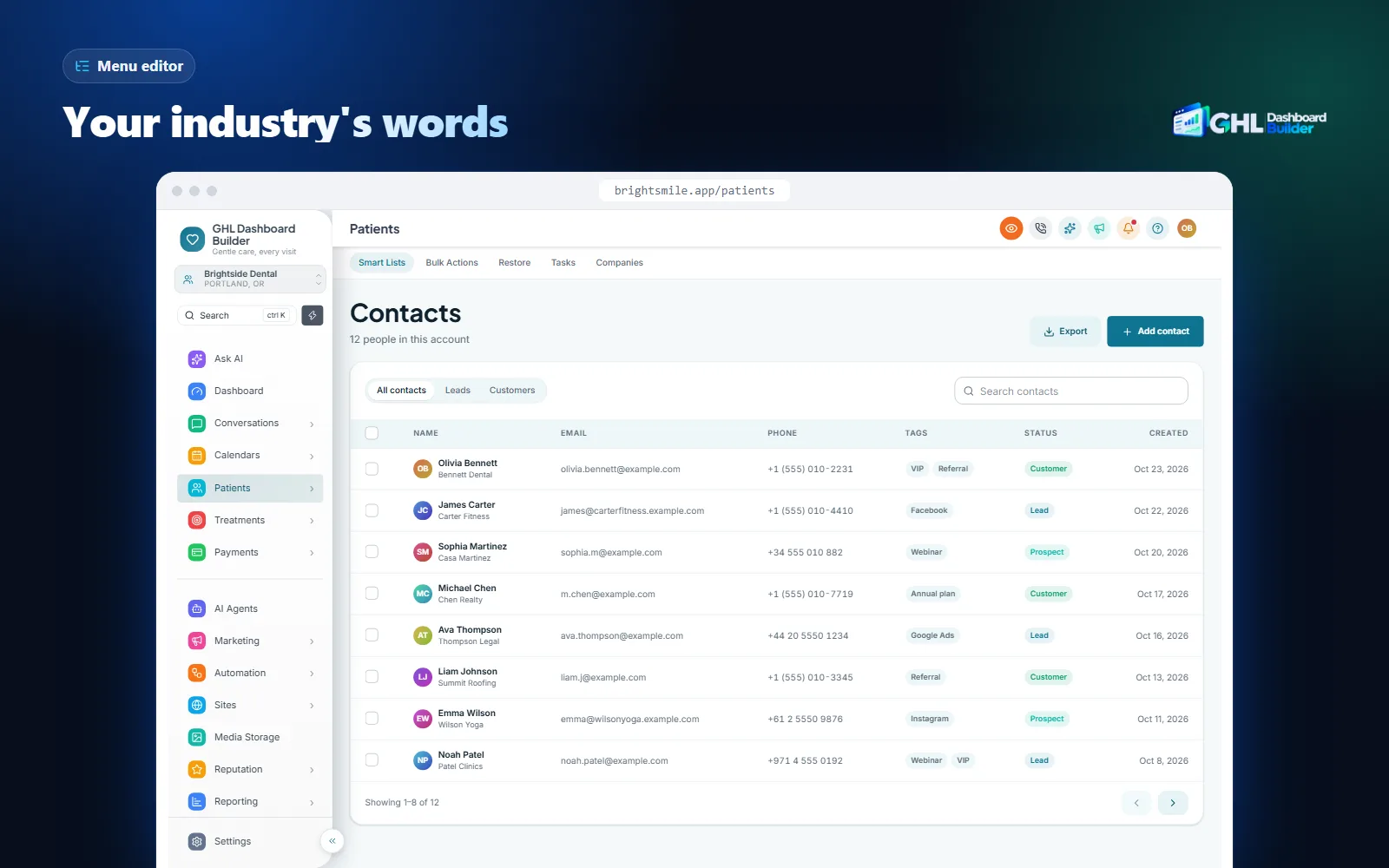
Use the words the coach already says to clients: Courses or Academy for Memberships, Students or Clients for Contacts, Sessions for Calendars, Enrollments for Opportunities and Messages for Conversations. Hide modules the coach will never open. A short menu in the coach’s language saves more onboarding time than any color change.
HighLevel has no built-in setting to rename its main menu items, so agencies either write custom JavaScript or use a menu editor. Our guide to renaming GoHighLevel menu items compares both approaches, and the page on GHL sidebar and menu customization shows what our menu editor changes.
| HighLevel item | Solo or group coach | Course creator | Tutoring or language school |
|---|---|---|---|
| Memberships | Programs | Courses or Academy | Courses or Lessons |
| Contacts | Clients | Students | Students and parents |
| Calendars | Sessions | Live calls | Lessons or Schedule |
| Opportunities | Enrollments | Hide or Launches | Enrollments or Trials |
| Conversations | Messages | Messages | Messages |
| Payments | Payments | Payments and plans | Invoices |
| Reputation | Reviews | Reviews | Reviews |
| Launchpad, App Marketplace | Hide after setup | Hide after setup | Hide after setup |
One account, several roles
A coaching company often has sales closers, client success staff and coaches in the same sub-account. Pick neutral menu words that work for everyone (Clients, Sessions, Messages) and let the pipelines carry the role-specific stage names. If an education center runs a separate sub-account per branch, each one can carry the branch’s own wording.
Badges that help a busy coach
Our menu editor on Pro can show live counts on menu items, such as unread conversations or appointments today, and New or Beta labels on items you add. For a coach who is on calls most of the day, a count on Messages is the most useful badge: one glance between sessions shows whether a lead or student is waiting.
What to hide for coaching clients
Most coaches never use the App Marketplace, Media Storage as a menu item or AI tools they have not tested, and Launchpad is only useful in the first week. Course creators who sell only through funnels can hide Opportunities entirely. Hiding an item is a display choice: the page still exists and can be shown again with one setting. Review after 30 days and hide anything nobody clicked.
How should a coach’s pipeline and discovery calls work in HighLevel?
Build one short sales pipeline from new lead to enrolled, with a Lost status and reasons, and a second pipeline for active clients if the coach sells programs that run for months. Book discovery calls through a HighLevel calendar linked from the application form, so every call creates or updates an opportunity automatically.
HighLevel’s Opportunities area holds any number of pipelines per sub-account, each with its own stages. Our guide to GoHighLevel pipeline customization covers the settings in depth; here are stage sets that suit coaching and education clients.
A sales pipeline for a coach
- New lead: someone opted in for a free resource, a webinar or a challenge.
- Application received: they filled in the application form.
- Discovery call booked: a call is on the calendar.
- Call held: the call happened, with notes on the contact.
- Offer sent: the coach sent a proposal or a payment link.
- Enrolled: payment received; onboarding starts.
Add a Lost status with reasons such as not a fit, price, timing and no response. Each reason deserves different follow-up: a “timing” lead should get a slow monthly nurture, while “not a fit” should get no sales follow-up at all.
A client pipeline for long programs
- Onboarding: welcome sent, intake form pending.
- Active: sessions under way.
- Midpoint review: the coach checks progress with the client.
- Final month: renewal conversation scheduled.
- Renewed or Completed: the client continues or finishes, which triggers a review request.
A pipeline for an education center
Tutoring and language schools work best with a trial-based pipeline: Enquiry, Trial booked, Trial attended, Enrolled for term, Re-enrolled. Moving a student to Trial attended is the natural trigger for a follow-up text to the parent with the enrollment link.
Discovery-call calendars
Create a dedicated calendar for discovery calls with a fixed length that matches how the coach runs the call, buffers before and after, a limit on calls per day and a few intake questions. Send the confirmation and two reminders from HighLevel, and use a no-show workflow that offers one easy rebooking link. For coaching companies, a round-robin calendar spreads calls across the closers.
What should the first screen show a coach and their team?
The first screen should answer the coach’s morning questions in one glance: who am I meeting today, who wrote to me, and who just paid or enrolled. A welcome banner with the coach’s name, today’s sessions and quick links to Courses and the calendar does that better than HighLevel’s default reporting widgets.
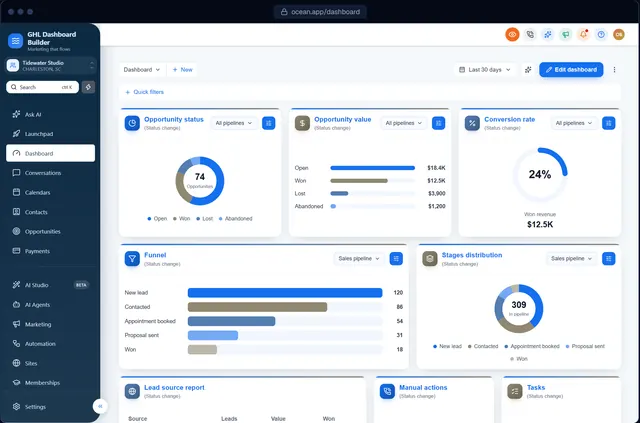
HighLevel’s Dashboard is built around reporting widgets such as opportunities, conversions and revenue. Those are useful for the owner’s weekly review, but a coach between calls wants something simpler. Our guide to GoHighLevel dashboard widgets and the welcome banner explains what HighLevel lets you change natively and where the gaps are.
GHL Dashboard Builder’s welcome banner adds a greeting with the user’s first name, the date, a clock and quick links to the top of the Dashboard, in 12 designs and nine layouts, or on the coach’s own photo or colors, in three heights. The appointments board places the next appointments from every calendar in a card at the top of the Dashboard, each one a click away from the calendar. Live counts can add unread conversations, appointments today and tasks due to the banner. The welcome banner and appointments board are included from Starter.
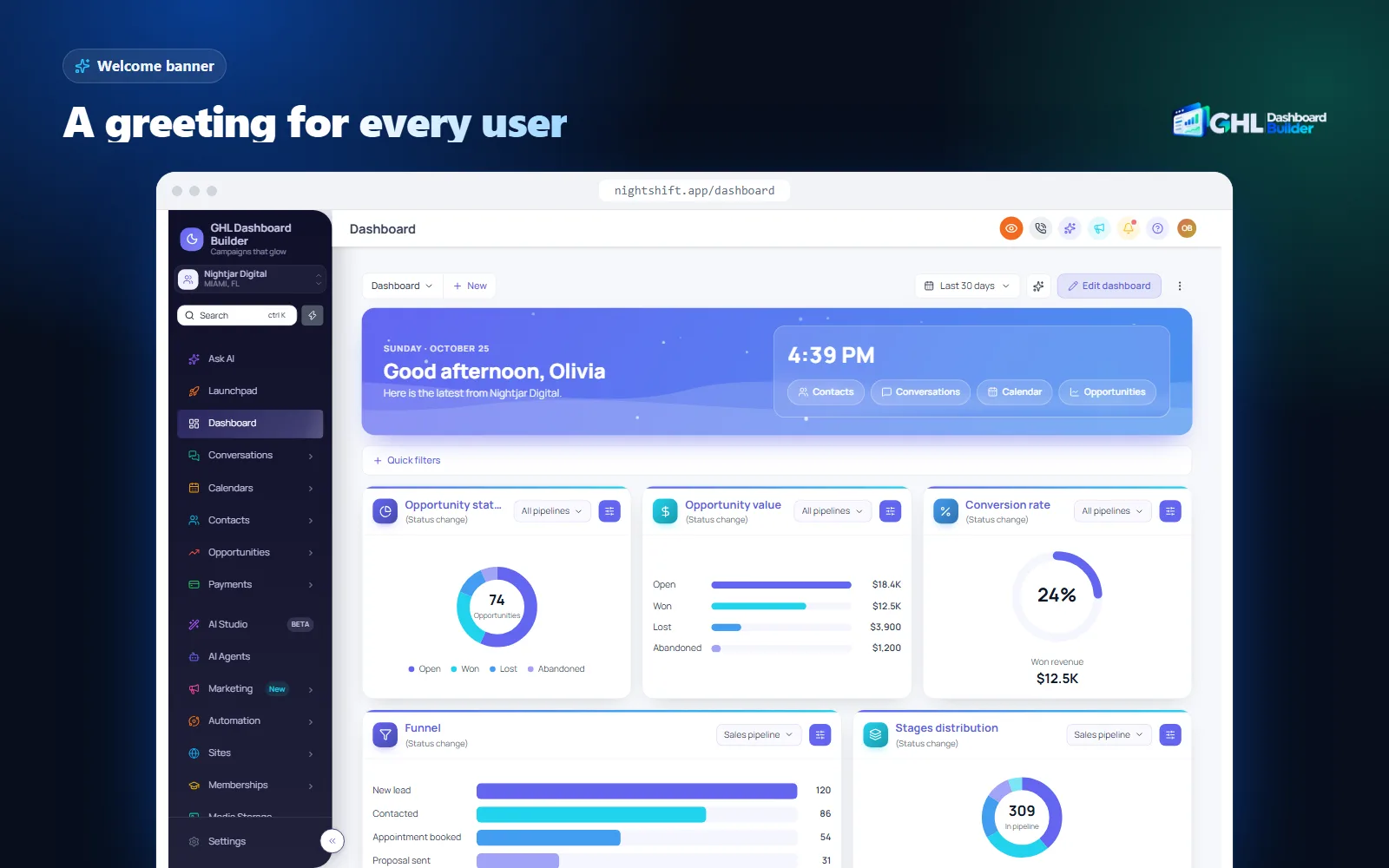
For an education center, set the quick links to the jobs the front desk repeats all day: today’s lessons, new enquiries, unpaid invoices and the trial calendar. For a course creator, link to Courses, Offers and the latest funnel. The quick links are yours to choose, so each sub-account can point to the pages that client really opens.
How do you set up courses, onboarding and student follow-up in HighLevel?
Build each course as a product under Memberships, Courses, Products, sell access through an offer, and let a workflow handle onboarding after payment. Learners log in to HighLevel’s client portal to take the course. Keep the onboarding sequence short and tied to real actions, such as the first lesson or the intake form.
Building the course
HighLevel’s Launch a Course guide starts at Memberships, Courses, Products, where you create the course and add categories and lessons with videos, text, PDFs and quizzes. HighLevel’s course building tutorial notes a 4 GB size limit per uploaded video, so ask coaches to export long recordings at a sensible resolution. For coaches who start from a blank page, HighLevel’s Course AI article describes drafting a course outline and lessons inside the Course Builder; treat the result as a first draft the coach rewrites in their own voice.
Selling access with offers
An offer is the access rule: a price, a free enrollment or a bundle of several courses. Create it under Memberships, Courses, Offers and connect it to a payment form, an order form in a funnel or a workflow that grants access. Use separate offers for the full program, a payment plan and a free mini-course, so reports show which one sells.
The client portal
Learners reach their courses through HighLevel’s client portal. HighLevel’s Discover article explains that you can switch on a Discover area in Memberships, Client Portal, Settings under App Permissions, which lets learners browse other courses and offers from inside the portal. For a course creator with several programs, Discover turns the portal into a small catalog. Set the portal’s logo, colors and domain in HighLevel’s own portal settings; our dashboard design does not change the portal.
An onboarding workflow after payment
- Trigger on a successful payment or an offer being granted.
- Send a welcome email with the portal login, the first lesson and what happens in week one.
- Send a short text the same day with the booking link for the kickoff call.
- Add a tag such as “Program: Spring cohort” and move the opportunity to Onboarding in the client pipeline.
- If the intake form is not completed after three days, send one reminder and create a task for the client success person.
- After the kickoff call, stop the onboarding messages and start the program’s regular check-ins.
Session reminders and follow-up
HighLevel’s calendars send confirmations and reminders for each booked session. For group programs, add a reminder one hour before the live call with the meeting link. After each session, a short follow-up with the replay or the homework keeps students engaged. A two-line text is enough, and it gives students a reason to come back to the course between calls.
What coaches say about technology
The ICF data supports building these systems for coaches rather than waiting for them to ask. In the 2025 ICF Global Coaching Study, 54% of coaches said better platforms and technology are a priority for meeting future client demand, but only 19% had invested in new technology in the past year. The study’s executive summary also reports that nine in ten coaches currently serve active clients.
Source: International Coaching Federation, 2025 ICF Global Coaching Study (conducted by PwC)
The distance between the second and third bar is where an agency fits. A coach who believes in better systems but has not invested in them is a warm prospect for a ready-made HighLevel setup, especially one that already looks like the coach’s brand.
What rules apply to coaching marketing, texts and student data?
Three areas need care: earnings and results claims in ads and funnels, consent for text messages, and data about students, especially children. Keep claims evidenced, register text campaigns properly and keep sensitive records out of HighLevel. This is a checklist for your conversation with the coach, not legal advice.
Earnings and results claims
Coaching marketing leans heavily on transformation stories, and business coaching often promises income. In the United States, the FTC’s notice of penalty offenses concerning money-making opportunities was sent to more than a thousand businesses in 2021, including business-coaching providers, and warns that false or unsubstantiated earnings claims, or misrepresenting what typical participants earn, can lead to civil penalties. The FTC later took action against an online business-coaching seller over income claims it said were unsupported.
What that means for you as the agency:
- Get written approval for every claim. Income figures, “clients typically achieve” statements and before-and-after stories in funnels, emails and ads must come from the coach, in writing, with the evidence behind them.
- Do not invent client reviews or success stories, and do not rewrite real ones into stronger claims. Keep the client’s exact words and their permission on file.
- Watch the automations. A nurture sequence written once can keep sending an outdated claim for years. Review every sequence when the coach’s offer changes.
Text messaging
Business texts from US local numbers need A2P 10DLC registration, a brand and a campaign registered through HighLevel’s LC Phone Trust Center, as HighLevel’s A2P 10DLC overview describes. Register the coach’s actual use, collect consent on every opt-in form and honor STOP replies. Session reminders and promotional launch messages should be treated separately in your consent records, because a student who agreed to reminders did not automatically agree to sales texts.
Student data and minors
Coaches collect sensitive information: health goals, relationship problems, finances, career struggles. Tutoring centers often hold data about children. Keep notes to what the business needs, avoid storing medical or psychological detail in HighLevel custom fields, and talk to parents or guardians rather than minors directly. If the business serves children or operates under education-specific rules in its country, the owner should check those rules before any data goes into a marketing CRM.
Screen shares, recordings and group calls
Coaching agencies share screens constantly: demos to new coaches, training for a new assistant, support calls and recorded walkthroughs. A coach’s account is full of names, phone numbers and private notes. Use a demo sub-account with invented students for sales calls and recordings, share one tab instead of the whole screen and close the conversations panel before sharing. Our guide to hiding client data on screen shares walks through the routine.
When you must open a live account, GHL Dashboard Builder’s privacy mode adds an eye button to HighLevel’s header that blurs contact names, emails, phone numbers, the conversation list and deal values with one click. It hides data on screen only; access is still controlled by HighLevel’s user permissions. Privacy mode is included from Starter.
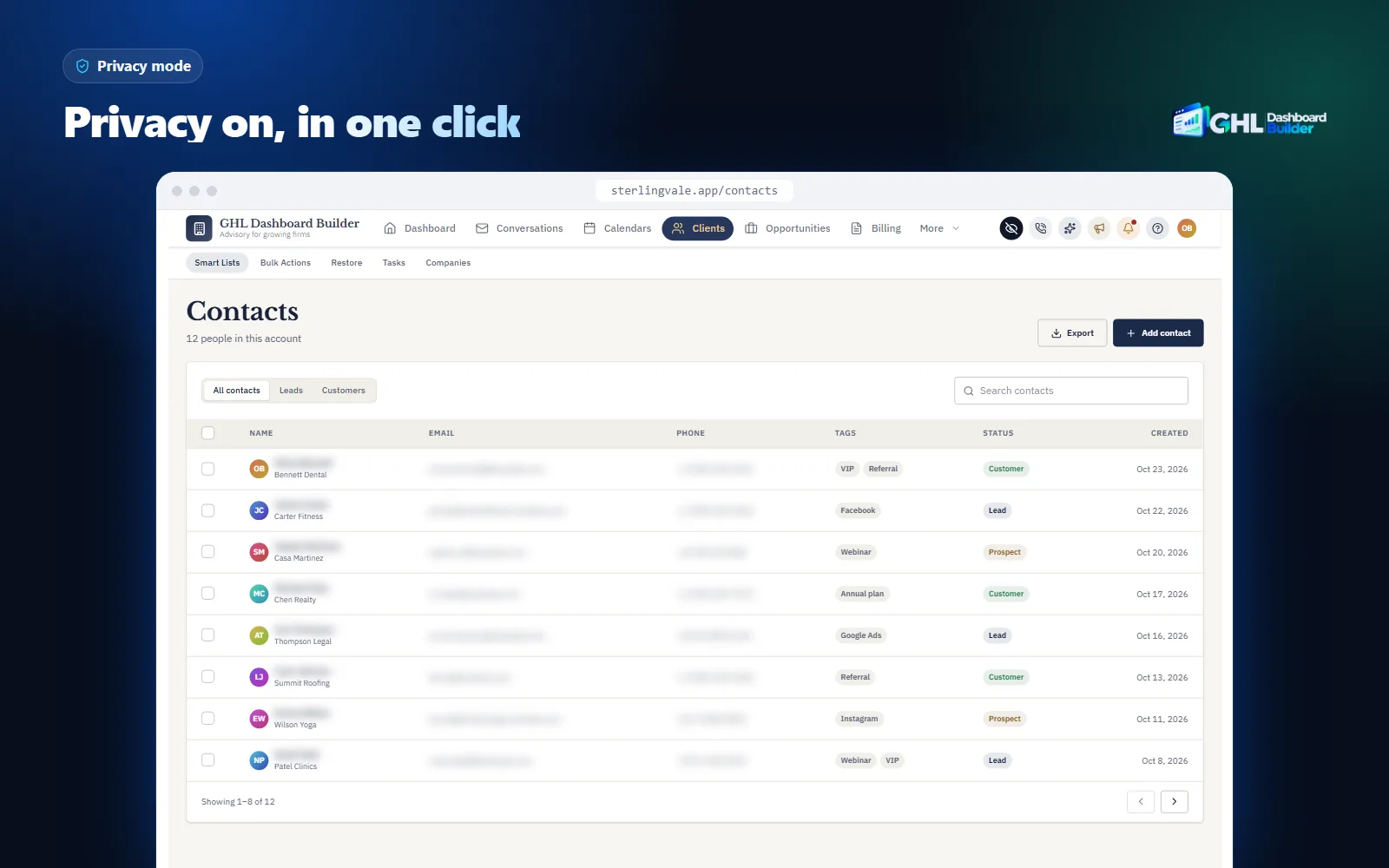
For coaches who record training videos for their own team, privacy mode also means the recording can be reused without editing out names. Turn it on before you press record, and check the first minute of the video before you share it.
How do you set up HighLevel for a coaching business, step by step?
Build the working account first, then add the design, then test it with the coach and one assistant. Courses, pipelines and workflows are easier to brand once they are final, and real users find gaps an admin never sees. Menu paths below match HighLevel’s help center at the time of writing; HighLevel moves things now and then.
Infographic
HighLevel for coachesin six stages
- 1
Set the basics
Time zone, business hours, phone number and A2P registration.
- 2
Build the calendars
Discovery calls, coaching sessions and group calls with reminders.
- 3
Add the pipelines
Sales from new lead to enrolled, clients from onboarding to renewal.
- 4
Create the courses
Products, offers and client portal settings under Memberships.
- 5
Install the design
Scholar look, Courses menu and welcome banner via two lines of code.
- 6
Test with the coach
The coach and an assistant walk through a normal week.

Stage 1: Basics
- Create the coach’s sub-account from the agency view.
- In Settings, Business Profile, set the time zone, address and business hours. Coaches with international clients should keep the time zone accurate, because every booking confirmation depends on it.
- Buy or port a phone number in Settings, Phone System and start A2P 10DLC registration in the Trust Center early, because approval can take time.
- Turn on two-factor authentication for every user.
Stage 2: Calendars
- Create a discovery-call calendar with a fixed length, buffers, a daily limit and intake questions.
- Create calendars for one-to-one sessions and group calls, with confirmations and reminders.
- For coaching companies, set up round-robin distribution for the closers’ calendar.
Stage 3: Pipelines and fields
- Under Opportunities, build the sales pipeline and, for long programs, the client pipeline from the earlier section.
- Add Lost reasons for the sales pipeline.
- Under Settings, Custom Fields, create fields the coach really uses: program, start date, goal in one line, preferred contact channel and marketing consent. Avoid fields for health or psychological detail.
- Under Settings, My Staff, give coaches access to their assigned clients only if they should not see each other’s lists.
Stage 4: Courses and workflows
- Under Memberships, Courses, Products, build each course with its categories and lessons.
- Under Memberships, Courses, Offers, create the full-price offer, the payment-plan offer and any free mini-course.
- In Memberships, Client Portal, Settings, decide whether learners should see Discover.
- Write the workflows: application follow-up, discovery-call reminders and no-show recovery, onboarding after payment, session reminders and a review request at program end.
Stage 5: Install the design
- Finish the identity layer at agency level under Settings, Company: logo, white-label domain and legal links. Our white-label checklist for GoHighLevel lists every setting.
- Design the coach’s look in the builder: Scholar or another template, the coach’s colors and logo, the Courses menu, the welcome banner, pop-ups and privacy mode.
- In the agency view, open Settings, Company, Whitelabel, Custom Code, copy anything already in the boxes into a text file as a rollback, and paste the two new lines. Our two-line install page shows the process, and on every plan we do it for you.
- Limit the design to the coach’s sub-account if your other clients should keep their current look.
Stage 6: Test with the coach
- Log in as an assistant, not an admin, and walk through a normal week: a new application, a booked discovery call, a payment, a new student starting the course.
- Repeat as the coach: check today’s sessions, reply to a message from the pop-up, open Courses from the menu.
- Check the screens on the phone or tablet the coach uses between calls.
- Ask one person to find three things without help, and rename anything they hesitate over.
Can one agency brand its coaching clients and keep other clients unchanged?
Yes. HighLevel applies custom code at agency level, but GHL Dashboard Builder can limit a design to the sub-accounts you choose, by link or Location ID. Your coaching and education clients see the education design, while every other sub-account and the agency view keep plain HighLevel, all from one install.
This suits how agencies usually grow a coaching niche: one pilot coach first, then a handful of similar clients once the setup works. One design is shown in the sub-accounts you pick. If you serve both a playful kids’ tutoring center and a premium executive coach who need very different styles, talk to us on our contact page about the setup; Pro includes up to 3 designs and Agency up to 100. Our guide to GoHighLevel for gyms and fitness studios shows the same pattern for membership businesses, which many coaching agencies also serve, and our guide to GoHighLevel sub-account branding explains the options in detail.
Agencies that resell HighLevel to coaches as their own software in SaaS mode benefit most from this. Every coach who signs up through your plan lands in a branded platform from the first login. Our guide to GoHighLevel SaaS mode white-labeling covers the settings that sit around the design, and the page on our GoHighLevel white label dashboard shows how the pieces fit.
Solo coach, coaching company or education center: which setup fits?
The right setup depends on how the business sells. A solo coach needs a discovery-call funnel and a calm dashboard, a coaching company needs pipelines and permissions, a course creator needs offers and onboarding, and an education center needs trials, lessons and invoices. Use the table to decide what to build first and which design and plan fit.
| Decision | Solo coach | Coaching company | Course creator | Tutoring or language school |
|---|---|---|---|---|
| Main HighLevel job | Discovery calls and payments | Sales team, onboarding, cohorts | Funnels, offers, onboarding | Trials, lessons, invoices |
| Busiest screen | Calendar and Conversations | Pipeline and Conversations | Courses and Payments | Calendar and Contacts |
| Key workflow | Application to booked call | Round-robin calls and onboarding | Payment to course access | Trial to term enrollment |
| Memberships renamed to | Programs | Programs or Academy | Courses | Courses or Lessons |
| Data to keep out of HighLevel | Health and therapy detail | Health and therapy detail | Payment card details | Children’s sensitive records |
| Design starting point | Scholar or a calm light template | Scholar or the coach’s brand | Scholar | Scholar |
| Plan that usually fits | Starter if menu words can stay, Pro to rename | Pro or Agency | Starter or Pro | Pro, for the menu and live counts |
For an agency with several coaching clients, the decision is mostly about the number of designs and whether you need the menu editor. One look across all coaches fits Starter if HighLevel’s default menu words are acceptable. Renaming Memberships to Courses, hiding tools and showing live counts on the menu needs Pro. A coaching brand with a strong identity, such as a certification school, may want the Agency plan’s look designed by our team. Agencies whose coaches work in other languages can add the menu in one of 15 languages on Pro; our languages page lists them.
What can go wrong, and what doesn’t a coaching theme solve?
A theme changes how HighLevel looks and what its menu says. It does not write the course, fill a webinar, change the student-facing portal or make marketing claims compliant. HighLevel does not officially support custom code, so a platform update can require a theme refresh, and the theme does not change HighLevel’s mobile app.
Common problems and fixes
- Students cannot find their course. Usually the offer was not granted, or the student is logging in to the agency domain instead of the client portal. Send the portal link in the welcome email and test the full path with a dummy student.
- Large videos fail to upload. HighLevel’s tutorial notes a 4 GB limit per video. Export long recordings at a lower resolution or split them into shorter lessons, which students prefer anyway.
- Discovery calls double-booked. Calendars were not linked to the coach’s external calendar or buffers were missing. Connect the coach’s calendar and set buffers before launch.
- Texts stop delivering. Unregistered or wrongly registered A2P campaigns get filtered by carriers. Register early and match the campaign to what the coach actually sends.
- Coaches seeing each other’s clients. Set assigned-data-only permissions for coaches who should only see their own clients, and remember that admin users see everything.
- Old claims keep sending. A launch sequence with last year’s results keeps running. Review every sequence when the offer changes.
- Platform updates. HighLevel ships changes often. On Starter and Pro, 12 months of updates are included, then optional at $99 a year; Agency includes lifetime updates. Without updates, the theme keeps working as it is.
What branding does not do
A branded coaching dashboard will not enroll students on its own. What it does is practical: the coach finds things faster because the menu uses their words, the first screen shows today’s sessions, replies are not missed because new messages pop up on screen, and the coach sees your agency’s platform rather than a resold tool. The installed code does not change HighLevel’s login page on its own; on Pro and Agency we design the branded login page with you, as our page on GoHighLevel login page customization explains. Our hub page on GHL dashboard customization lists everything else you can change, and the FAQ answers common install questions.
What to do next
- Agree the scope with the coach. Write down which jobs HighLevel handles (leads, discovery calls, payments, courses, onboarding, reminders, reviews) and which stay elsewhere, and confirm what student data must never enter HighLevel.
- Build the pipeline, calendars and onboarding first. A discovery-call calendar, a six-stage pipeline and a payment-to-access workflow deliver results in the first week.
- Try the education look. Open the free builder, load Scholar, add the coach’s colors and logo and rename Memberships to Courses.
- Pick the plan that matches your client mix. Starter for one look with default menu words, Pro for the Courses menu, live counts, languages and the login page, Agency for many coaching designs. Compare them on the pricing page.
- Test with the coach and one assistant before you hand the account over, check every funnel claim against the coach’s evidence, and review the menu after 30 days.